This article explains how to sync all Contacts and Orders under a single Account in Salesforce using HIC Sync Made Easy. This helps keep customer data centralized and makes it easier to view and manage all related Contacts and Orders in one place.
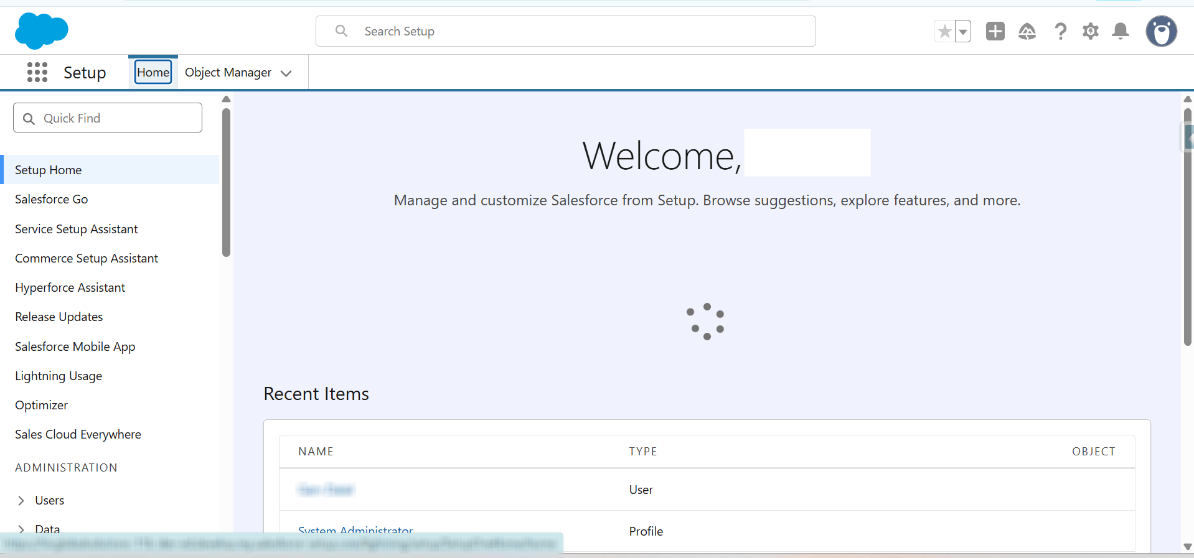
Step 1: Log in to Salesforce.
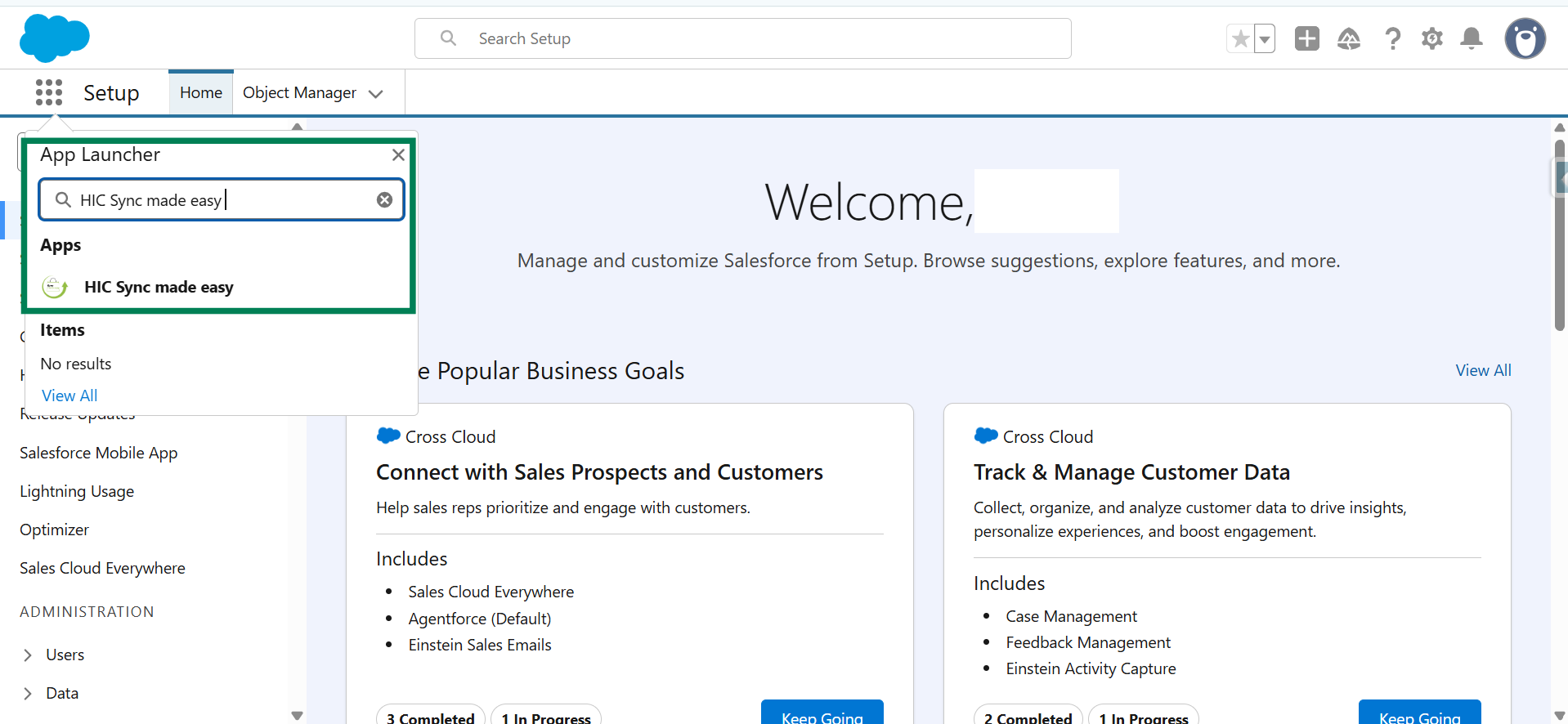
Step 2: Click the App Launcher, search for HIC Sync Made Easy, and click the app to open it.
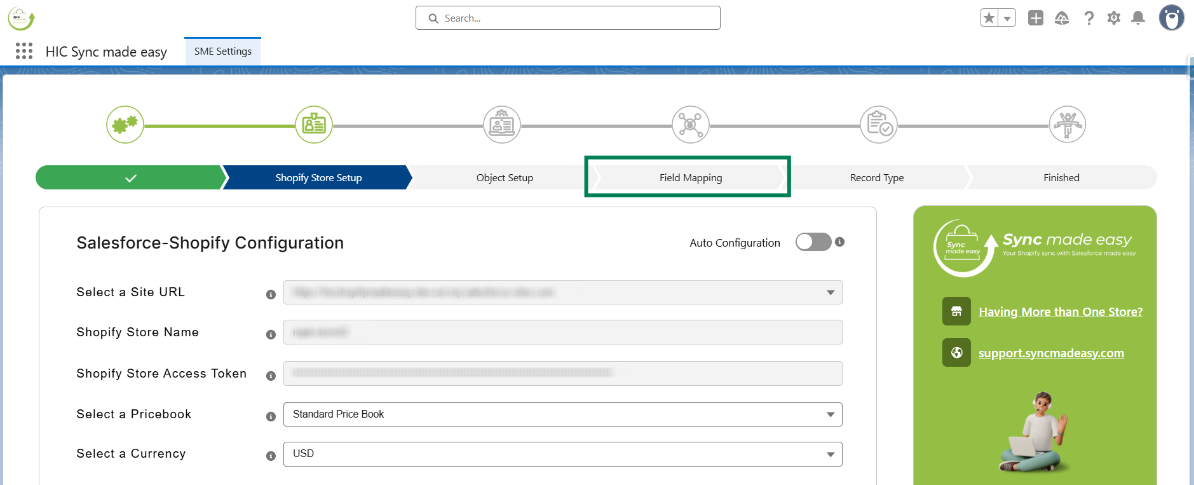
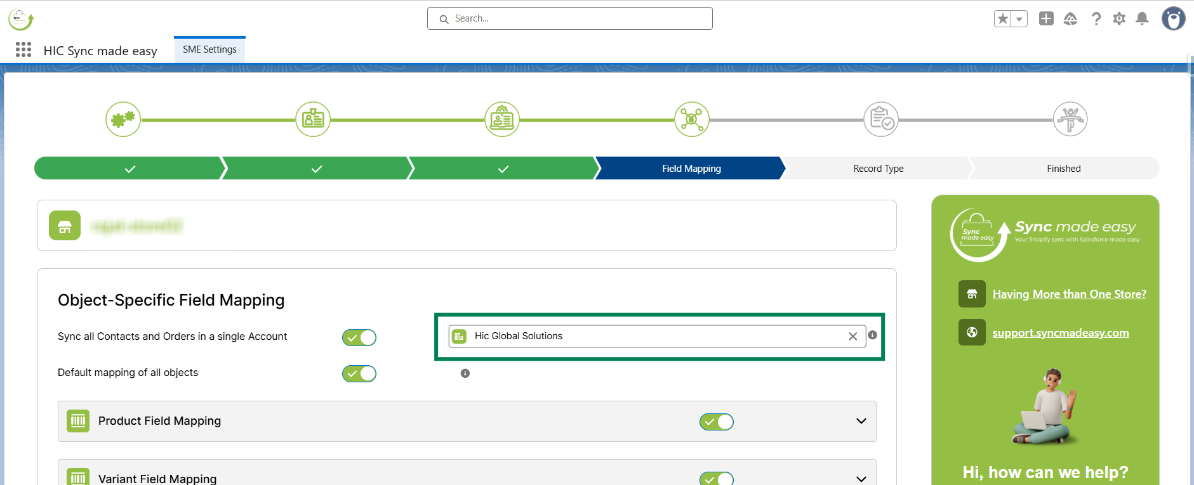
Step 3: From the SME Settings page, navigate to the Field Mapping page.
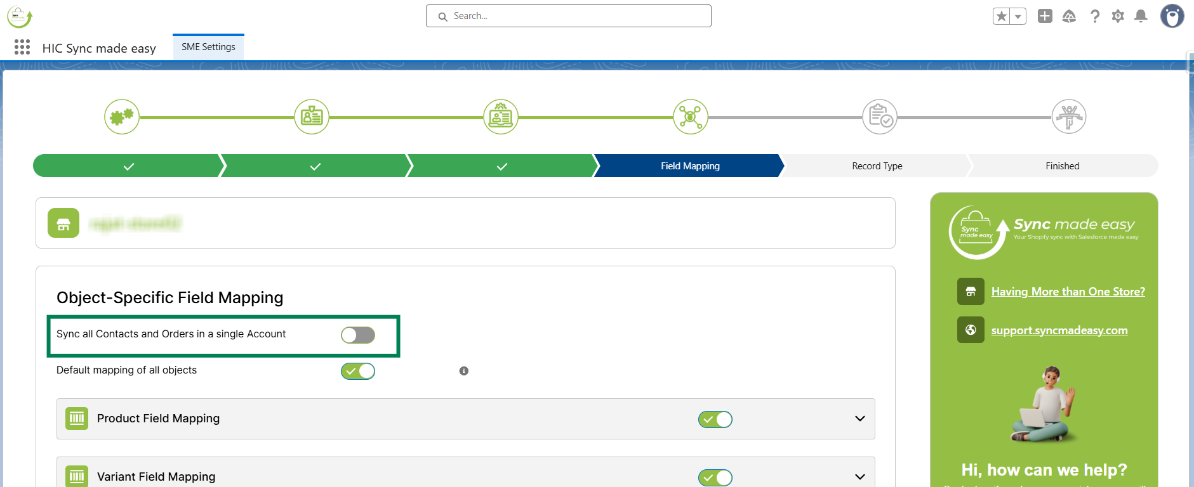
Step 4: Enable the “Sync all Contacts and Orders in a Single Account” toggle button.
Step 5: Select the Account under which you want to sync all Contacts and Orders.
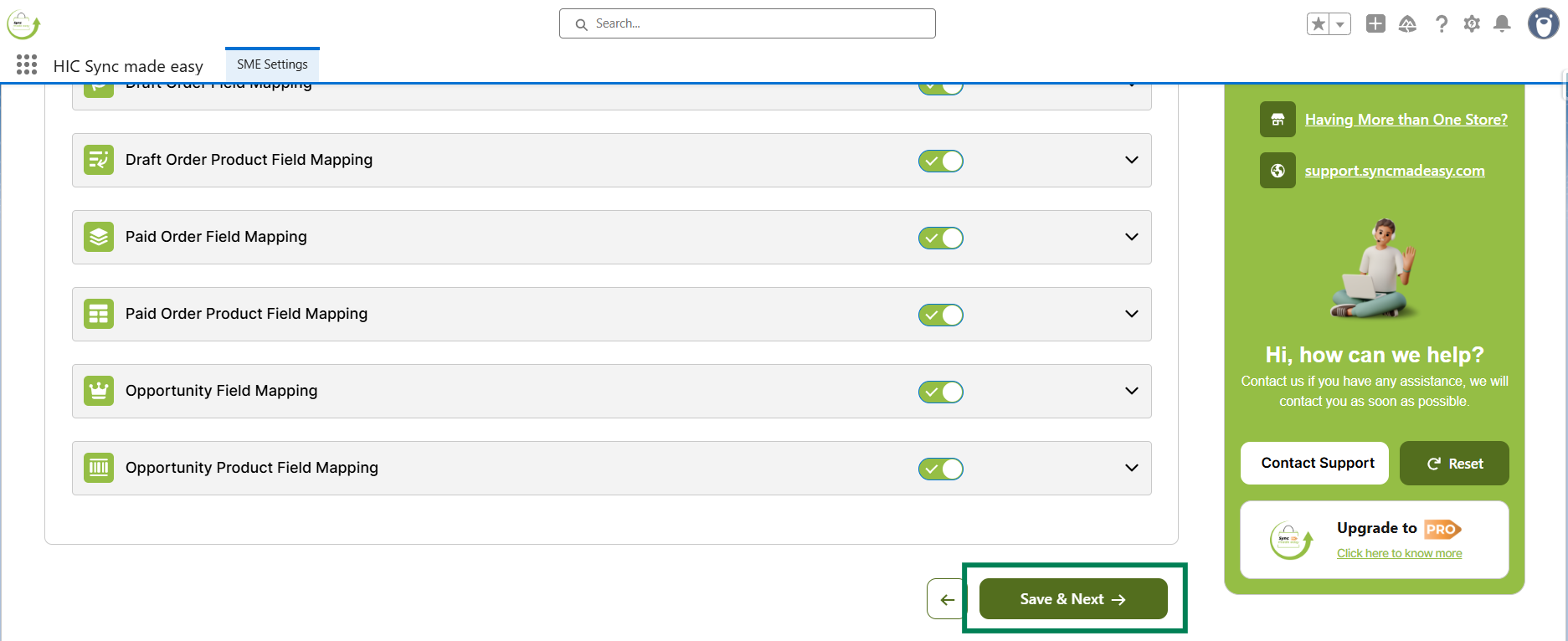
Step 6: Click Save & Next.
By following these steps, all newly synced Contacts and Orders will be associated with the selected Account in Salesforce.
Thank you!
Was this article helpful?
That’s Great!
Thank you for your feedback
Sorry! We couldn't be helpful
Thank you for your feedback
Feedback sent
We appreciate your effort and will try to fix the article