The Initiate Batch Sync feature allows you to sync specific Shopify data within a defined time range instead of pulling all historical records. This helps you keep the sync process more efficient, accurate, and organized.
By setting a Start Date and End Date, you can ensure that only the relevant data is synced.
Steps to Initiate Batch Sync
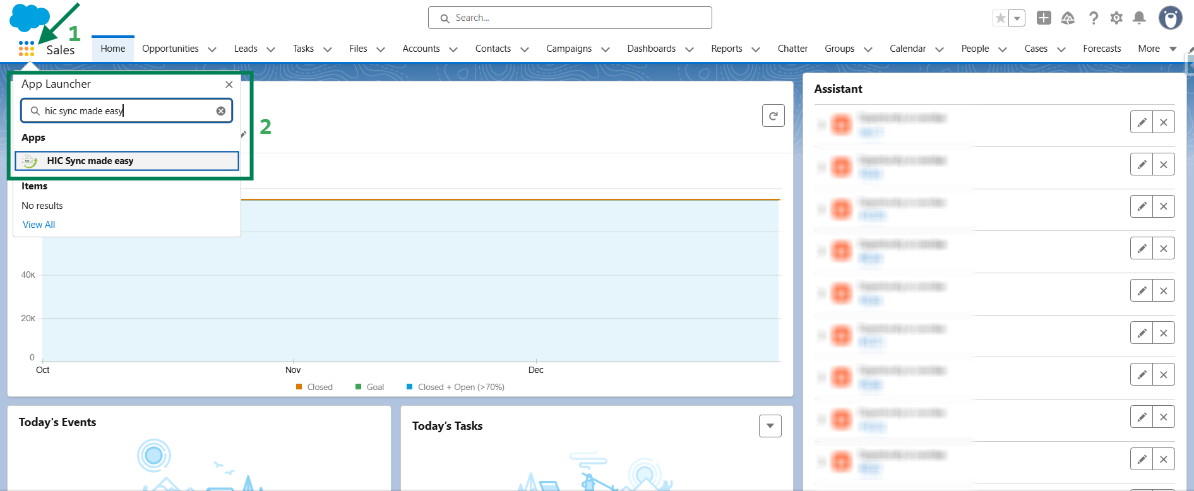
Step 1: Log in to Salesforce & in App Launcher search "HIC Sync made easy". Click on it.
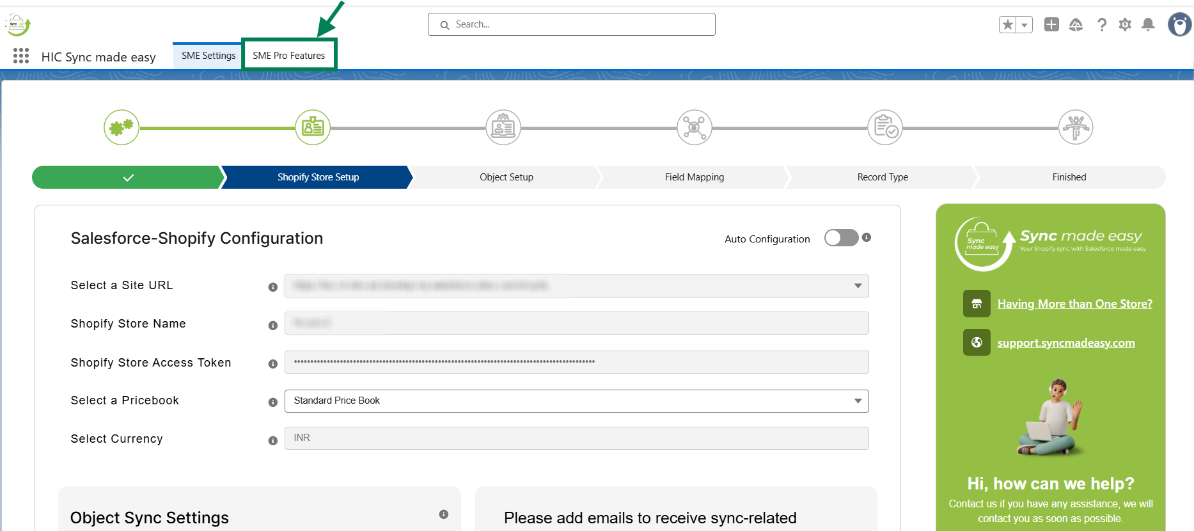
Step 2: Go to "SME Pro Features".
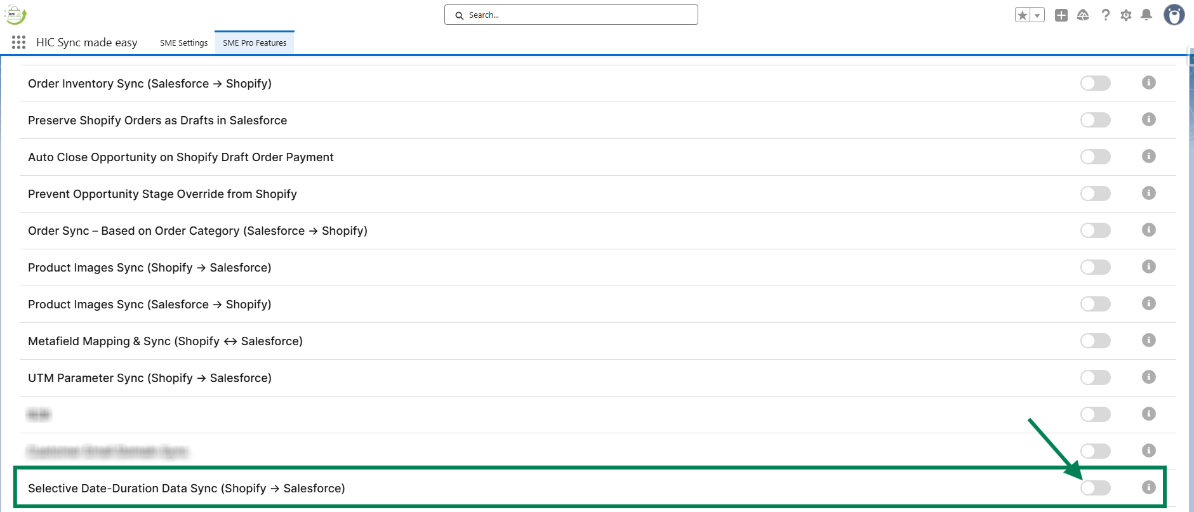
Step 3: Enable the “Selective Date-Duration Data Sync (Shopify → Salesforce)” feature toggle button.
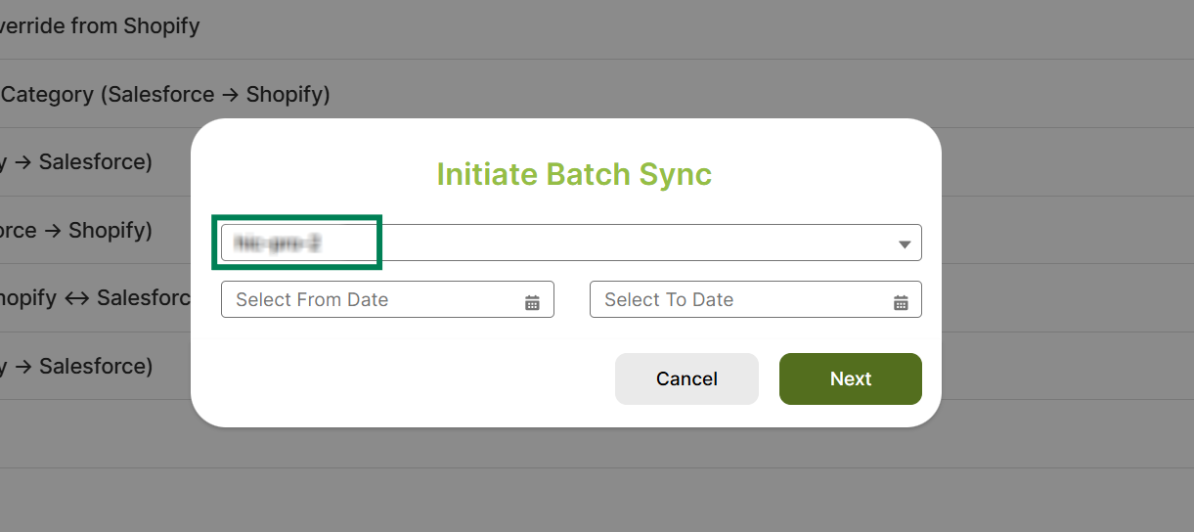
Step 4: Once the feature is enabled, you can see the options to select Store, From Date, and To Date.
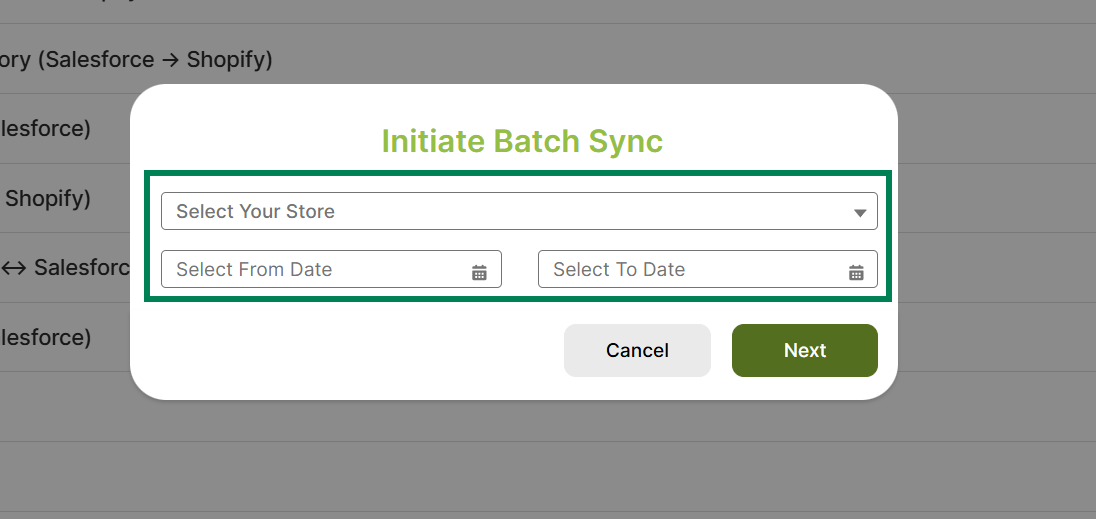
Step 5: Select the “Store” you want to initiate the batch sync.
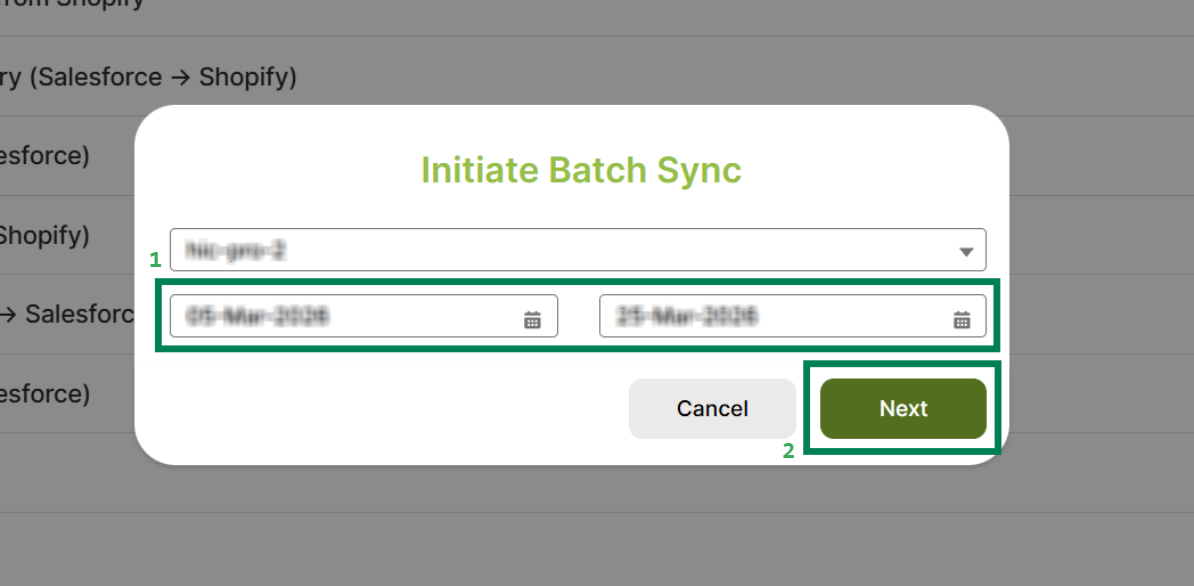
Step 6: Specify the desired From Date and To Date, then click on the "Next".
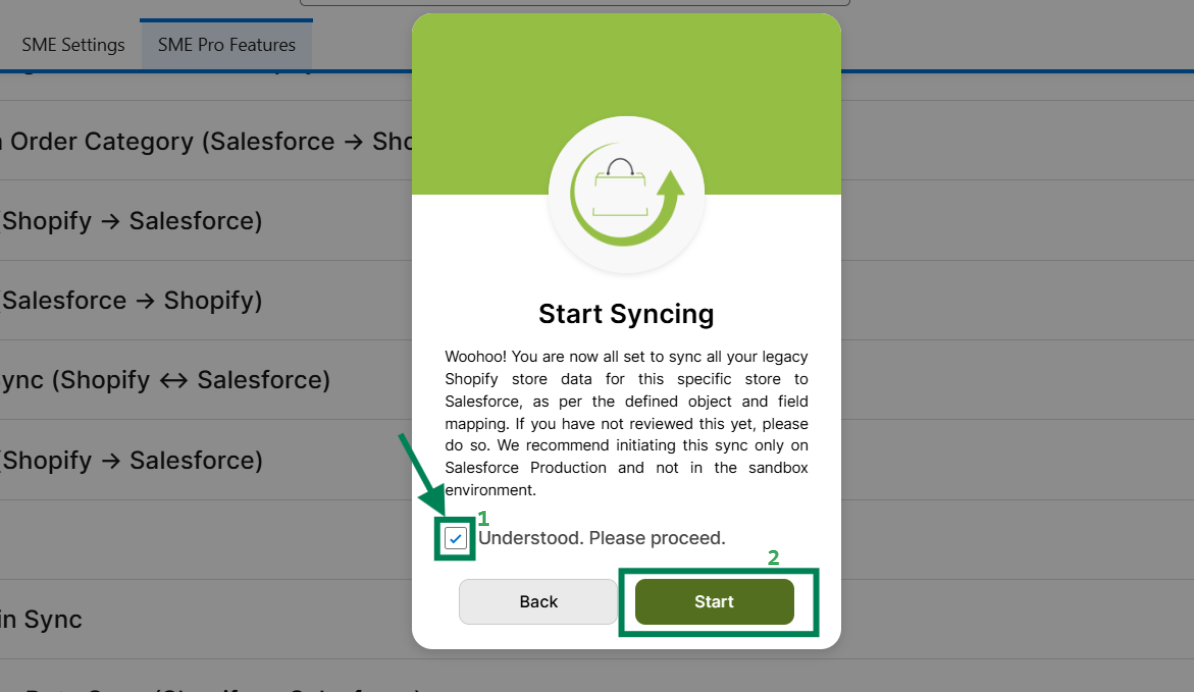
Step 7: In the Start Syncing pop-up modal, check the “I Understand, Please Proceed” checkbox and then click “Start”.
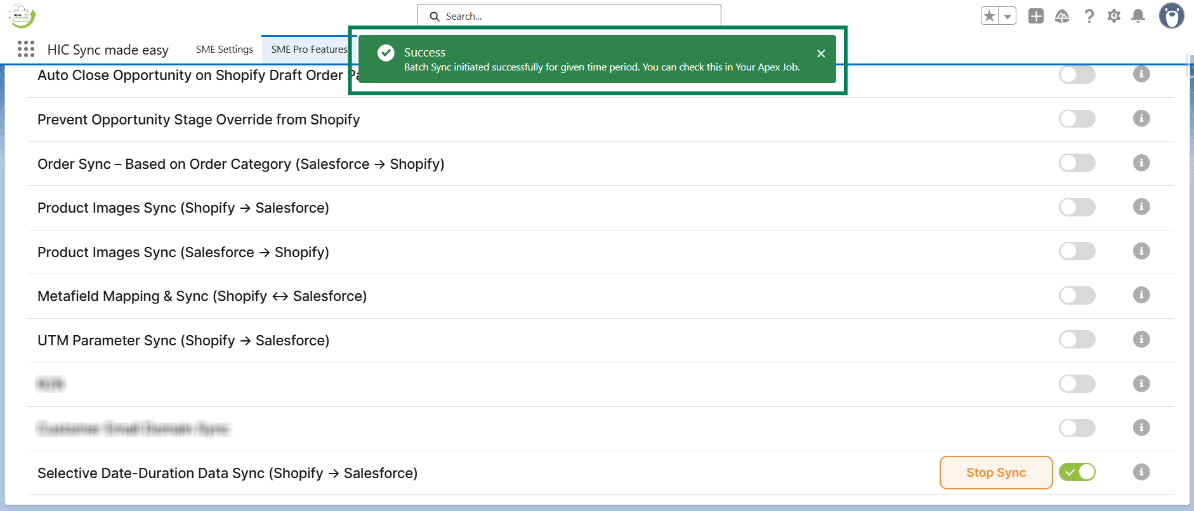
Step 8: A Success message will appear:
“Batch Sync Initiated Successfully for given time period. You can check this in your Apex Job”.
This concludes the functionality of the Selective Date-Duration Data Sync (Shopify → Salesforce) feature.
Thank you!
Was this article helpful?
That’s Great!
Thank you for your feedback
Sorry! We couldn't be helpful
Thank you for your feedback
Feedback sent
We appreciate your effort and will try to fix the article