This guide explains how the Automate Lead Conversion feature seamlessly converts new Shopify customers into Accounts & Contacts or Person Accounts in Salesforce based on your predefined mappings.
When a customer account is created in Shopify, a Lead is automatically generated in Salesforce and converted upon order creation.
You can follow this step-by-step process to enable and use this automation easily. Let’s get started!
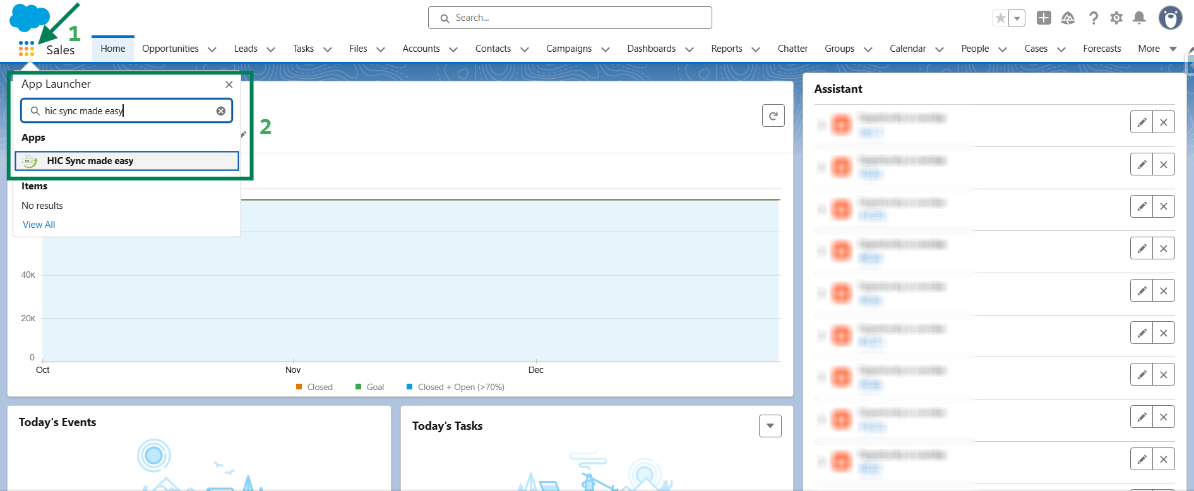
Step 1: Log in to Salesforce & in App Launcher search "HIC Sync made easy". Click on it.
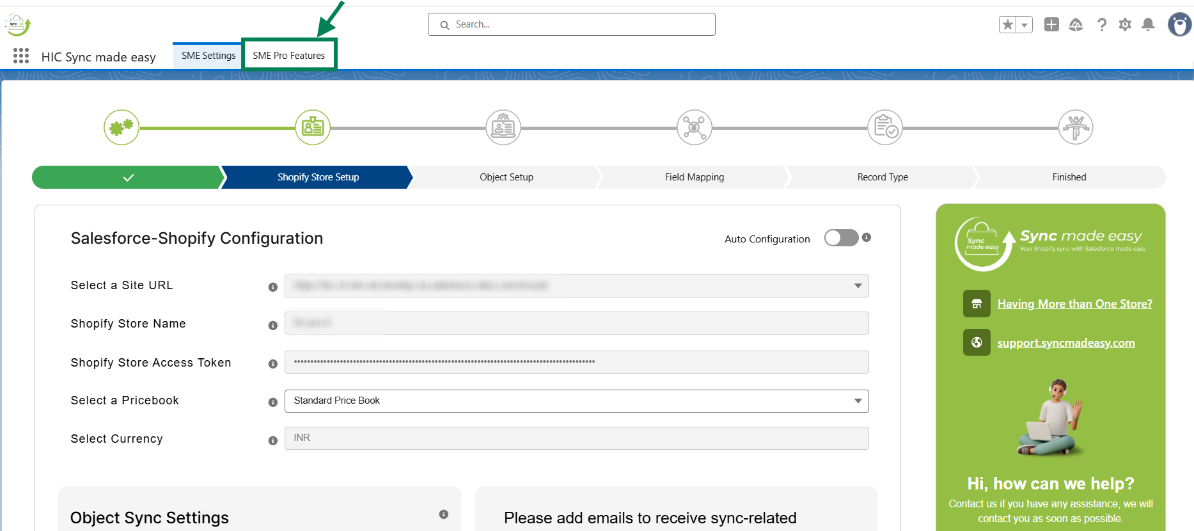
Step 2: Go to "SME Pro Features".
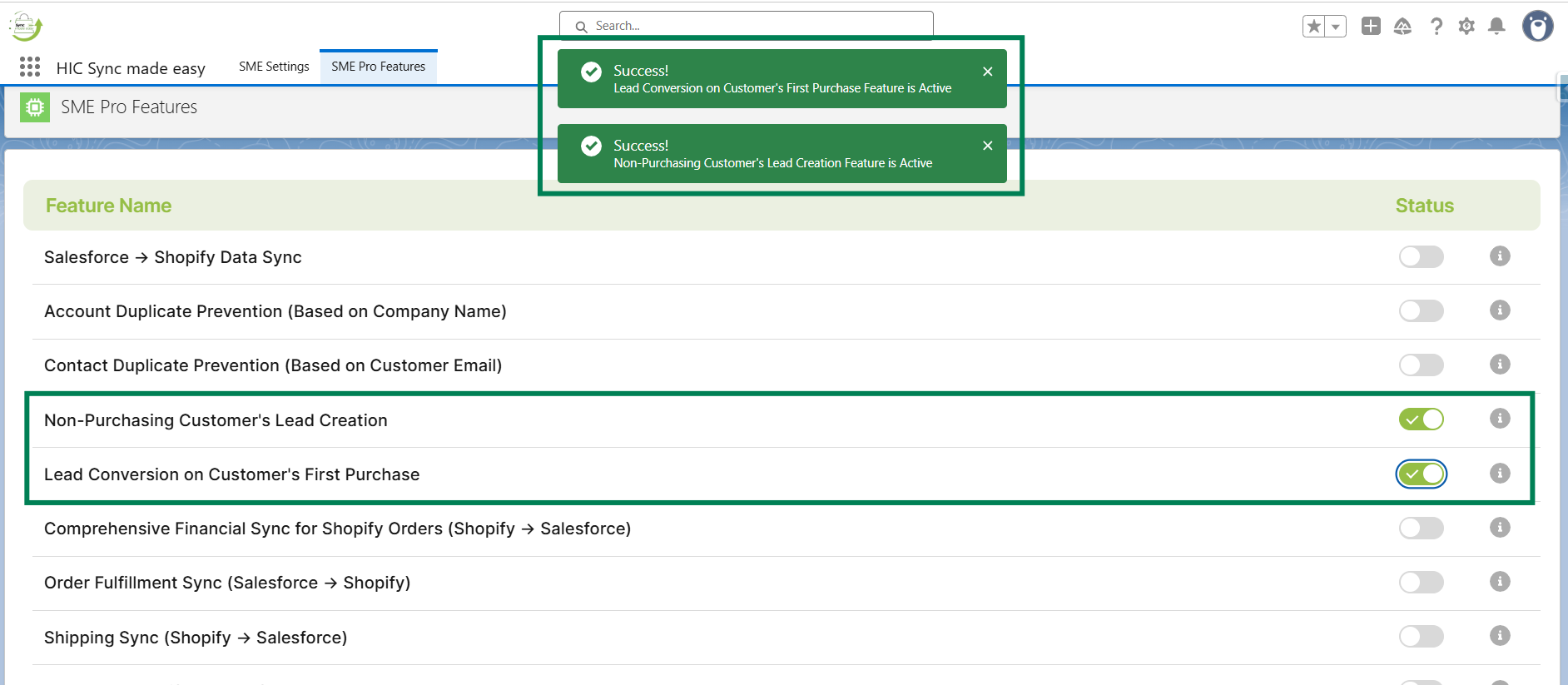
Step 3: Enable the “Non-Purchasing Customer's Lead Creation” and “Lead Conversion on Customer's First Purchase” Feature toggle button.
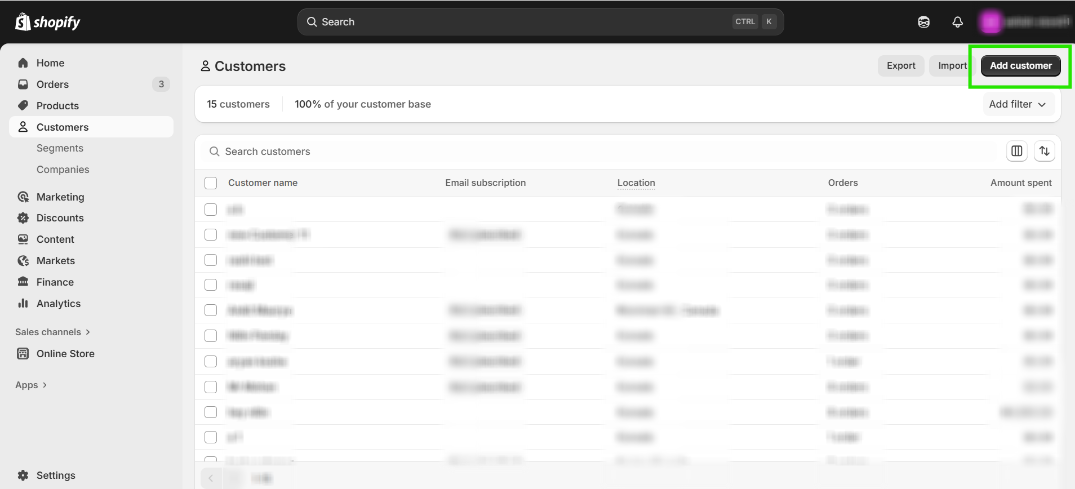
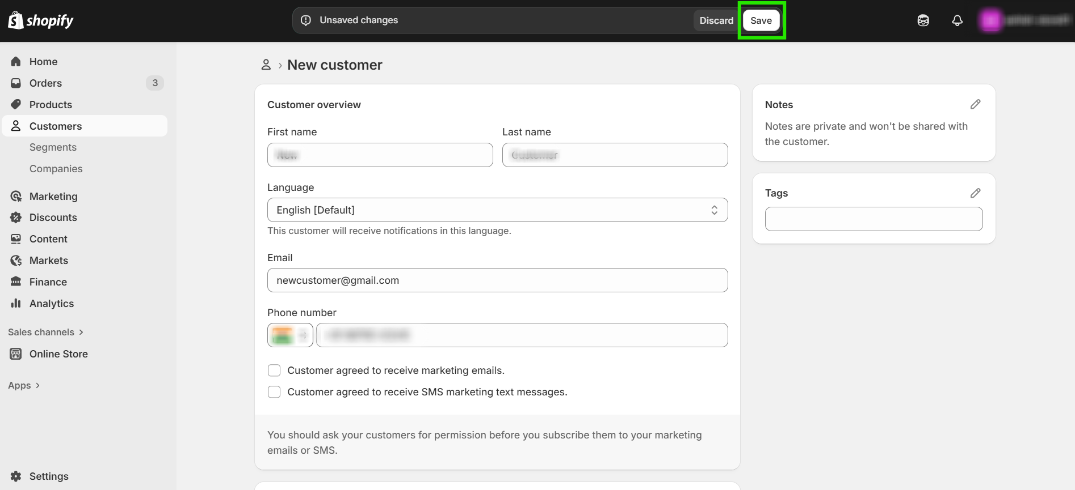
Step 5: Go to your Shopify Store and create a new Customer by clicking on “Add Customer”.
Step 6: Enter all the required information and click on “Save”.
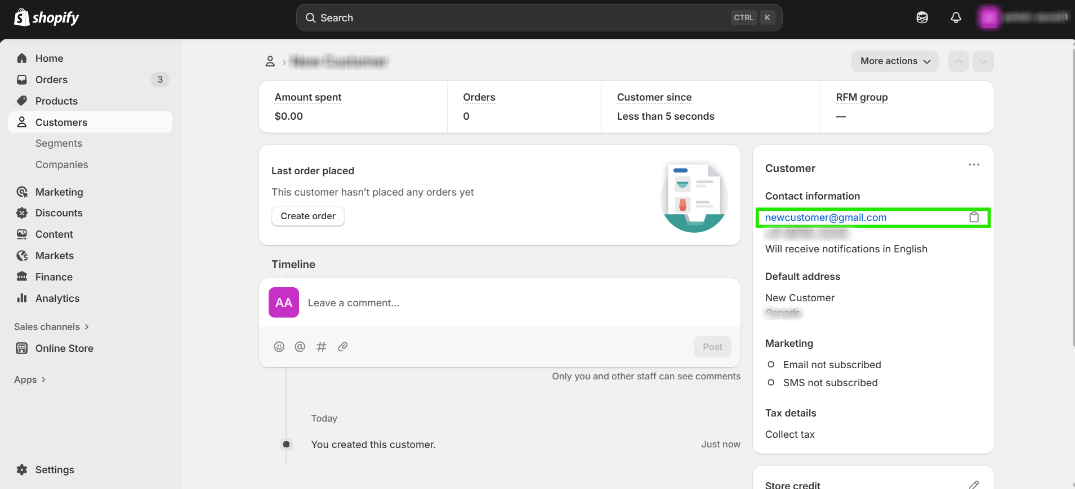
Step 7: Copy the “Shopify Email ID” from the Shopify Customer.
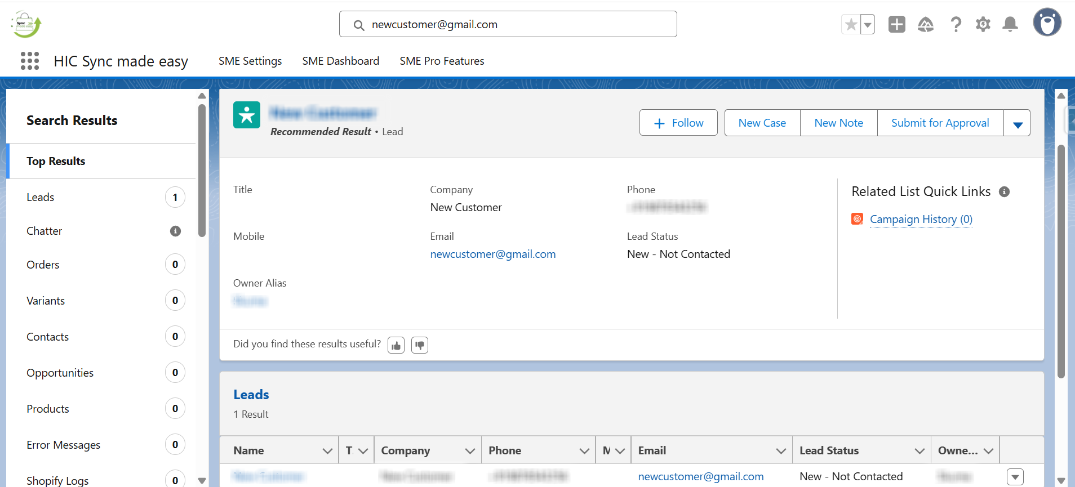
Step 8: Search in Salesforce using the copied email ID. A new Lead will be created successfully.
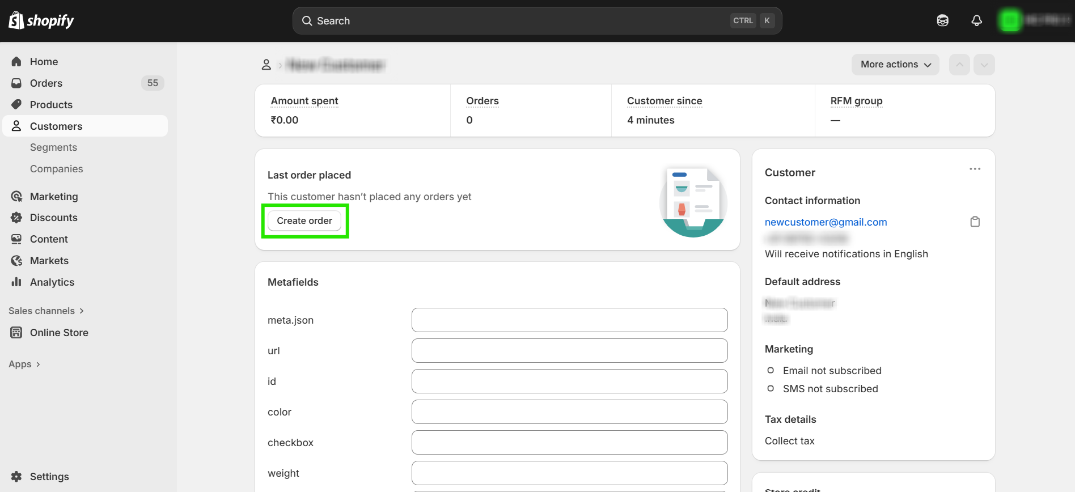
Step 9: Again, go back to Shopify and place a new order by the same customer.
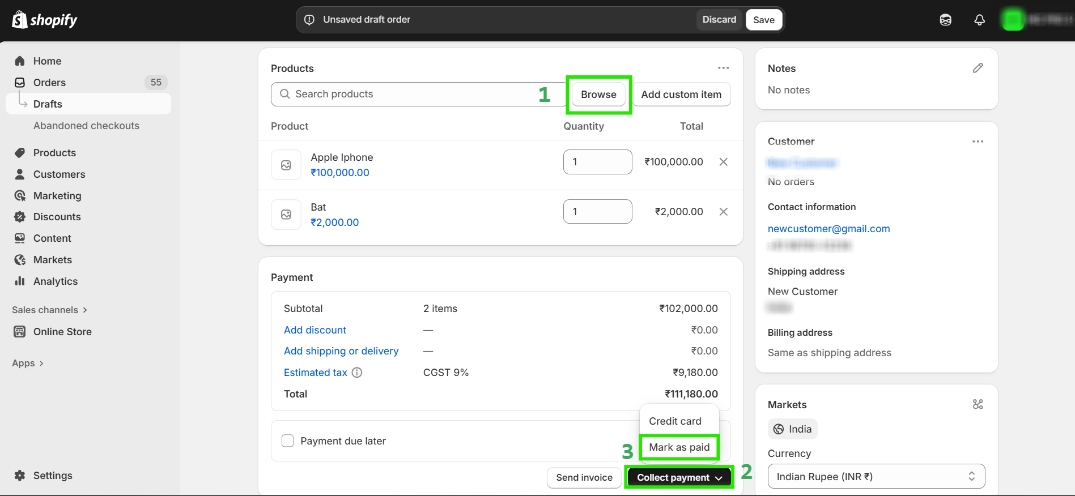
Step 10: Click on “Browse” and select the products, then click on “Collect Payment”, then click on “Mark as paid” to create an order.
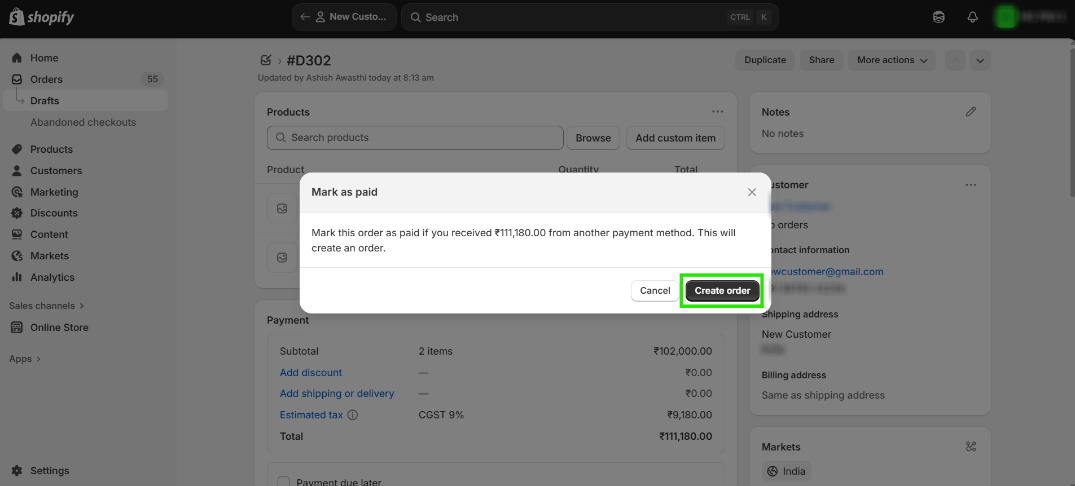
Step 11: Click on “Create Order” to confirm and create the order.
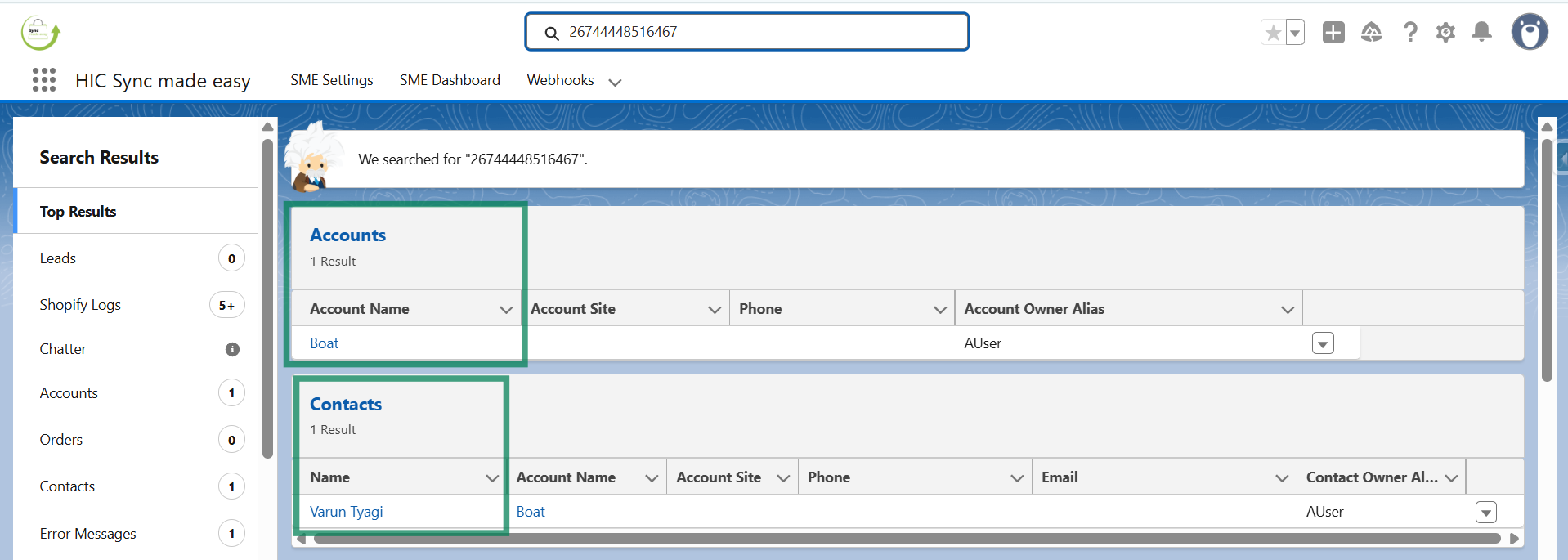
Step 12: Navigate to Salesforce, and refresh the Lead after 10 seconds; it will automatically convert into “Account and Contact”.
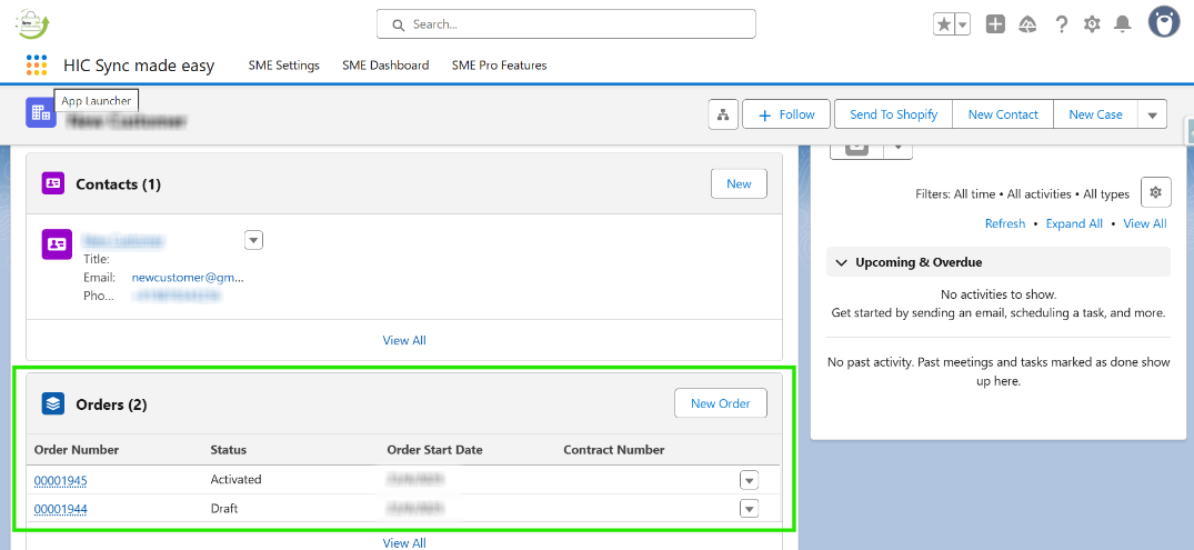
Step 13: You can also view the order below the account itself.
NOTE: The above steps apply to Business Accounts. If you select a Person Account, the lead will be converted into a Person Account in Salesforce.
So this was the overall functionality of “Non-Purchasing Customer's Lead Creation” and “Lead Conversion on Customer's First Purchase” feature of Sync Made Easy.
Thanks!
Was this article helpful?
That’s Great!
Thank you for your feedback
Sorry! We couldn't be helpful
Thank you for your feedback
Feedback sent
We appreciate your effort and will try to fix the article
