This guide walks you through the process of creating both “Manual” and “Smart” Collections in Shopify, syncing them with Salesforce, and managing related products and collections to ensure seamless integration between the two platforms.
Types of Collections in Shopify
There are two types of collections in Shopify that sync with Salesforce:
1. Manual Collection
2. Smart Collection
Steps to Sync Collections
1. Manual Collection
Step 1 – Go to Shopify Store and Click on “Collections”, then click on "Create Collection" to create a new collection.
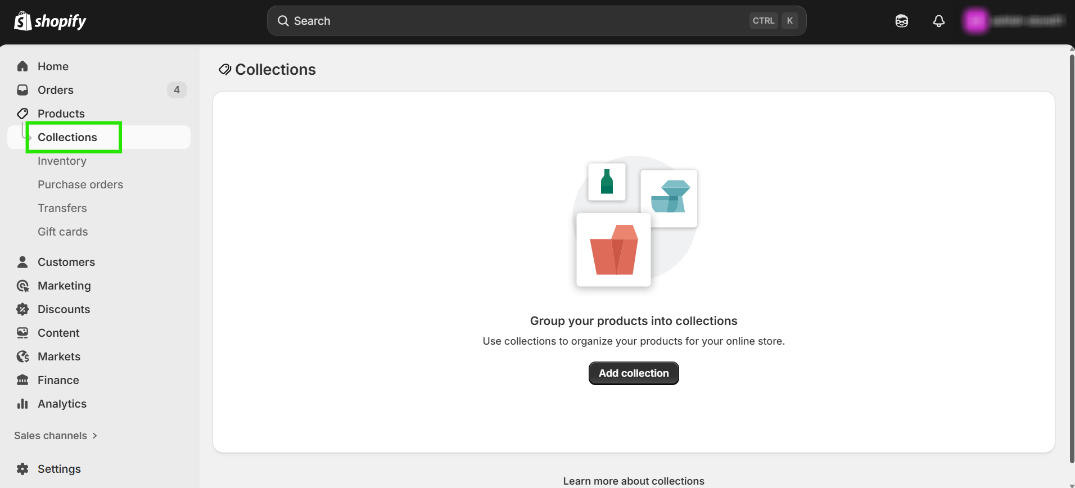
Step 2 – Add a collection name in the “Title” field.
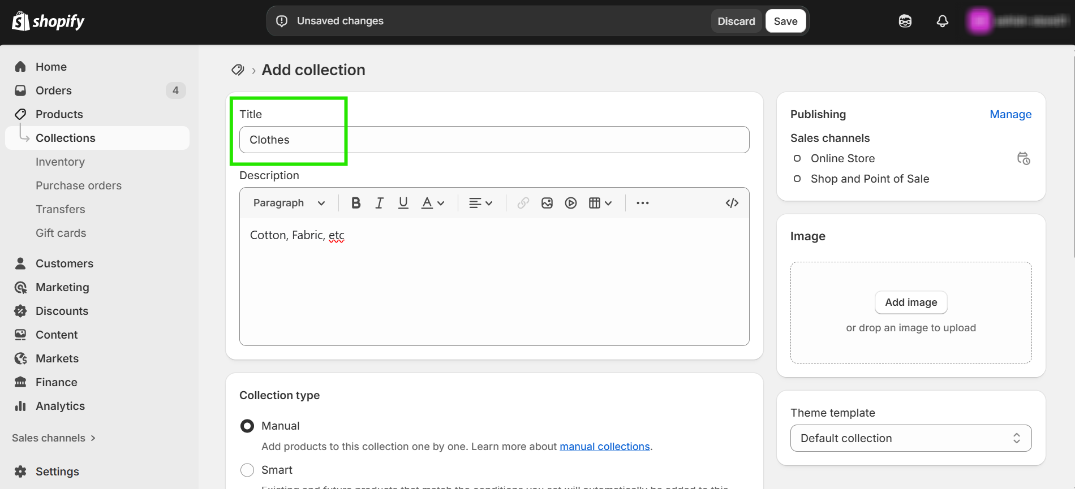
Step 3 – Select the collection type as “Manual” and click on “Save” button.
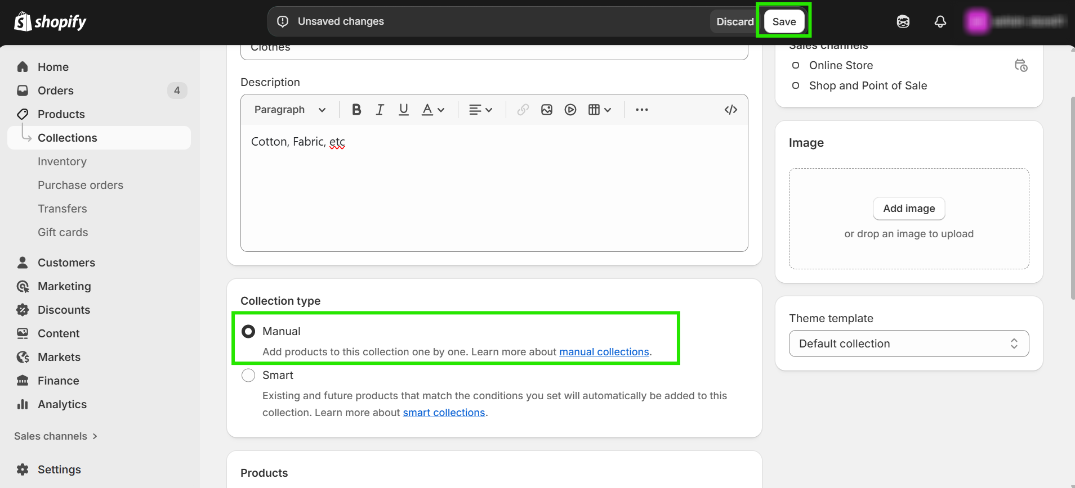
Step 4 – Click on “Browse” button to select a product.
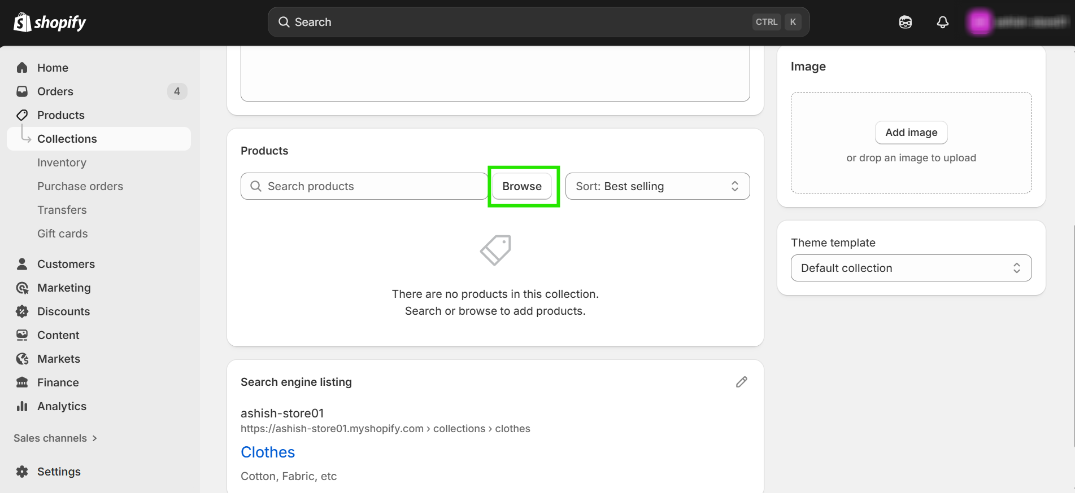
Step 5 – Select the desired product and click on "Add".
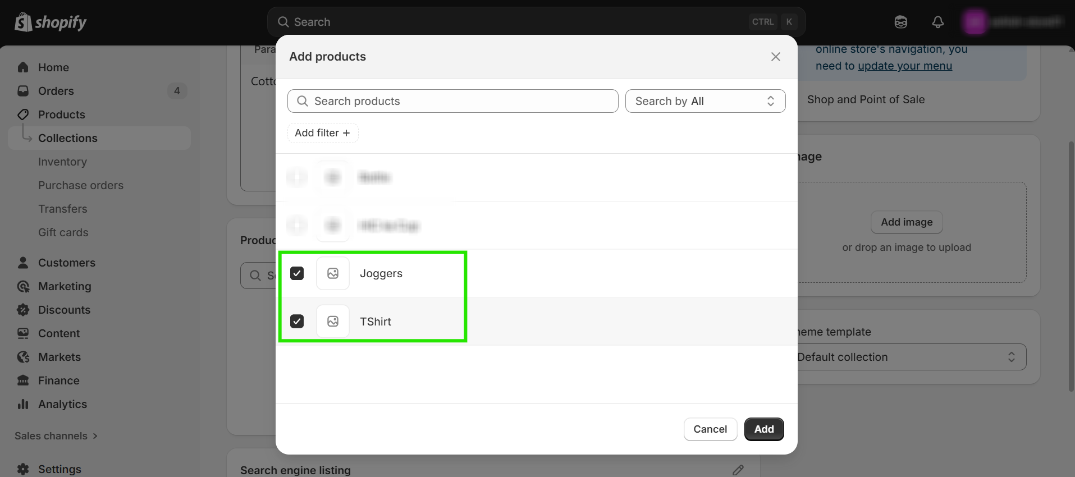
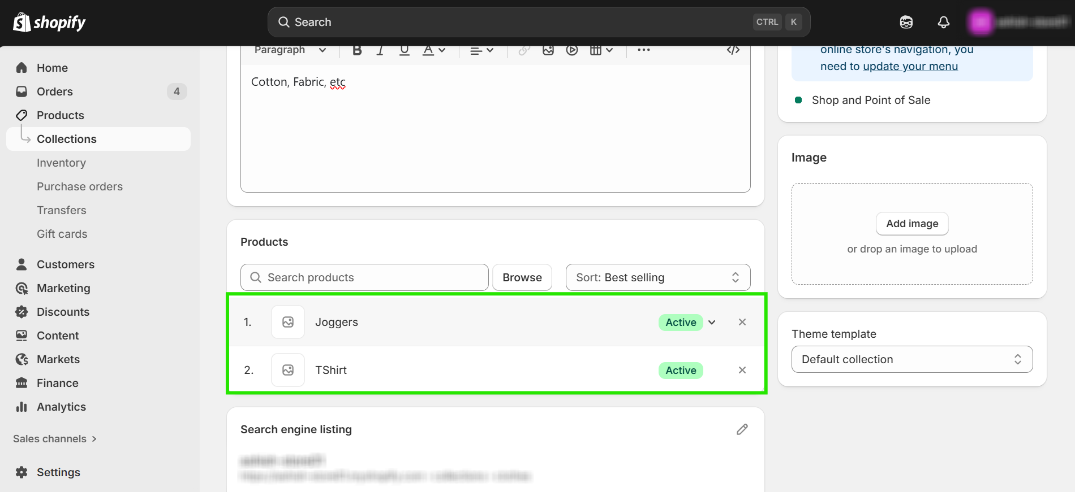
Step 6 – The selected product will now be added to the collection.
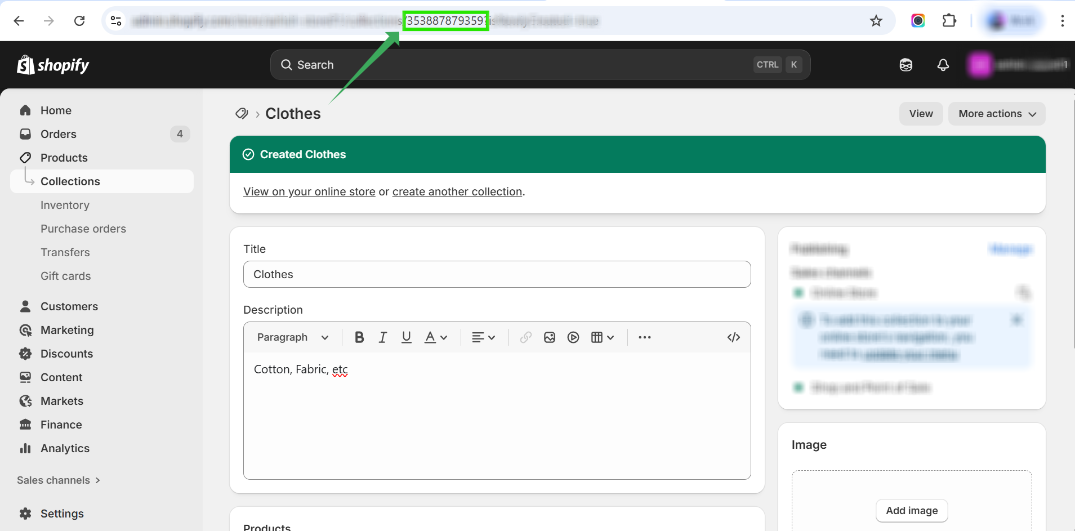
Step 7 – Copy the “Shopify ID” from the collection URL.
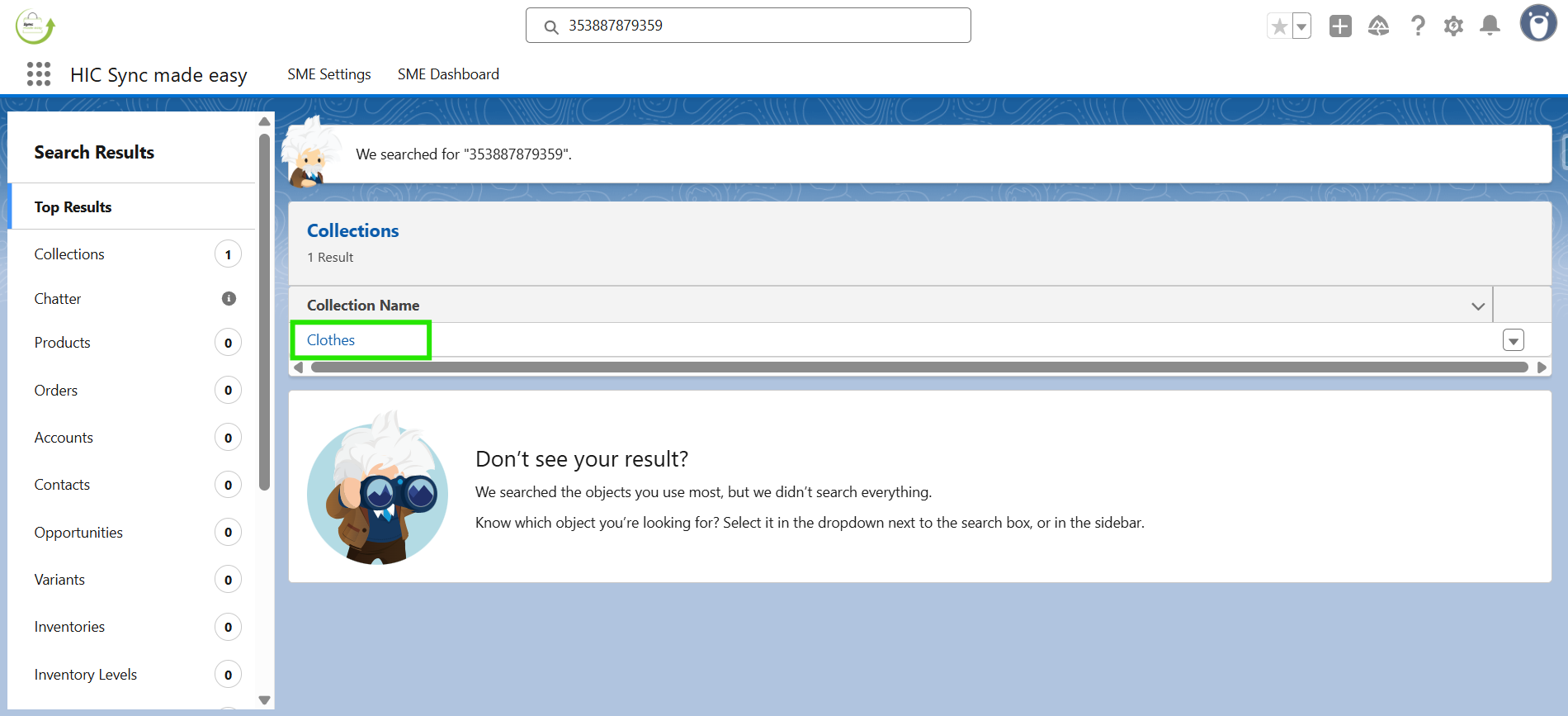
Step 8 – Search for the collection in Salesforce by pasting the Shopify ID into the search box and press Enter.
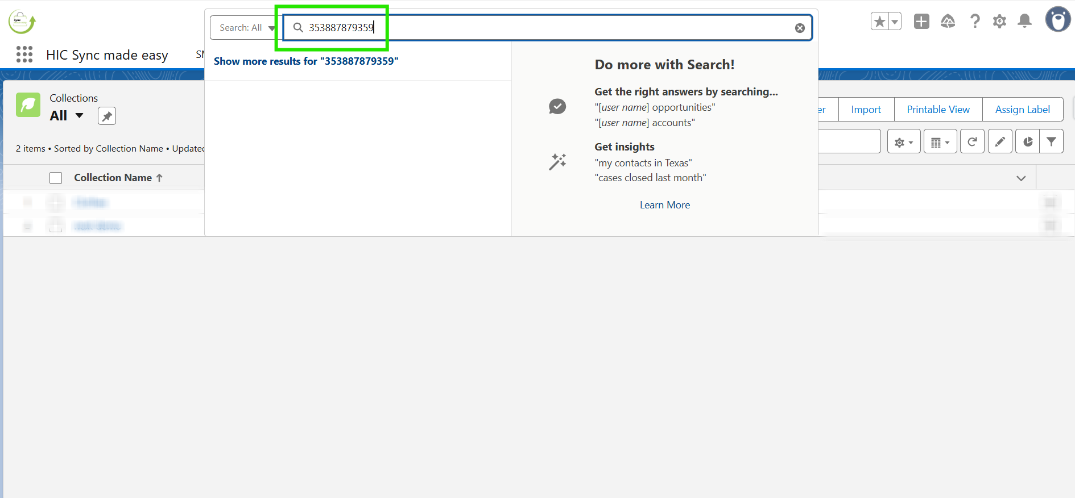
Step 9 – The collection will now be created in Salesforce.
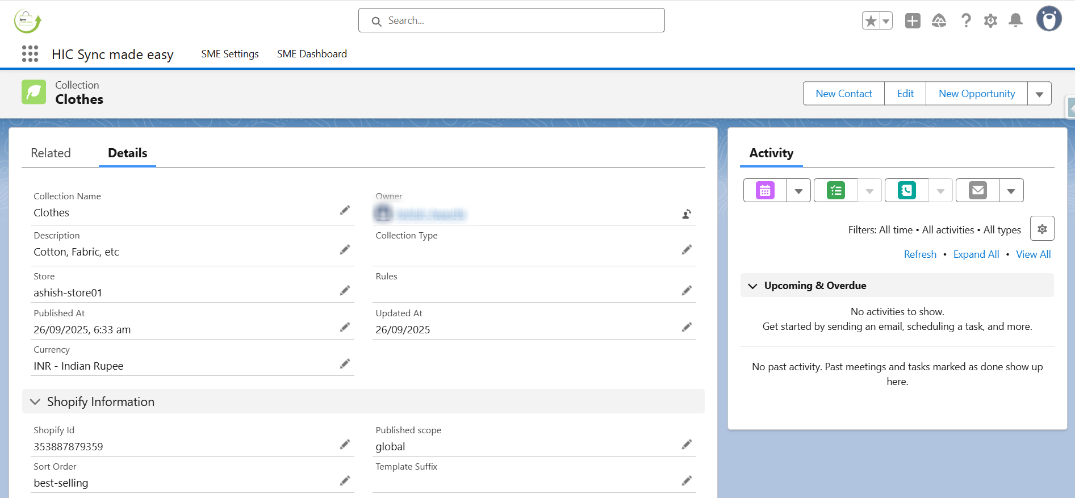
Open this collection to view its details.
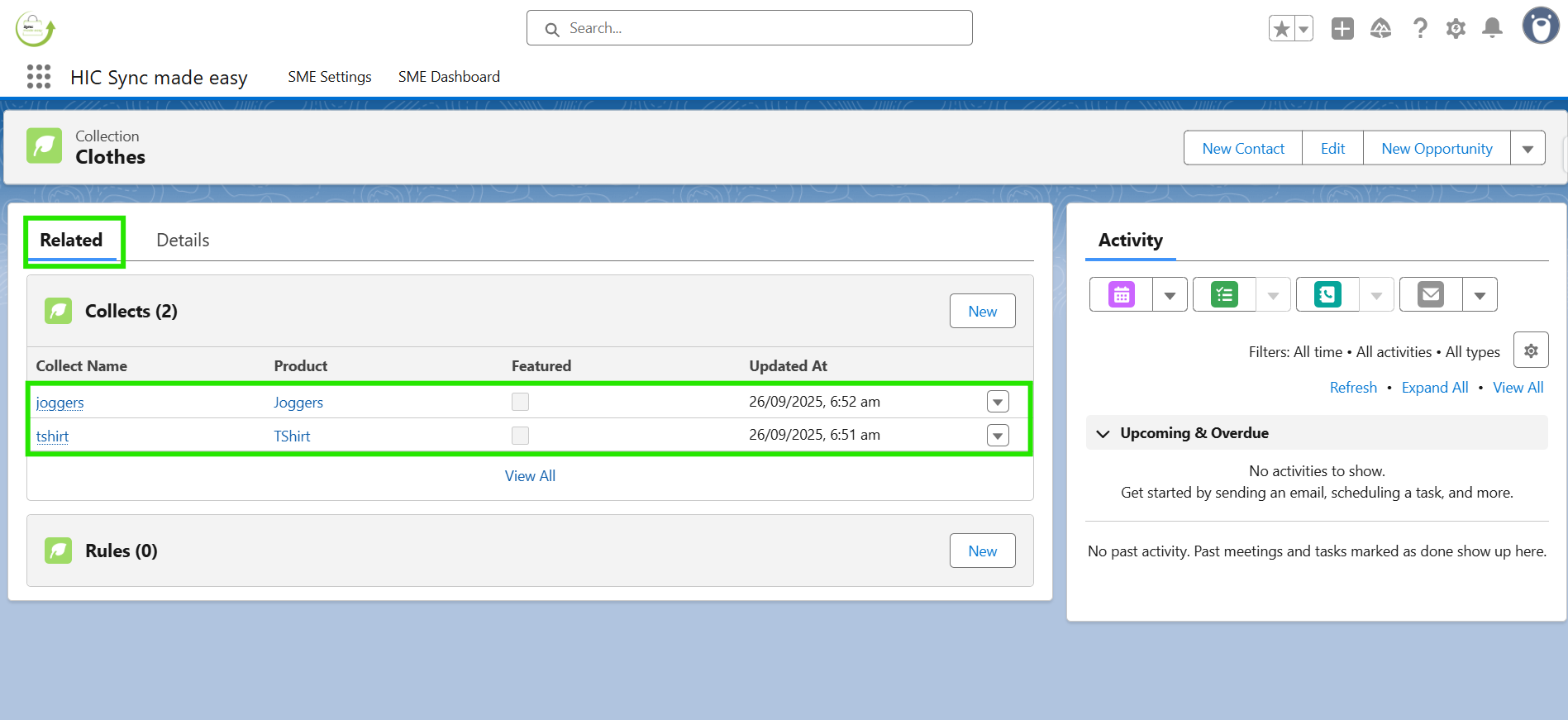
Step 10 – Navigate to the related collections in Salesforce, where you’ll notice that associated “Collects” have also been created.
2. Smart Collection
Step 1 – Create a new collection and enter the title name.
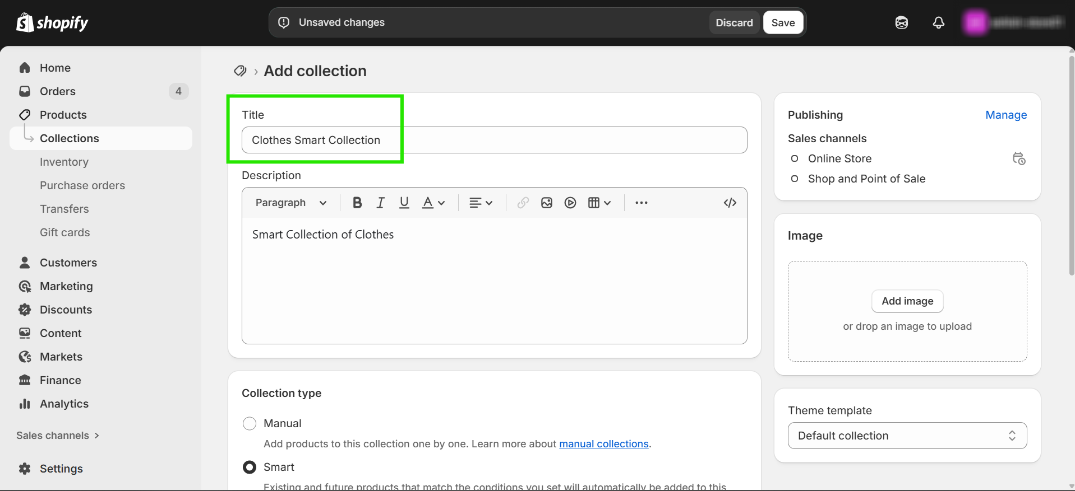
Step 2 – Select Collection type as “Smart” and select a “Condition“.
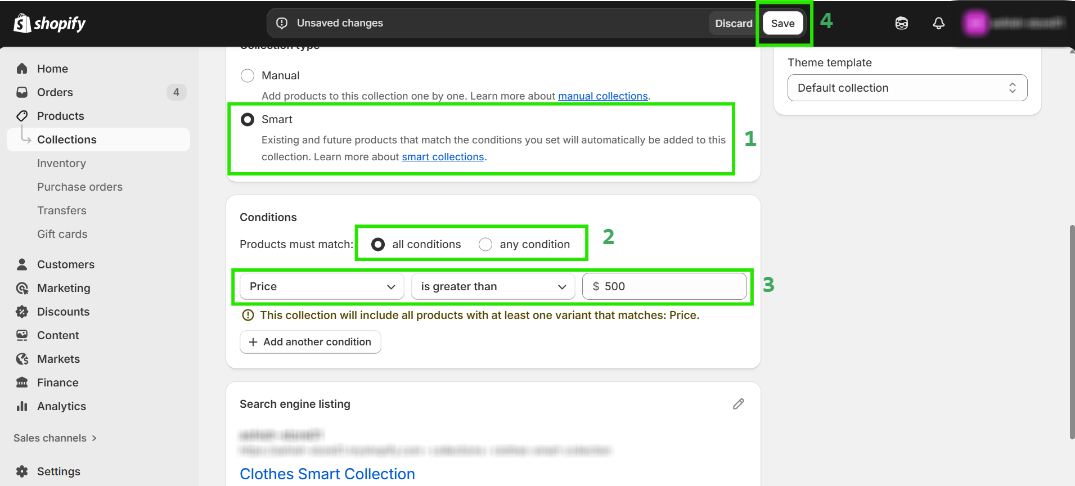
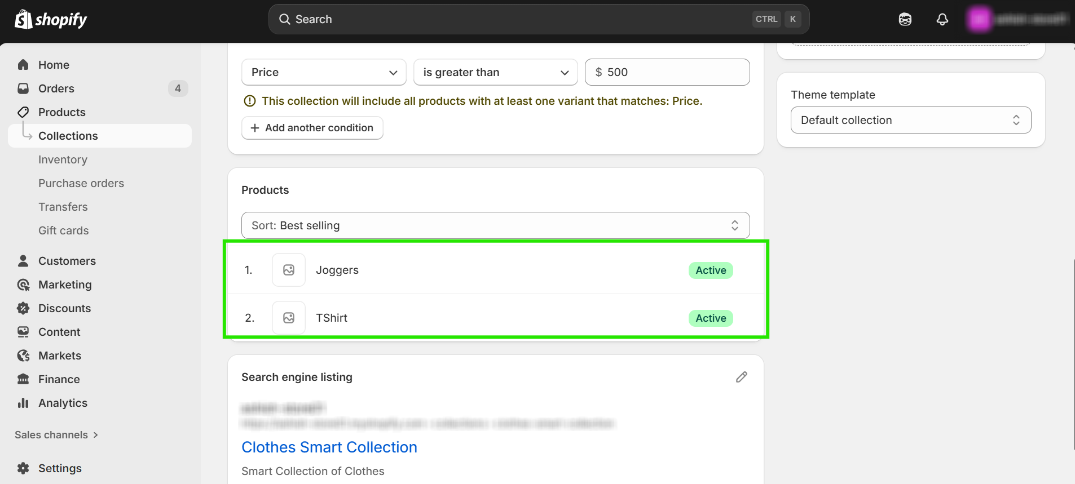
Step 3 – Verify that the product has been added to the collection.
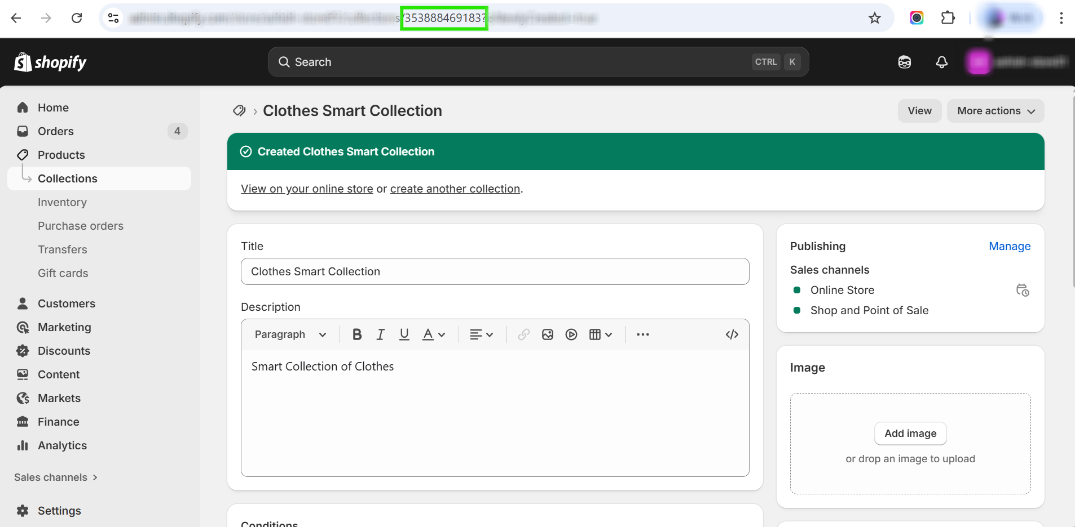
Step 4 – Copy the “Shopify ID” from the store URL.
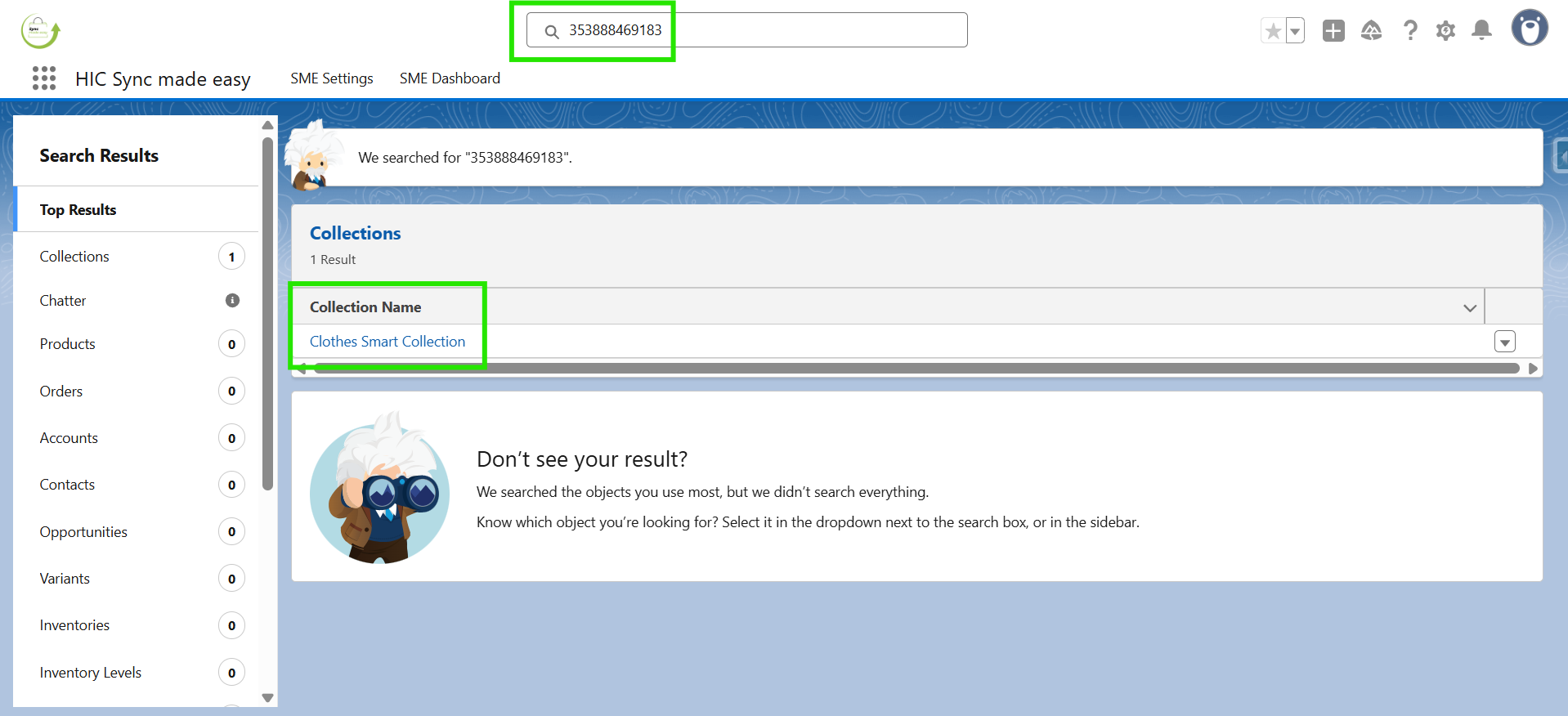
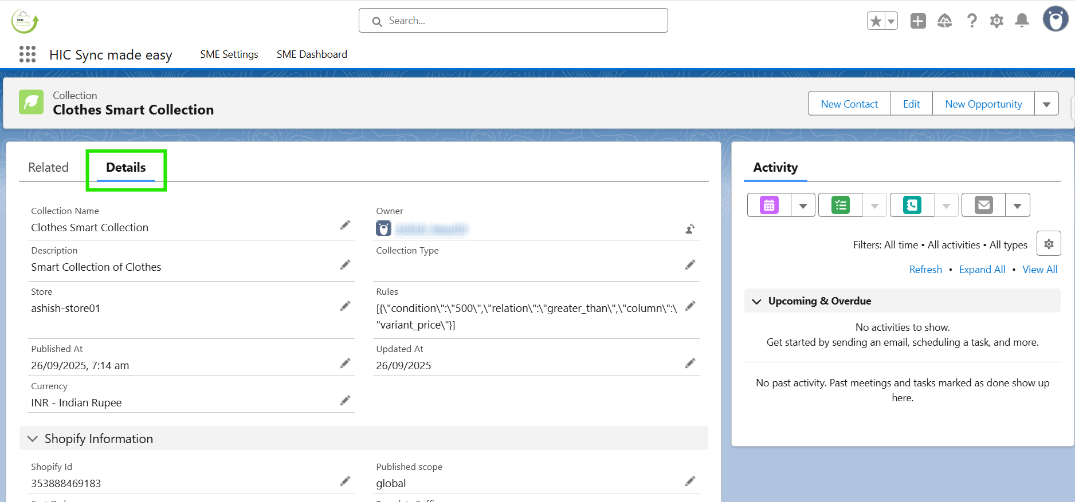
Step 5 – Paste the Shopify ID into Salesforce, press Enter, and click on the collection to view its details.
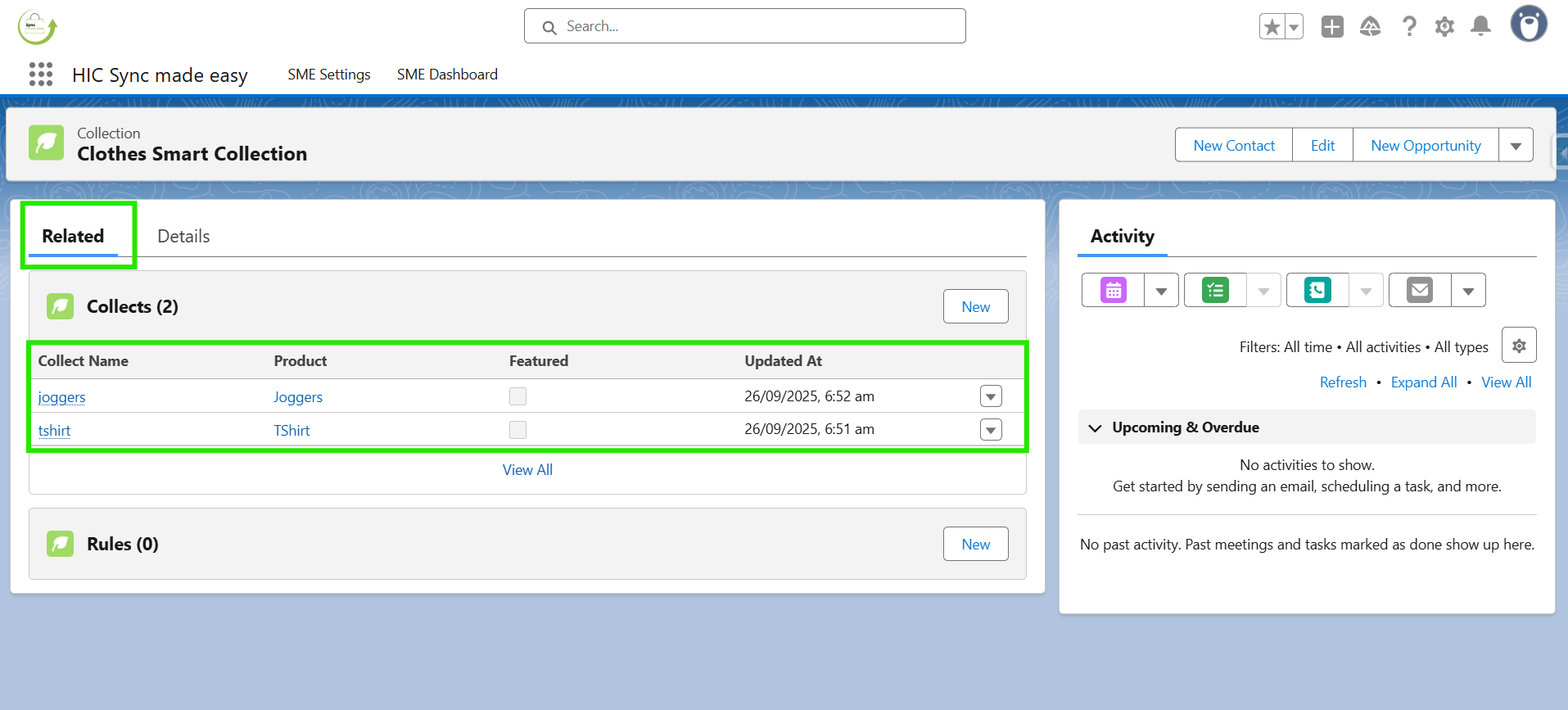
Step 6 – Navigate to the related collections in Salesforce, where you’ll notice that associated “Collects” have also been created.
Was this article helpful?
That’s Great!
Thank you for your feedback
Sorry! We couldn't be helpful
Thank you for your feedback
Feedback sent
We appreciate your effort and will try to fix the article
