In this guide, we will walk you through how to use Sync Made Easy in a Test Drive Org. If you don’t have a Salesforce org or want to explore how Sync Made Easy works before setting it up in your own environment, the Test Drive Org offers a quick, easy way to get started.
You can connect your Shopify store, try out key features, and understand how data sync works between Shopify and Salesforce in a safe, pre-configured environment. This helps you get familiar with the app’s functionality, test different use cases, and evaluate how it fits your business needs—without affecting your live data.
Follow the steps below to get started and explore the full capabilities of Sync Made Easy.
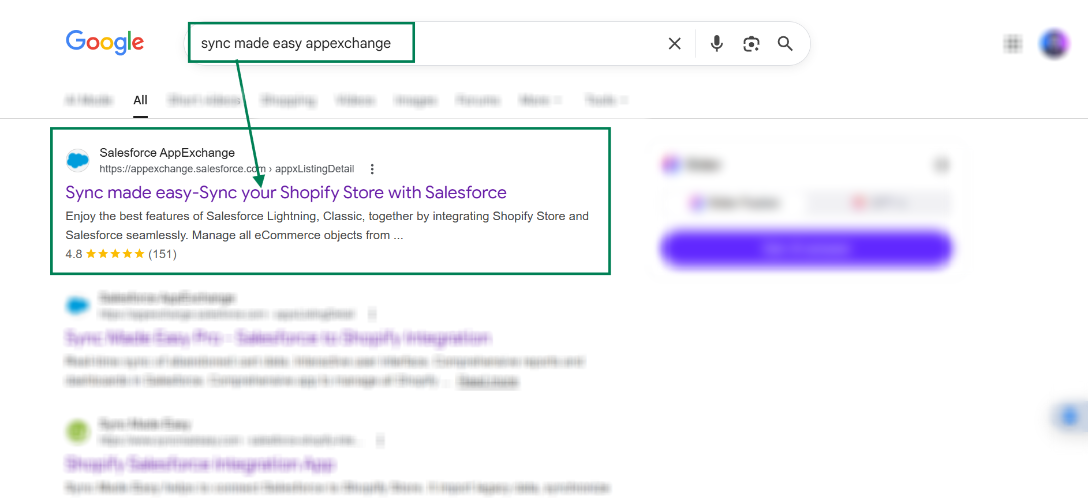
Step 1: Go to Google (or any search engine), search for “Sync Made Easy AppExchange”, and open the first link.
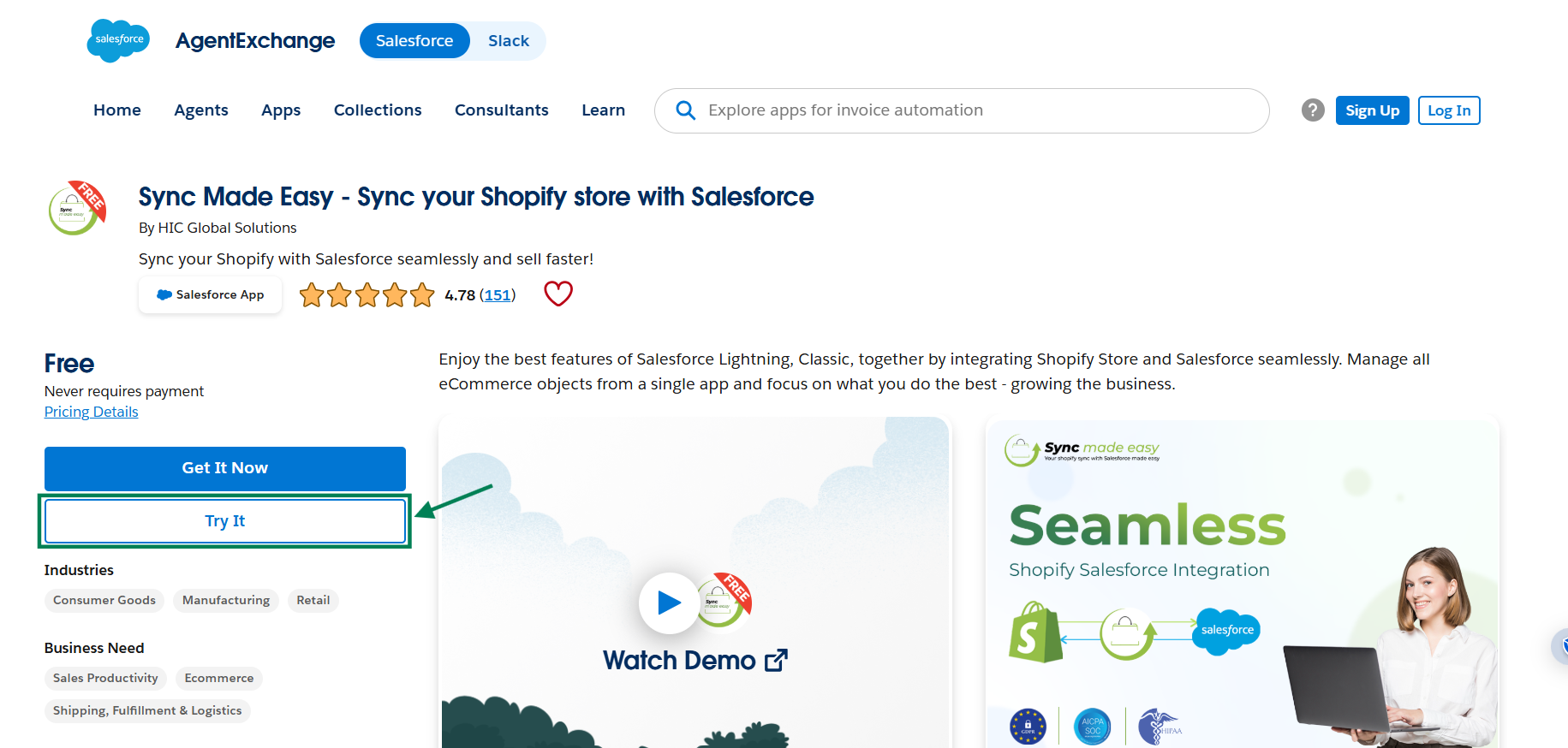
Step 2: You will be redirected to AppExchange. Click on the “Try It” button.
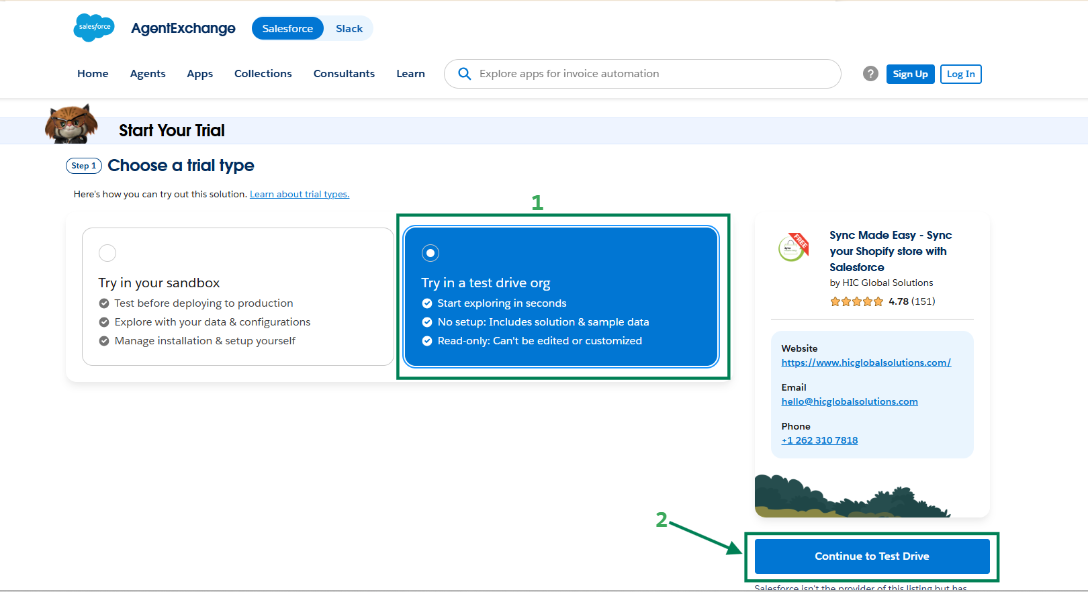
Step 3: Choose “Try in a Test Drive Org” and click the “Continue to Test Drive” button.
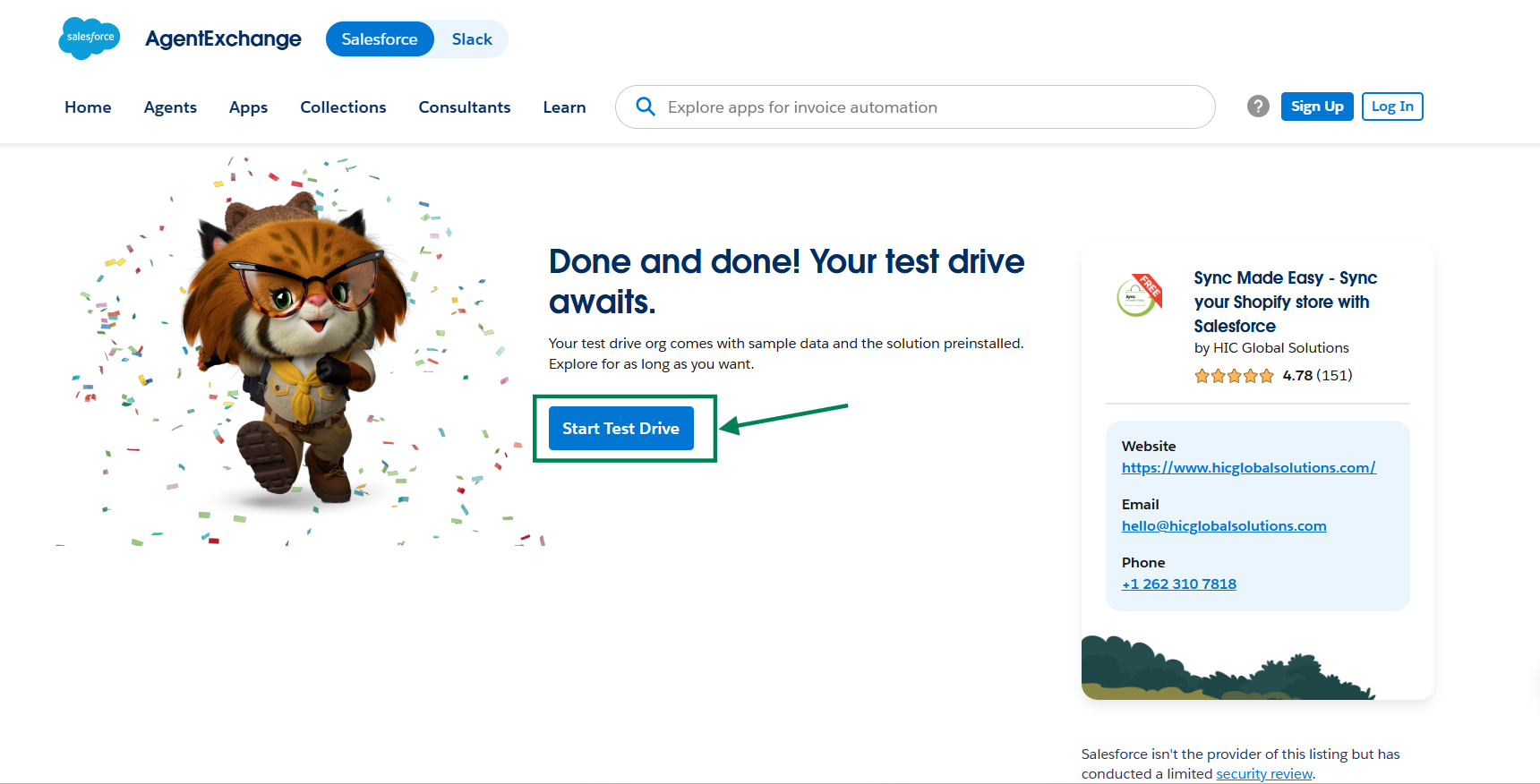
Step 4: Click on the “Start Test Drive” button to proceed.
Step 5: You will be redirected to the Shopify Store Setup page. Here, connect your Shopify staging store.
Note:
To learn how to add a new store, refer to "How to Add Multiple Stores in Sync Made Easy".
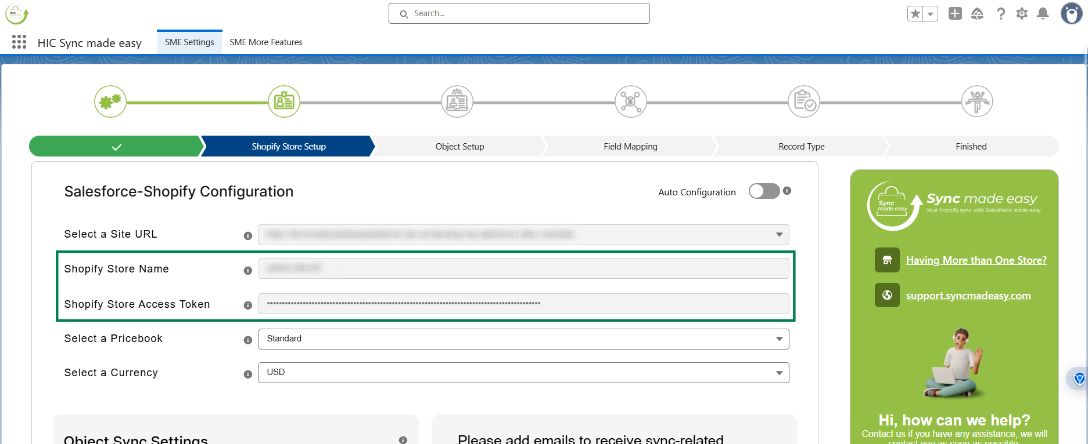
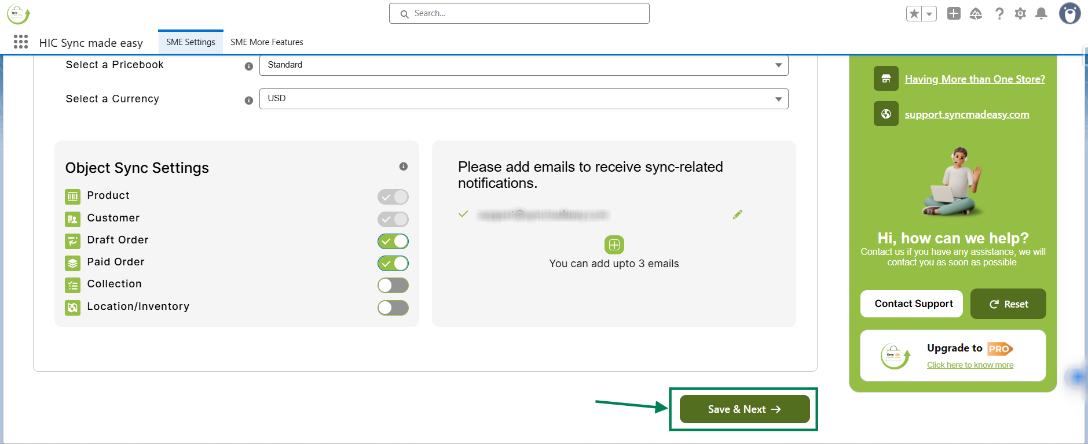
Step 6: Once your store is added, click Save & Next and configure the next steps if needed, or continue by clicking Save & Next.
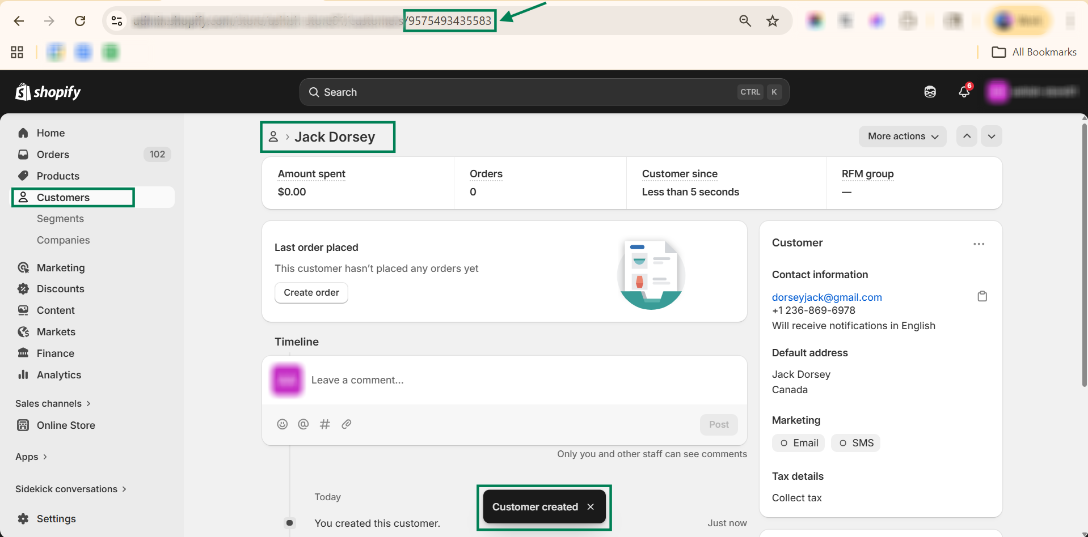
Step 7: Go to your Shopify store, create a customer, and copy the Shopify ID from the URL.
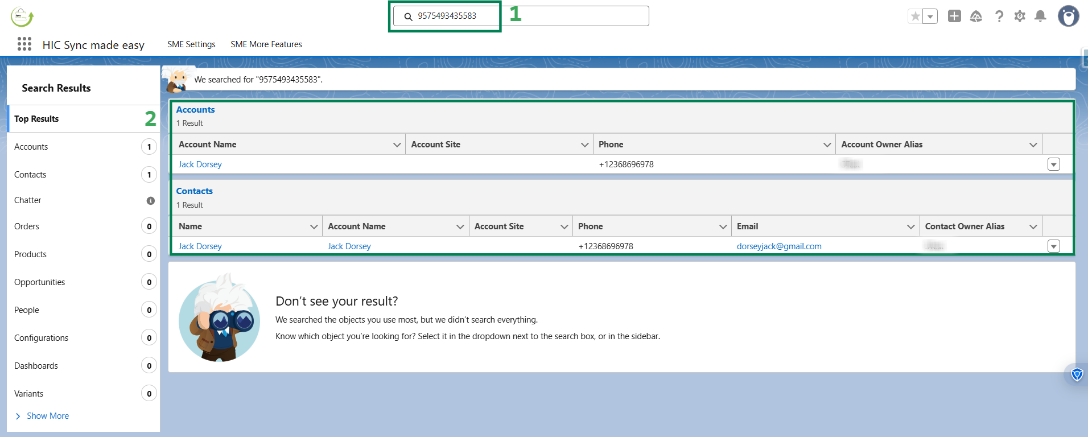
Step 8: Paste the copied Shopify ID in the global search and press Enter. The related Account and Contact will be displayed.
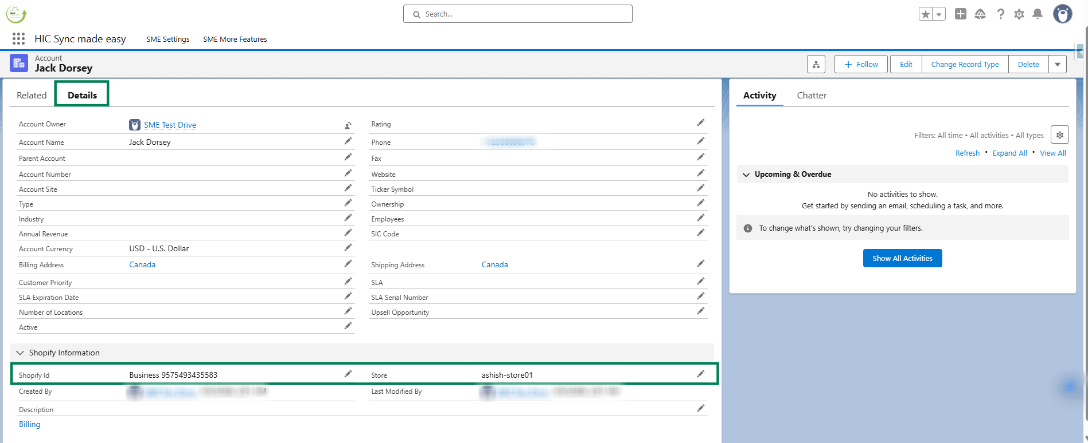
Step 9: Open the Account and go to the Details section. You will see that the Shopify ID and Store fields are populated.
Note:
If you want to check sync for Products, Paid Orders, Draft Orders, Collections, or Location/Inventory, create them in Shopify, copy the Shopify ID, and search it in Salesforce Global Search — just like you did for the customer.
We hope this article helps! If you still face any issues, feel free to contact us at support@syncmadeasy.com.
Was this article helpful?
That’s Great!
Thank you for your feedback
Sorry! We couldn't be helpful
Thank you for your feedback
Feedback sent
We appreciate your effort and will try to fix the article