In this guide, we’ll walk you through the step-by-step process of creating an 'Admin API Access Token' in your Shopify store from the Dev Dashboard using Sync Made Easy. Follow the instructions below to obtain your access token and ensure a smooth setup for your integration.
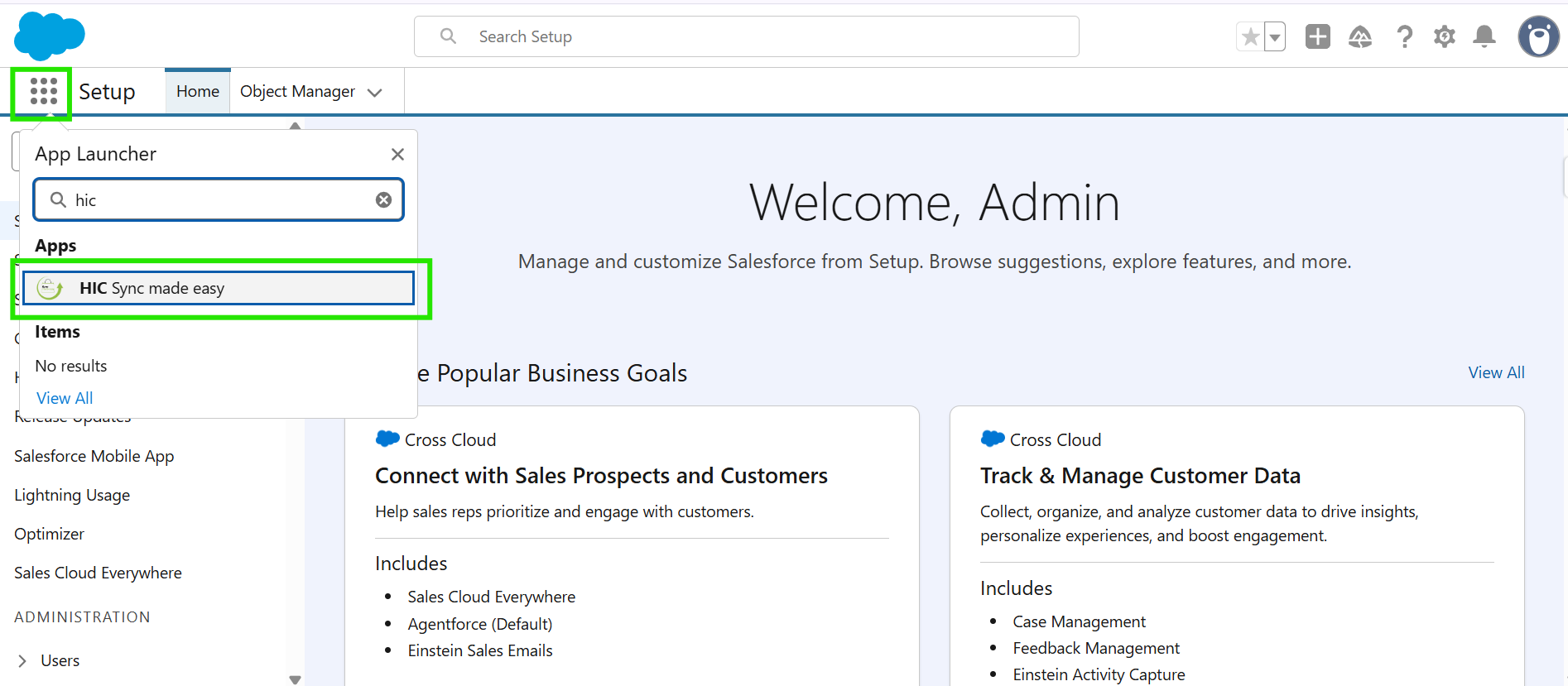
Step 1: Log in to Salesforce and in the App Launcher, search "HIC Sync Made Easy" and click on it.
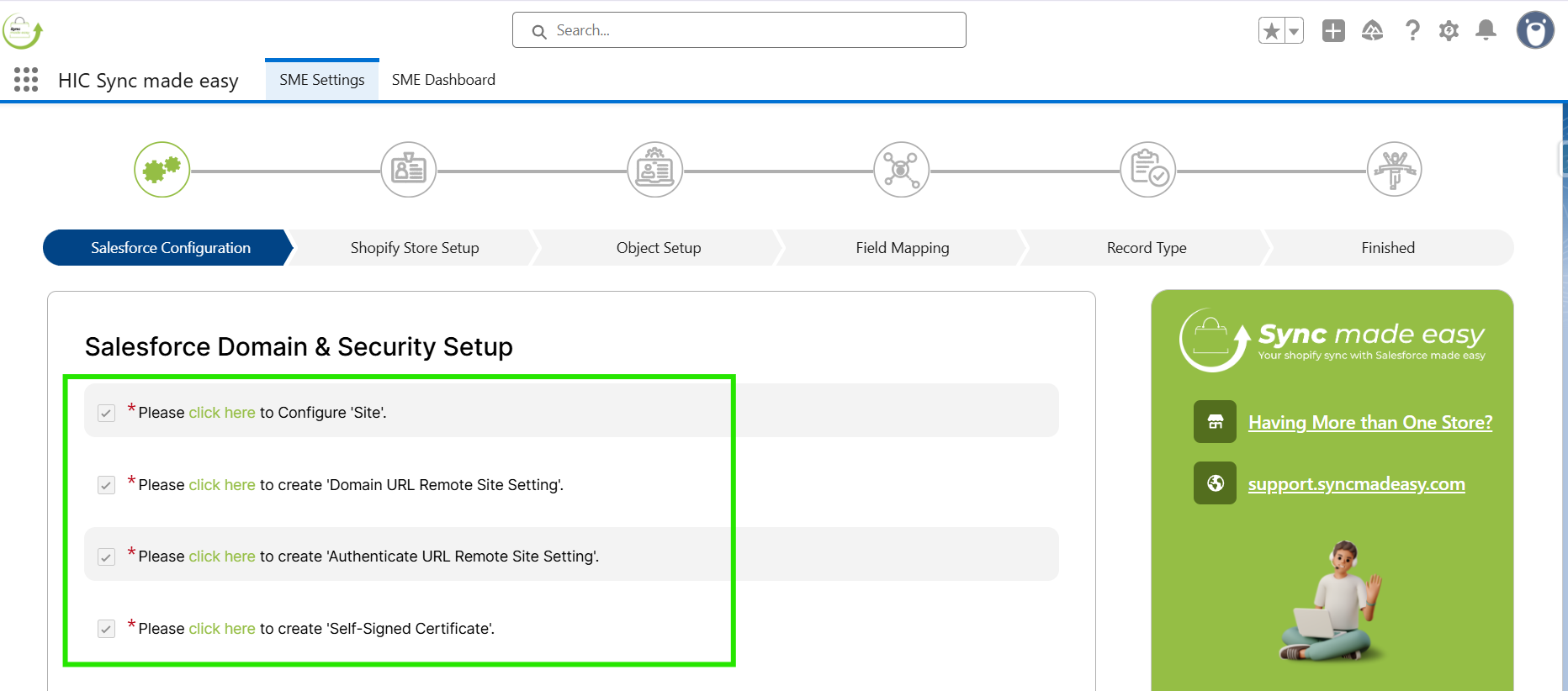
Step 2: Make Sure you have completed the "Salesforce Configuration" Step already, then click on Verify
Note:
To complete the Salesforce Configuration Step, you can take reference from "How to Set Up Sync Made Easy".
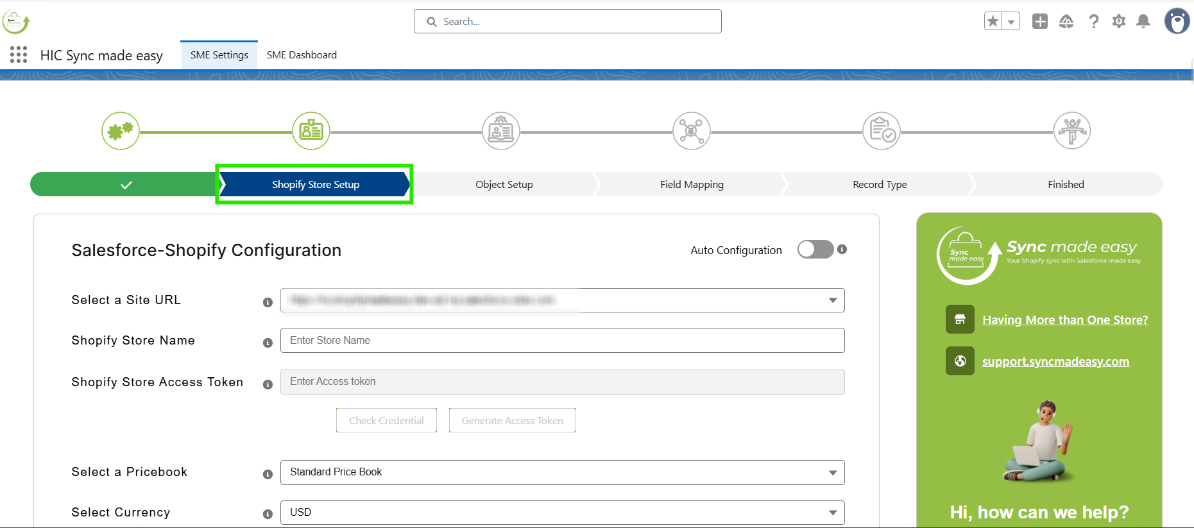
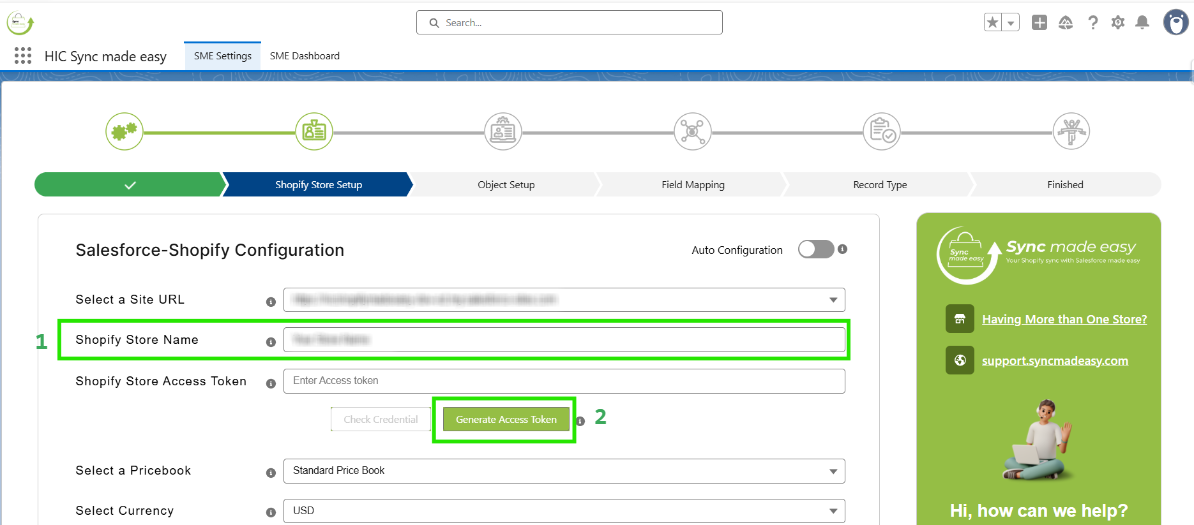
Step 3: You will be jumped into the "Shopify Store Setup" page. Here, you have to enter the Shopify Store Name.
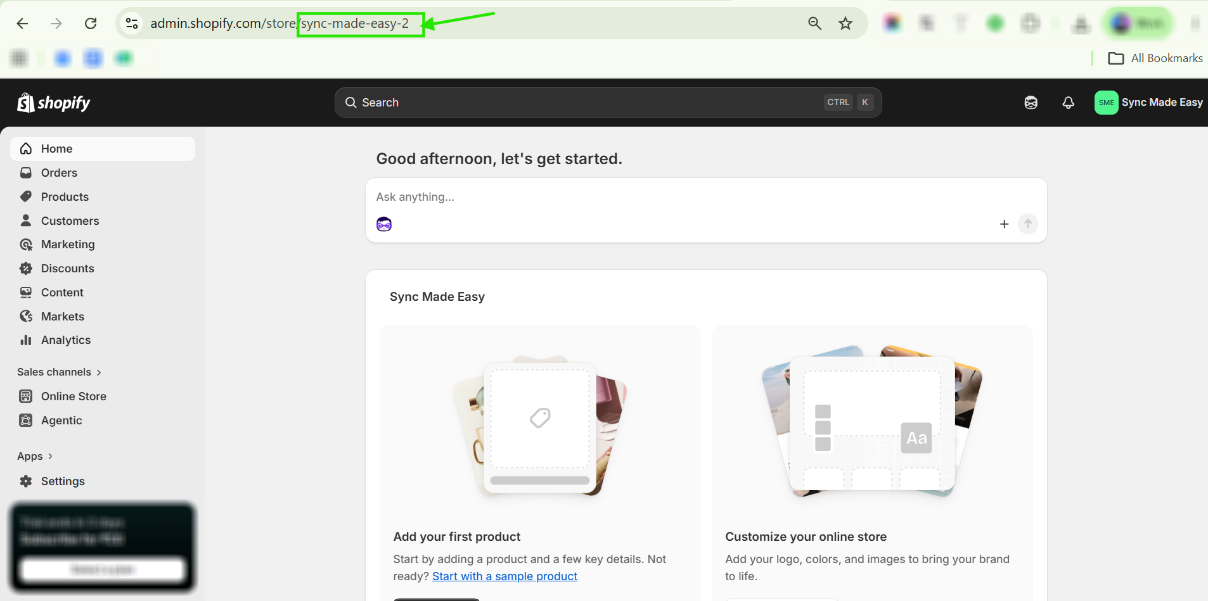
Step 4: To get the Name of your Store, from the homepage, copy the Store name from the URL.
Step 5: Now, back to the Shopify Store Setup page (step 2) and enter your Shopify Store Name and click on "Generate Access Token" button.
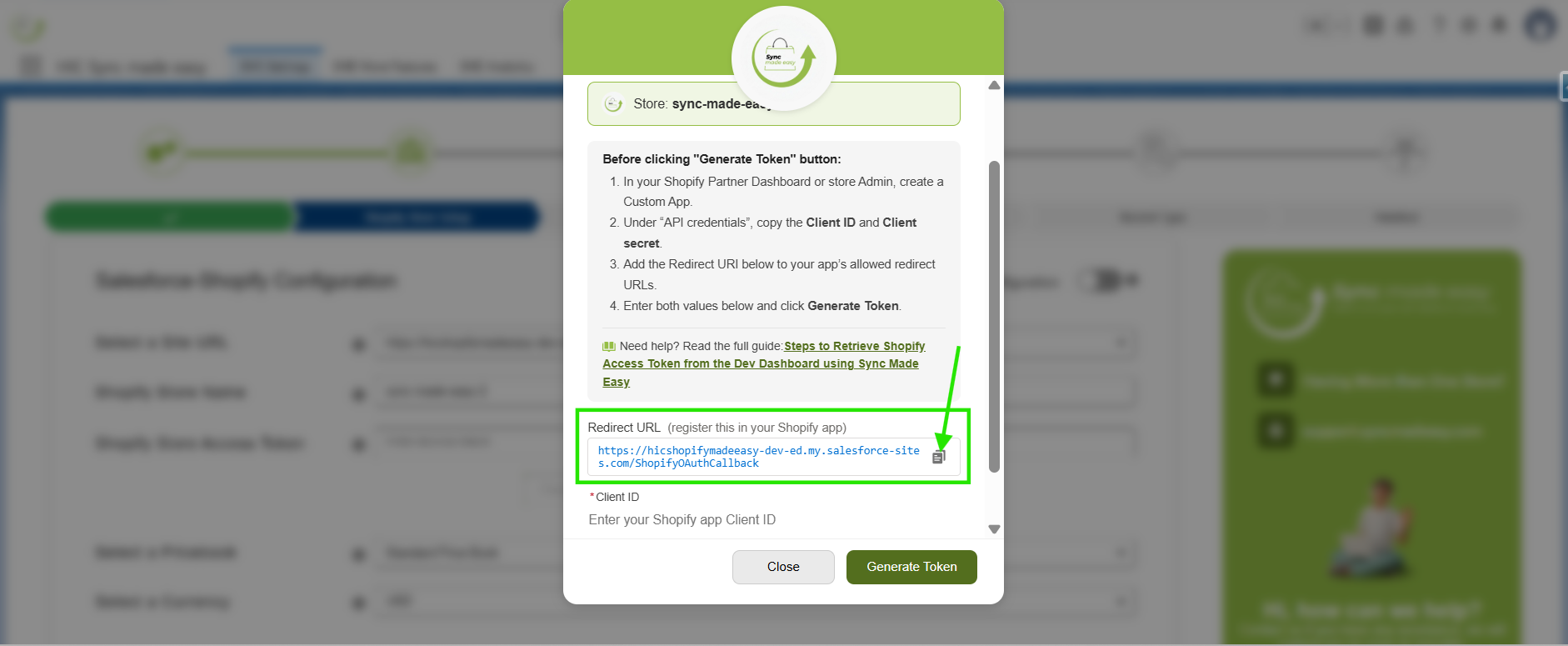
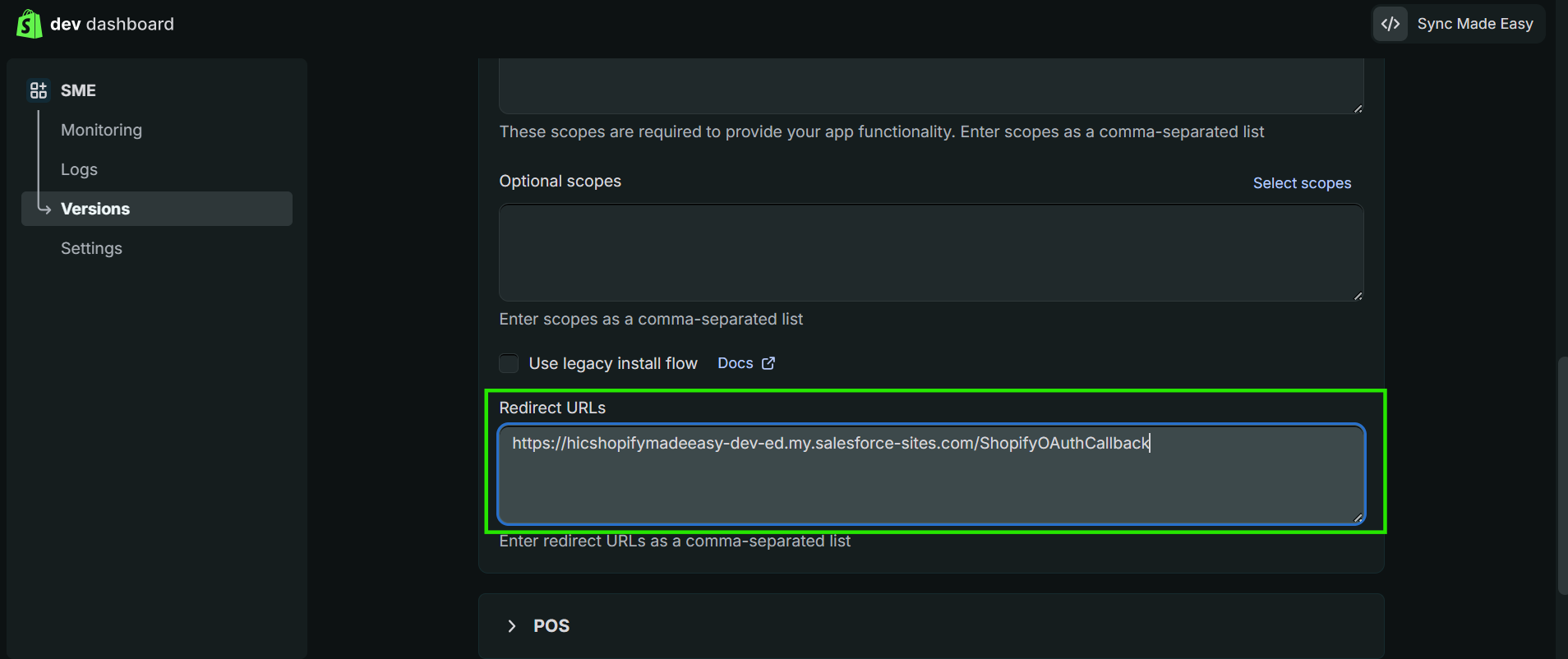
Step 6: Once the page opens, scroll down a little and copy the Redirect URL.
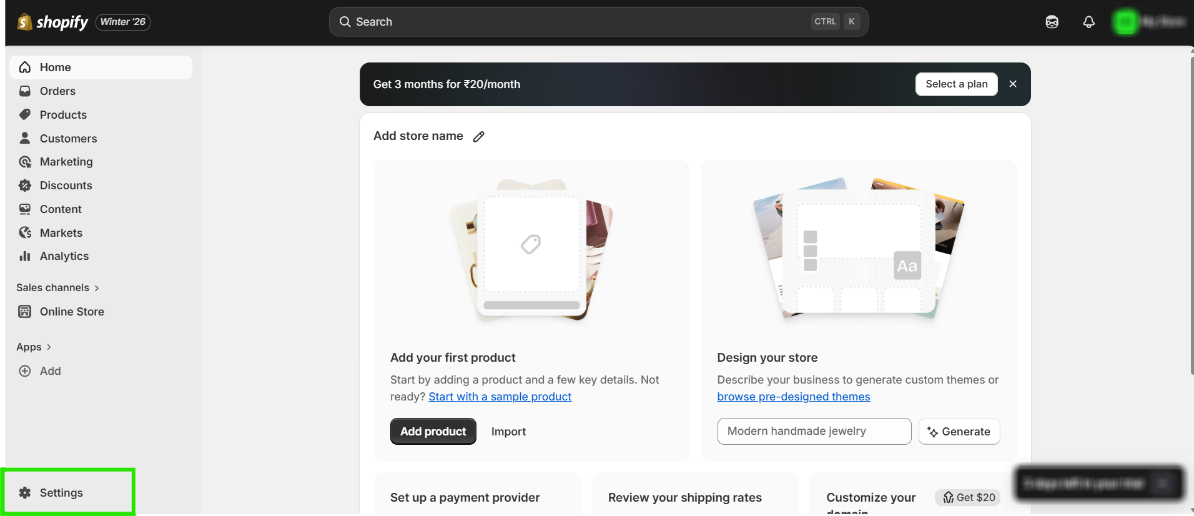
Step 7: Go to the Shopify store, click on “Settings”.
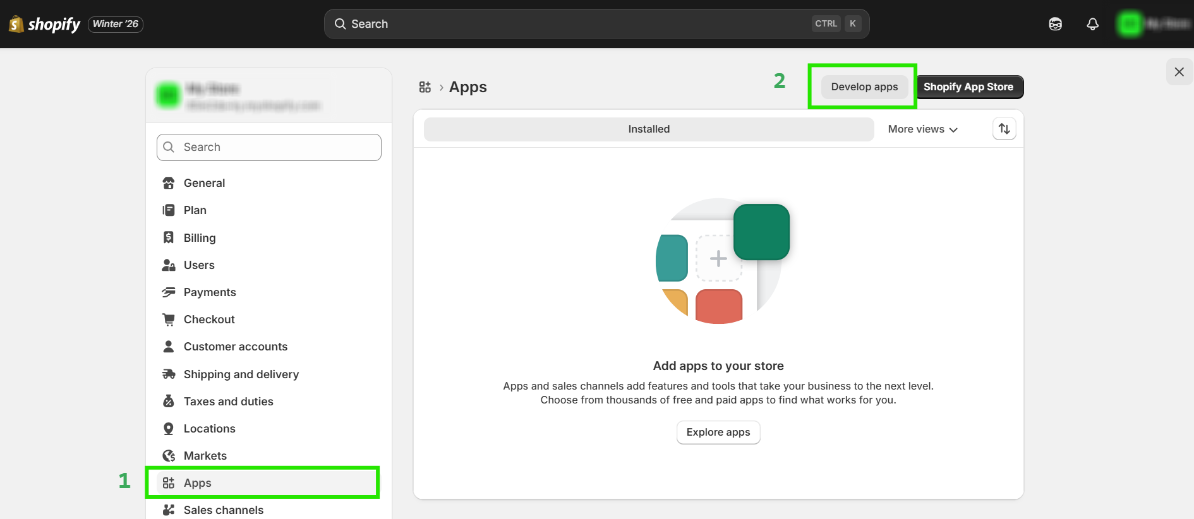
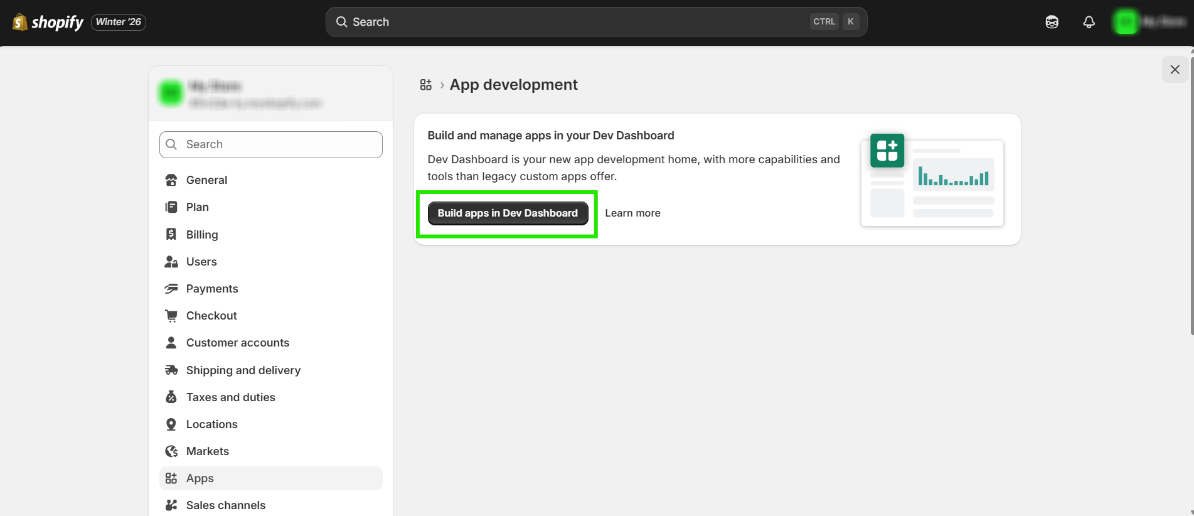
Step 8: Click on “Apps” & then “Develop apps”.
Step 9: Click on “Build apps in Dev Dashboard”.
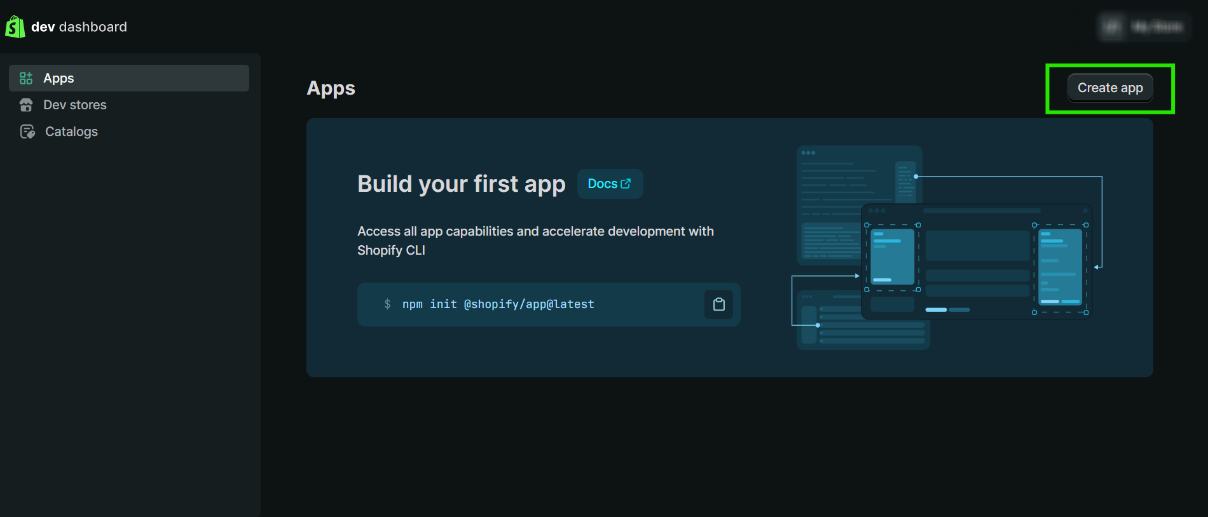
Step 10: In the dev dashboard, Click on “Create app”.
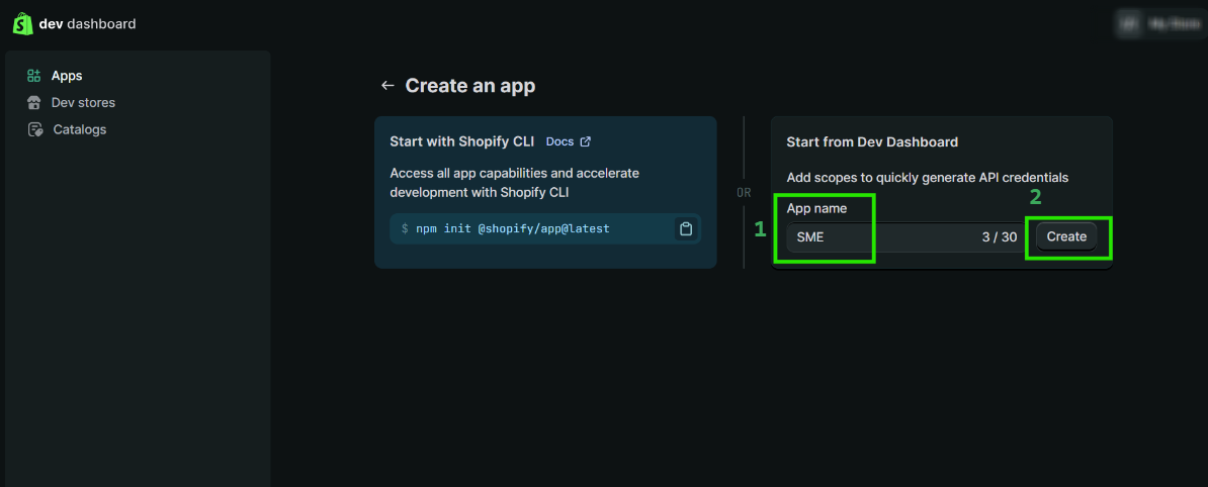
Step 11: Enter the App name and then click on “Create”.
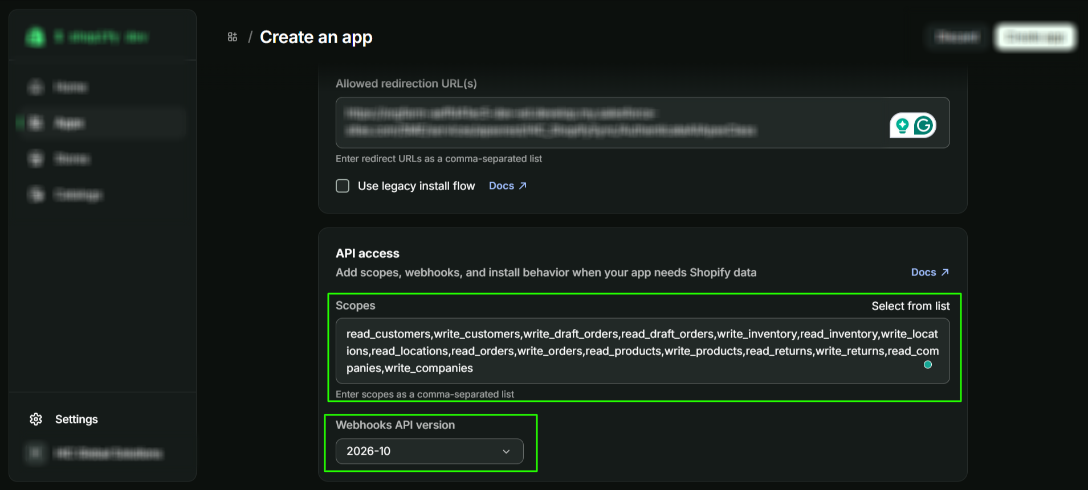
Step 12: Scroll down a little and paste the Redirect URL that you copied earlier.
Step 13: You need to select the Webhook API version as 2026-10 and give Read and Write scope access to the following Objects:
1. Customers 2. Products
3. Draft Orders 4. Orders
5. Locations 6. Inventory
7. Returns 8. Companies
You can either manually select these scopes or simply copy and paste the list provided below.
read_customers,write_customers,write_draft_orders,read_draft_orders,write_inventory,read_inventory,write_locations,read_locations,read_orders,write_orders,read_all_orders,read_products,write_products,read_returns,write_returns,read_companies,write_companies
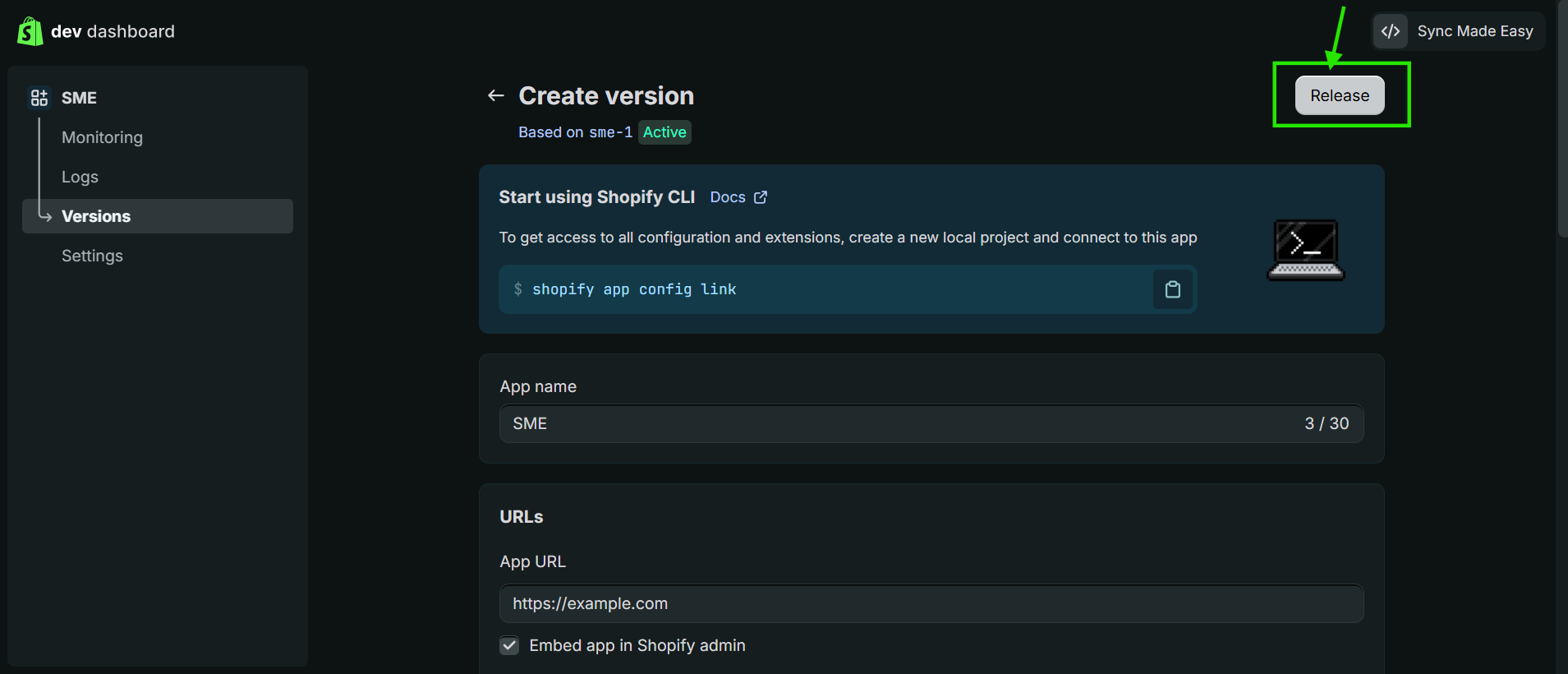
Step 14: Once everything is configured, click the "Release" button.
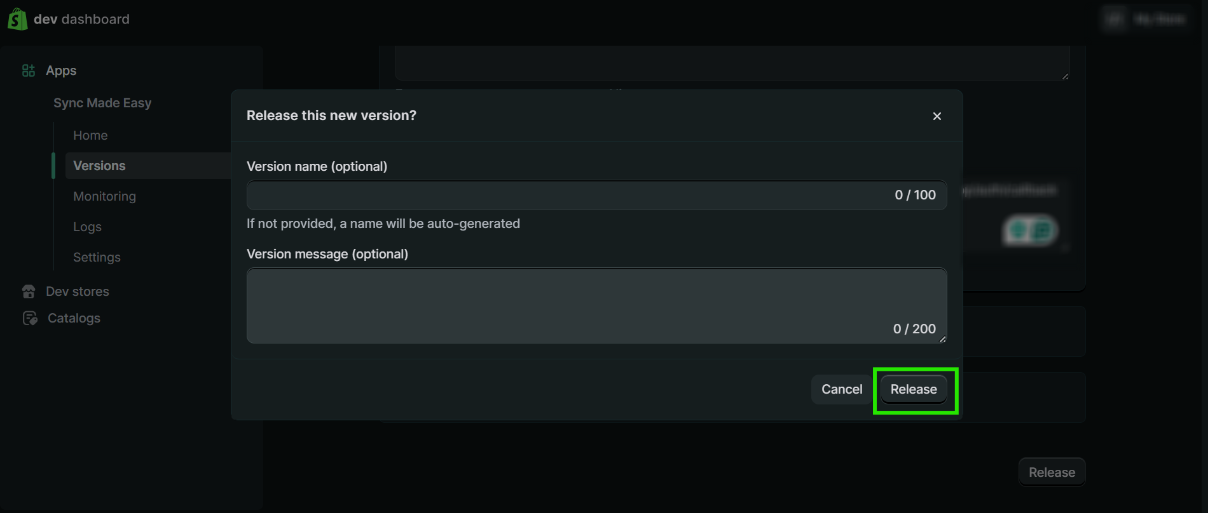
Step 15: Enter your app version if applicable or you can also leave it blank. After that, click the Release button.
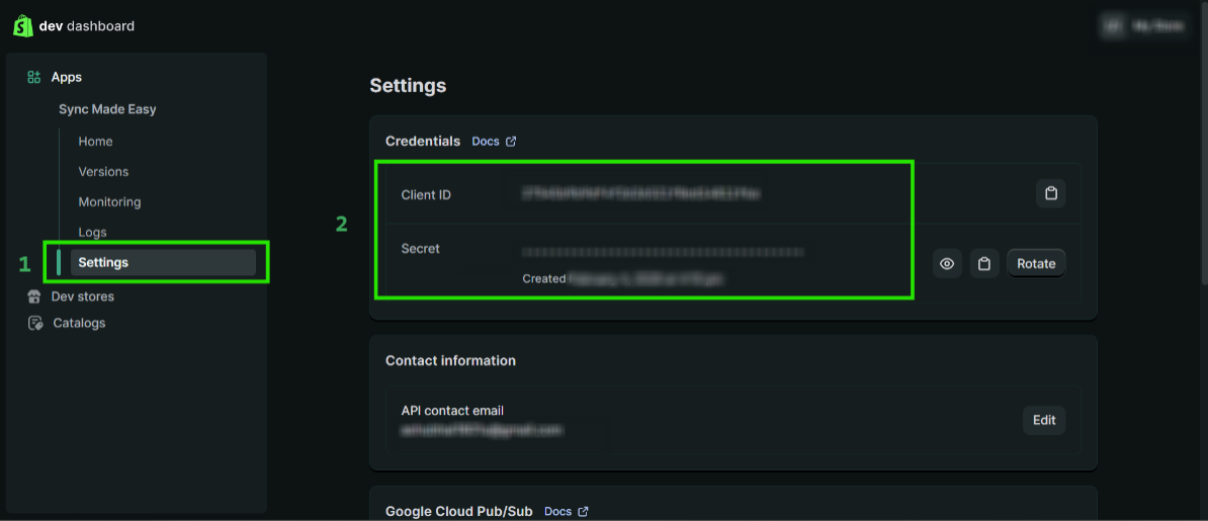
Step 16: Go to Settings and Copy the "Client ID" & "Secret Key".
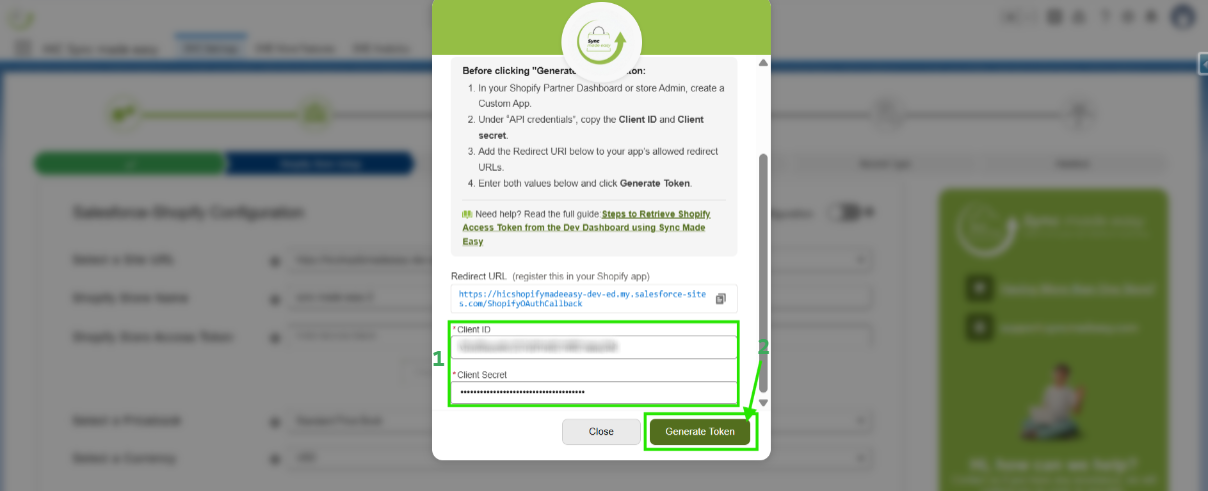
Step 17: Return to Salesforce and in the "Generate Shopify Access Token" authentication window. Paste the Client ID and Client Secret, then click the "Generate Token" button to create the access token.
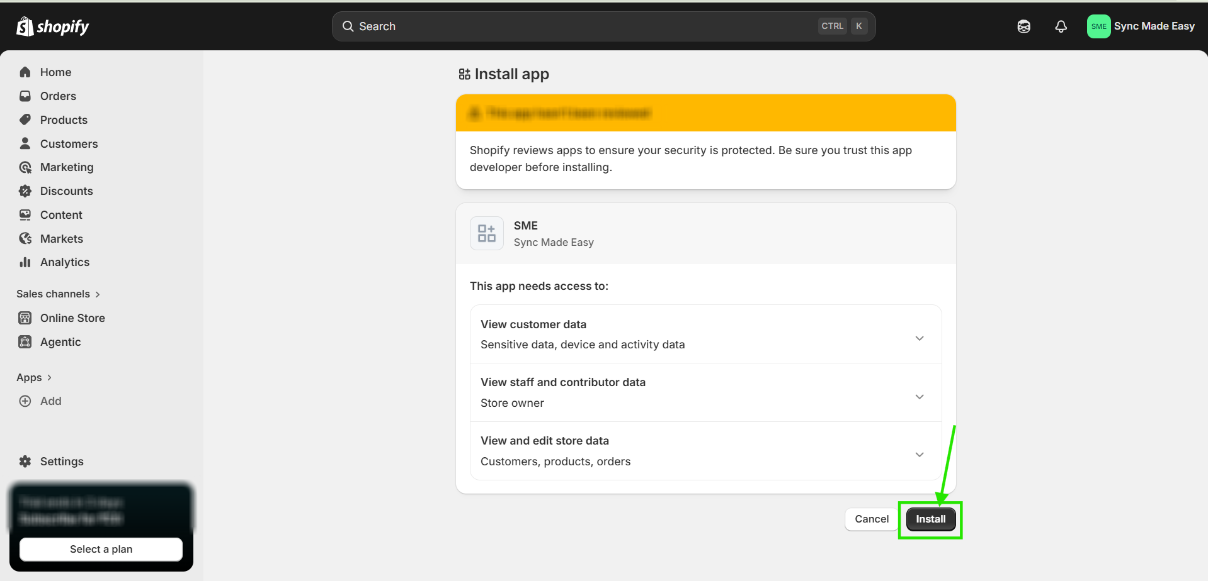
Step 18: Click on "Install".
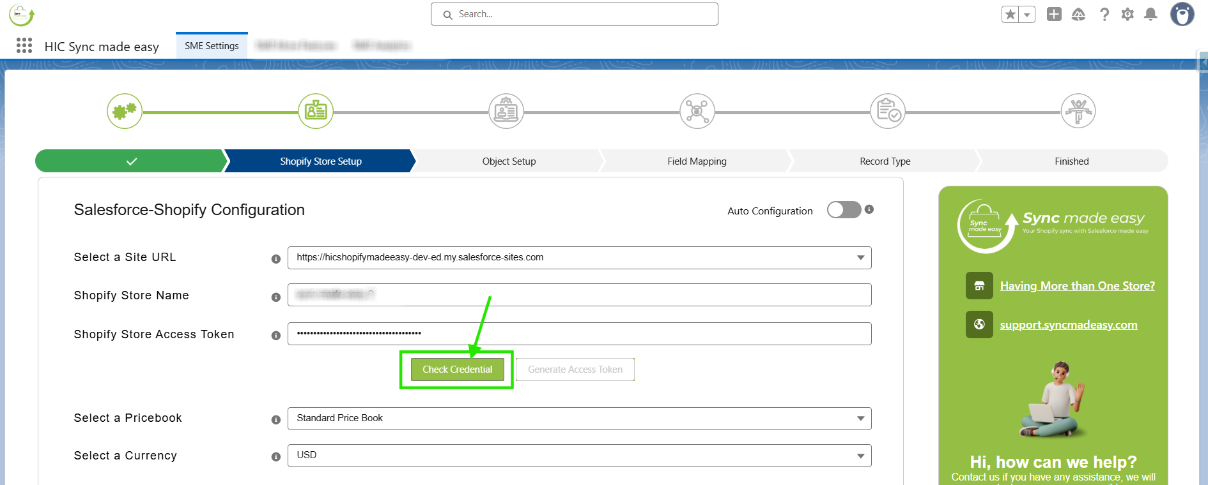
Step 19: After the installation is complete, your Shopify access token will be automatically populated in the "Shopify Store Access Token" field. Then click "Check Credential".
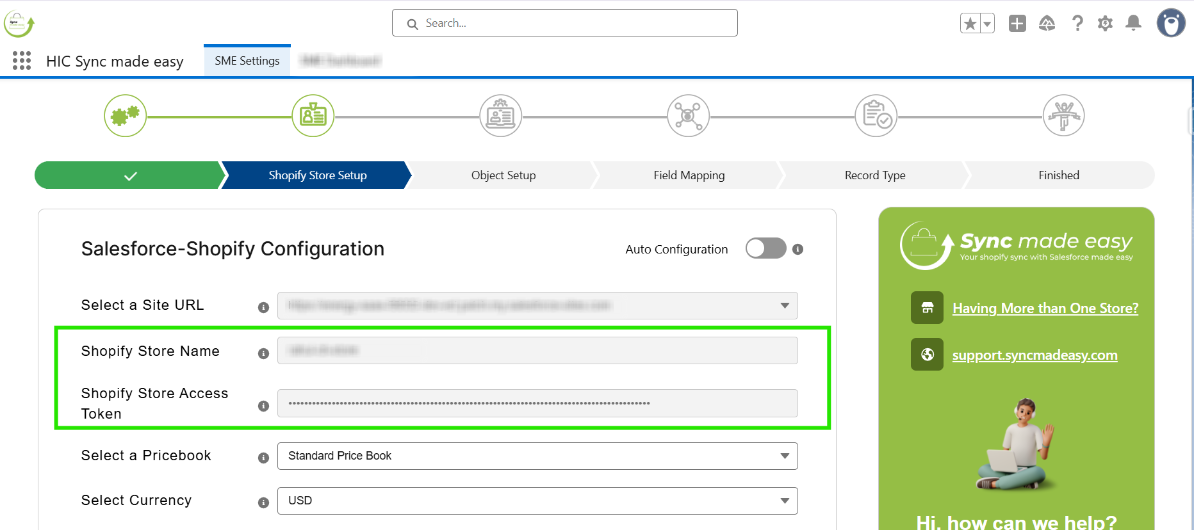
Step 20: After checking the Credential, your store is added.
By following the above steps, you can successfully generate your Shopify access token from the Dev Dashboard. This token is essential to securely connect your Shopify store with Salesforce. Once completed, your Shopify Salesforce integration will work smoothly with accurate and real-time data sync. Make sure to save the access token safely, as it is required to maintain a stable integration.
We hope this article helps! If you still face any issues, feel free to contact us at support@syncmadeasy.com.
Was this article helpful?
That’s Great!
Thank you for your feedback
Sorry! We couldn't be helpful
Thank you for your feedback
Feedback sent
We appreciate your effort and will try to fix the article
