This guide explains the Cancel order button, available on the Order object. This feature enables seamless synchronization of order cancellations between Salesforce and Shopify, ensuring that both platforms remain perfectly aligned at all times.
We’ve broken this down into a clear step-by-step process so you can enable and use this feature effectively.
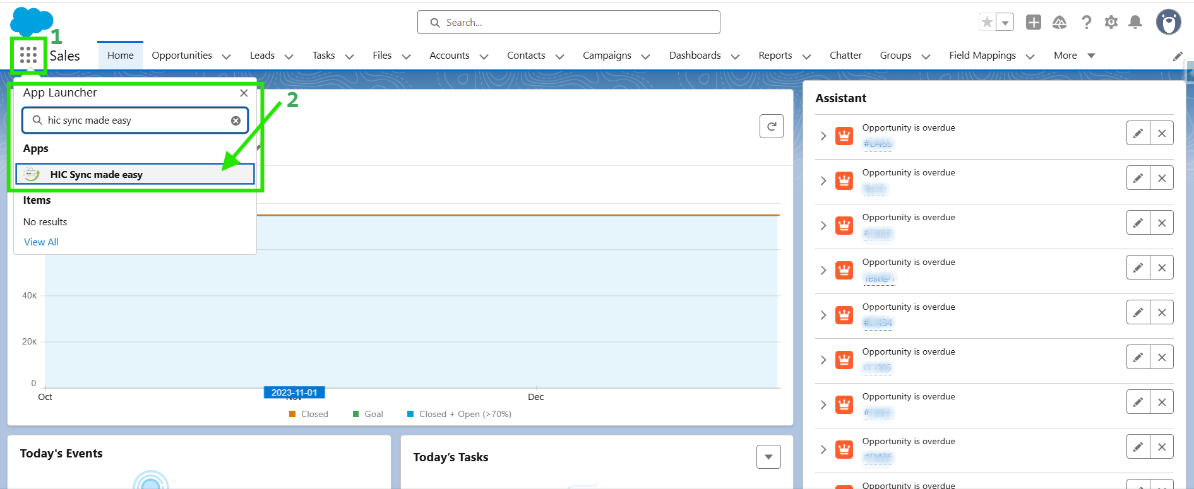
Step 1: Log in to Salesforce & in App Launcher search "HIC Sync made easy". Click on it.
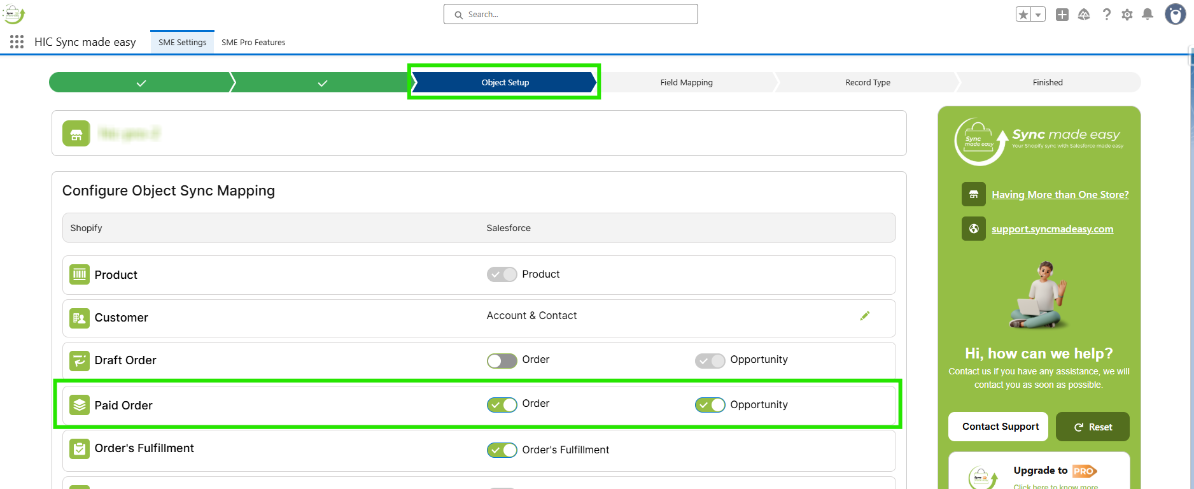
Step 2: Ensure that from Paid Order → Order or Opportunity is enabled on the Object Setup page in SME Settings.
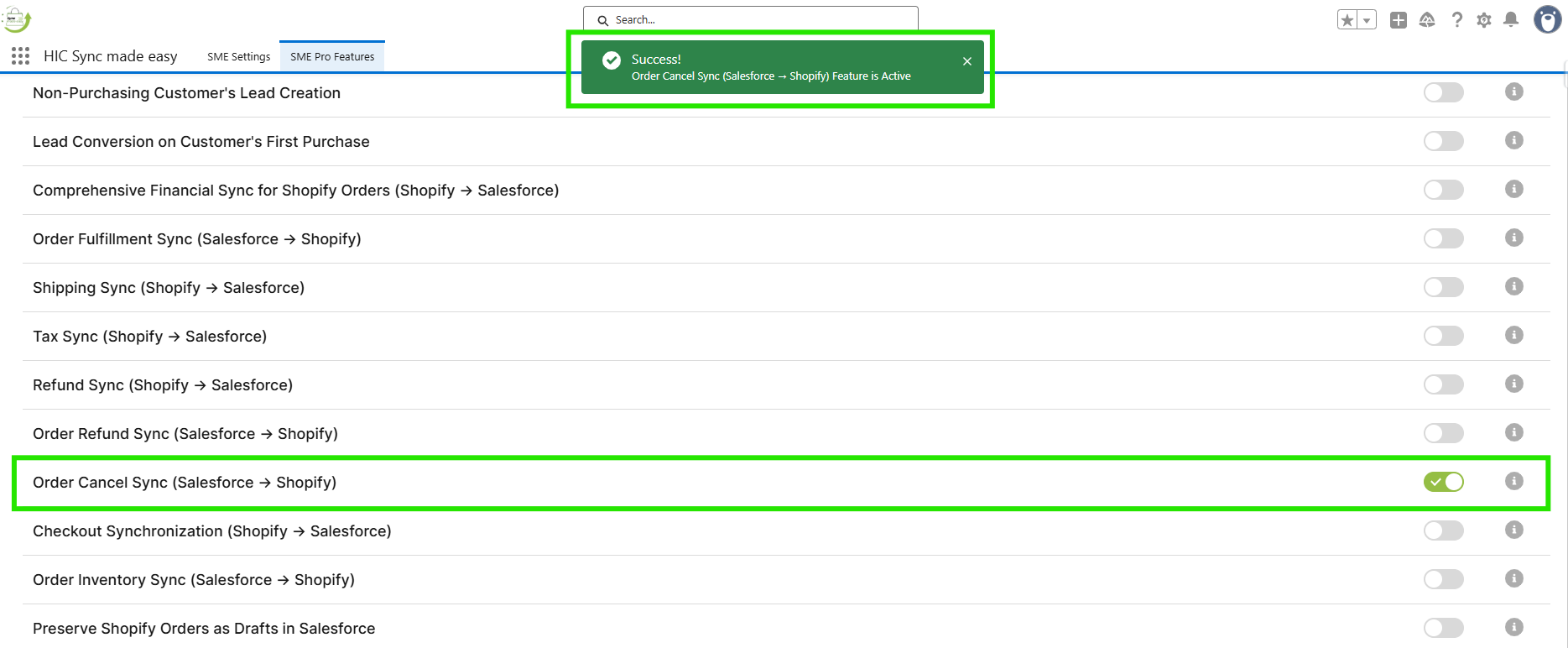
Step 3: Go to the SME Pro Features tab and enable the "Order Cancel Sync (Salesforce → Shopify)" feature.
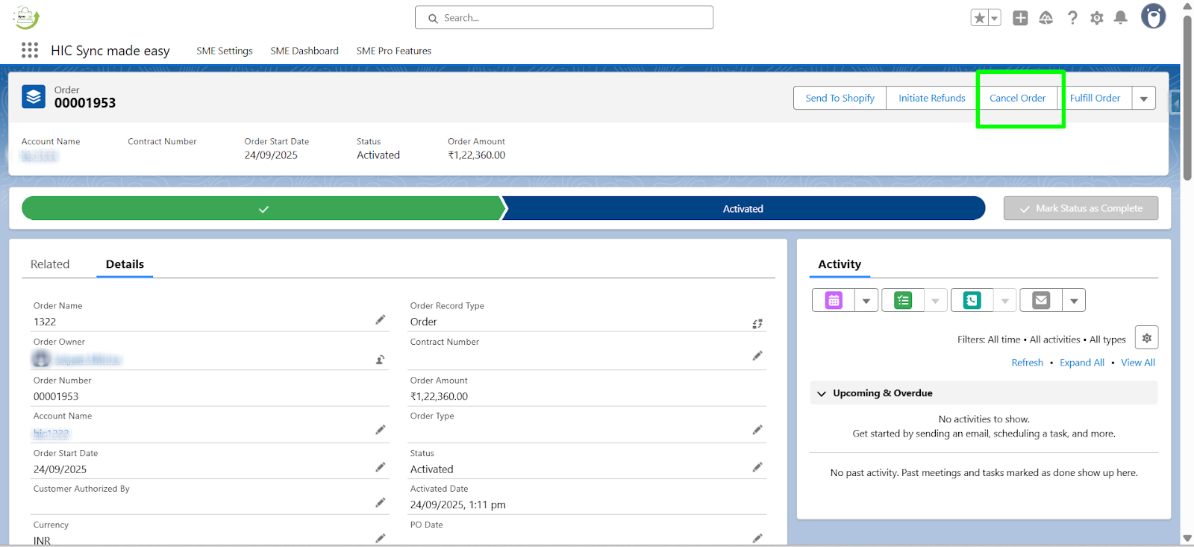
Step 4:Navigate to an Order record in Salesforce whose Status is “Activated” and which has a Shopify ID field filled. Click on the "Cancel Order" button.
Step 5: A confirmation pop-up appears
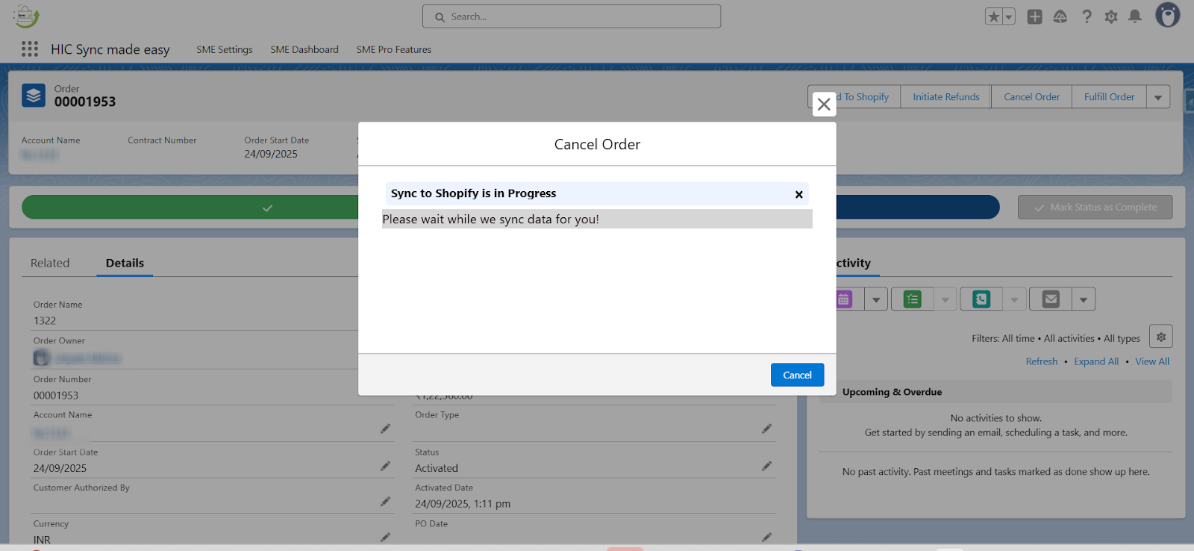
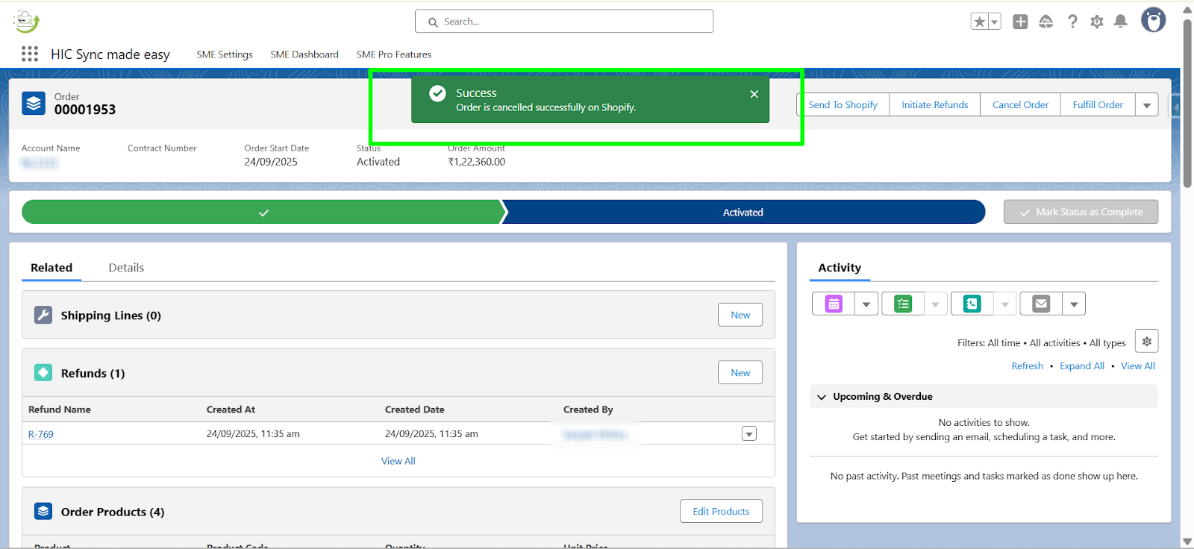
Step 6: Once confirmed, the order Cancellation message is shown in Salesforce.
Step 7: Open the order in Shopify. You will see that the order status will also display as "Cancelled".
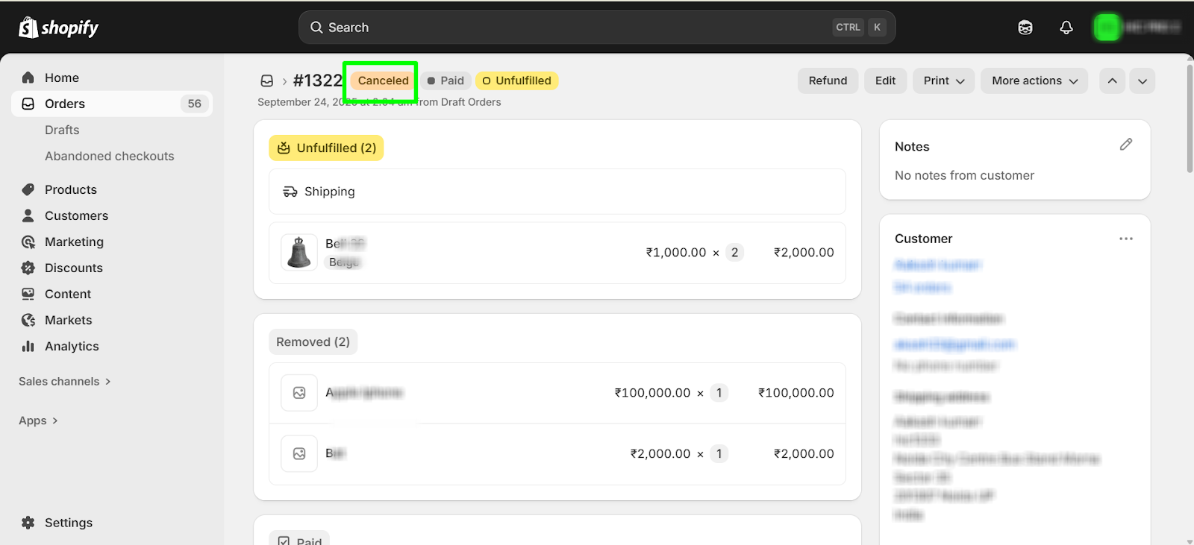
This completes the functionality of Order Cancel Sync from Salesforce to Shopify.
Thanks!
Was this article helpful?
That’s Great!
Thank you for your feedback
Sorry! We couldn't be helpful
Thank you for your feedback
Feedback sent
We appreciate your effort and will try to fix the article