Now, you need to configure the installation within your Salesforce Org to ensure proper functionality. The configuration process involves six steps.
From the current page, navigate to the App Launcher, type HIC Sync Made Easy in the search bar and select HIC Sync Made Easy
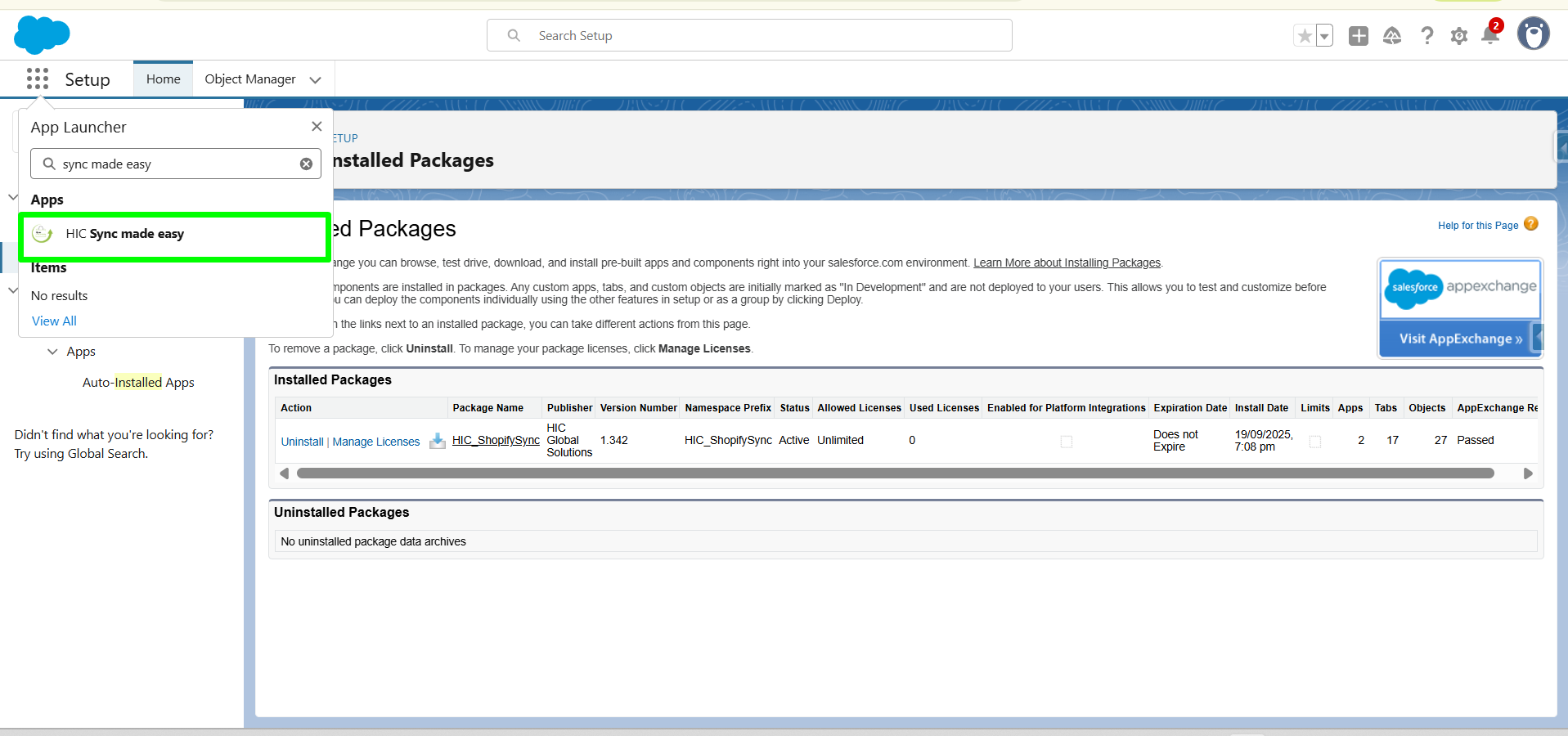
Step 1: Setup
Creating A Site URL for your Org
Now, Go to SME Settings. This brings you to Step 1 of the configuration process. In Step 1, we will register your site, create a Domain URL Remote setting, create a remote setting and generate a self-signed certificate.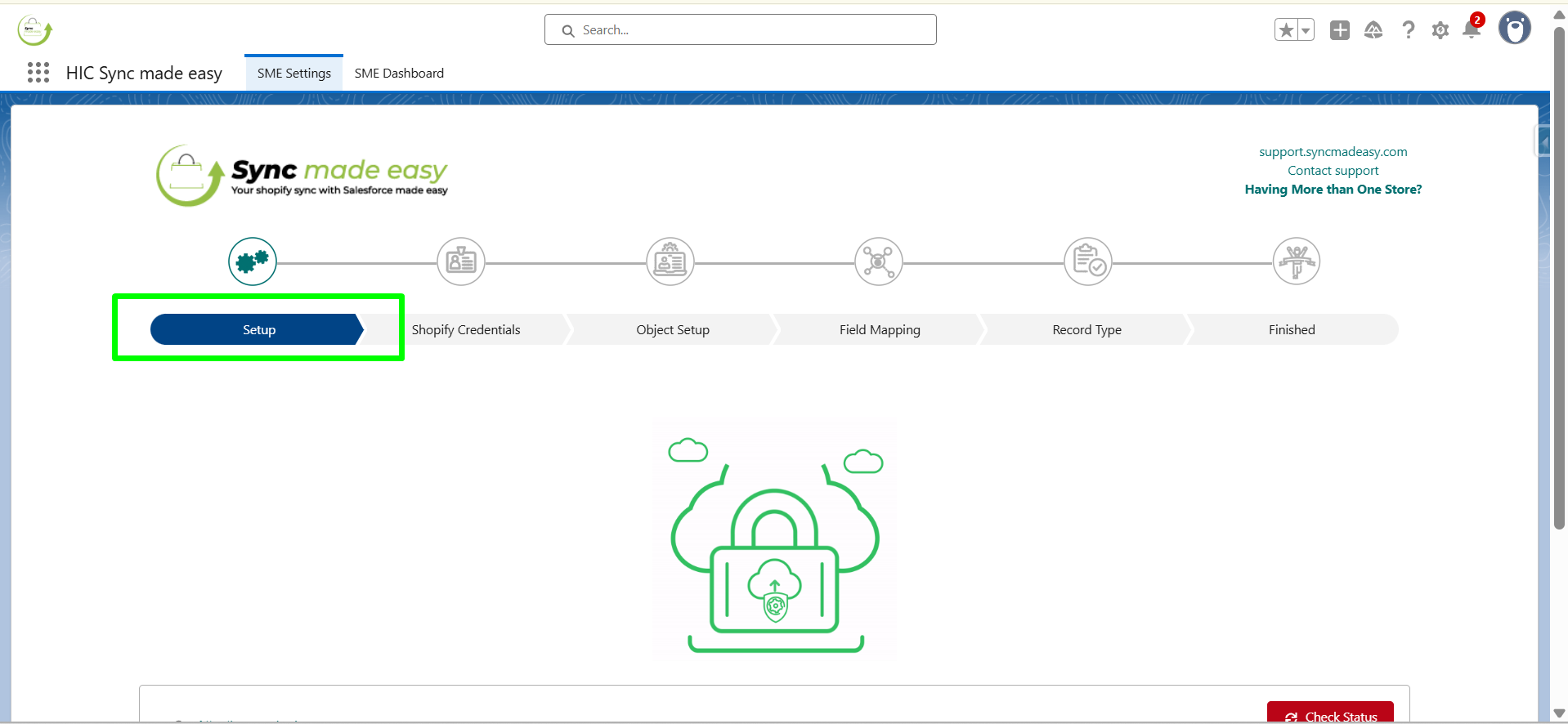
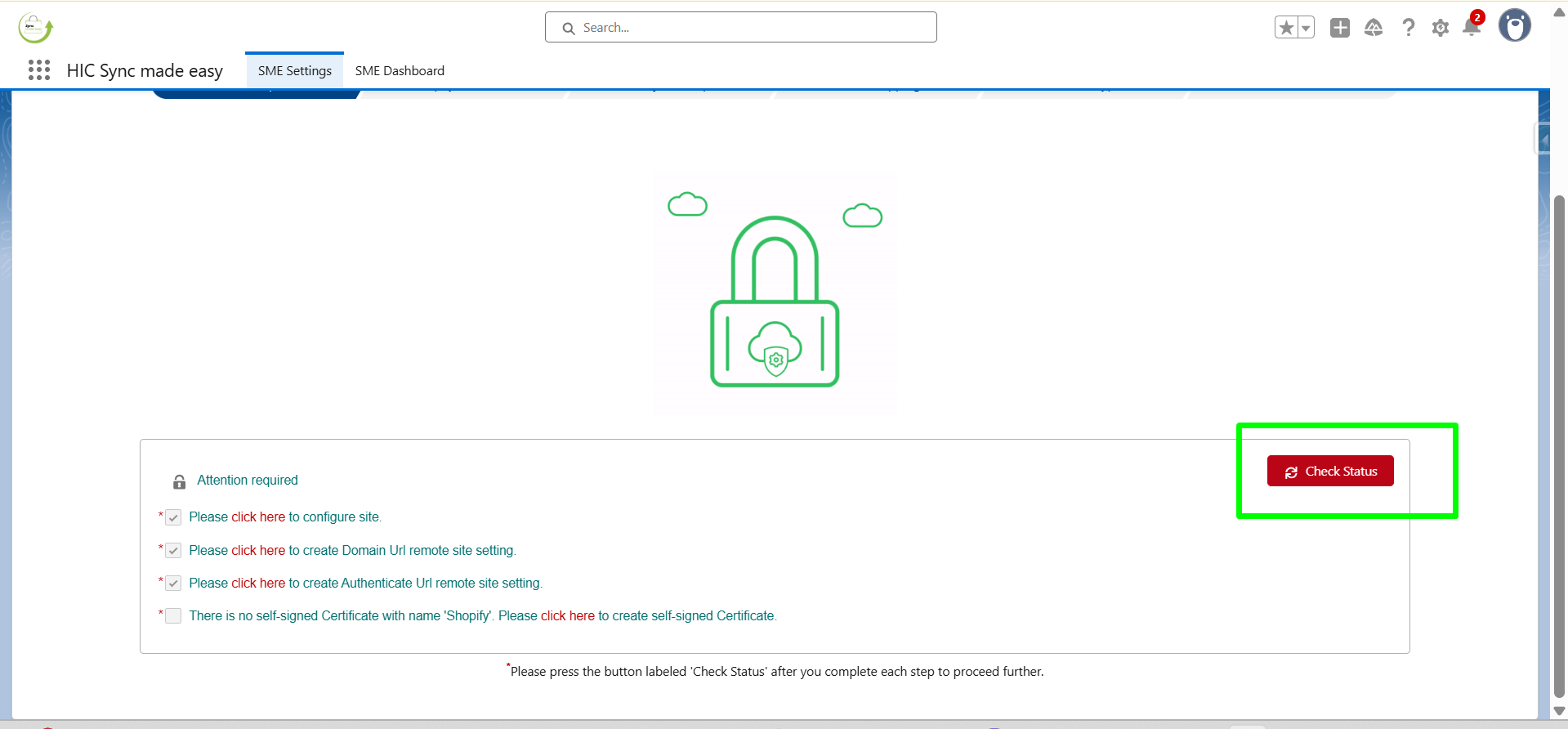
We will begin by creating a new site. You may check the status of your site by clicking the Check Status button. We recommend checking the status after completing every step on the page.
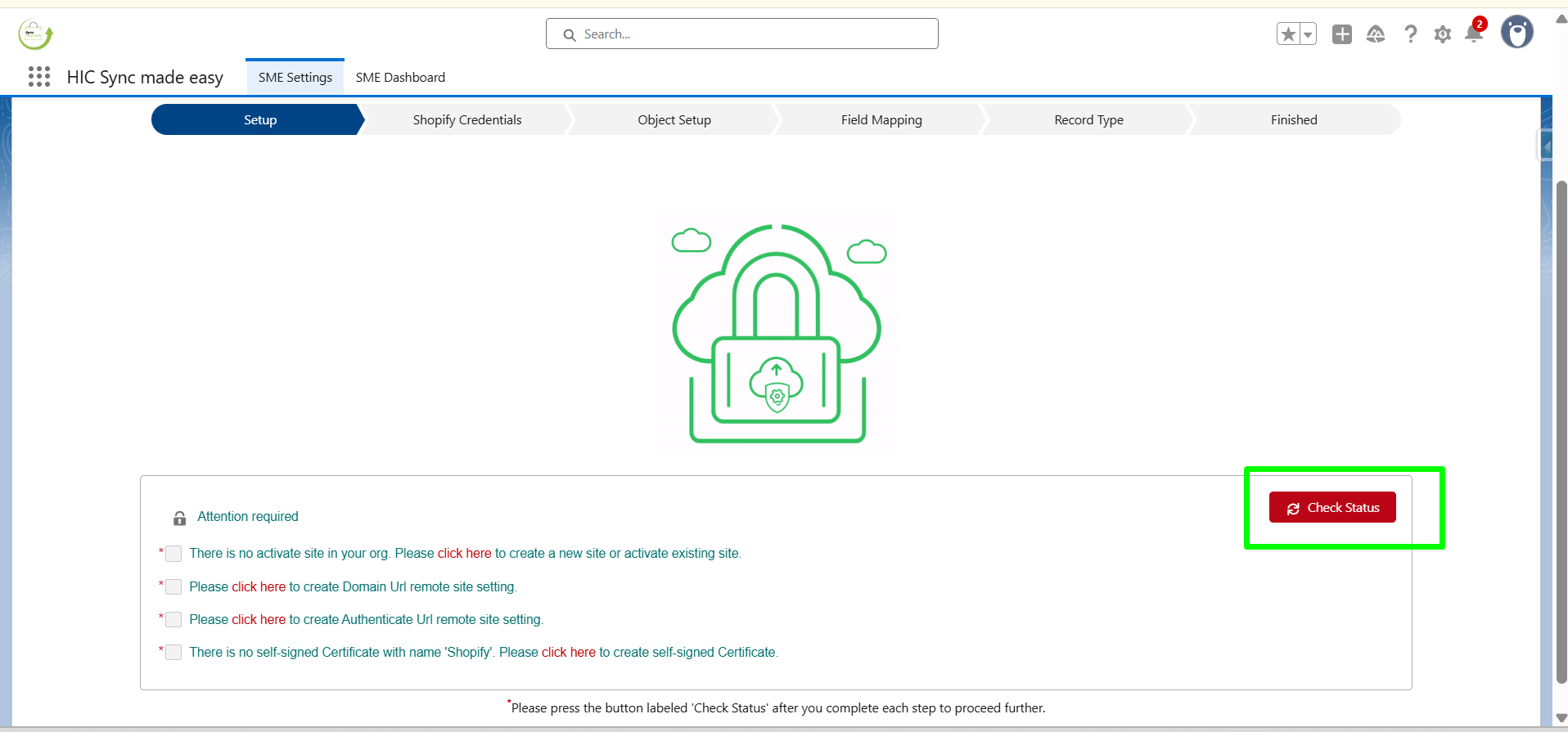
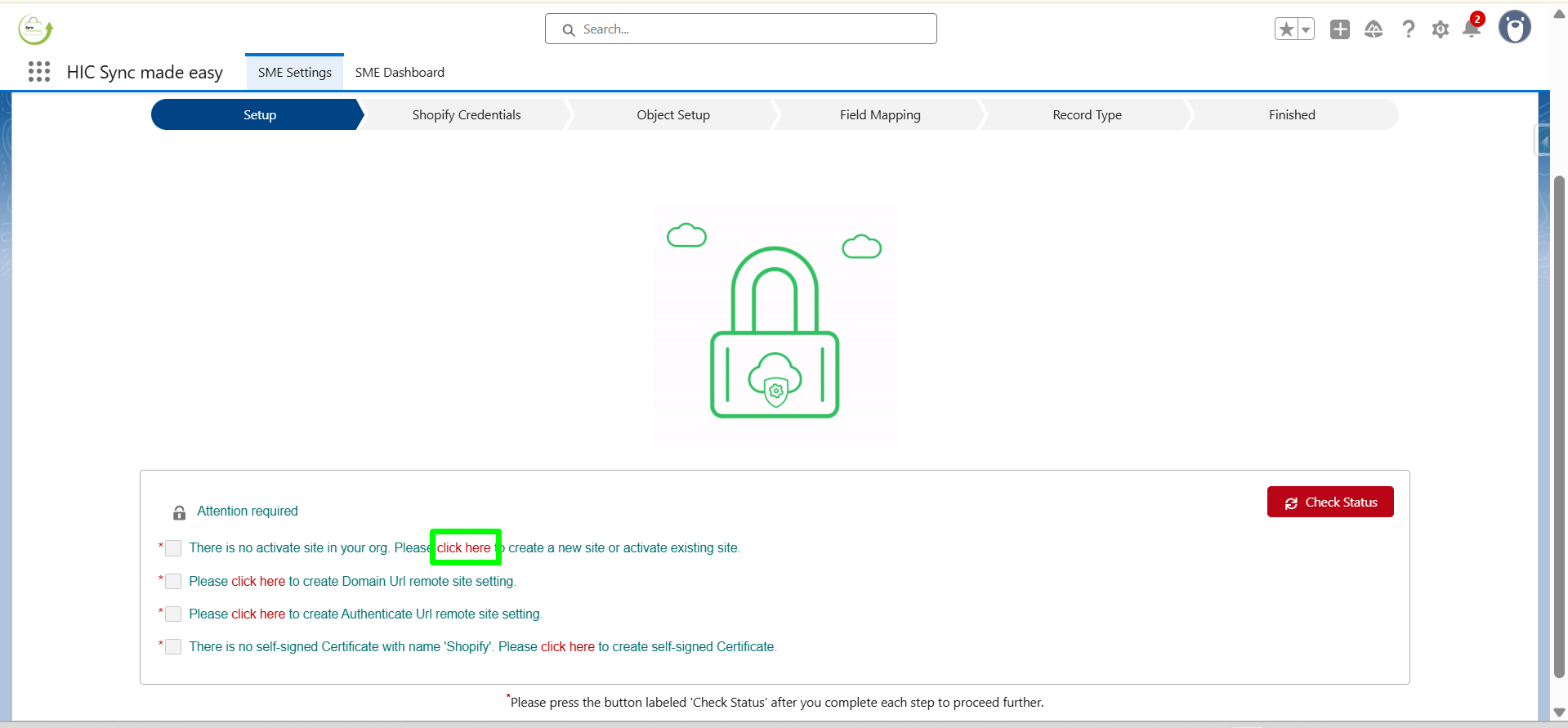
Here on this webpage, there are four mandatory tasks to carry out. So, the first one is to create a new active site. Now, Click "Click here" as shown in the Figure.
This will take you to a site webpage . Here, enter a unique Domain Name for your Salesforce Site.
WARNING:
The Domain Name for your Salesforce Site will be immutable once registered and must be chosen carefully before proceeding any further.
Check the checkbox ☑️ next to I have read and accepted the Salesforce Site’s Terms and Conditions. Then, click Register My Salesforce Site Domain to finish registration.
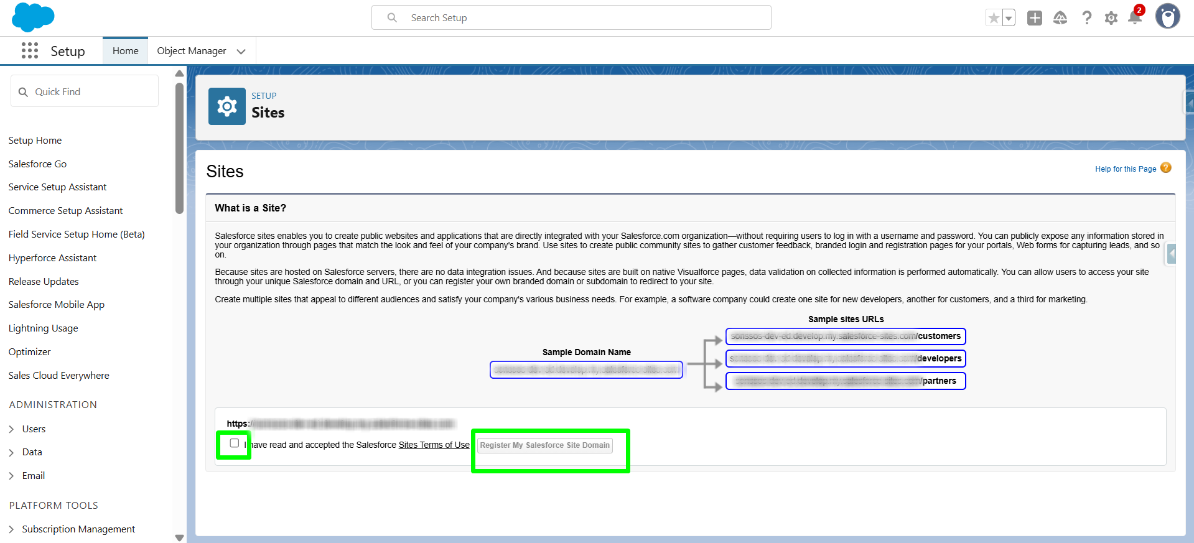
After a while, refreshing the page should display your Salesforce Site Domain Name. Click on “New” to create a new site.
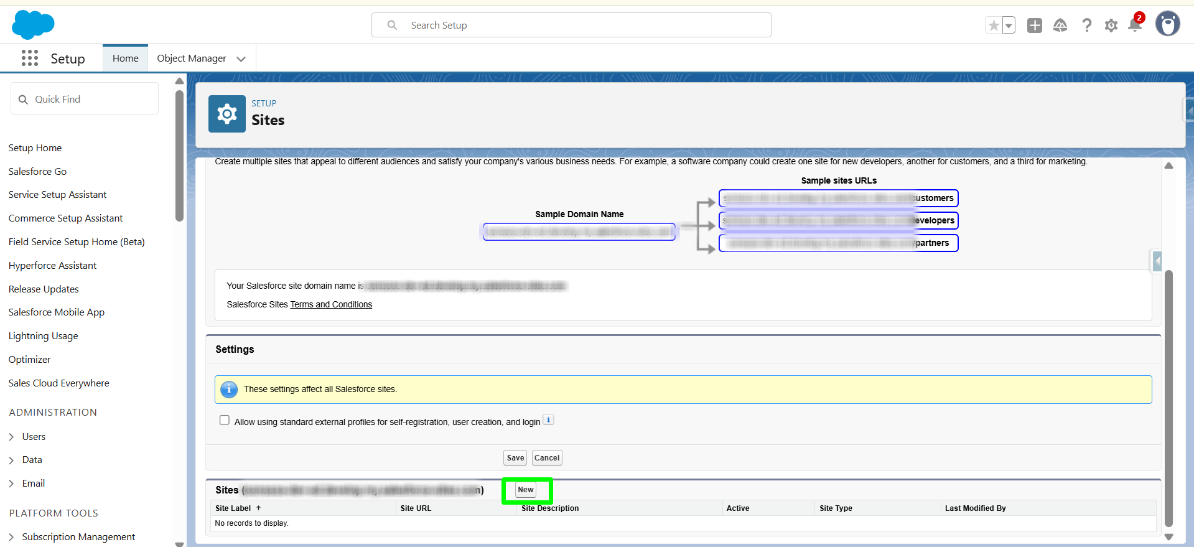
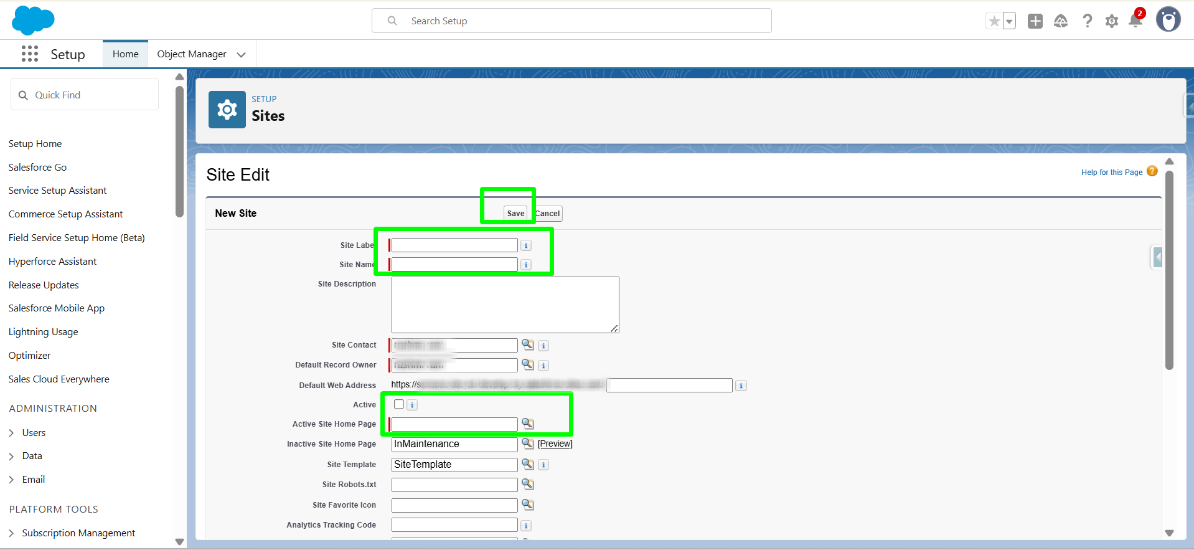
From here, you will be taken to The Site Edit Page, where you will need to create Your Site Label and Site Name.
Now, on the Site Edit Page, fill in the mandatory fields marked in Green and tick the checkbox next to ‘Active’ to activate the site. (You only need to enter the Site Label and Site Name. And do not forget to put a tick on the Active Site Checkbox.)
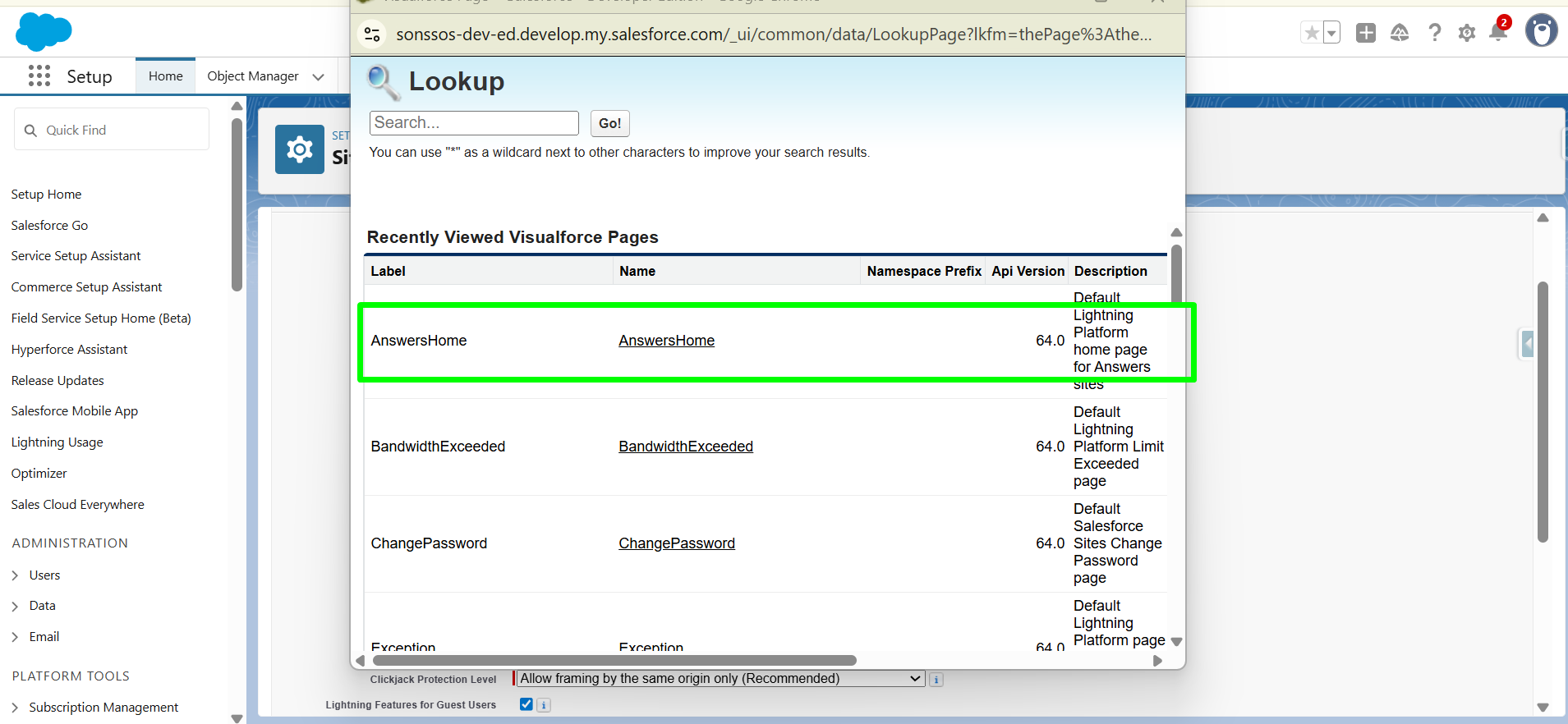
Click on the Active Site Home Page field lookup next to it, and pick any one of the values (eg: AnswerHome) in the list of Recently Viewed Visual force pages. This populates the rest of the mandatory fields with appropriate values.
Now, click Save and finish creating the site.
On the following page, you should be able to see the site details. Click on Public Access Settings.
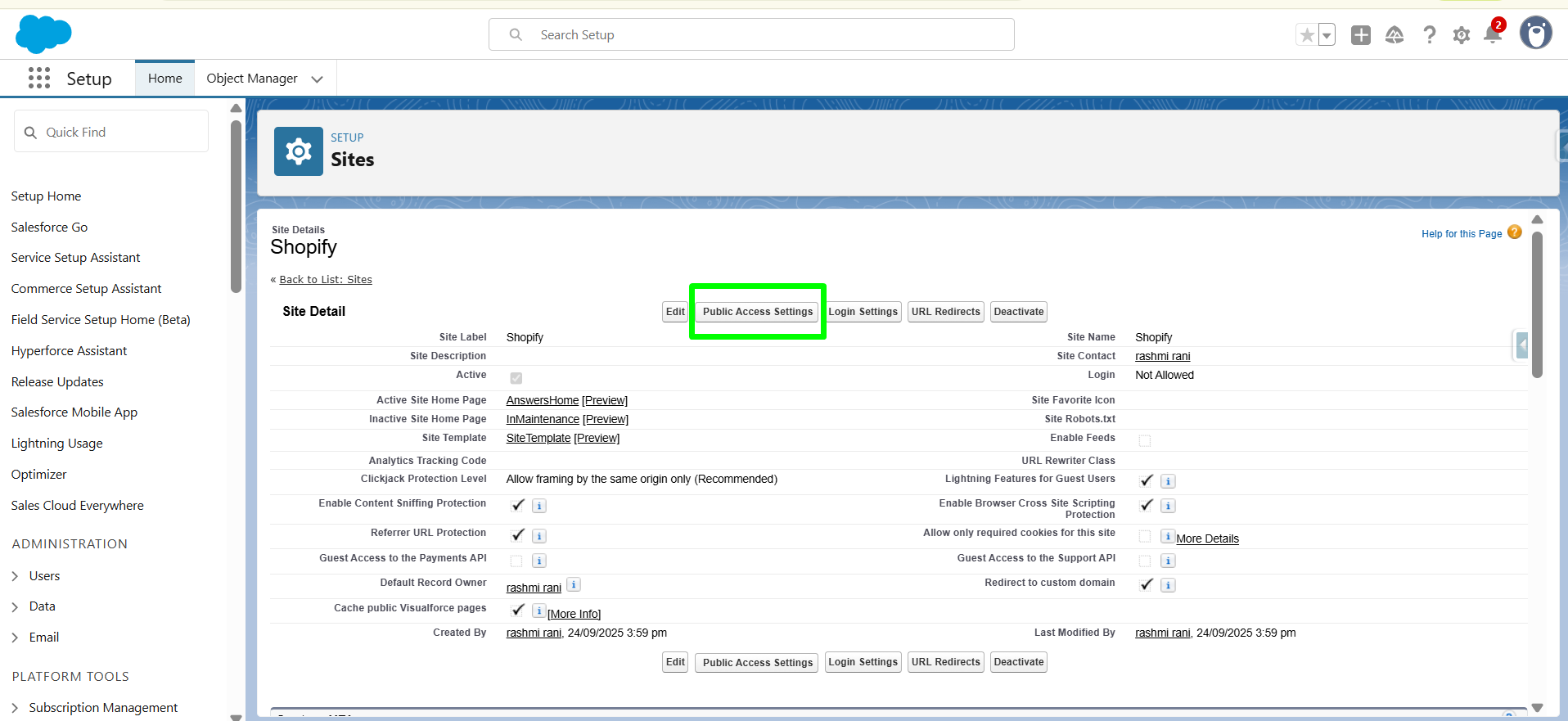
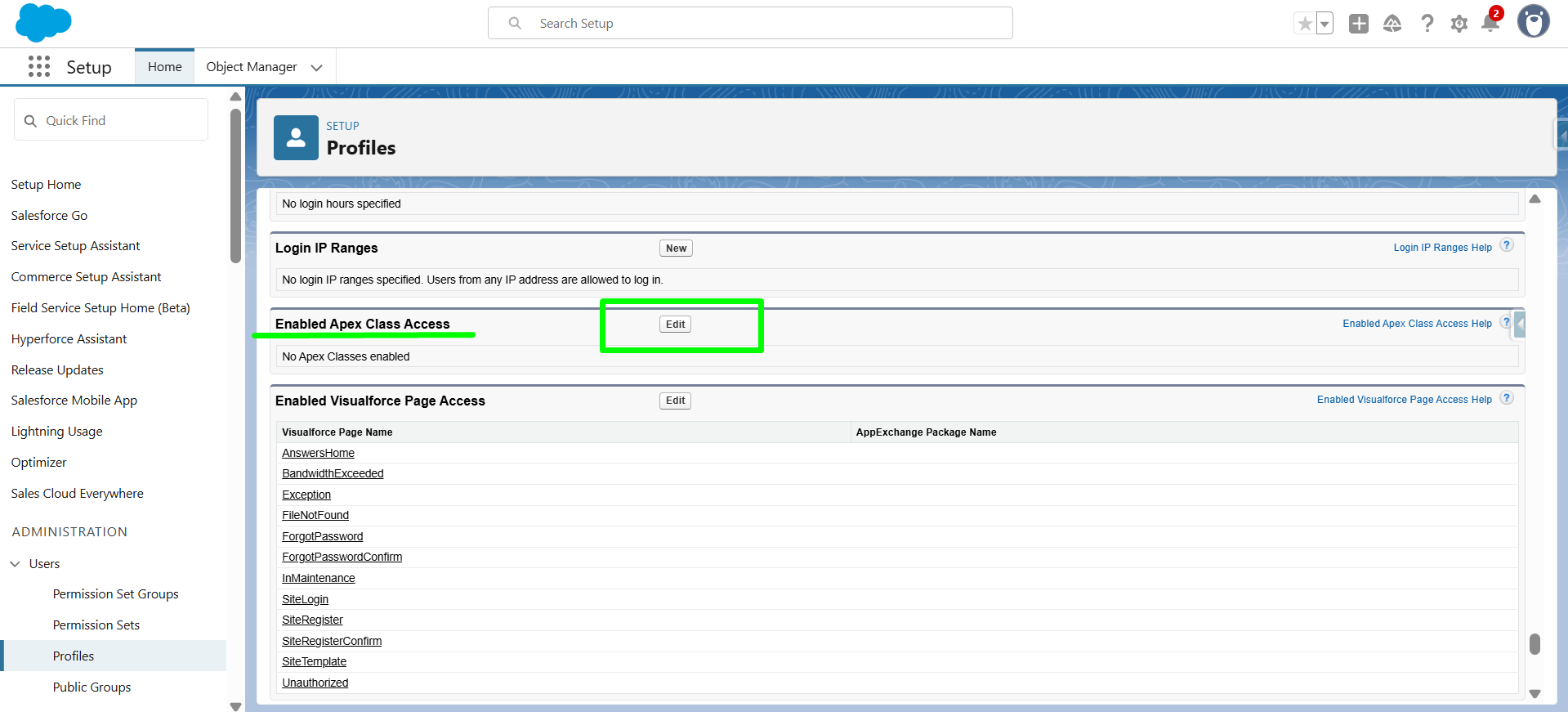
This will bring you to the Profile page. Here, click on "Enabled Apex Class Access” , then click on ‘’Edit".
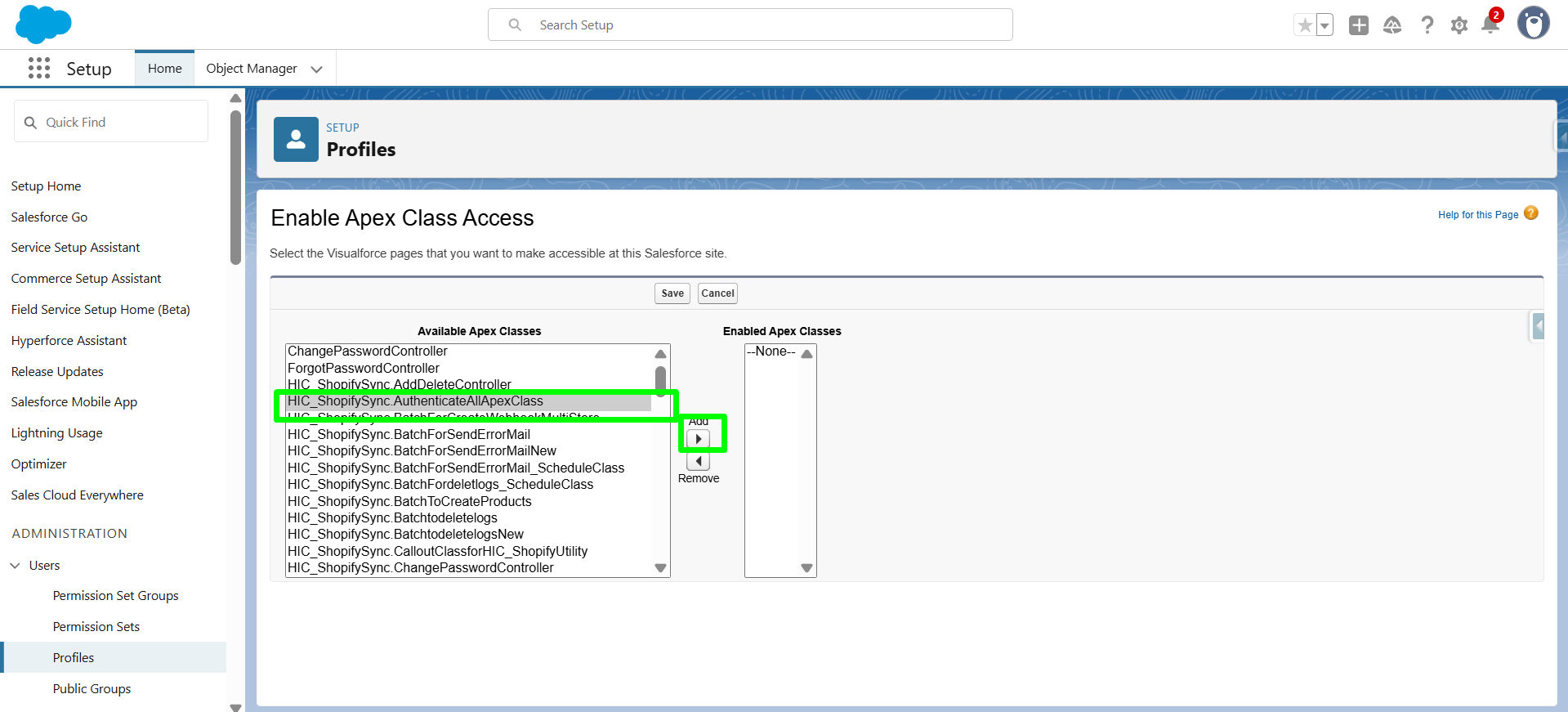
Now, you will be navigate to Enable Apex Class access page. Here, select “HIC_ShopifySync.AuthenticateAllApexClass” then click on ADD .
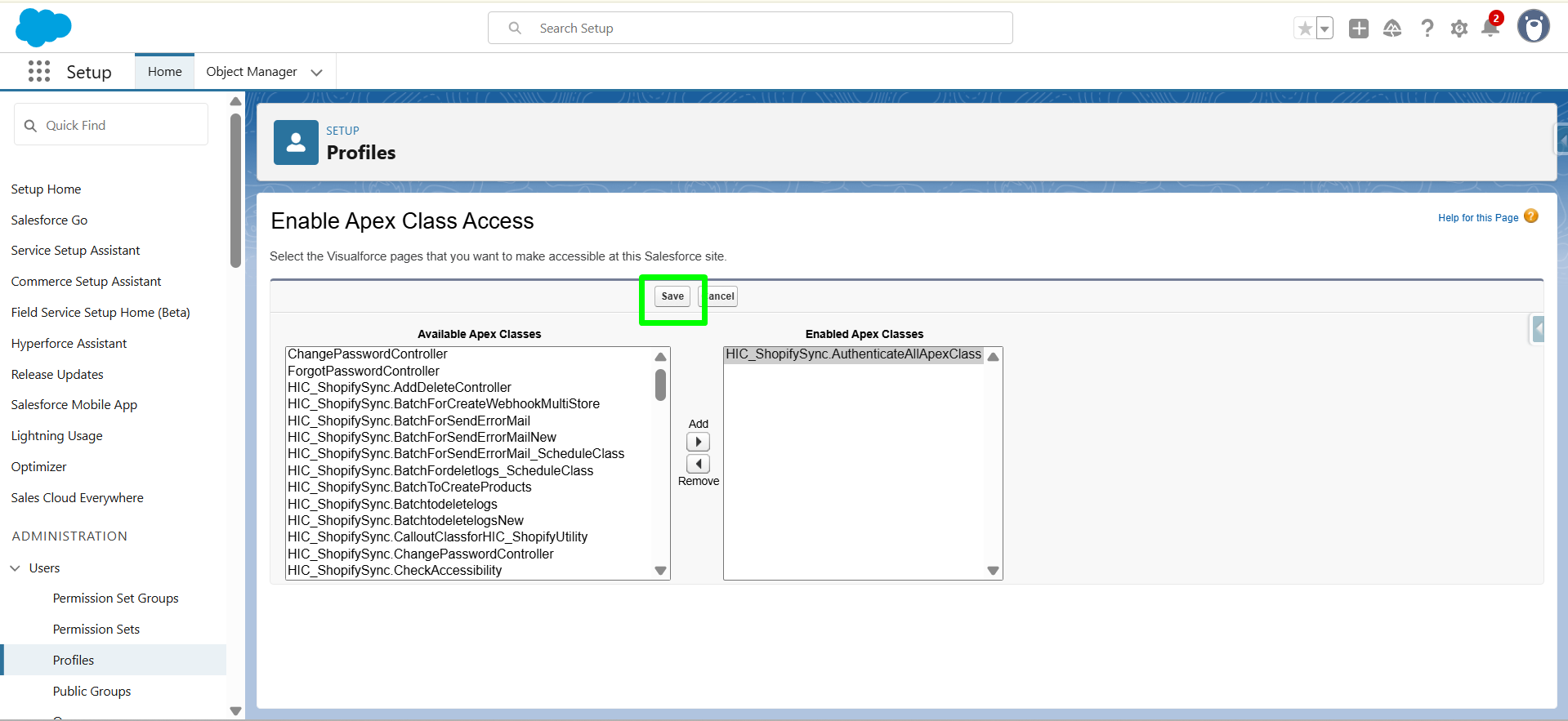
Now, Click on “Save”.
Site has been Activated
Now, Navigate to the Setup of the SME settings page, then click on Check Status .
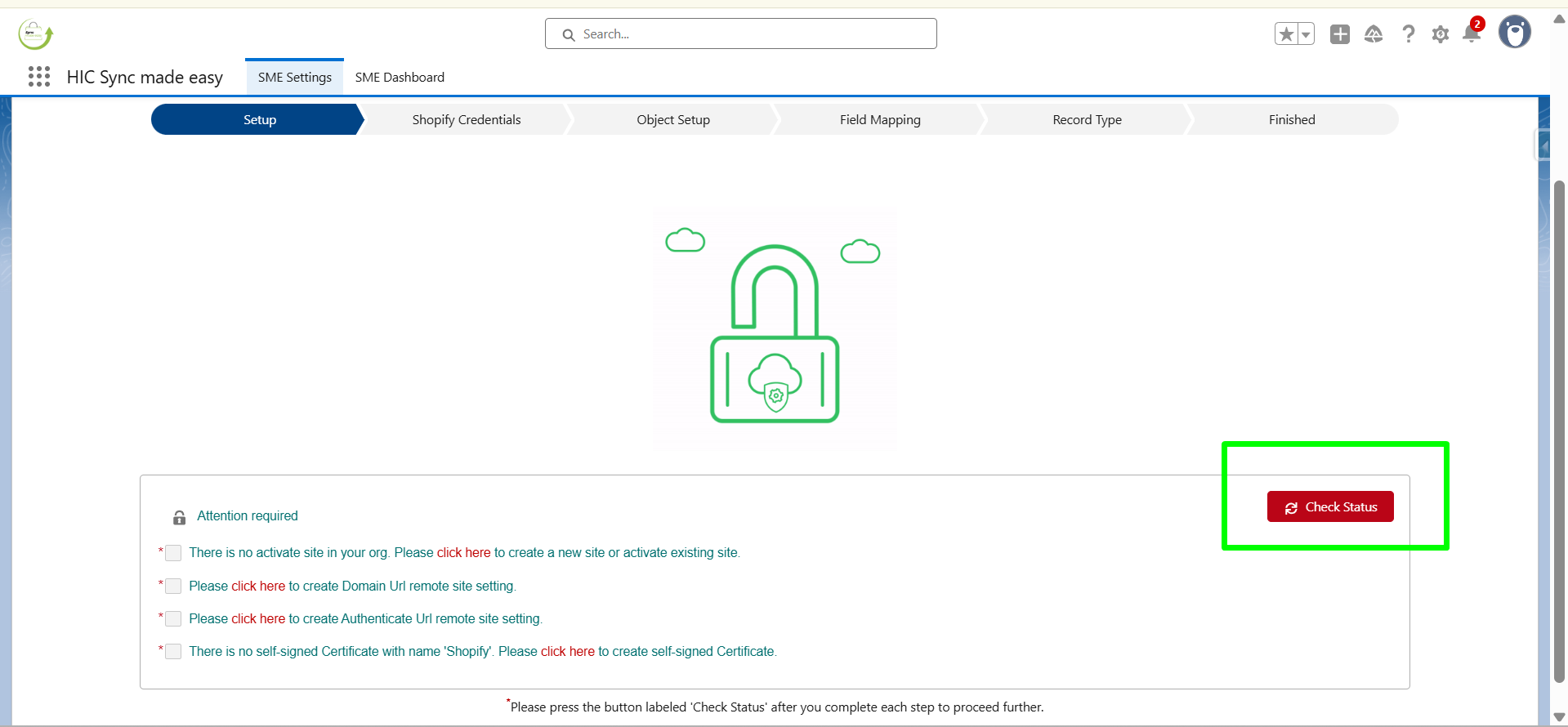
After the site is activated, it’s time to configure your site.
Configure the Site
From the Setup of the SME settings page, configure your site. You can click on Check Status after completing the authentication required.
Now, Click on ‘Click here’ to configure the site .
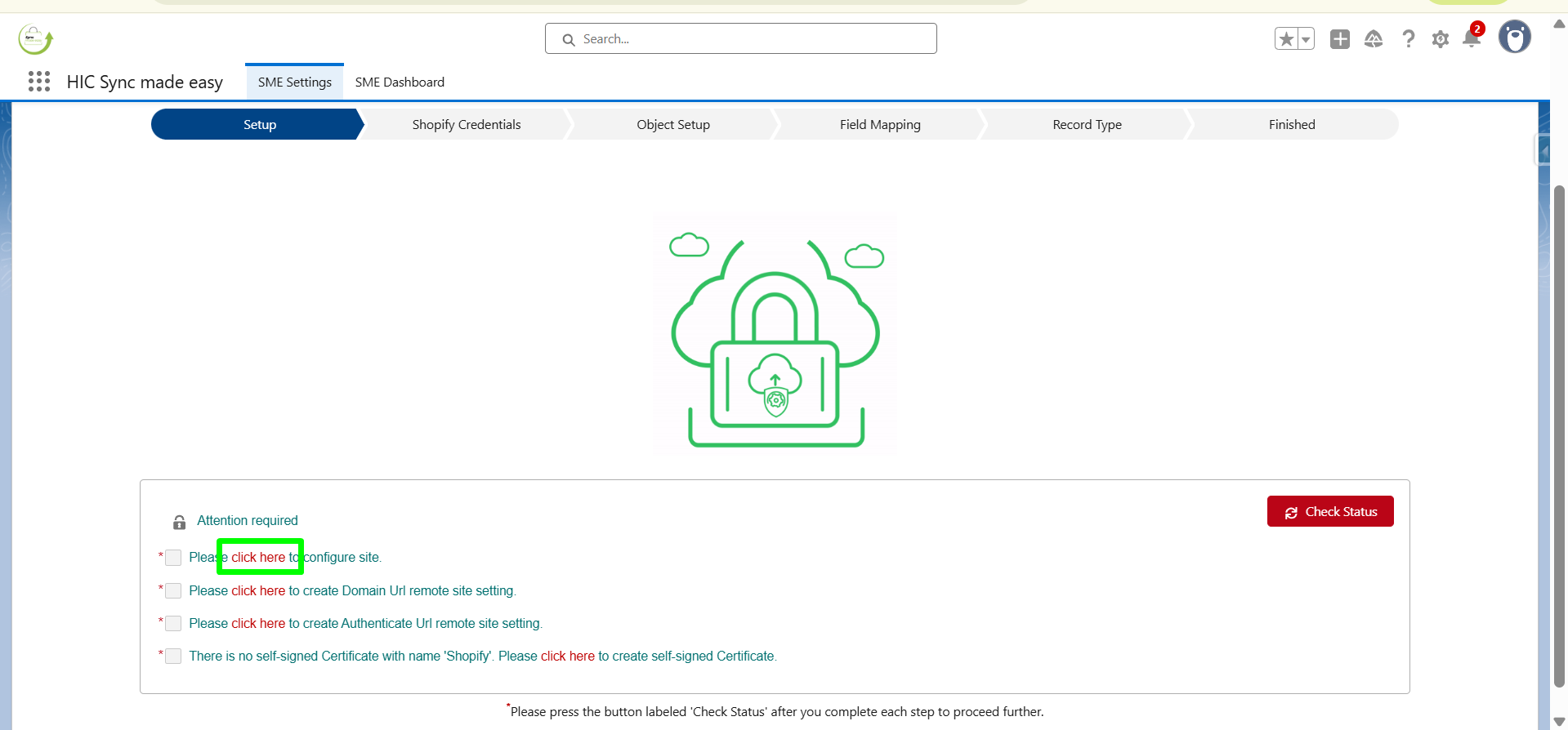
This will take you to the Setup Site webpage. From the dropdown, select your site URL and then click “Success”.
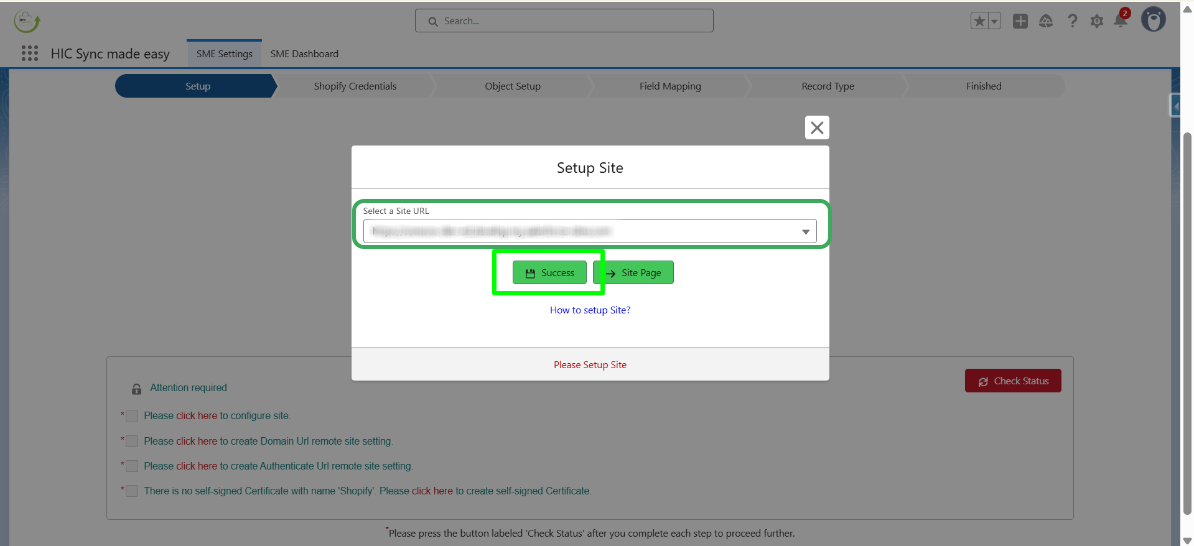
After clicking the Success button, you’ll be directed to the Initialize page. Click on the initialize .
Note: Clicking it will automatically create your ‘Authenticate’ and ‘Domain’ URL remote site settings.
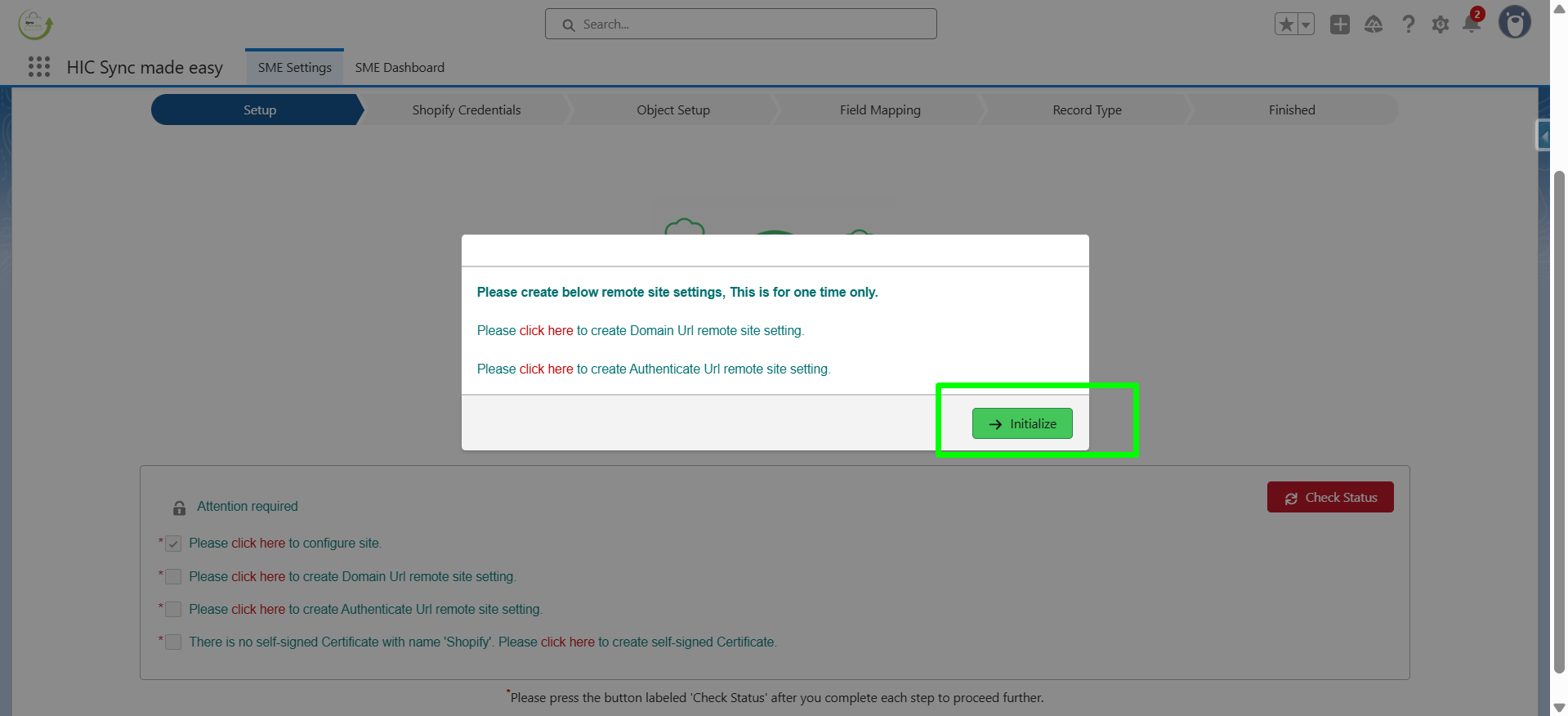
WARNING:
If you have already installed Sync Made Easy, you need to open it and edit the remote site settings so it should not be the same or you need to delete the previous remote site settings.
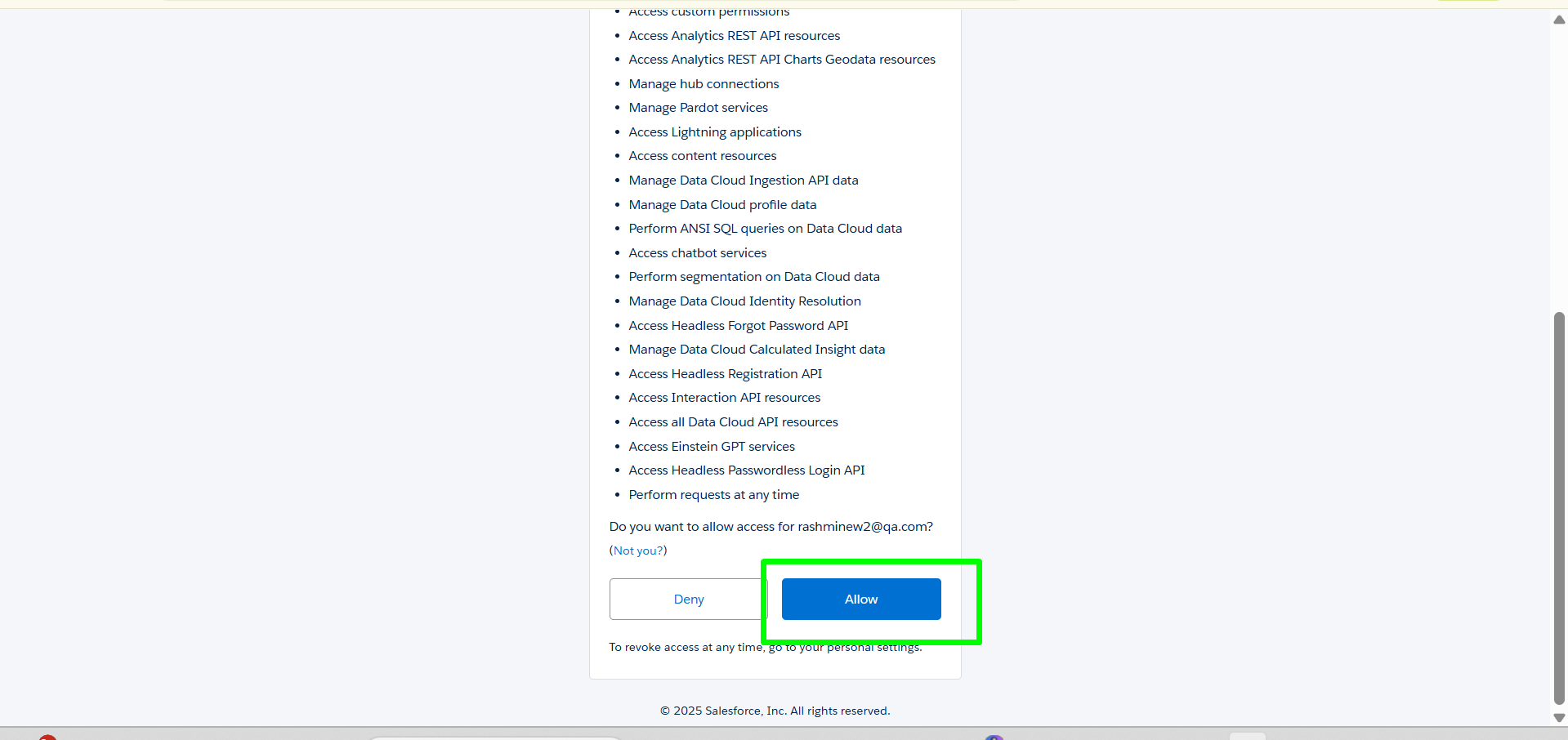
Now the Salesforce Authenticate page is open, scroll down and click on ‘Allow’ .
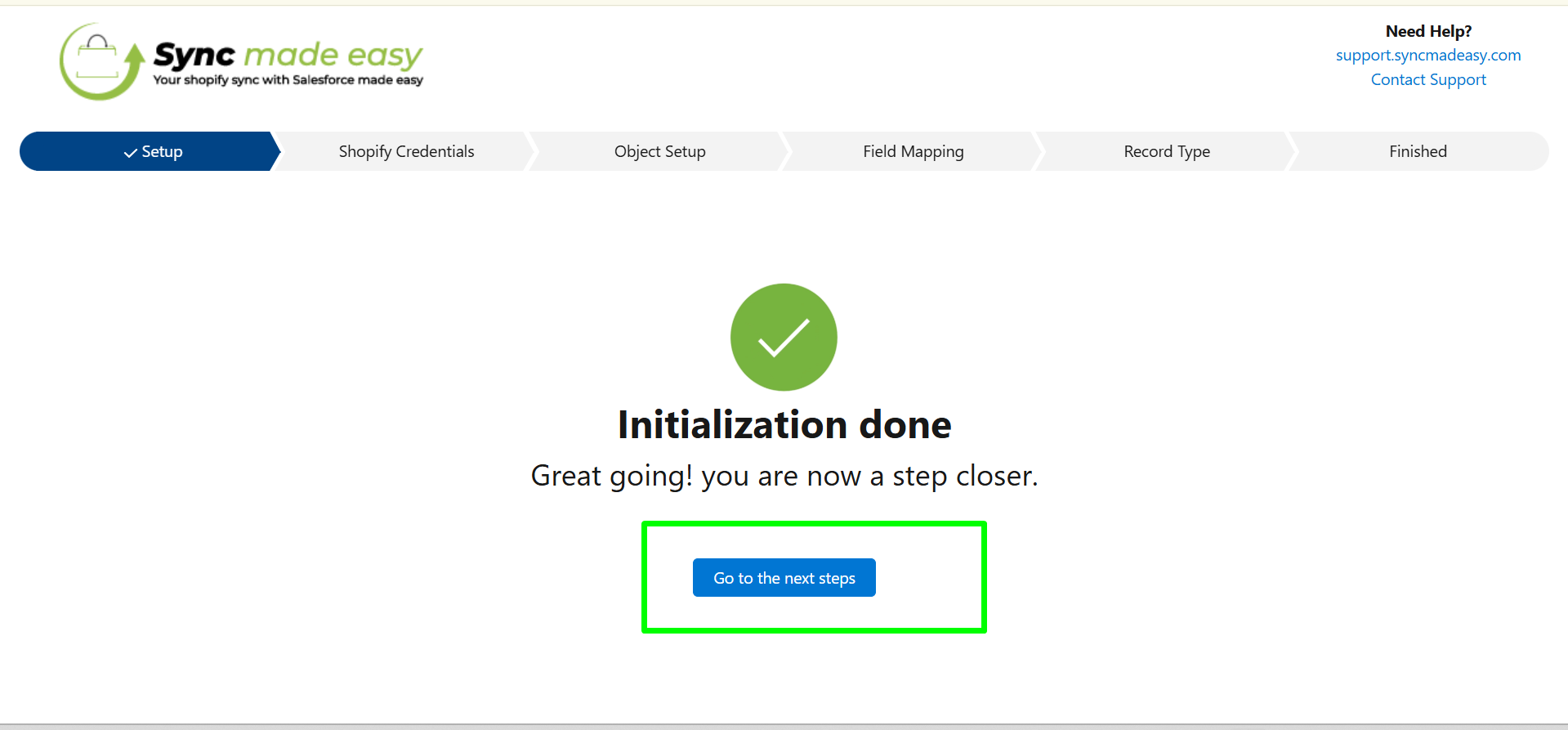
Now you will see the Initialization done Page. Once the Initialization process is completed, click on "Go to the Next Steps".
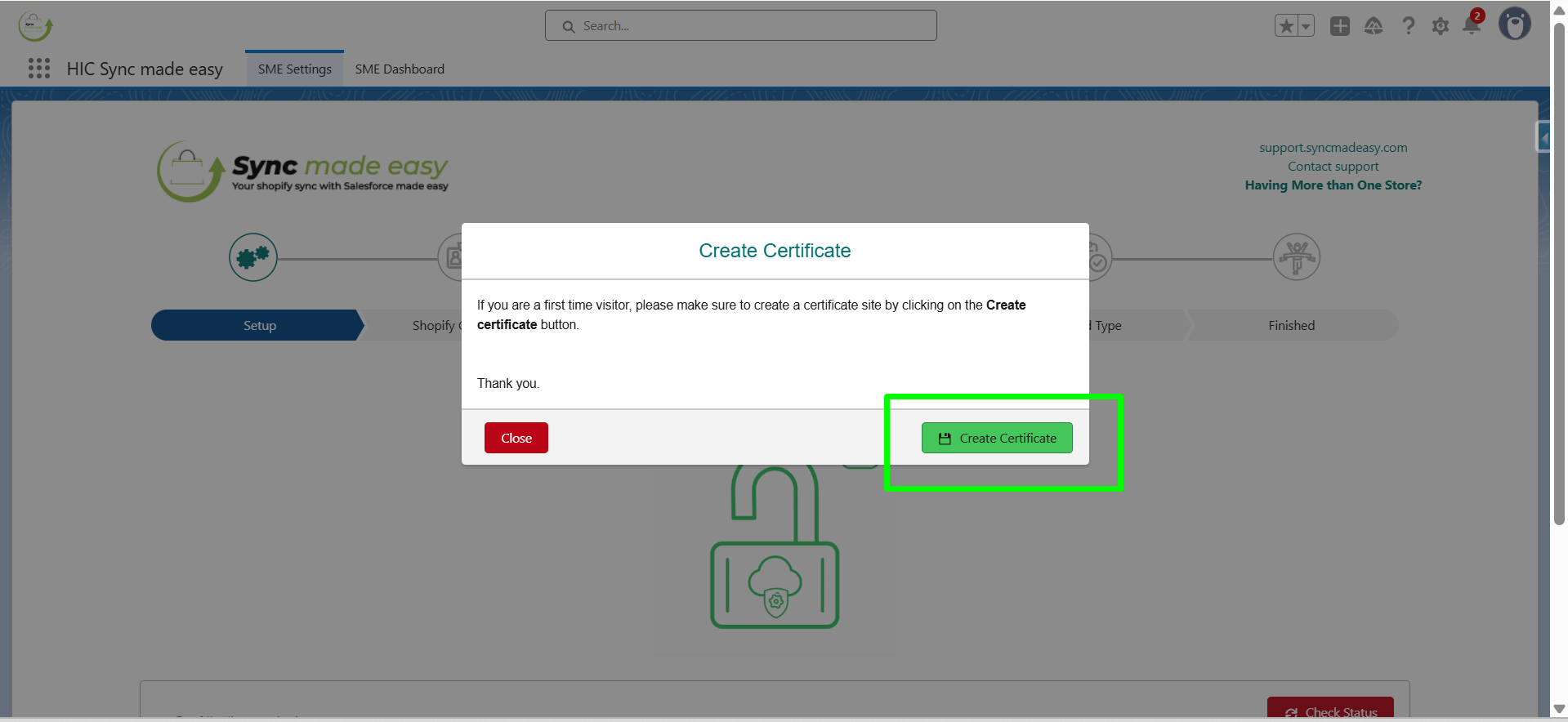
Generate Self-Signed Certificate
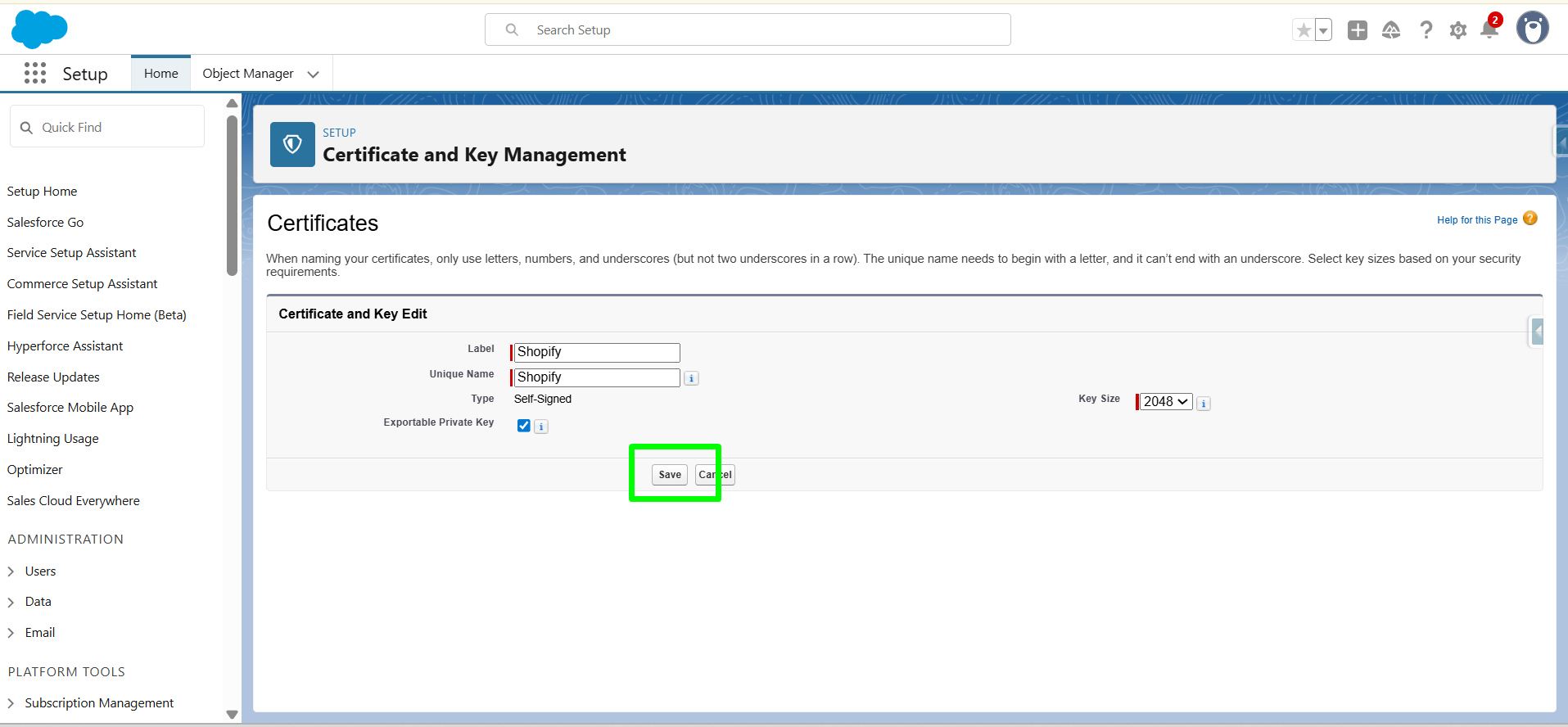
In this step, we will generate a self-signed certificate with the name “Shopify”.
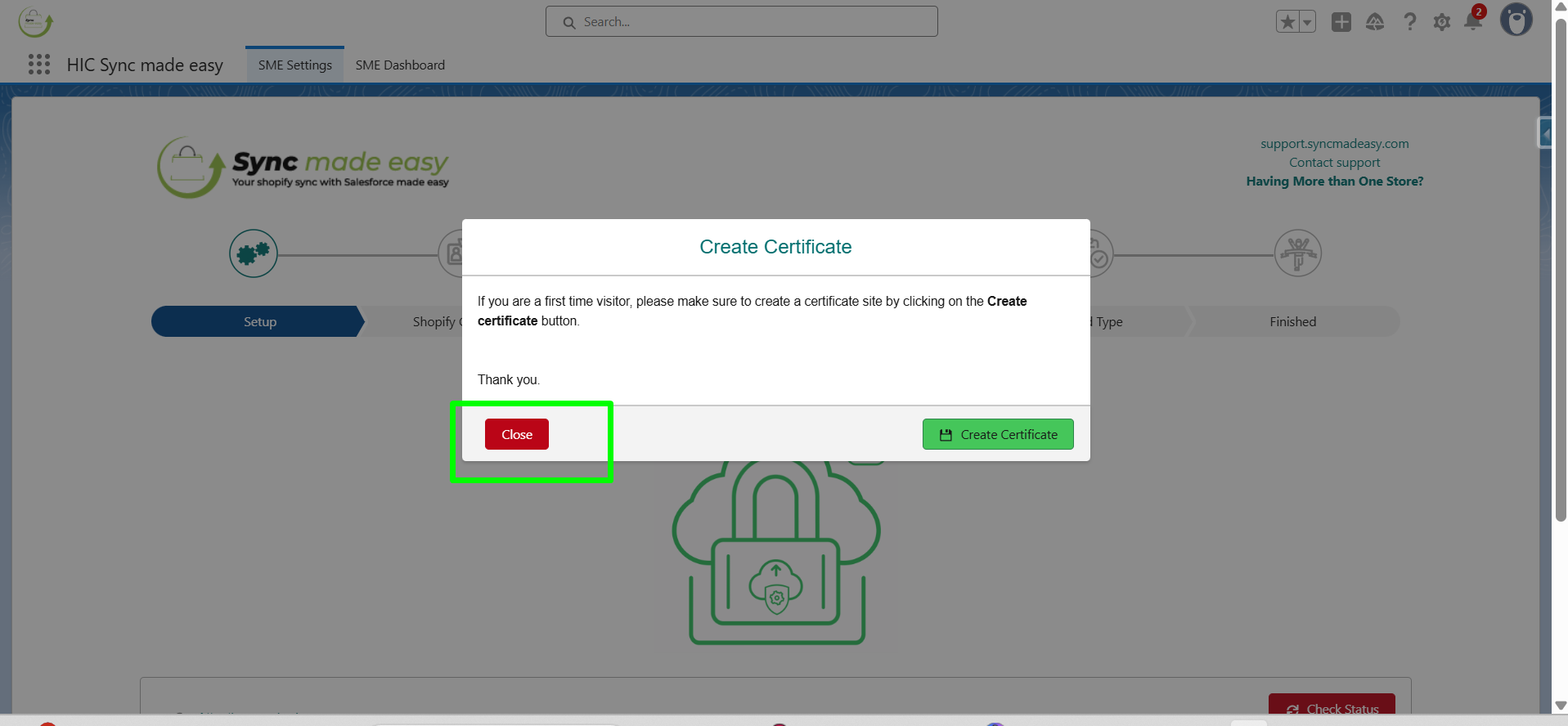
From the Create Certificate pop-up window , click on the ‘Create Certificate’
On the Certificate page, click on “Save” .
Again, Go back to the sync settings page and click on “Close”.
On the setup page, click on Check Status. Once you click on it, you will be taken to the next step (Shopify Credentials).
Step 2: Shopify Credentials
Retrieving Shopify Access Token
Here onwards, STEP 2 begins, which is the Shopify Credentials page. In Step 2, you will need the Shopify Store Name and API Access token.
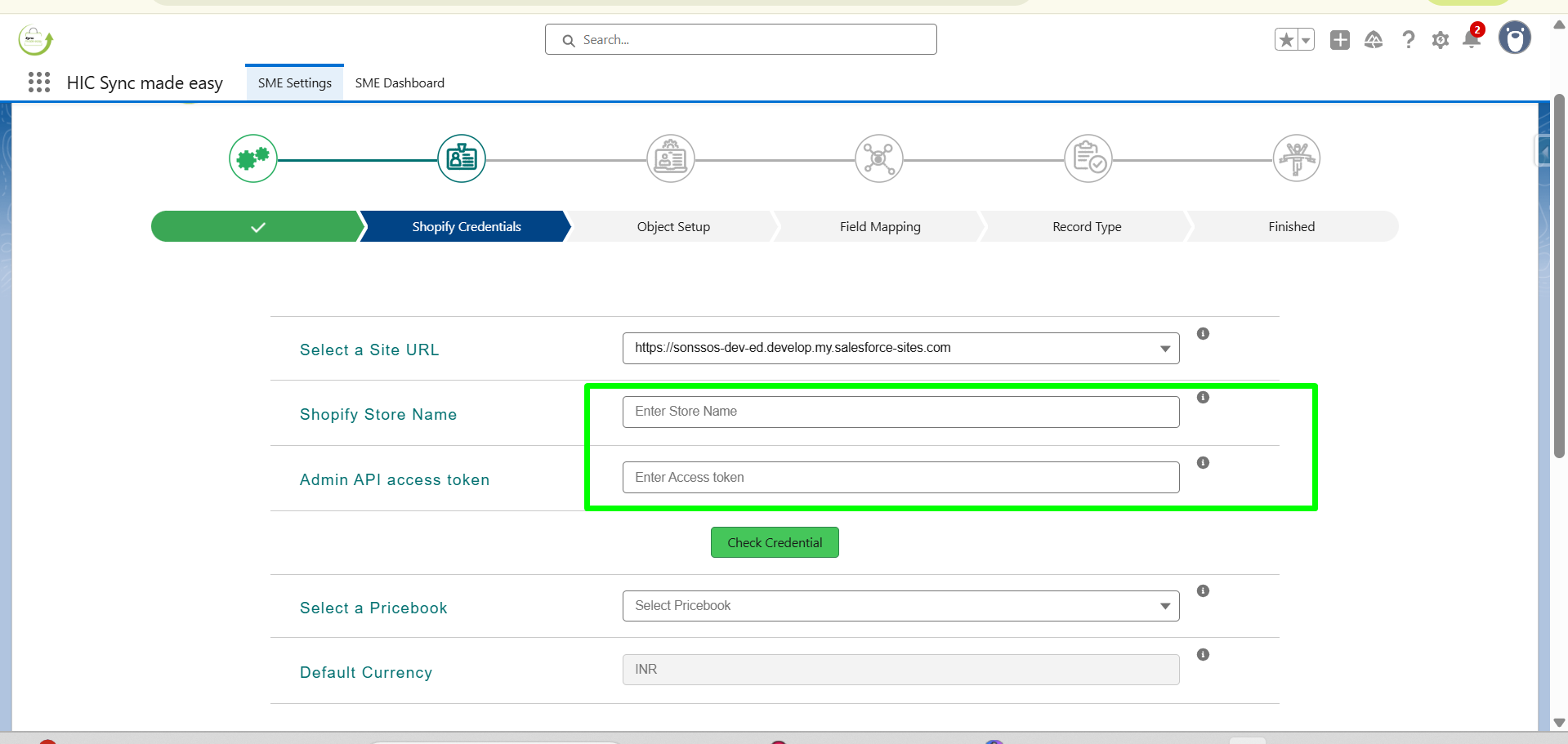
Shopify Store Name and Shopify Access Token
To retrieve the Shopify Store Name and Access Token: Open another tab, go to https://www.shopify.com/, and log in using your store credentials.
Step 1: Log in to the Shopify store.
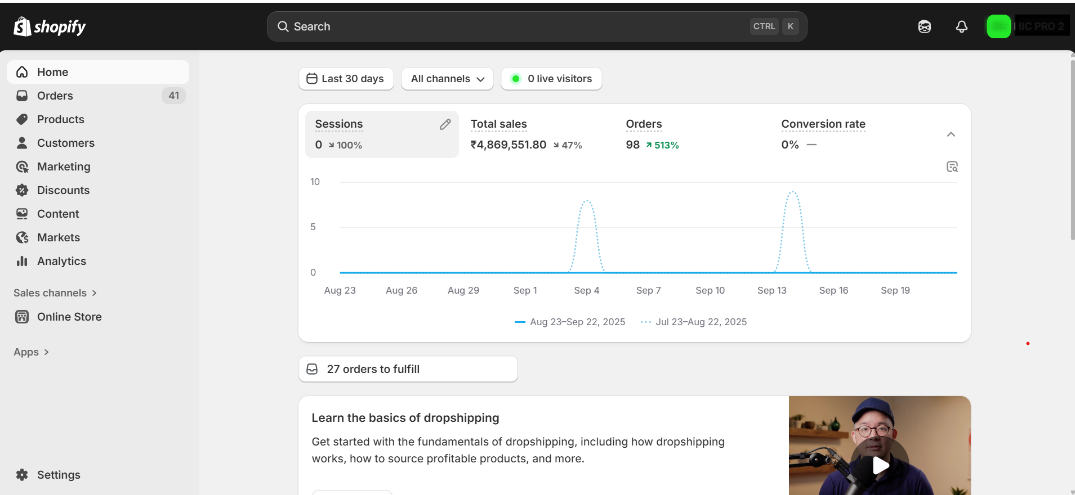
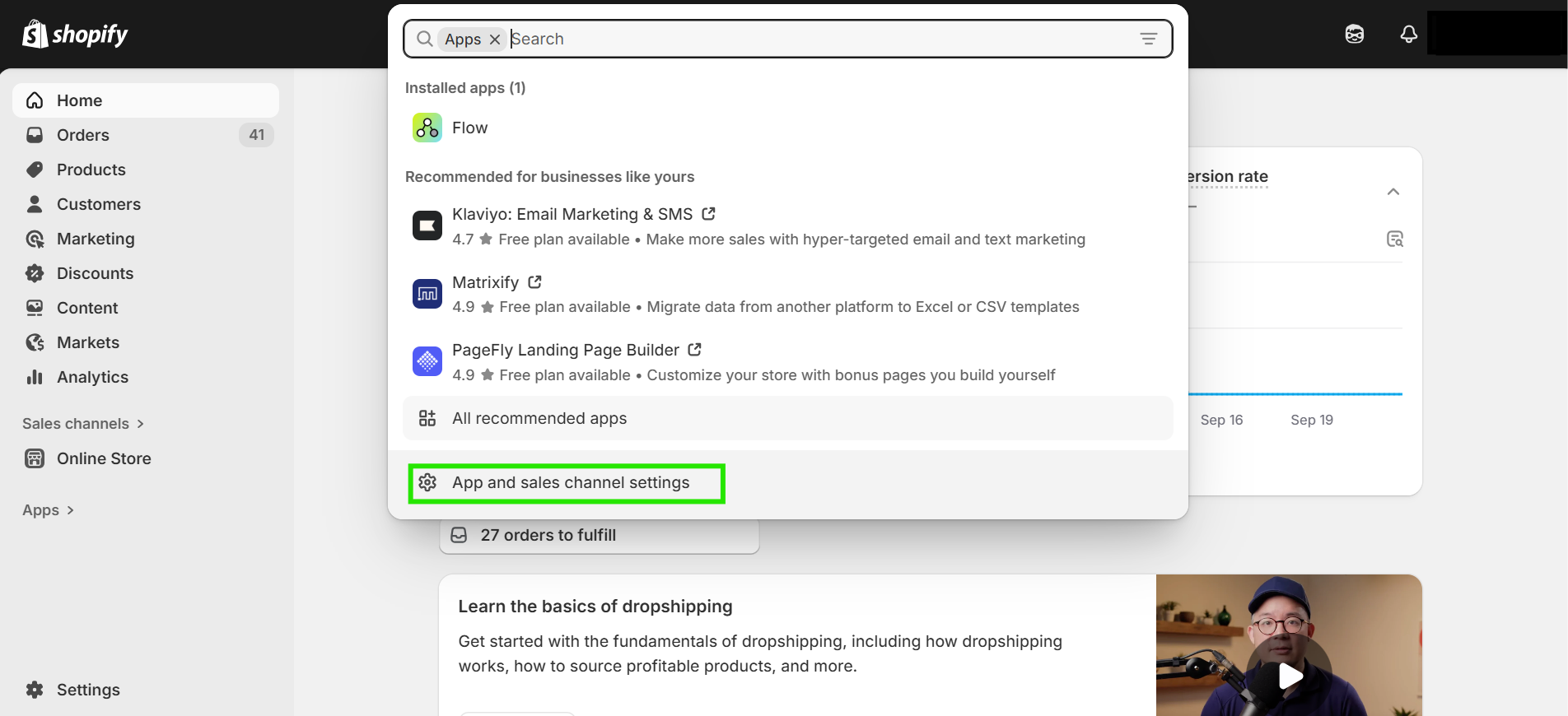
Step 2: On the left hand, click on "Apps".

Step 3: Click on “Apps and Sales channel settings”.
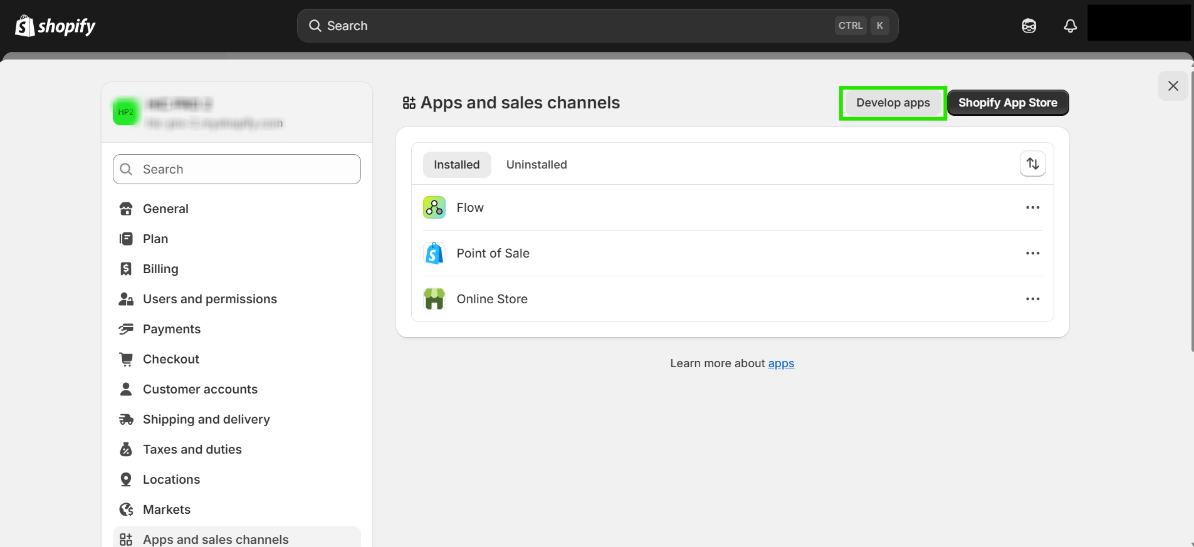
Step 4: After opening the Apps and Sales channel settings, click on “Develop Apps".
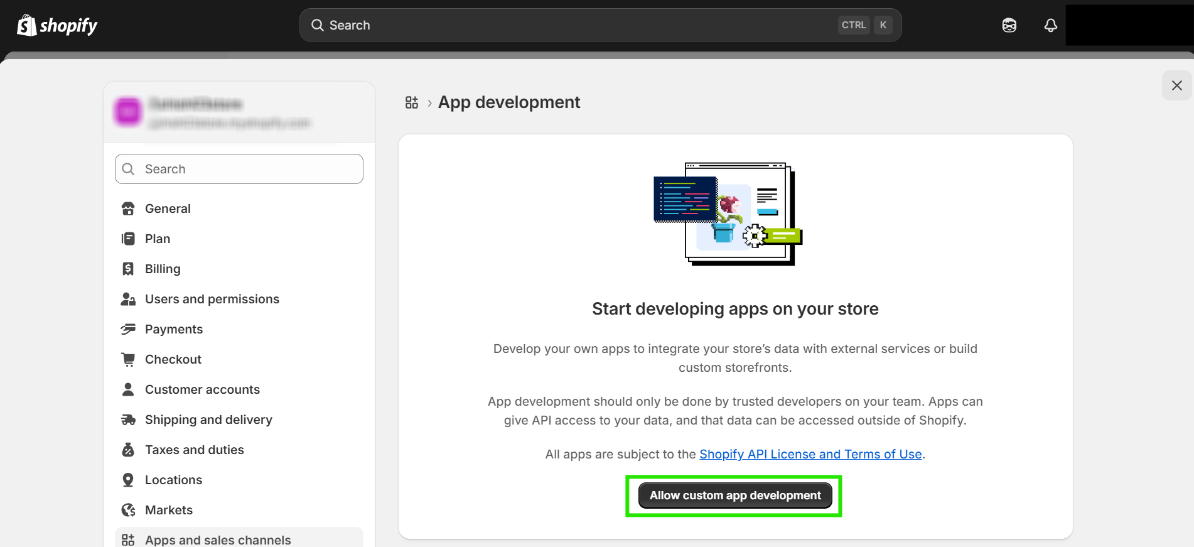
Note: If you are developing an app for the first time, please follow the steps below. If you have already created an app, you may proceed directly to Step 8.
Step 5: Now, click on “Allow Custom app Development”.
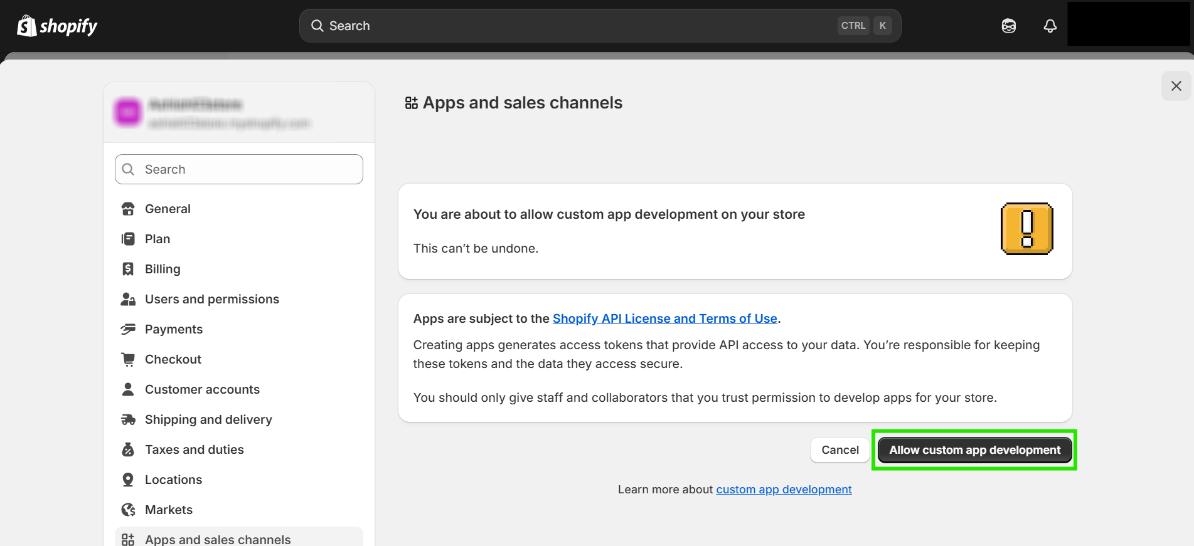
Step 6: Again, click on “Allow Custom App Development”.
Step 7: Click on “Create an App”.
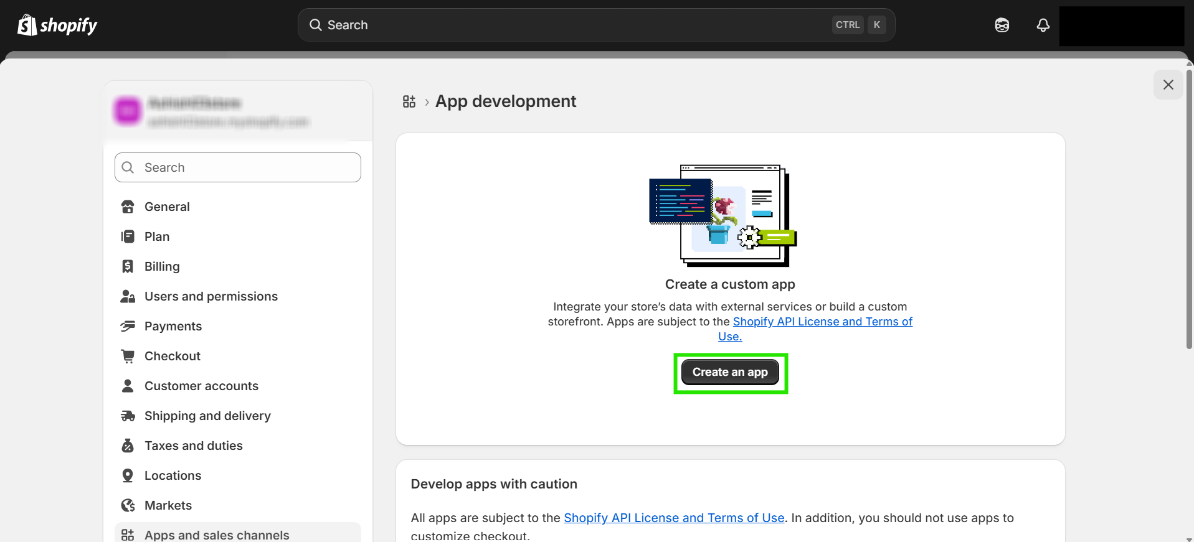
Step 8: You can give any name to your app. Once you enter the App name, click on “Create App”.
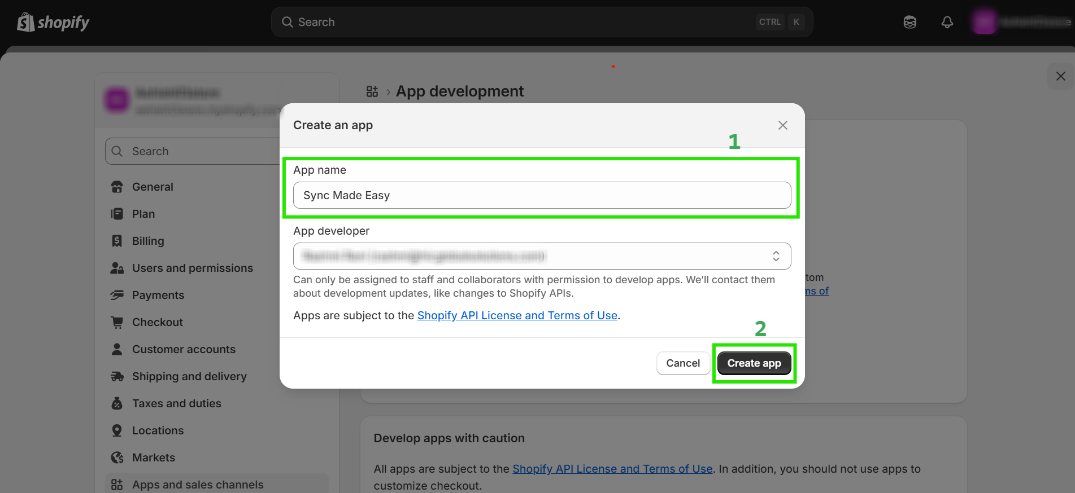
Step 9: Your app will be created successfully; now you have to give access to what your app can access from your store. Go to “Configuration”.
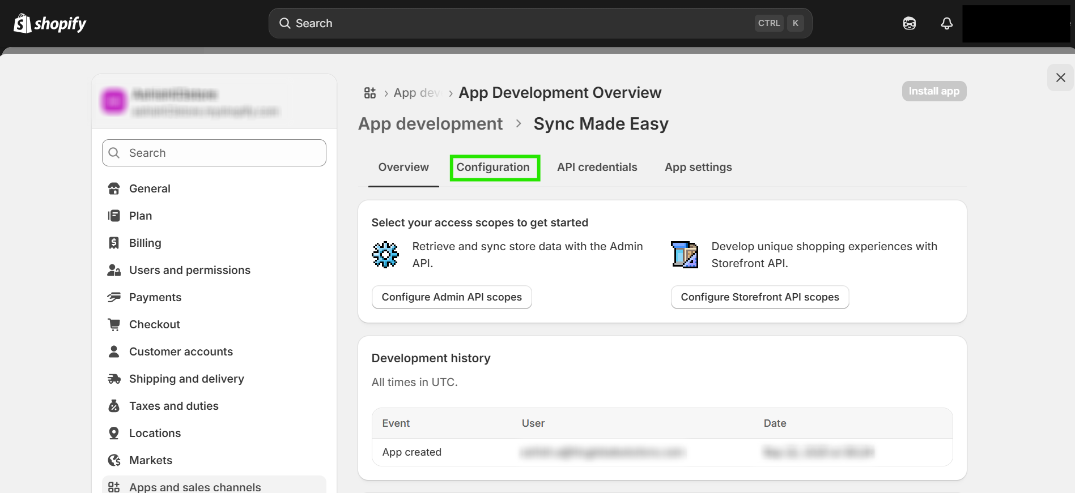
Step 10: Then, click “Configure”.
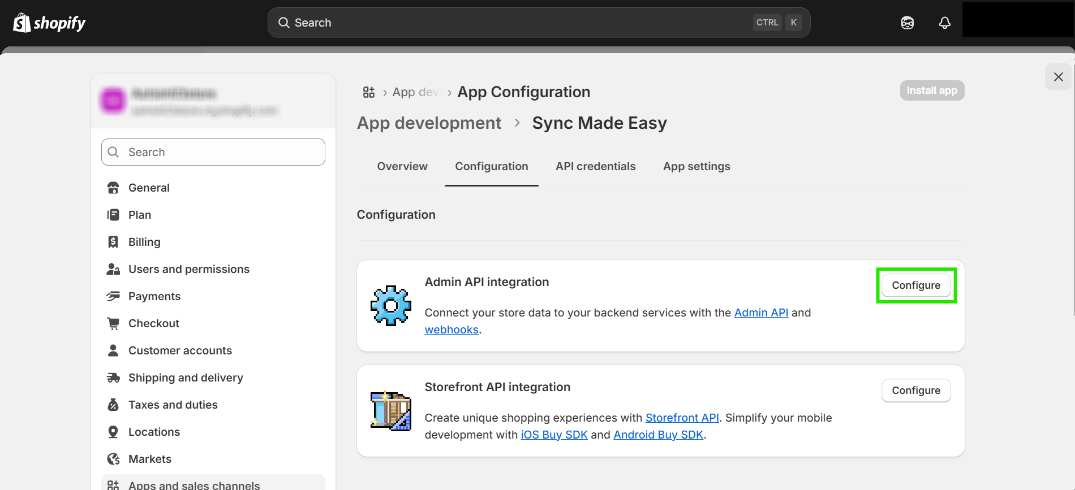
Step 11: Then give access to below mandatory scopes and click on "Save".
|
|

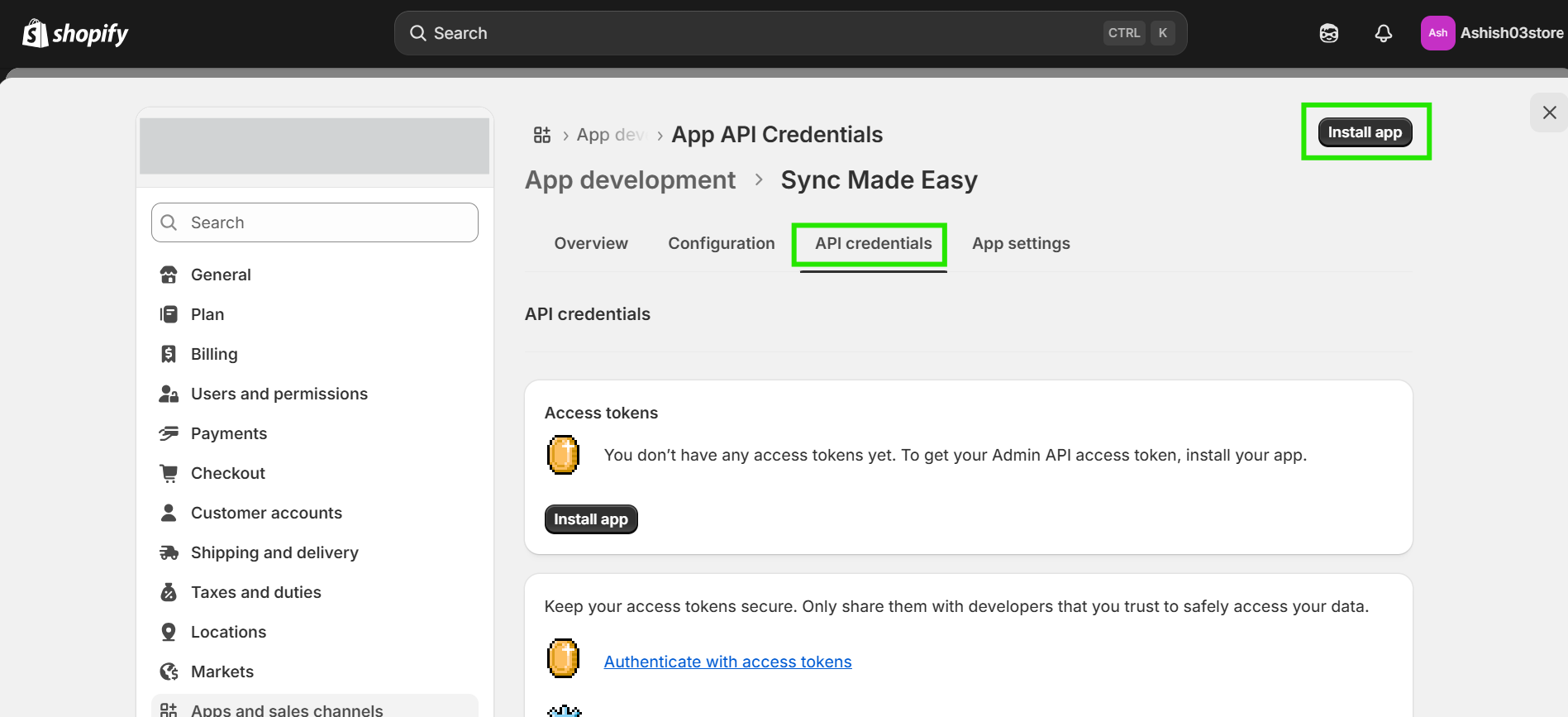
Step 12: Go to "API Credentials" and click on "Install app".
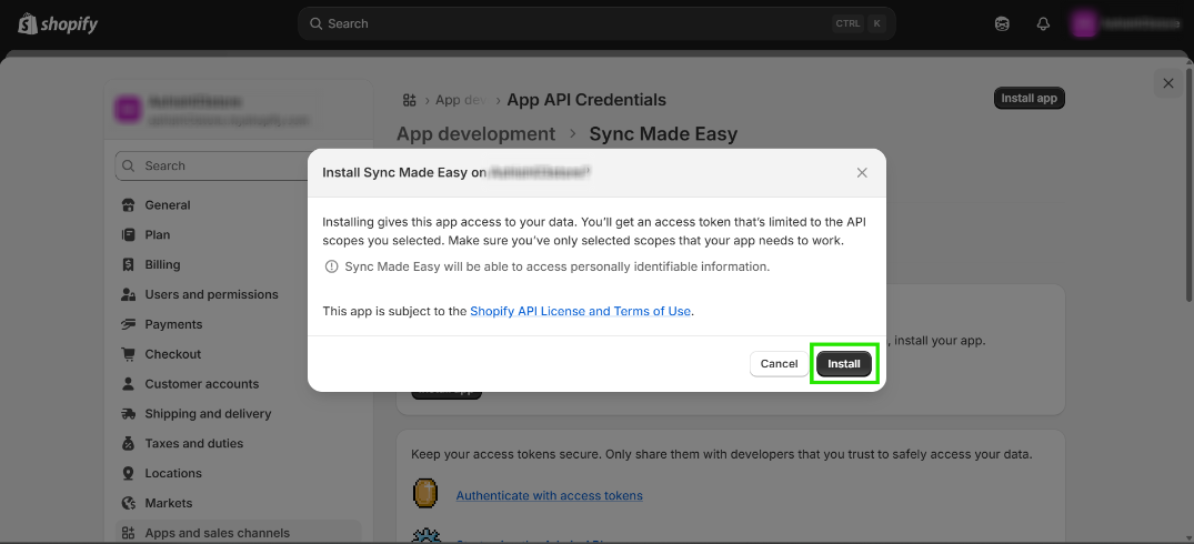
Step 13: Click on "Install".
Step 14: After installation, you will get your Shopify access token.
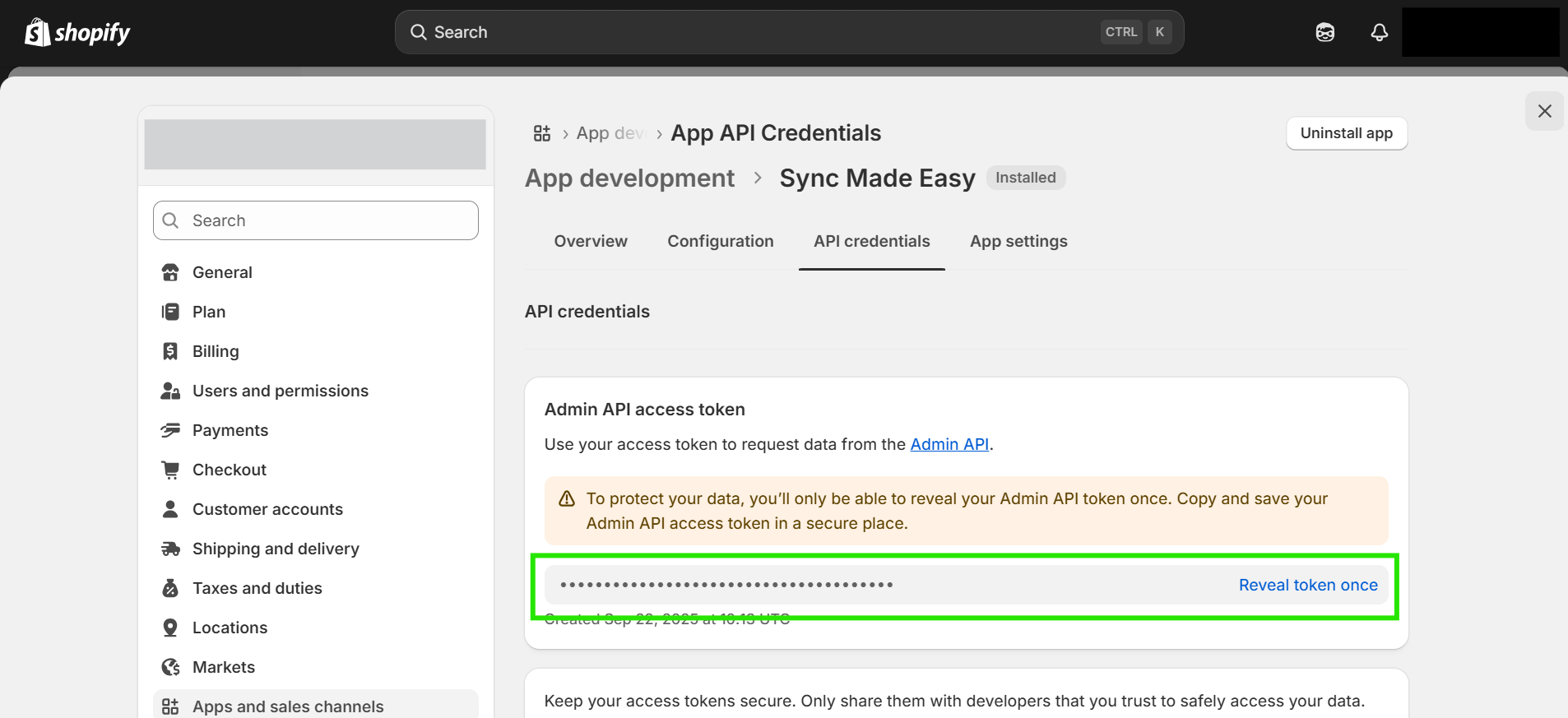
Please note : The Shopify access Token key can be viewed only once after revealing the token. Ensure to copy the Token key and save it in a secure folder for later use.
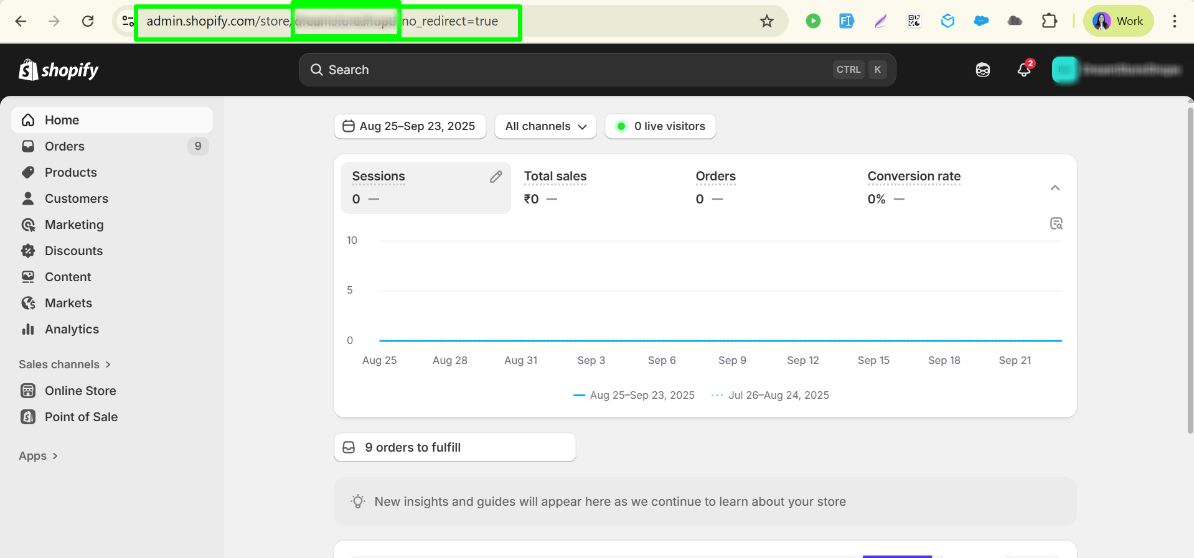
Step 15: To get the Name of your Store, from the homepage, copy the Store name from the URL
Step 16: Now, back to the Shopify Credentials page (step 2) and enter your Shopify Store Name and Shopify Access Token in the next field. Click on Check Credential.
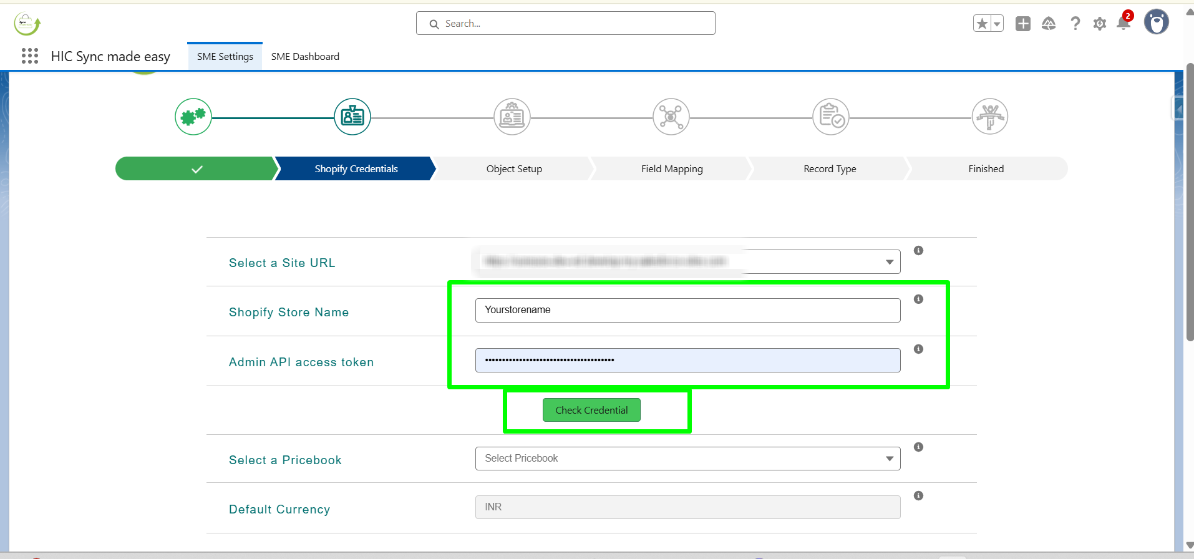
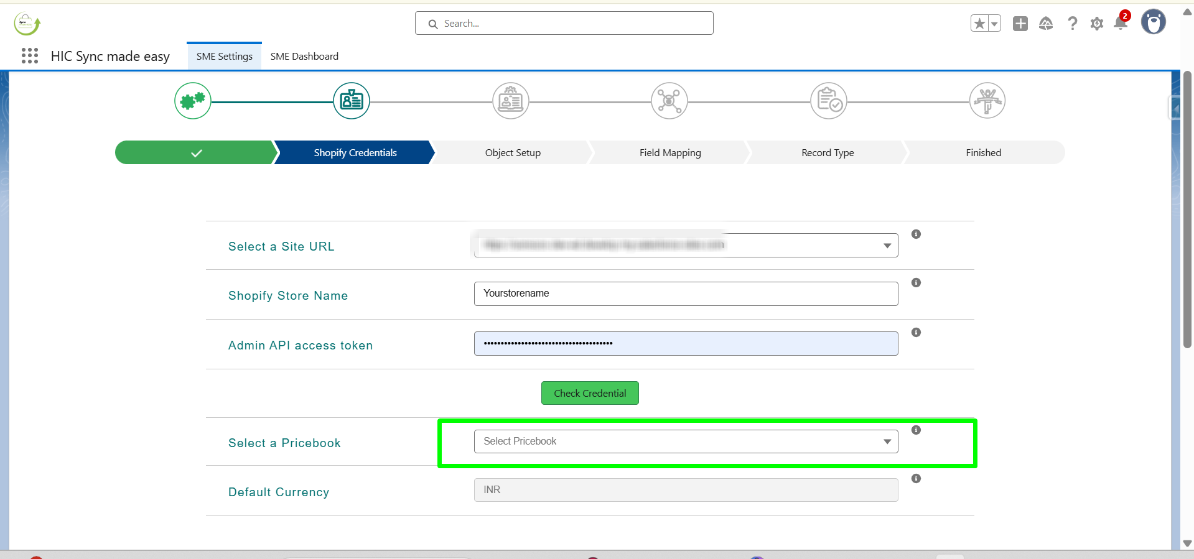
Step 17: Next, Select the Price book. If you have created any custom price book in your org then it will show here, Otherwise select “Standard”.
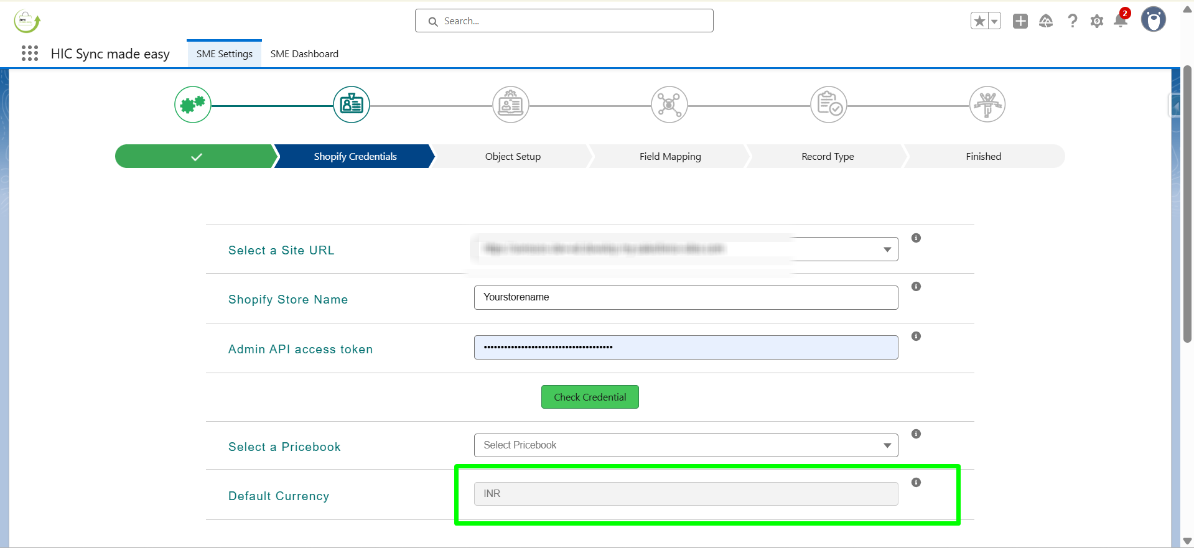
Step 18: For Multicurrency, you can choose any currency you want. If you have enabled the multicurrency in your org, then it will show all the currency you have created here. However, if you haven’t enabled it then it will show you the currency of your ORG (location) as Default Currency .
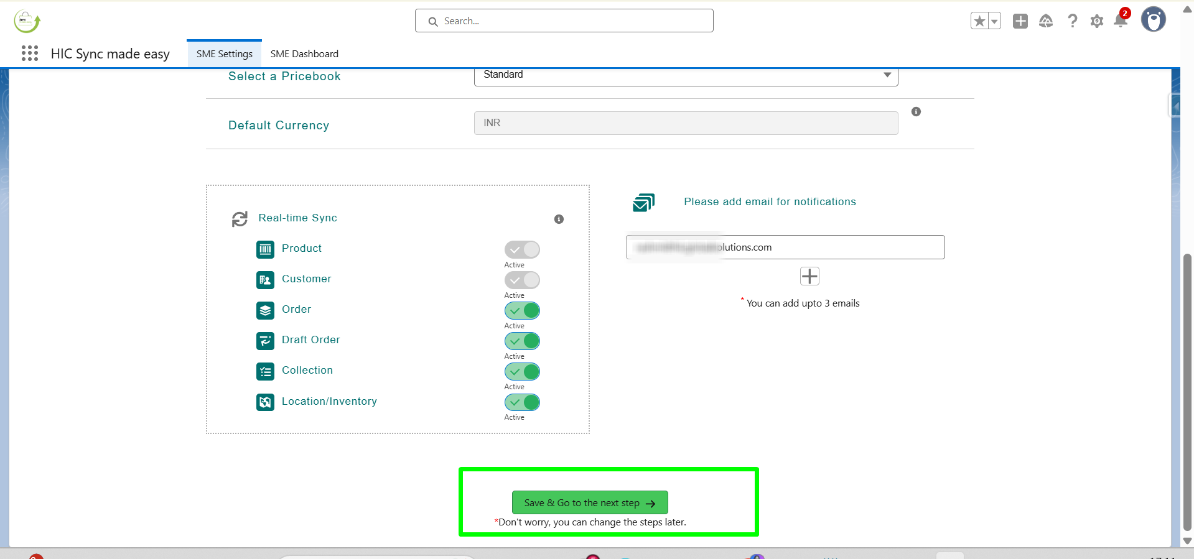
Step 19: Now, scrolling down on the same page, the real-time sync section is displayed.
In this step, “Product” and “Customer” are default so you can’t change that, but if you want to disable the sync of other objects you can do that by turning off the toggle button .
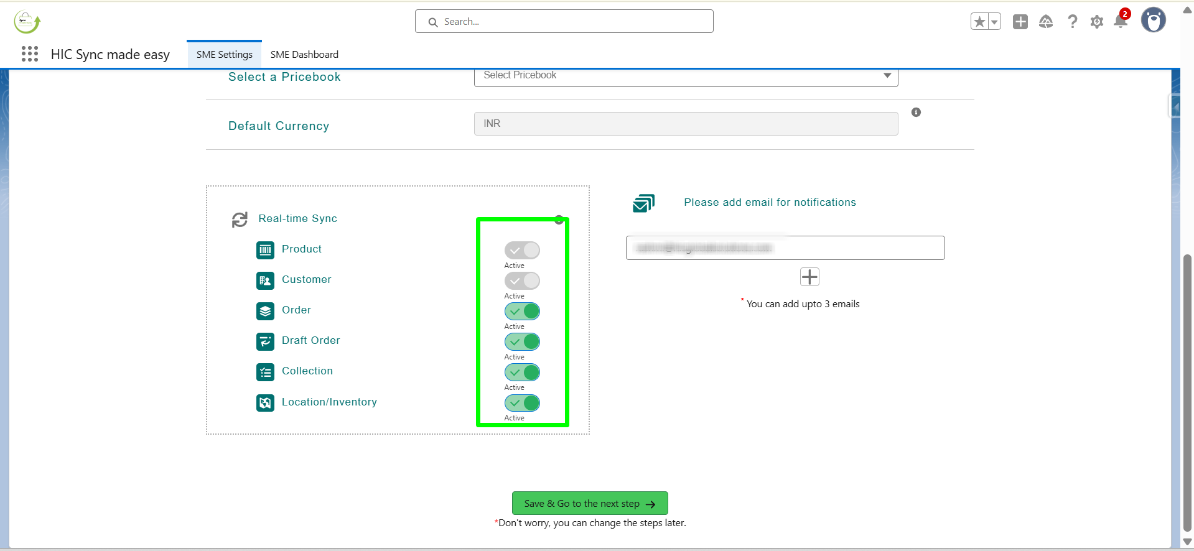
Step 20: Select Email ID. You can provide up to three email ID by clicking the "+" button and clicking Save and Go to Next Step . This completes step 2, and you should be now on step 3.
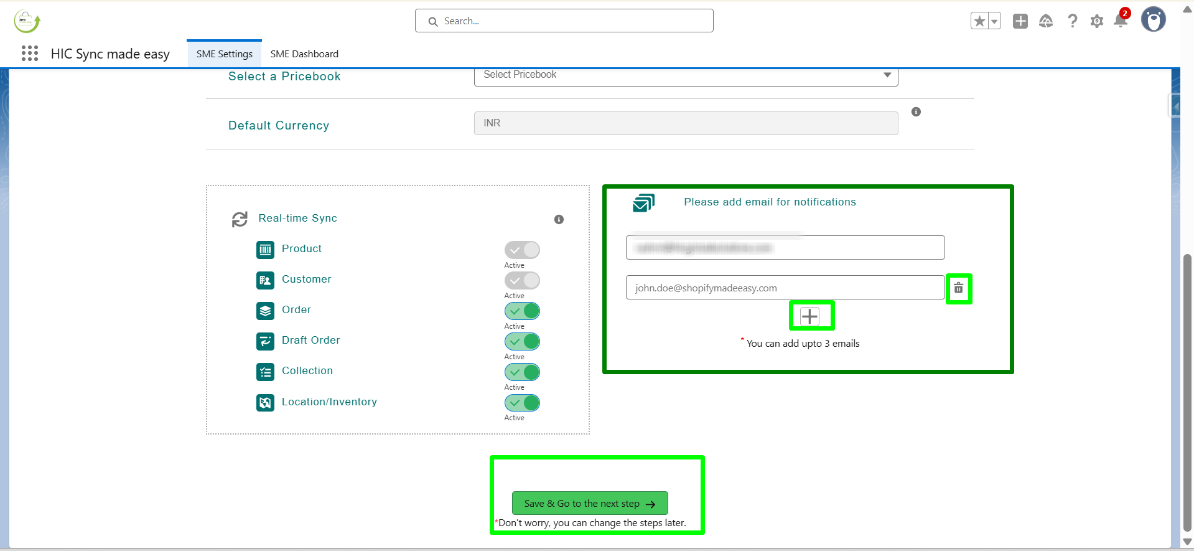
Multi-store sync functionality
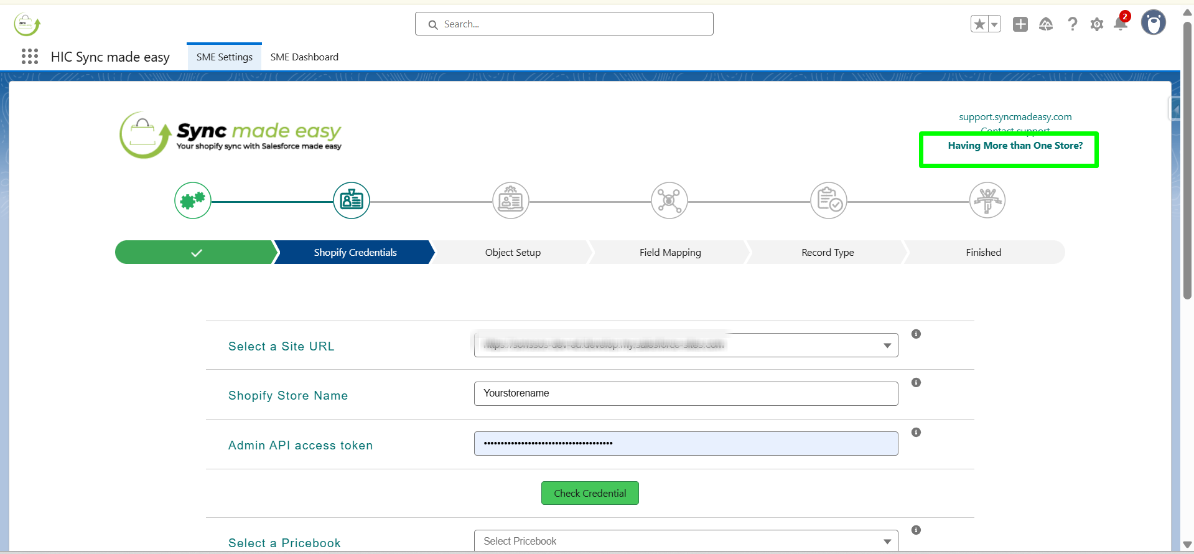
For syncing more than one Shopify store from this interface.
Step 1: click on “Having more than one store” in the right corner of the webpage.
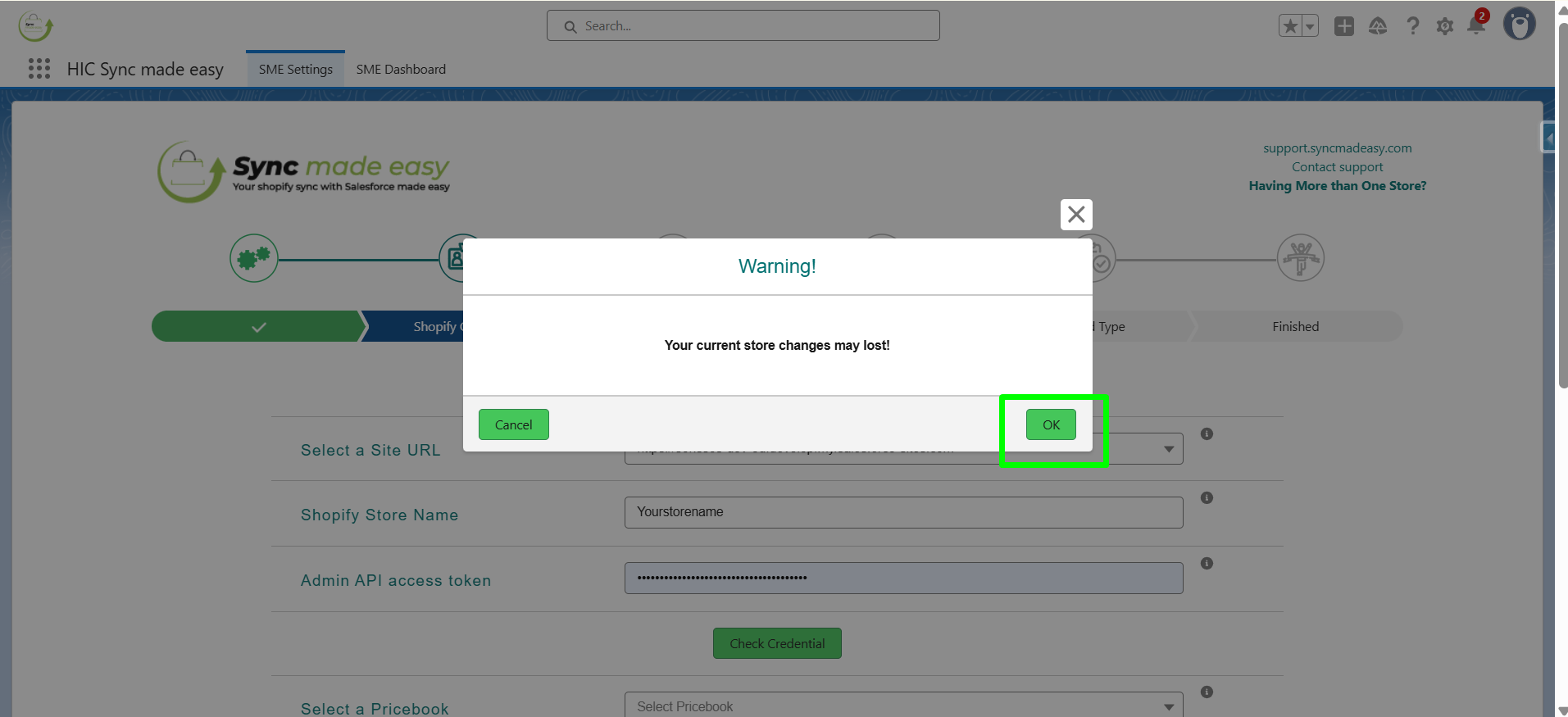
 Step 2: Click on Ok .
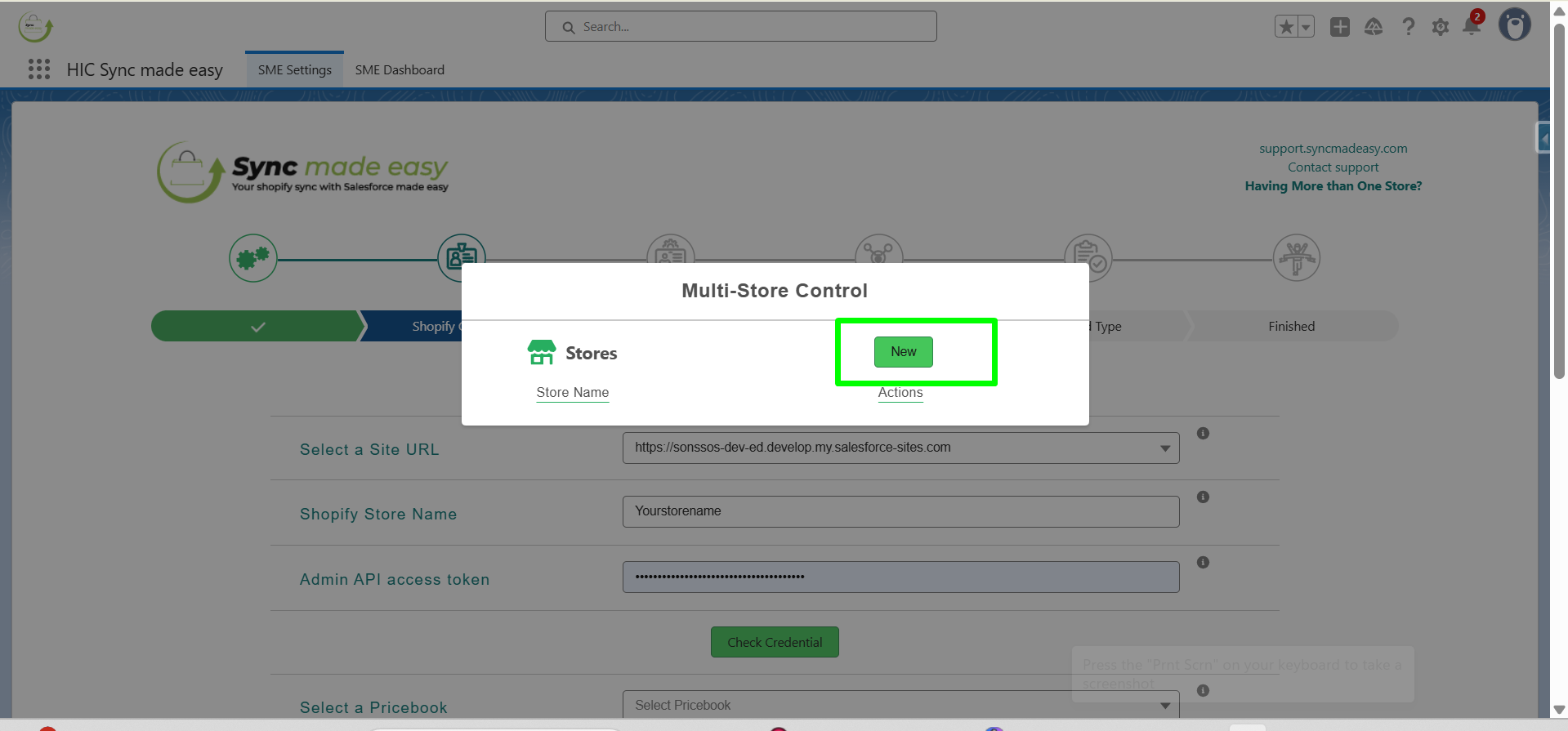
Adding stores
Step 3: To add a new store to your Salesforce org, click New from the multi-store control panel.
Step 4: You will be redirected to the credentials page where you have to insert the new store name and Shopify access token and click on ‘Check credential’ .
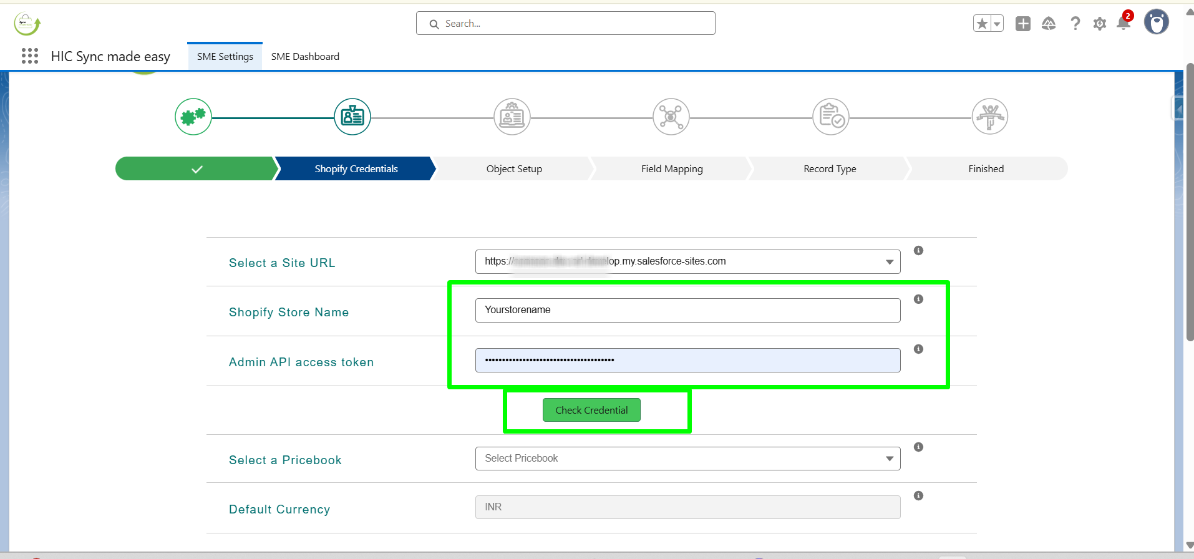
Step 5: Click "Save & Go to Next Step" .
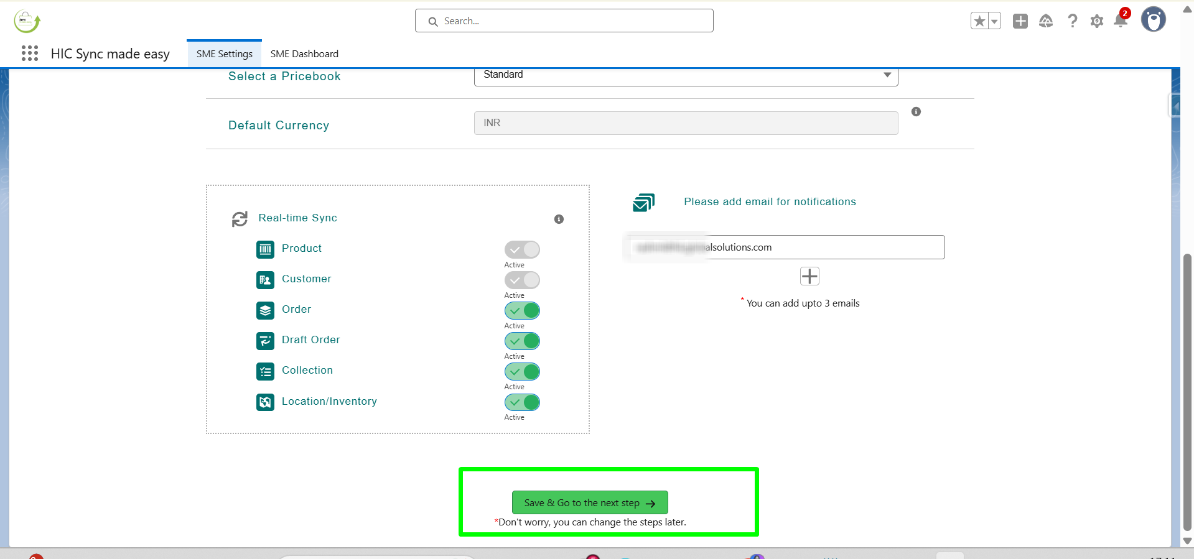
The new store is now added.
Editing the Store
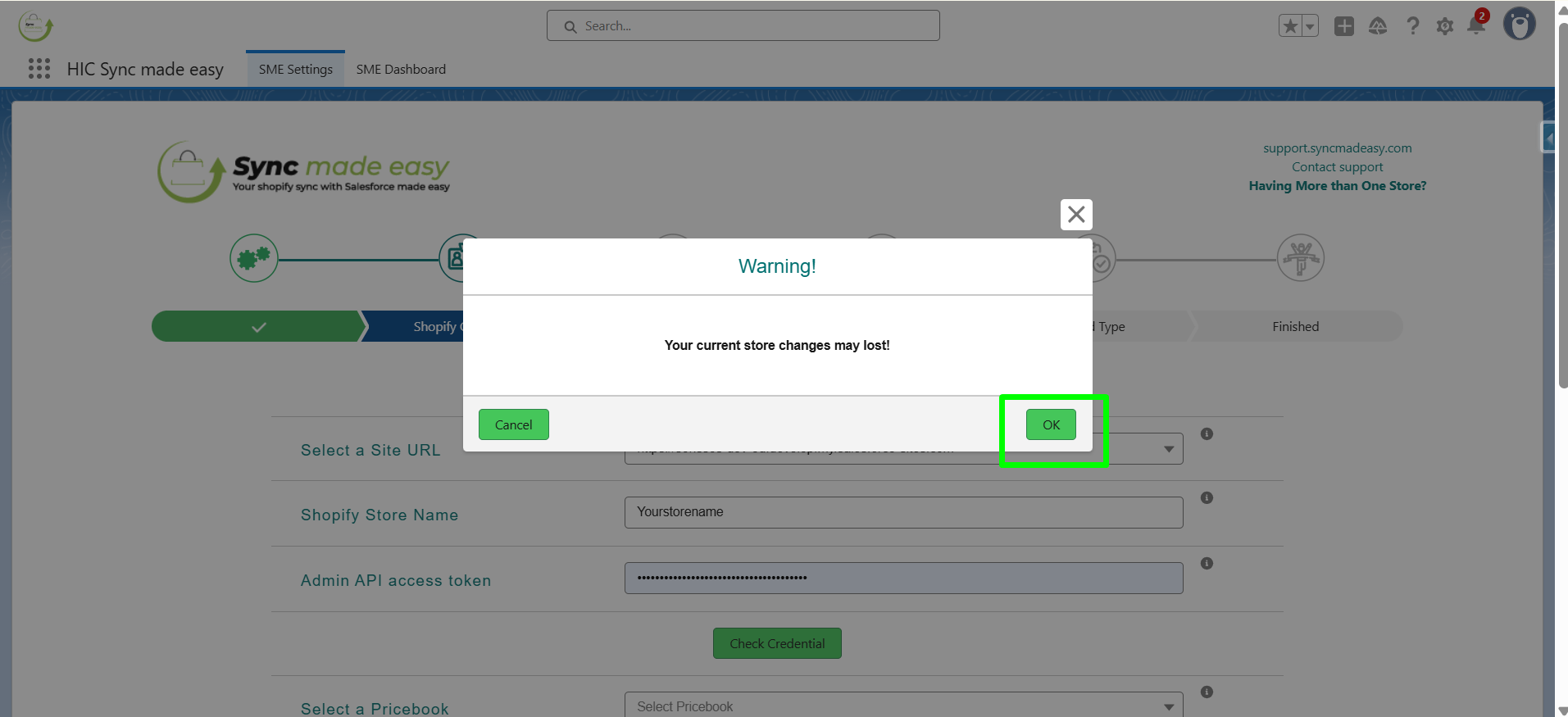
Step 6: To modify the store, click on ‘Having more than one store’ and then select ok on the warning dialogue box.
Step 7: Now, on the multi-store control panel, select the store you want to edit and click on the edit icon .
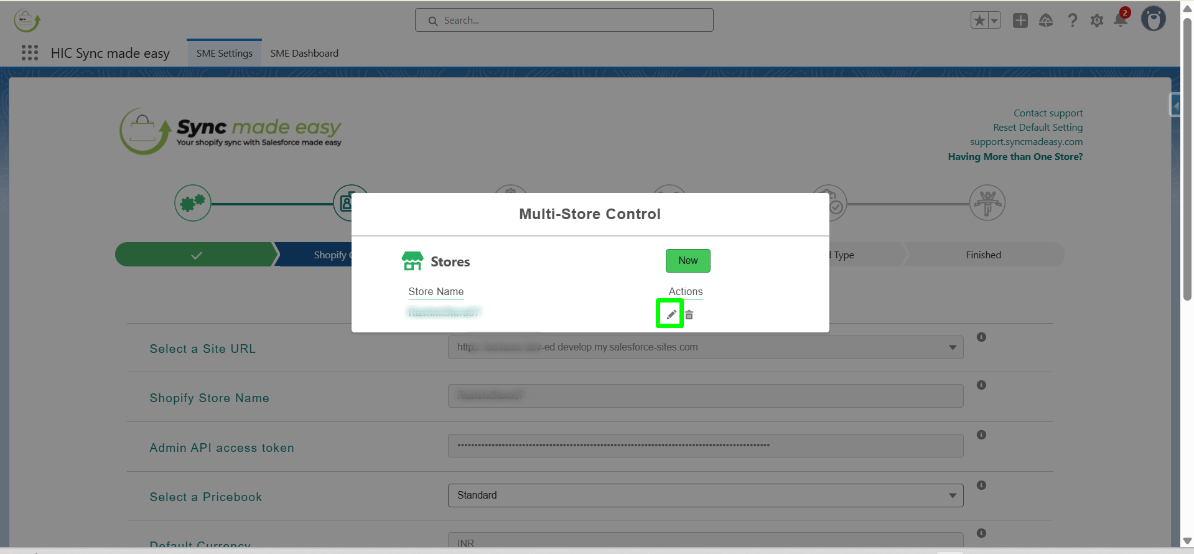
Step 8: You will be redirected to the Shopify credentials page, where you can modify the fields as needed. Then, click Save & Go to Next Step to save your changes.
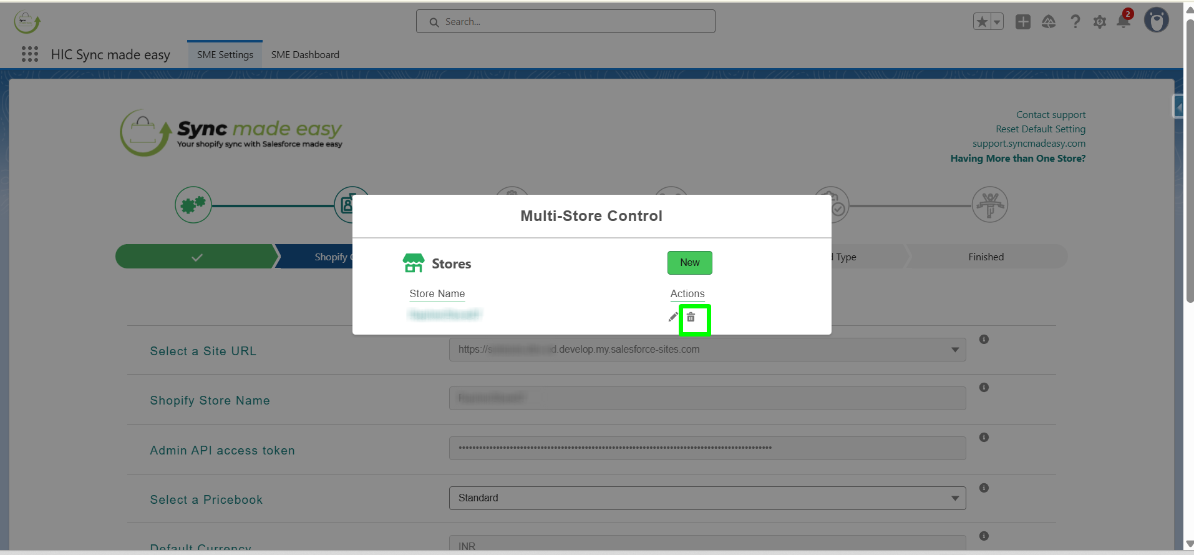
Deleting the Store
Step 9: Likewise, to delete a store, go to the multi-store control panel, select the store you want to delete, and click the trash icon next to it.
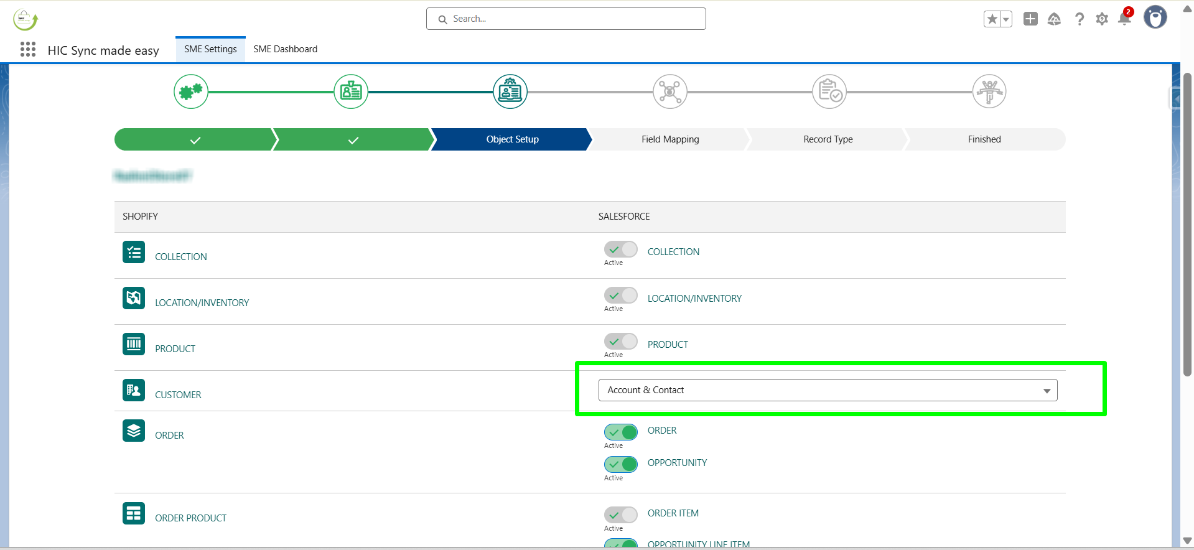
Step 3 - Object Setup
On this page, you can see which Salesforce object is mapped to your Shopify objects. You can also choose either Person Account or Business Account.
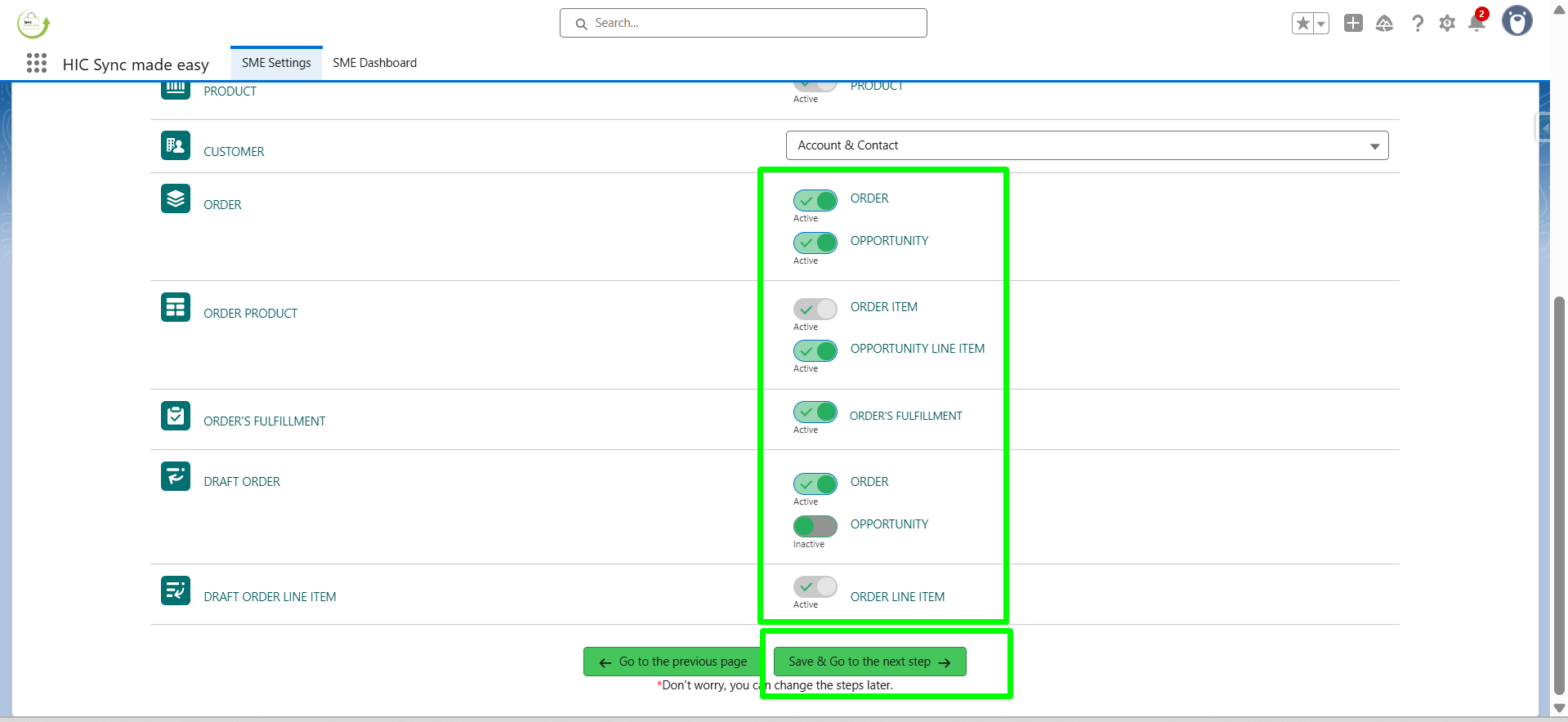
If you don’t want to create an Opportunity for orders, an Opportunity Line Item, or an Order Fulfillment, you can turn off the toggle for these objects. To use the full functionality, you can keep the default settings. Then, click on Save and Go to the Next Step.
Step 4 - Field Mapping
On the Field Mapping page, you can choose to use the default field mapping. Click Save and Go to Next Step. Sync Made Easy comes with a default field mapping that you can always use. If you want to customize the mapping, you can do so by turning off the toggle button.
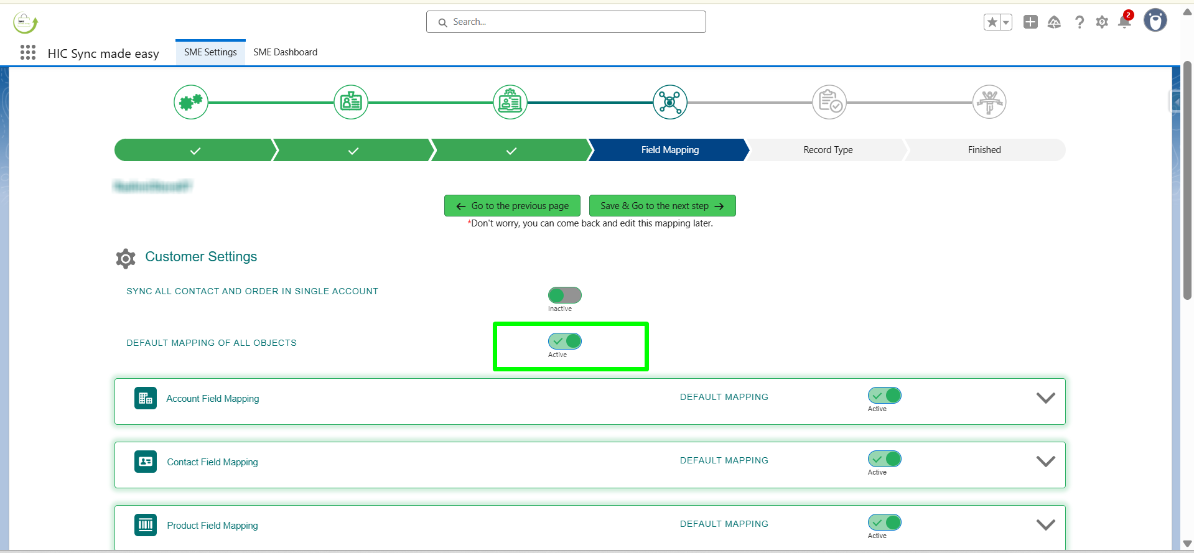
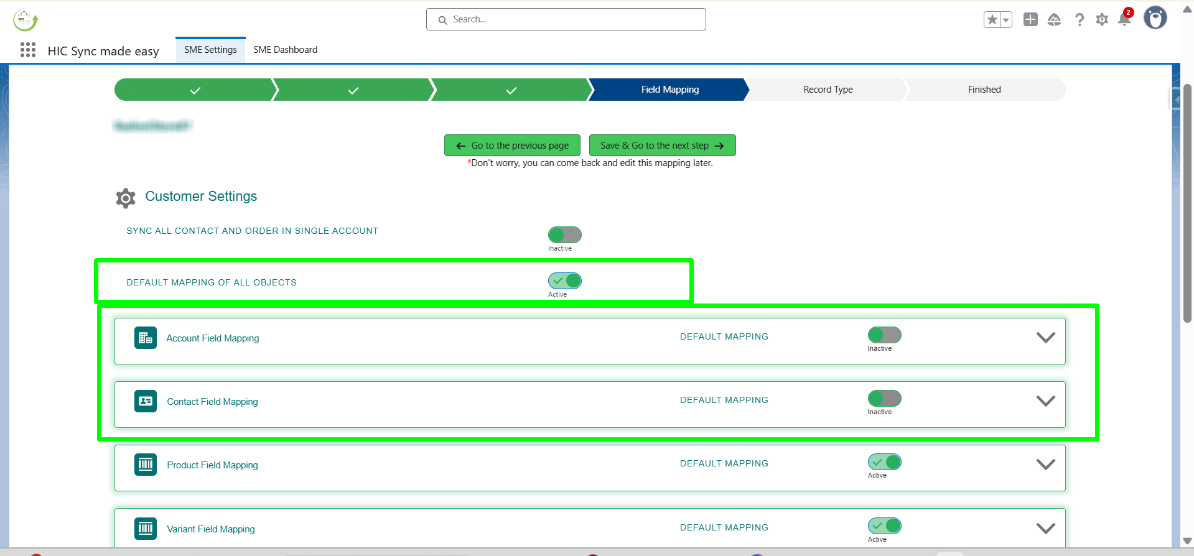
For custom mapping, you can either turn off the toggle for all objects or just for the object in which you want to add your custom mapping.
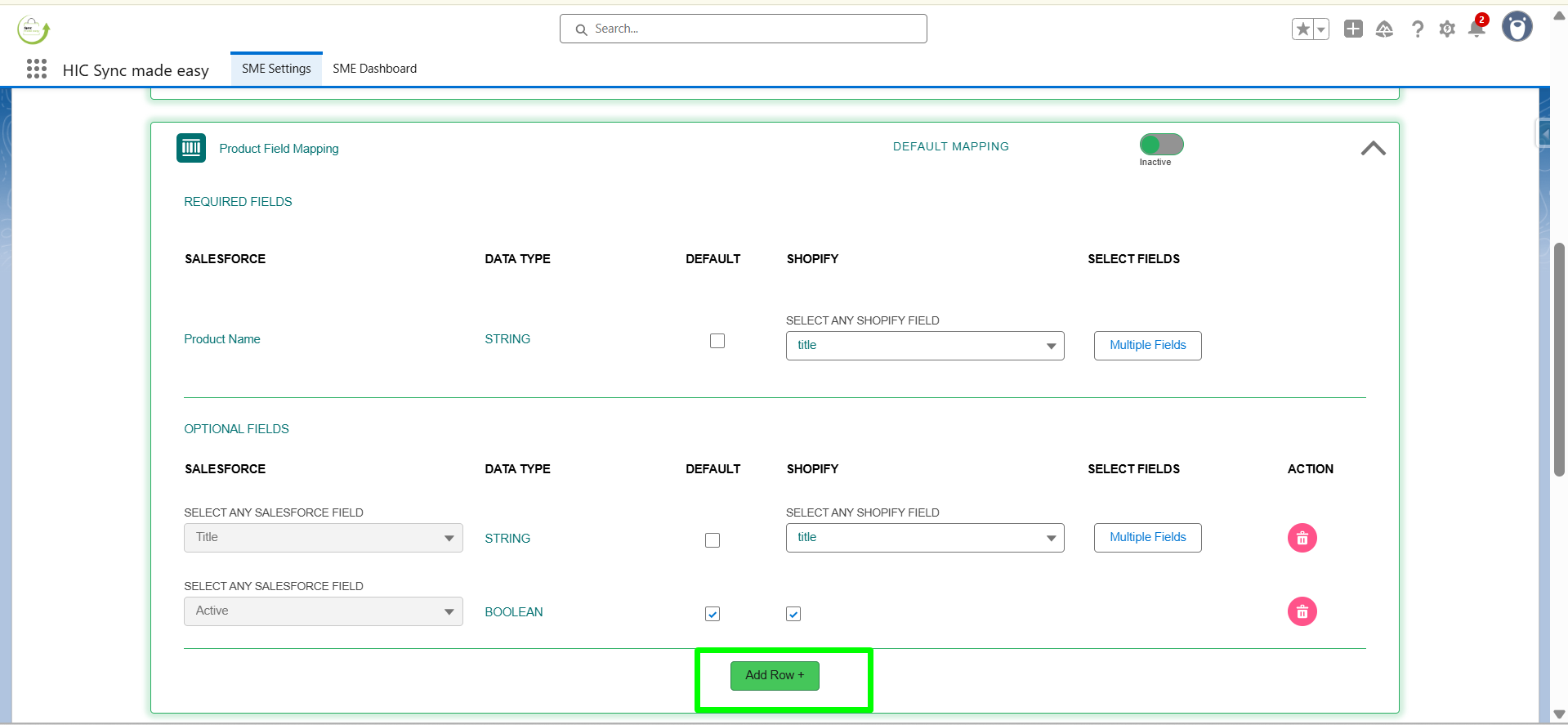
Now, if you want to add a few more fields, you need to open the object, scroll down to the Add row option and click on it.
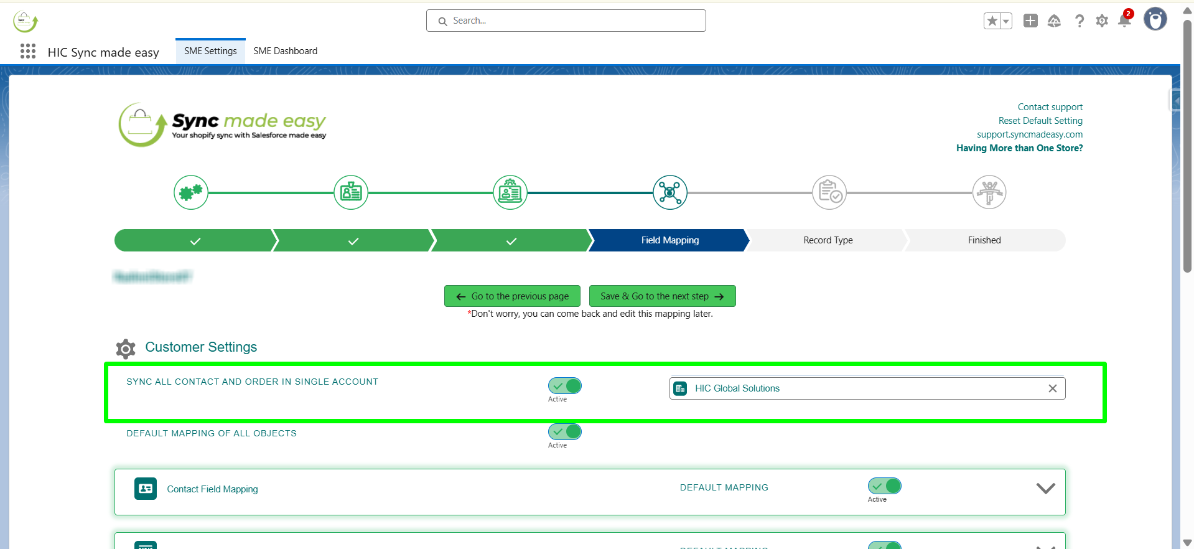
You can also “SYNC ALL CONTACTS/ORDER IN SINGLE ACCOUNT” by enabling the toggle button of “SYNC ALL CONTACTS/ORDER IN SINGLE ACCOUNT” and giving the name of the account you want to sync all your contacts/orders.
Field Mapping: Final step of field mapping
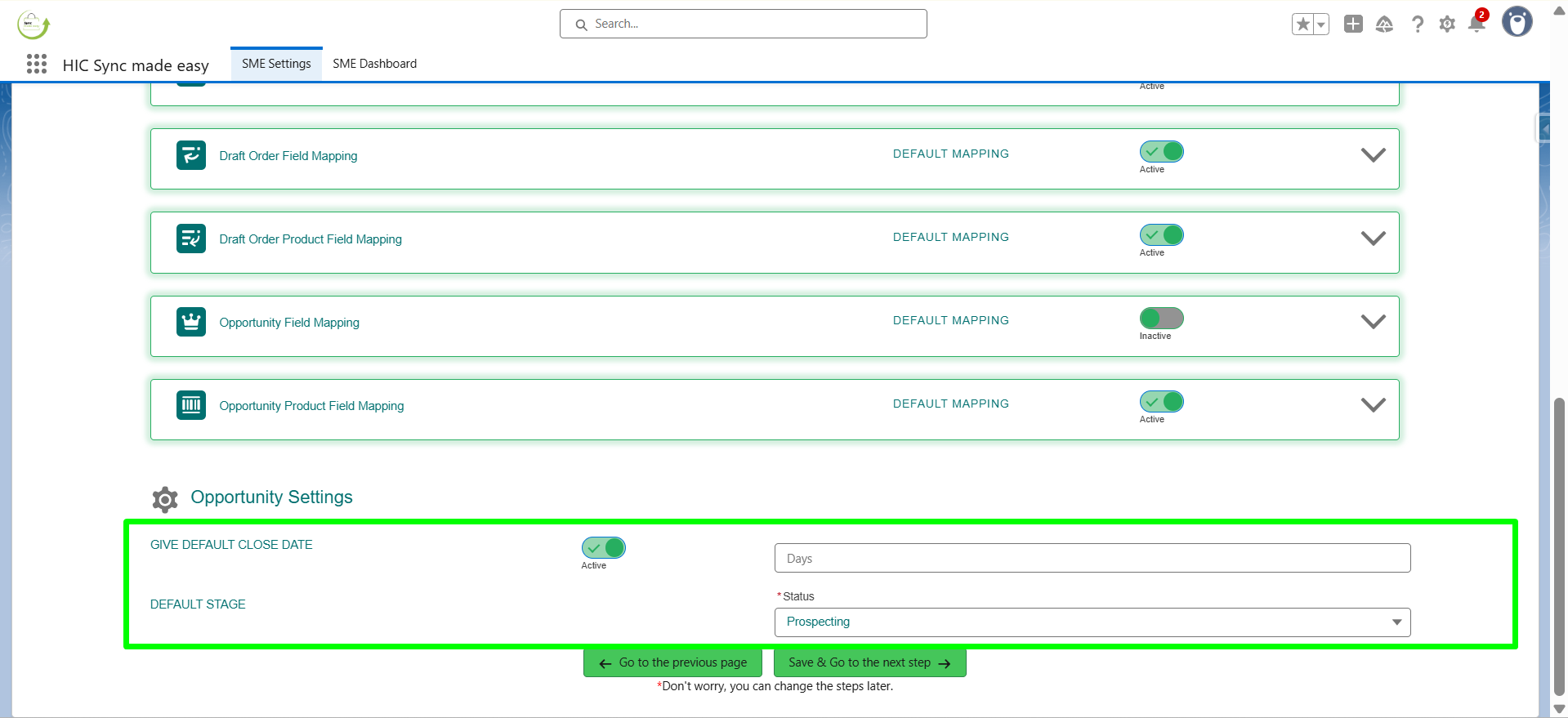
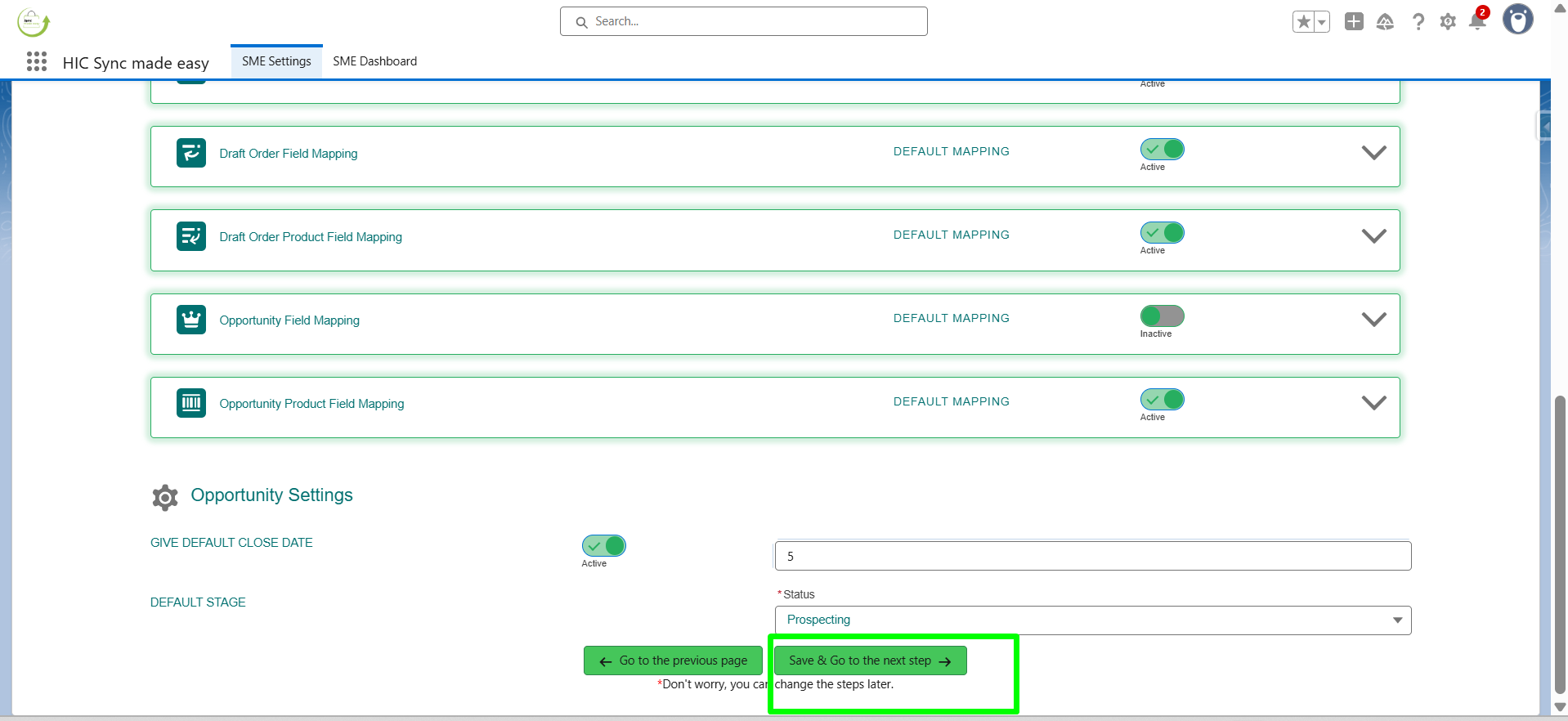
You can also give all your opportunities a “Default Date” and “Default Stage” by scrolling down to the bottom of the page to “Opportunity Settings”. Enable the toggle button and give the number of days you want and you can also select the stage by clicking on the stage ..
Click Save and Go to the Next Step.
Step 5 - Record Type
Here, whatever record type you select, the Record will be created by the respective record type only.
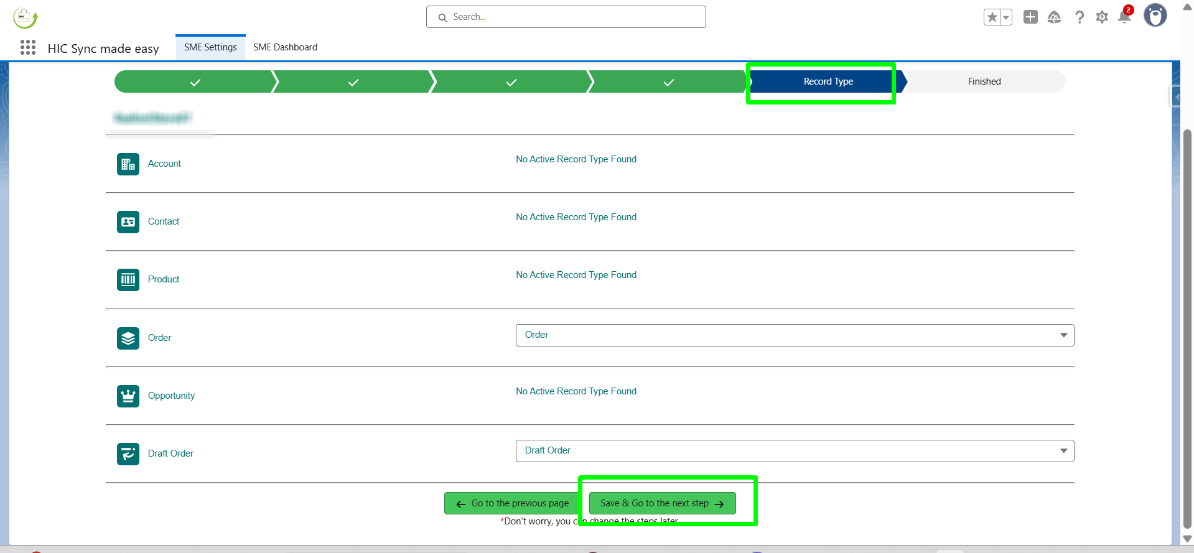
After completing all the configuration steps, when you click on the “Save & Go to the Next Step,” you will reach the final step of the setup.
Here, you will have the option to sync your legacy records in Salesforce. After completing this, you will see the “Terms & Conditions” popup window from where you can click the “Import Sample Records” .
Please Note:
You can sync legacy records and proceed with the process, or else, you can simply start using the app with the real-time syncing feature
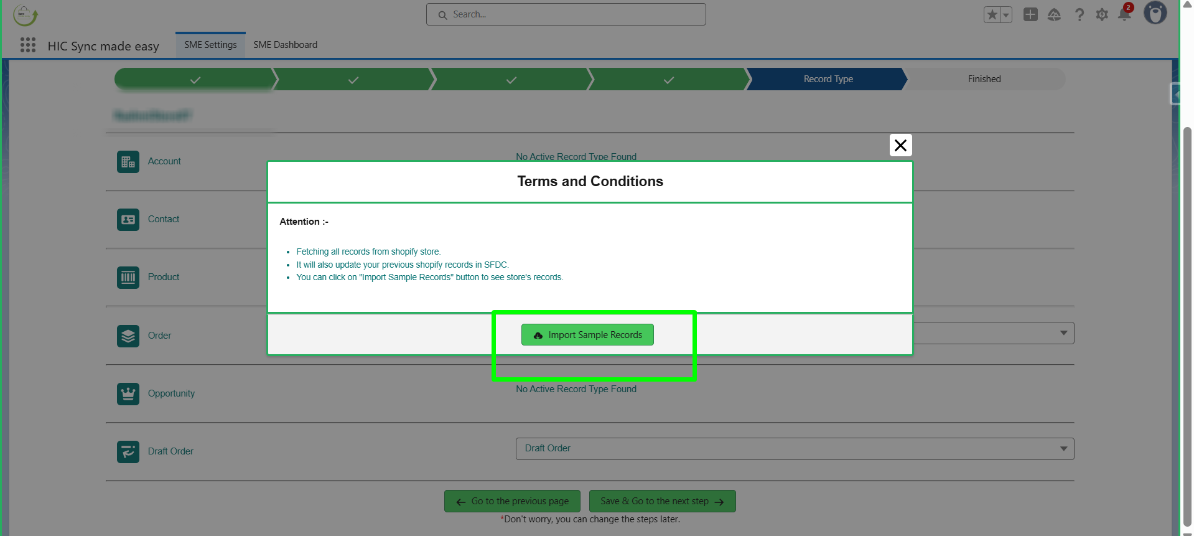
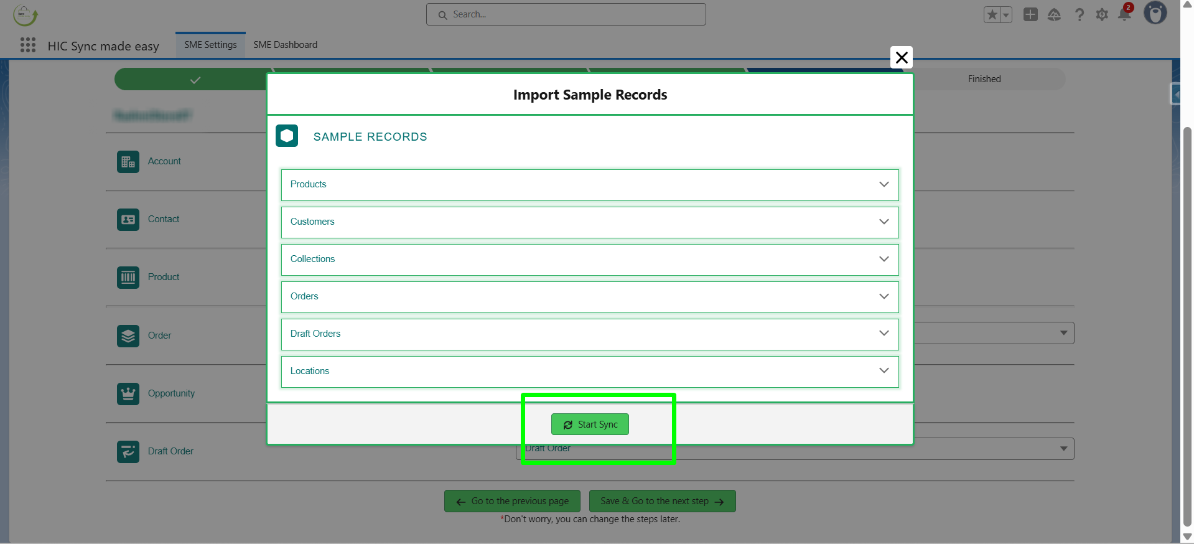
Now the Import Sample Records popup window is opened, click on “Start Sync”.
Step 6 - Finished
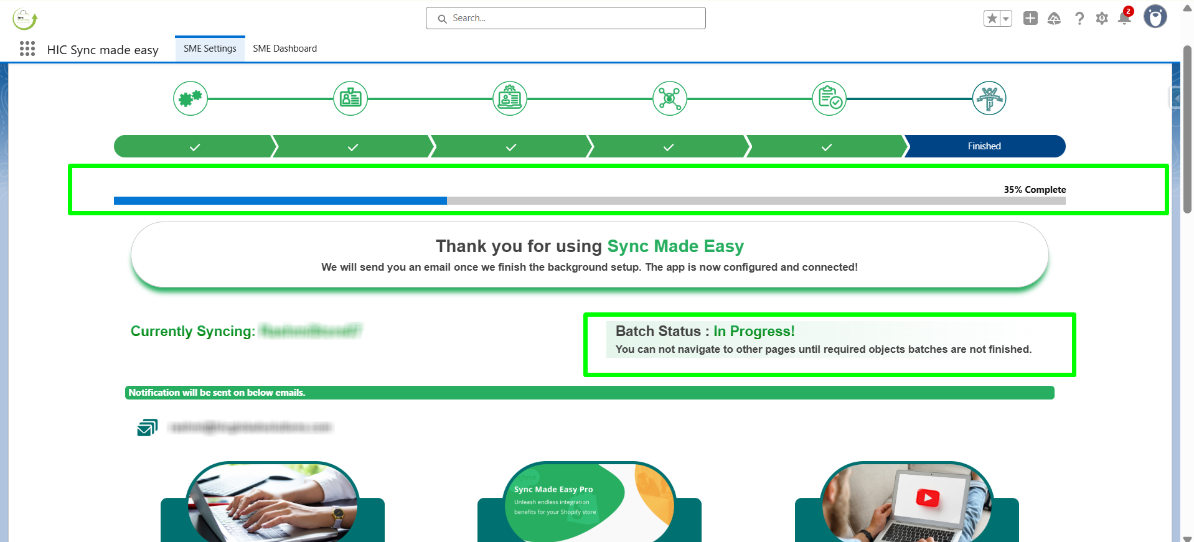
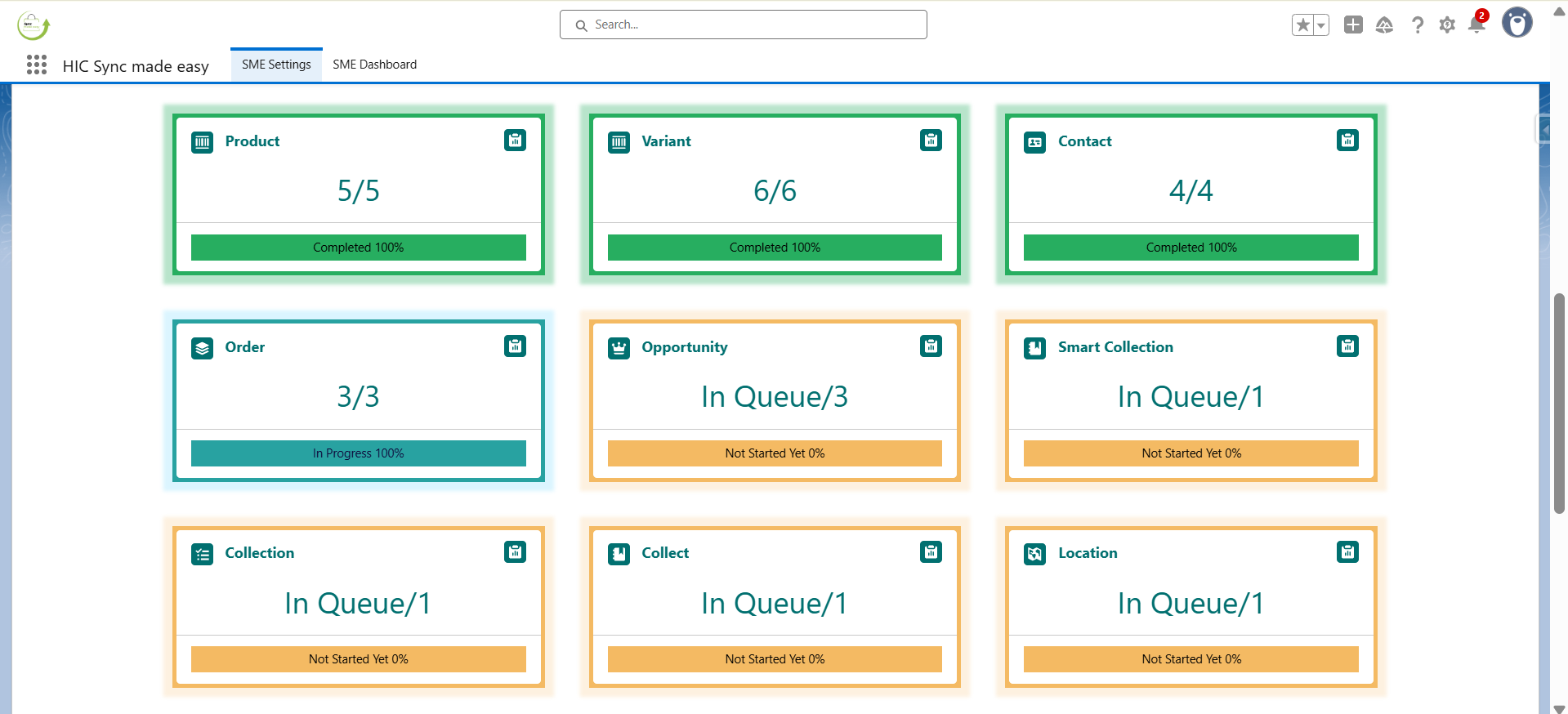
After you click on “Start Sync” the legacy data sync will get started, and you can see the progress of your sync .
Support
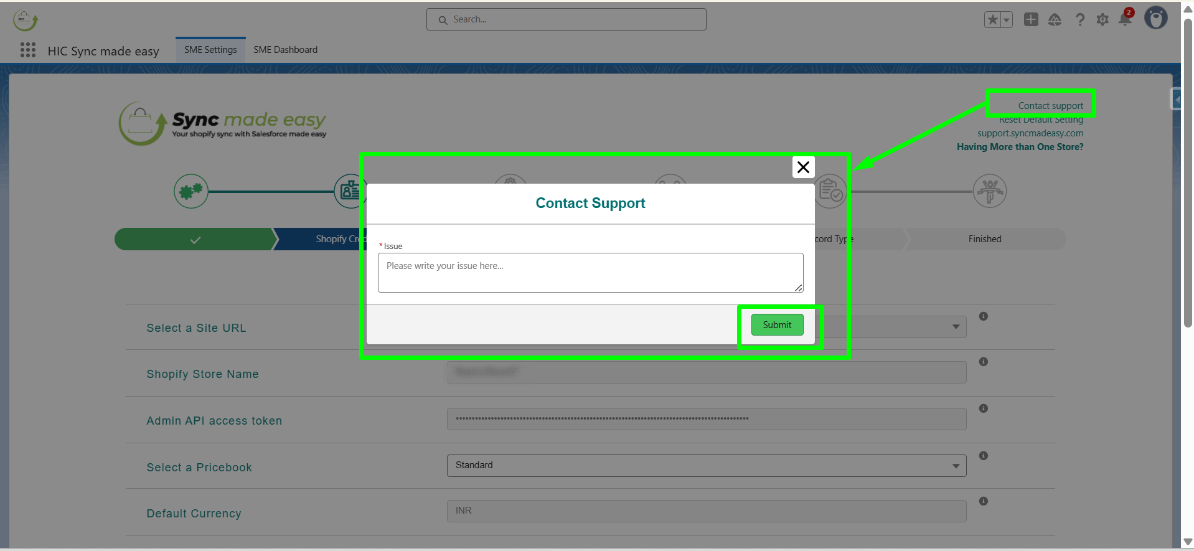
For further assistance or installation-related queries, click on Contact Support at the top right of each page to submit an issue, Or reach out to us at support@syncmadeasy.com.
Shopify Log
You may view all the synced products, orders, variants, etc. on the Shopify Log. You may use the toggle button to see the list of logs updated. Also, can download them into a CSV file.
Was this article helpful?
That’s Great!
Thank you for your feedback
Sorry! We couldn't be helpful
Thank you for your feedback
Feedback sent
We appreciate your effort and will try to fix the article