Note: Pre-Requisites For Installation
Active Salesforce.org ⟶ Sync Made Easy Main App ⟶ Enabled Order Object
Features | Description |
| Prevent Duplicate Basis on Account | This feature helps identify accounts based on the company name and updates the existing records in Salesforce instead of creating duplicate accounts. |
| Prevent Duplicate Basis on Email | This feature helps identify contacts based on their email address and updates the existing records in Salesforce instead of creating duplicate contacts. |
| SF2Shopify Sync | This feature helps sync data from Salesforce to Shopify based on the field mapping. |
| Product Images Sync | This feature helps Syncs product images from Shopify to Salesforce to keep product listings clear and attractive |
| Shopify Refunds Sync | This feature heps to Sync Shopify order refunds to Salesforce for clear order history and transaction details |
| Shopify ShipLines Sync | This feature helps sync shipping details from Shopify orders to Salesforce under the respective orders. |
| Shopify TaxLines Sync | This feature helps sync tax details from Shopify orders to Salesforce under the respective orders. |
| Do Not Override Opportunity Stage | This feature ensures that when an opportunity stage is updated in Salesforce, it won’t be changed or overridden by data coming from Shopify for the specific Opportunity. |
| Opportunity Closed On Draft Completed | This feature automatically updates the opportunity stage in Salesforce to Closed Won when a draft order in Shopify is marked as Paid. |
| Lead Sync (Newsletter Subscribers) | This feature helps create leads in Salesforce for customers who have not yet made a purchase in Shopify. |
| Automate Lead Conversion | It converts leads created from Shopify into Salesforce Accounts and Contacts (or Person Accounts) when the Shopify customer places their first order. |
| Initiate Batch Sync | This feature helps users sync legacy Shopify data for a specific date range by selecting the 'From' and 'To' dates. |
| Cancel Order Sync | This feature helps cancel paid orders in Salesforce, and the same orders will automatically be canceled on the Shopify side as well. |
| Order Sync As Draft | This feature helps sync Shopify orders to Salesforce, always keeping them in draft order status. |
| Order Sync Based on Category | This feature syncs orders from Salesforce to Shopify according to their Order status category. |
| Shopify Order Total Sync | This feature syncs Shopify orders to Salesforce to keep totals, taxes, shipping, and other charges accurate for easy financial tracking. |
| Salesforce Fulfillment Sync | This feature allows you to fulfill paid orders directly from Salesforce, and the fulfillment details are automatically sync back to Shopify. |
| Salesforce Inventory Sync | This feature updates and syncs inventory levels from Salesforce to Shopify, keeping stock quantities accurate on both platforms. |
| Salesforce Product Images Sync | This feature syncs product images from Salesforce to Shopify, ensuring both platforms display the same up-to-date product visuals. |
| Salesforce Refunds Sync. | This feature helps to sync refund details from Salesforce Orders to Shopify for the respective orders. |
| Shopify Abandoned Checkouts Sync. | This feature helps us sync Shopify checkouts to Salesforce. |
| UTM Params Sync. | This feature helps to sync UTM parameters from Shopify to Salesforce Orders/Opportunities. |
| Shopify Metafields Sync | This feature helps you to sync the value of a metafield by mapping any metafield with respect to its data type and object |
Installation:
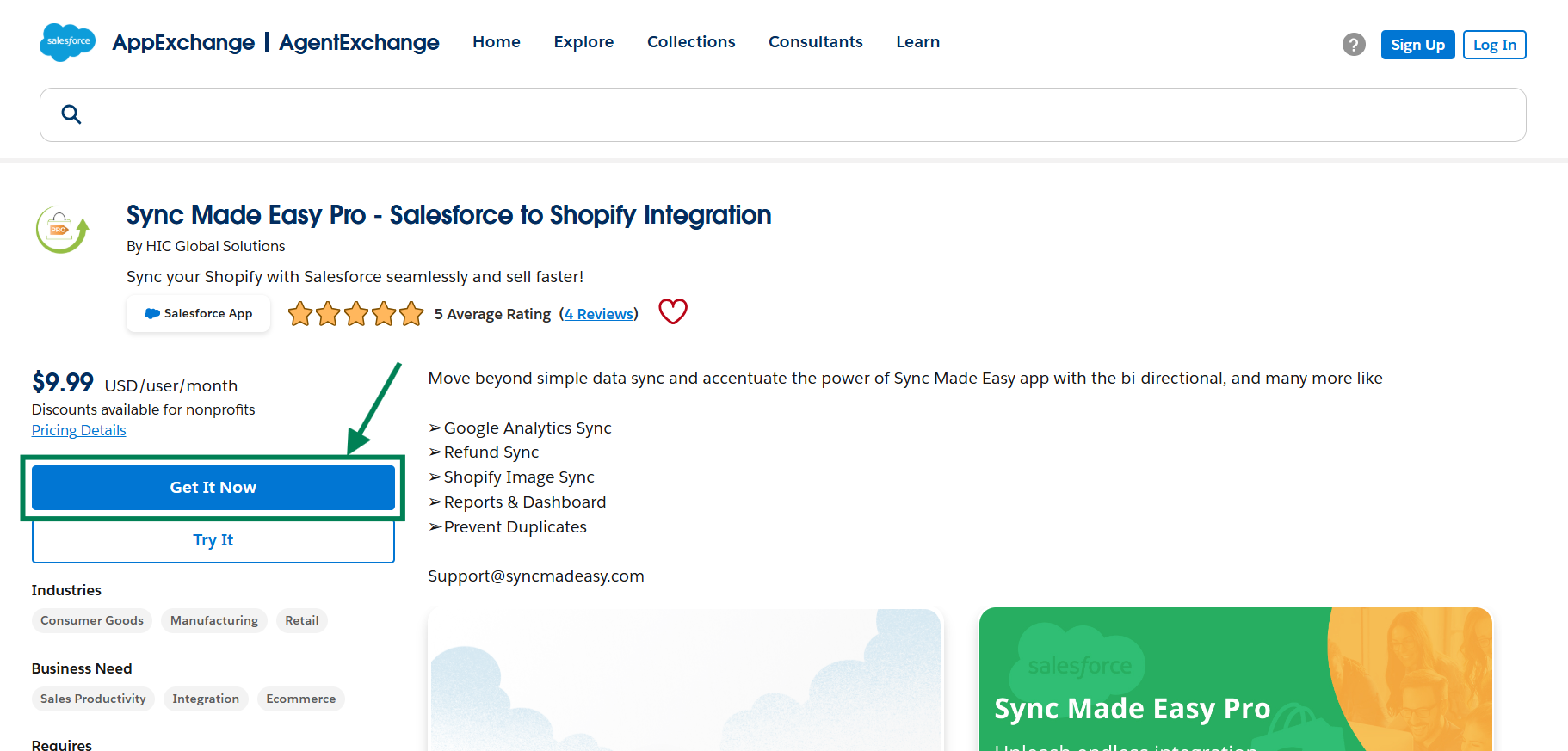
- Visit Salesforce AppExchange
- Search for Sync Made Easy Pro
- Click on Get It Now

Note: Before adding the Lightning Page (SME Pro Features), please activate it using the steps below.
Step-by-step: Add a Lightning Page to the Sync Made Easy app layout
1. Login to the Salesforce Account.
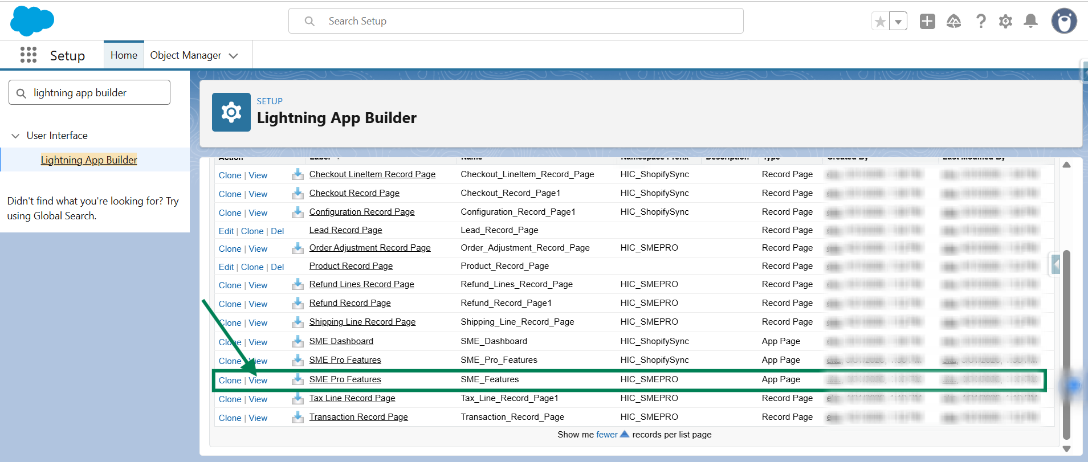
2. Go to Setup and Search “Lightning App Builder” in the Quick Find box.
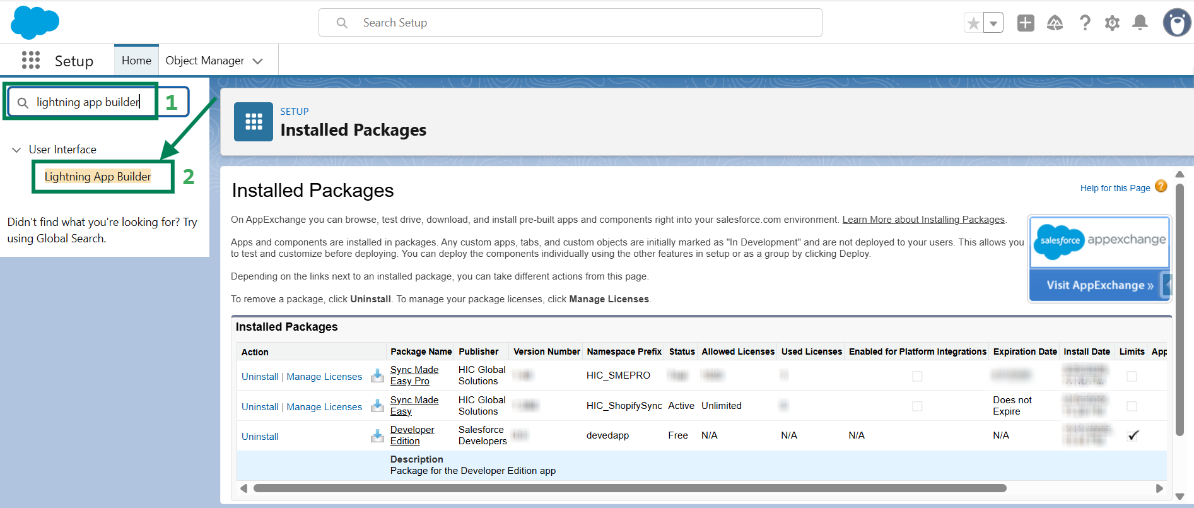
3. Now Search for “SME Features” and Click on View.

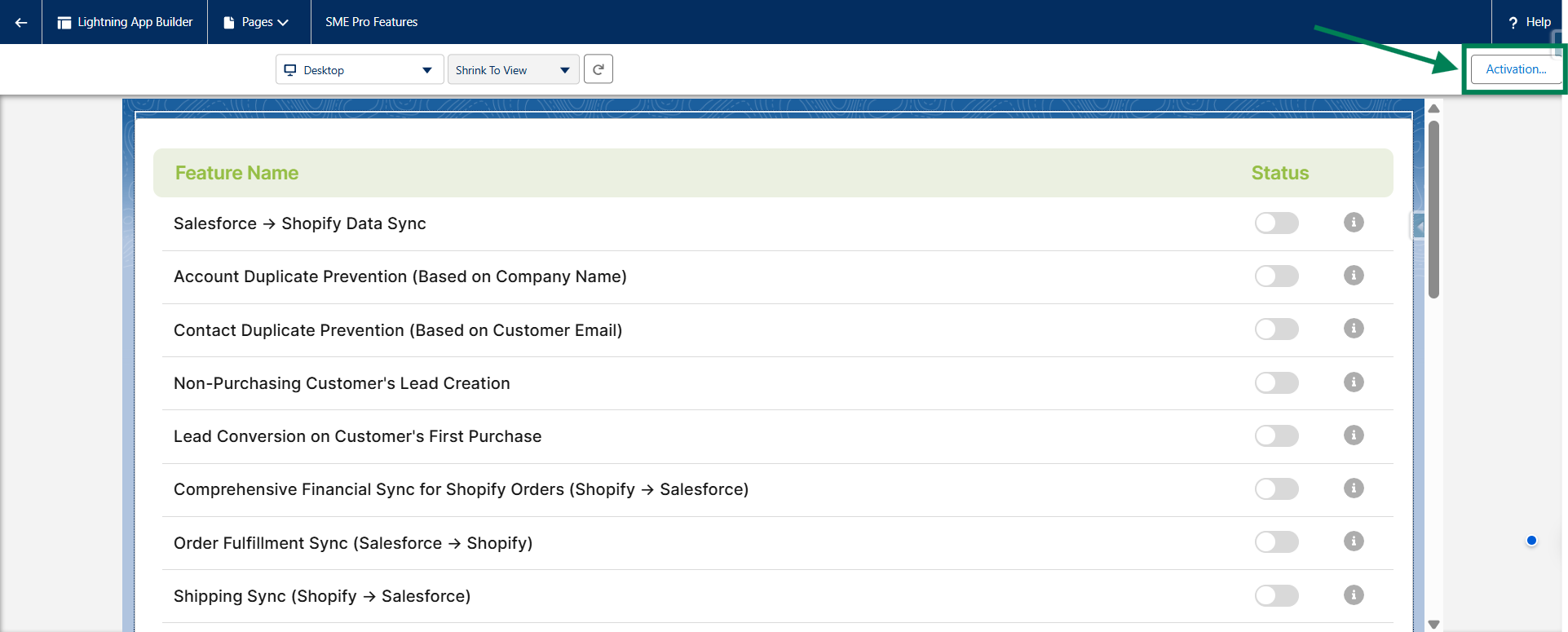
4. Click on “Activation” on the top corner of the right side.

4.1. Click on “Save”.
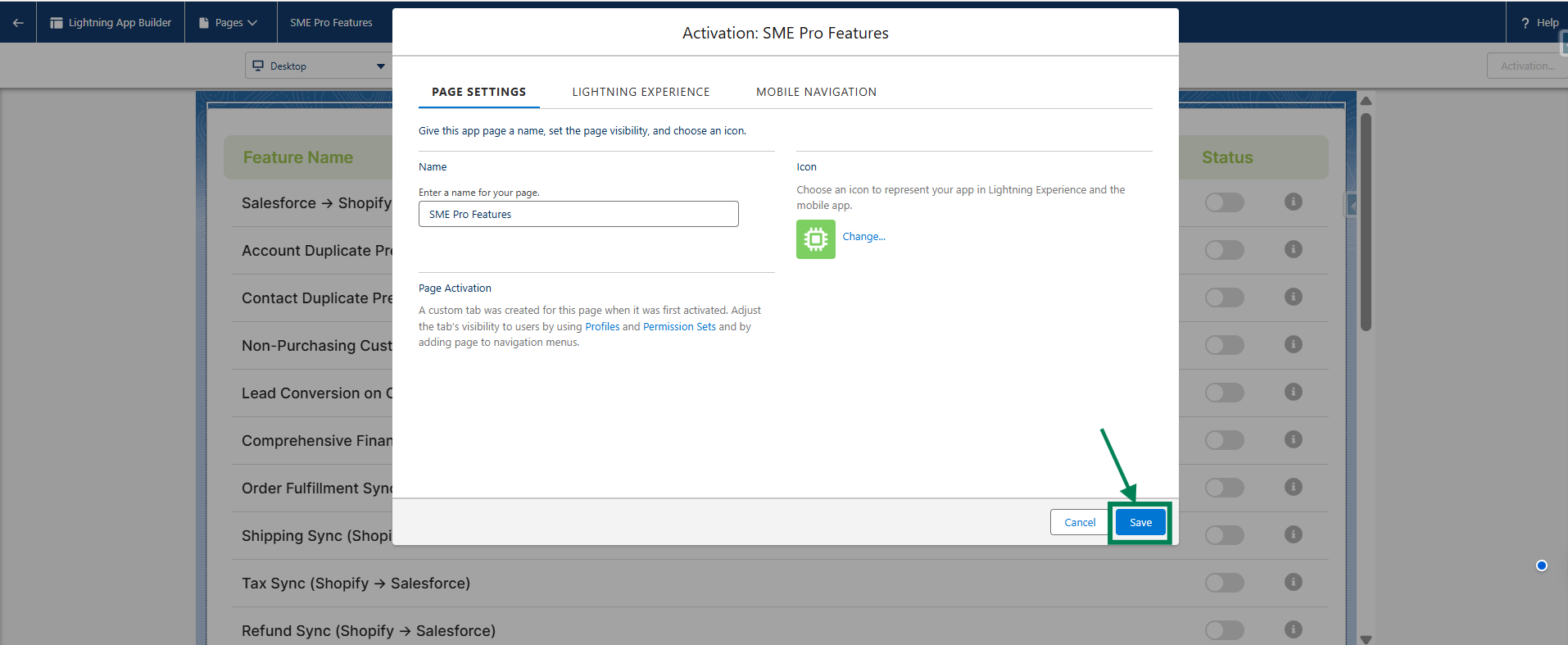
5. Now you can see the Message: ”Activation settings changed” on the top corner of the right side as below.
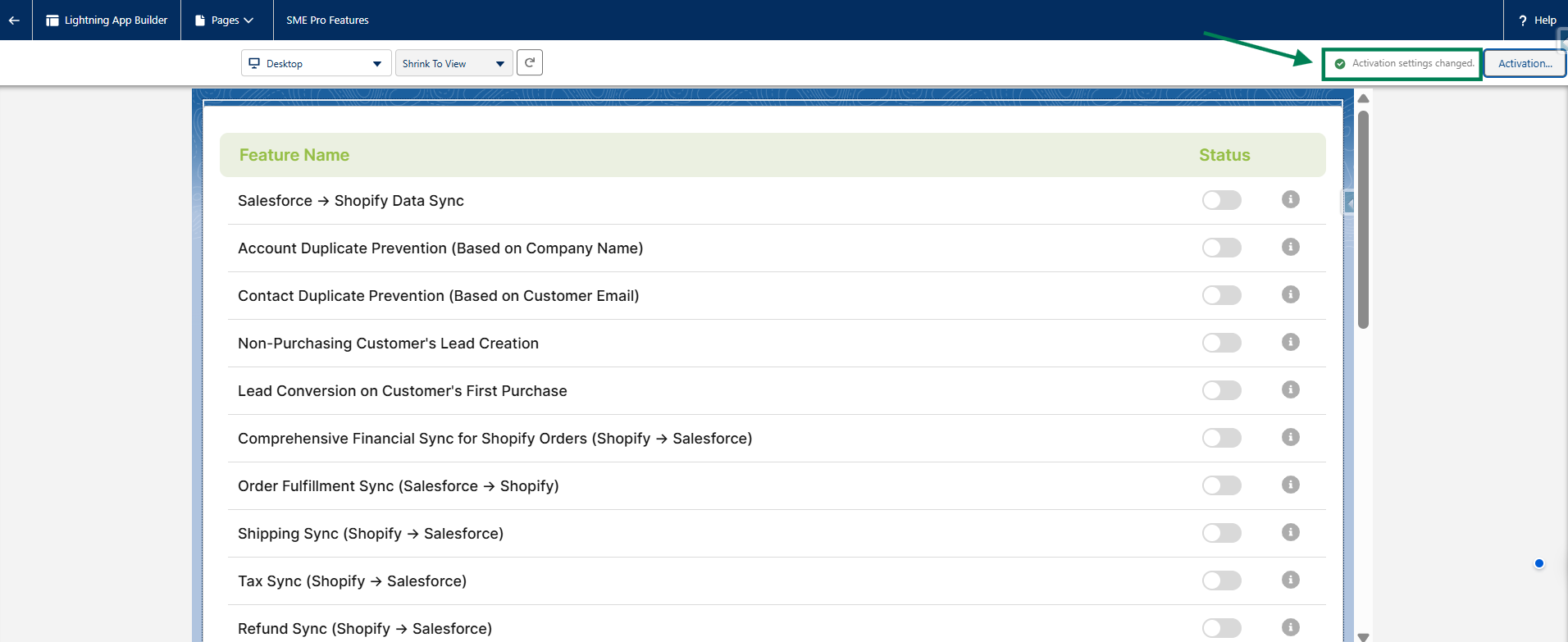
Steps to add the lightning page (SME Features) on the Main app layout
1. Login to the Salesforce Account.
2. Go to Setup and Search “App Manager” in the Quick Find box.
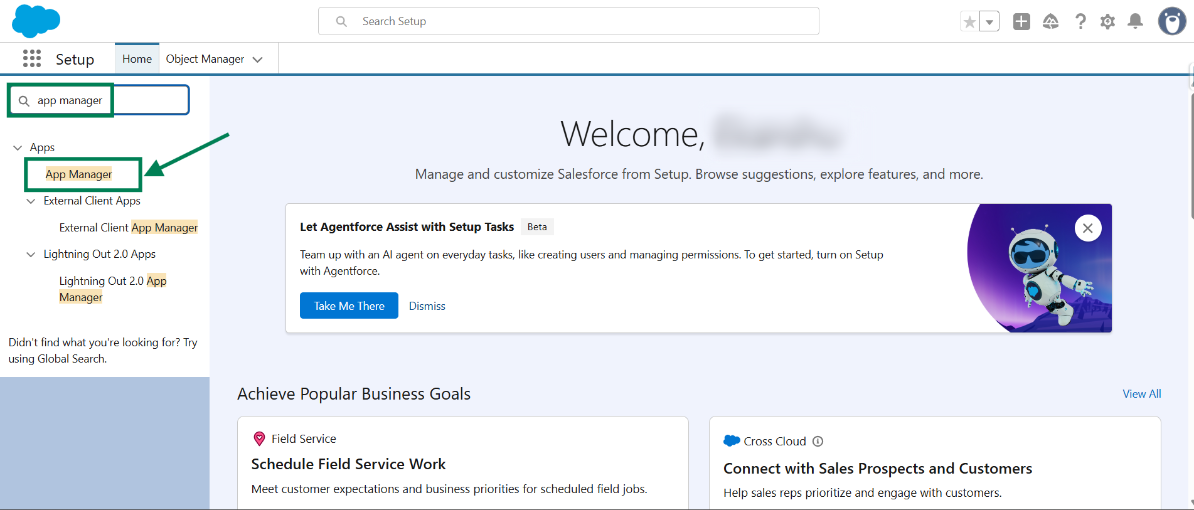
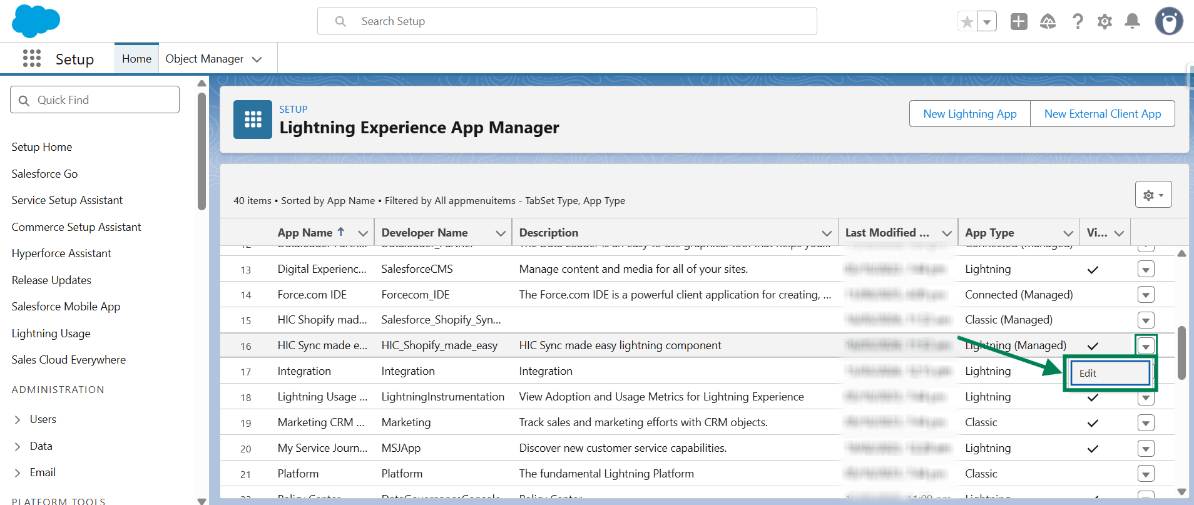
3. Click “App Manager” and Search for App Name: “HIC Sync made easy”.
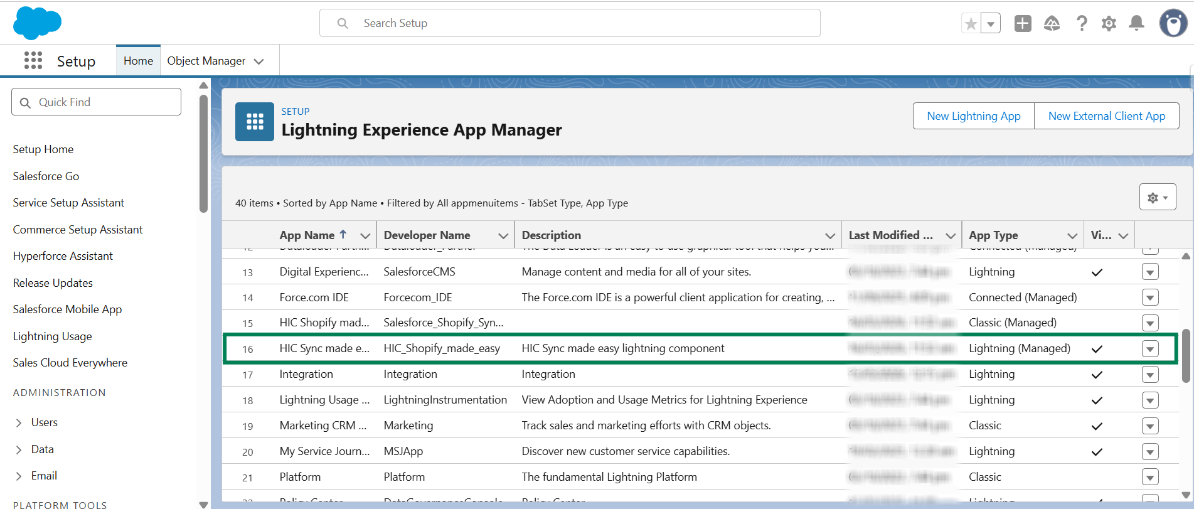
4. Now Click on Menu on the right side of App Name: “HIC Sync made easy” and Click on “Edit” as below.

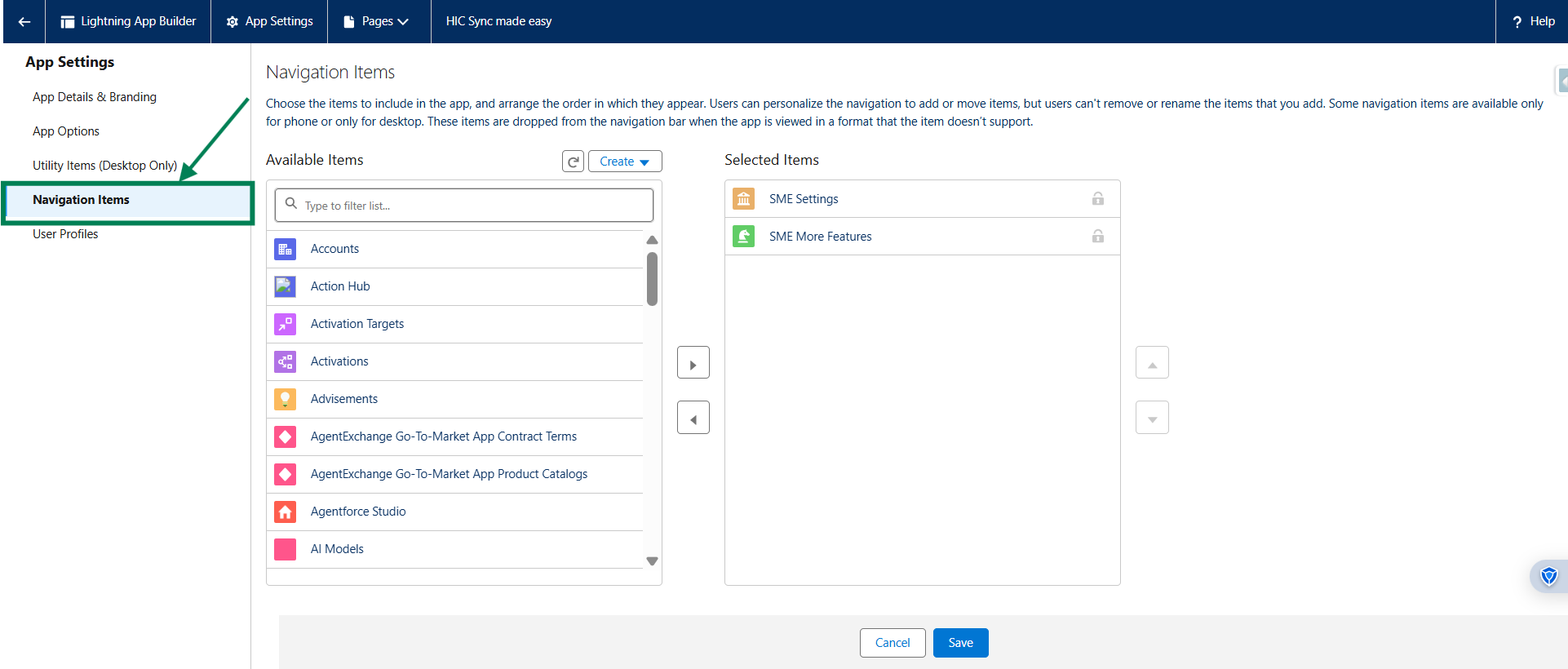
5. Go to “Navigation Items” under the “App Settings” option and Click on it.

6. Now Search for “SME Features” options in the “Available Items” of Navigation Items as below.
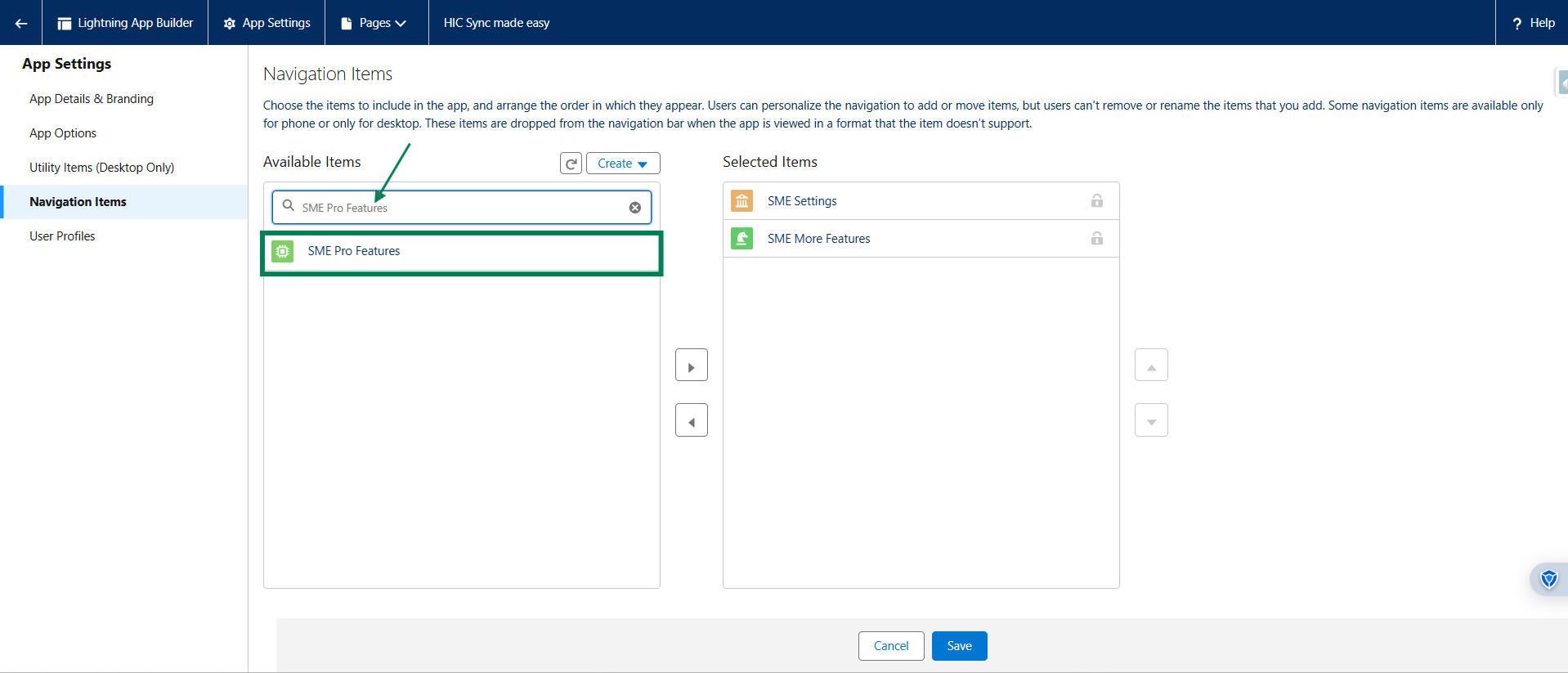
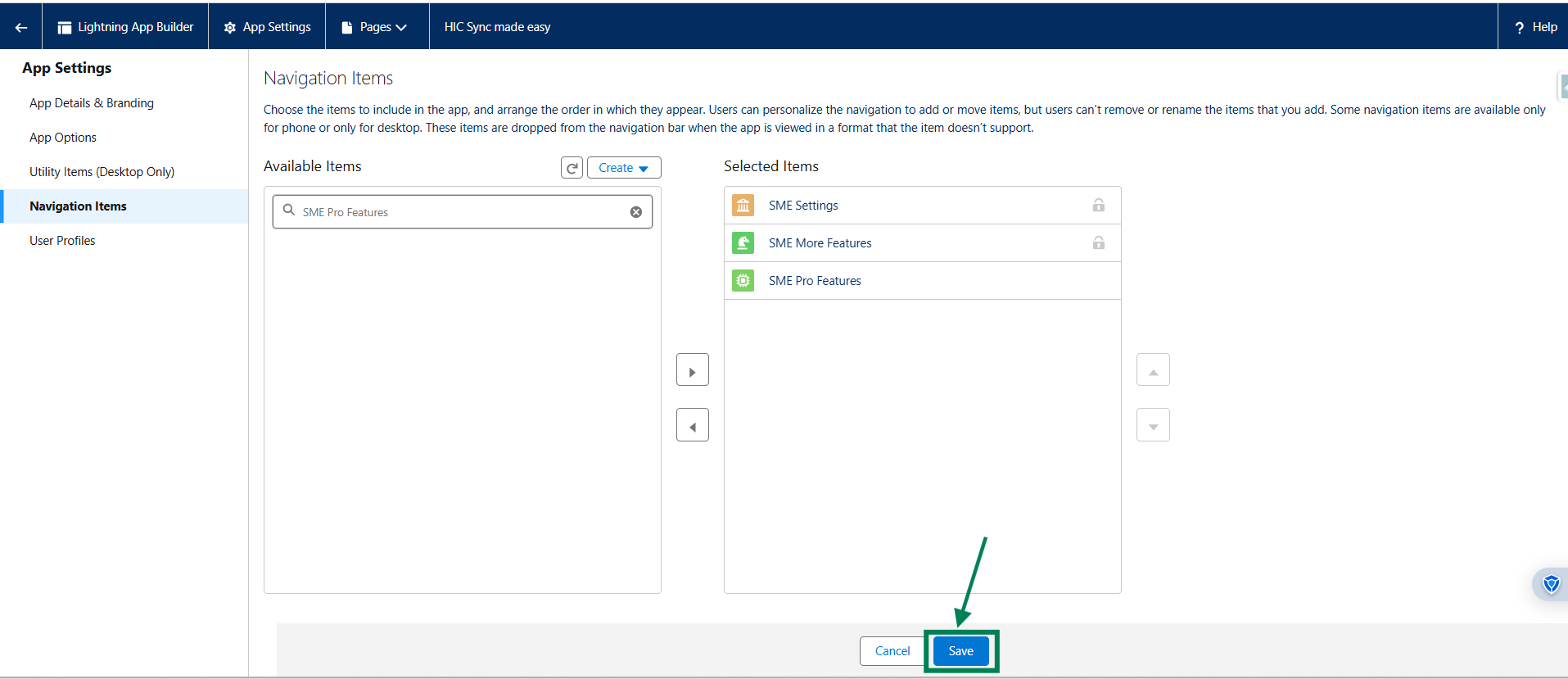
7. Now Click on “SME Features” and Then Click on “Add” to send it to the “Selected Items” options (right side) as below.
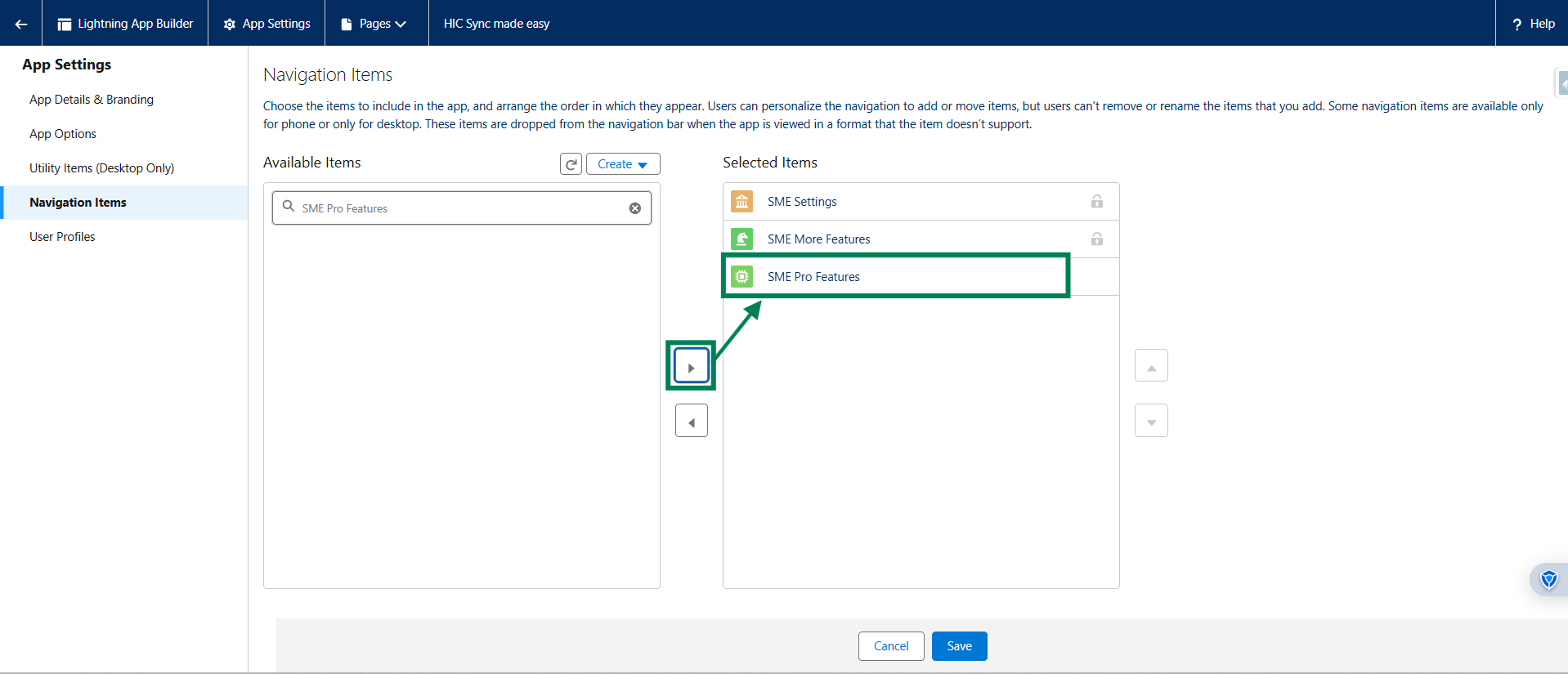
8. Now Click on “Save” as below.

9. Now Go to “App Launcher” (9 Dots) and Search for App: ”HIC Sync Made Easy” and “Click” on it as below.
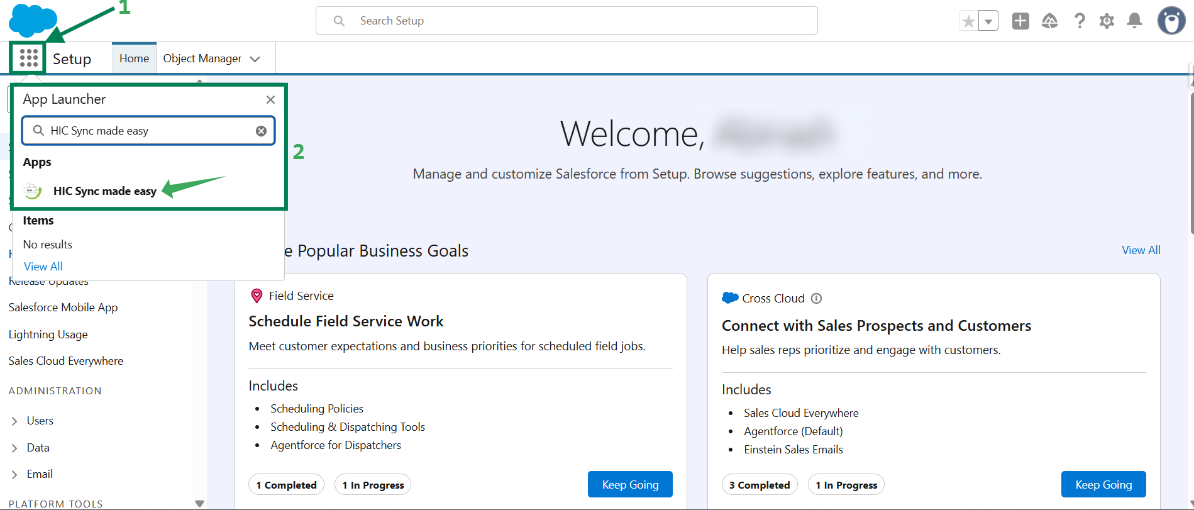
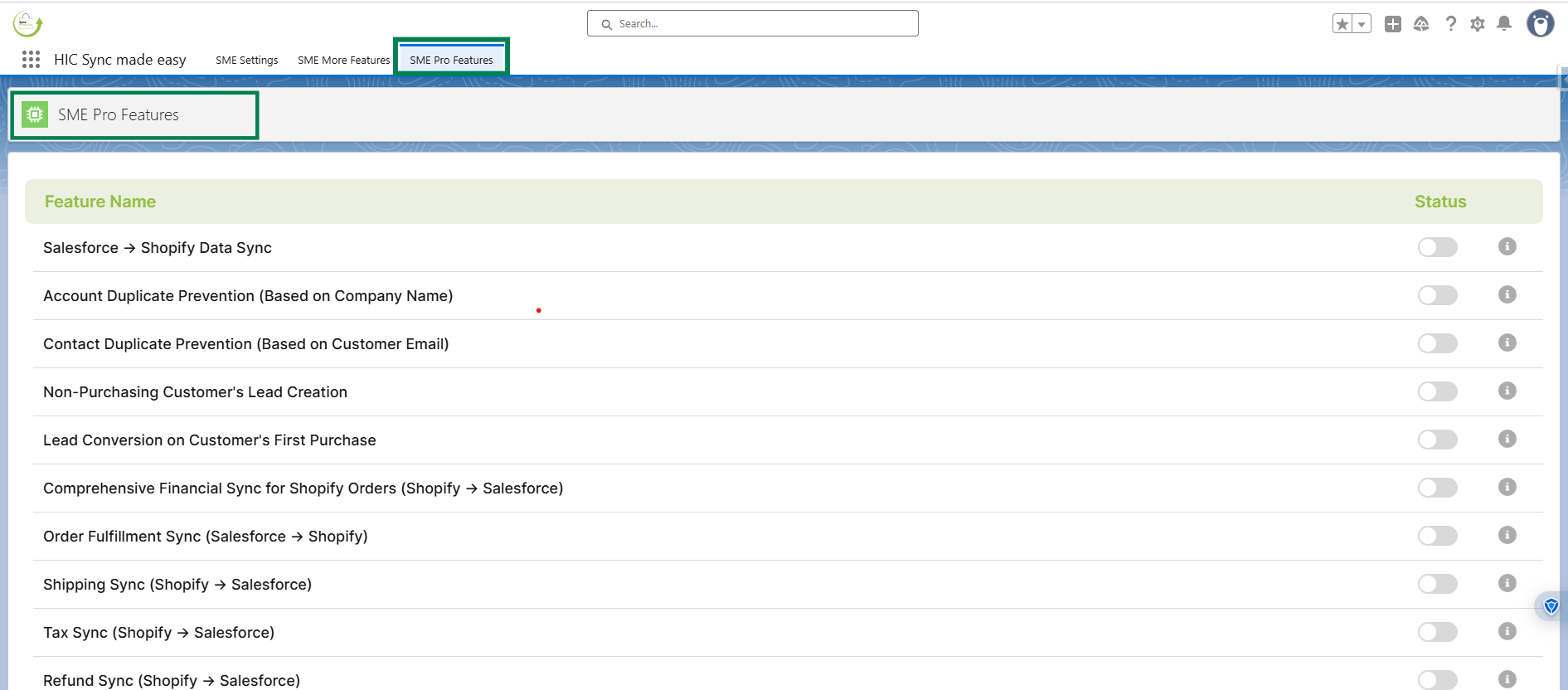
10. Now Click on “SME Features” tab and you can see the lightning page (SME Features) on the Main app (Sync Made Easy) layout as below.

Note: All features are inactive by default. Please activate the status toggle to enable these functionalities.
Was this article helpful?
That’s Great!
Thank you for your feedback
Sorry! We couldn't be helpful
Thank you for your feedback
Feedback sent
We appreciate your effort and will try to fix the article