In this guide, we’ll walk you through the step-by-step process of how you set a default close date and default stage on an opportunity through the Sync Made Easy App. Follow the instructions below…
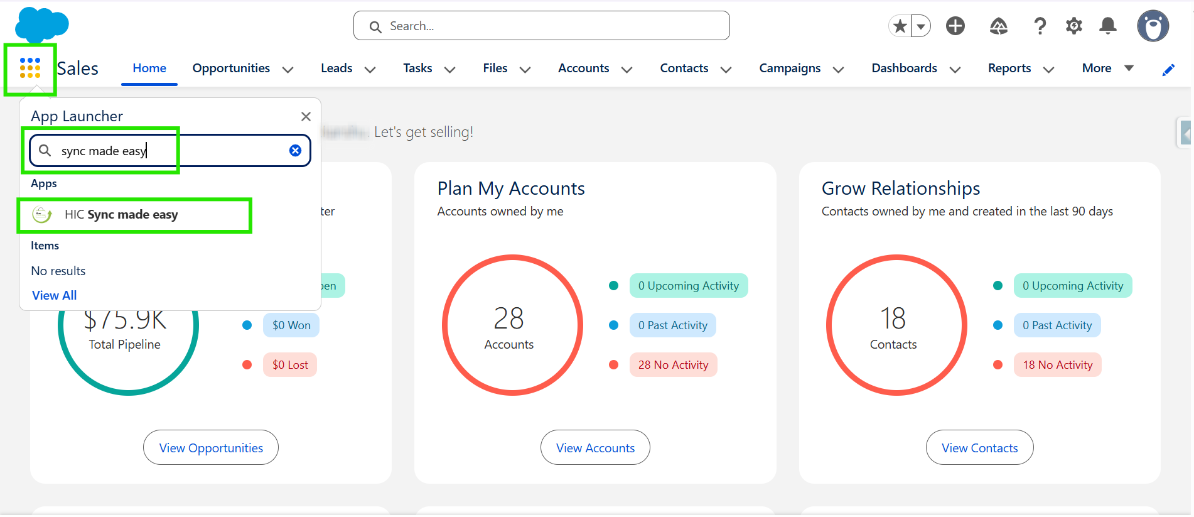
Step 1: Go to “App Launcher”, search “Sync Made Easy”, and click on it.
Note:
Before you go to the Field Mapping page, make sure the Opportunity toggle is enabled on the Object Setup page.
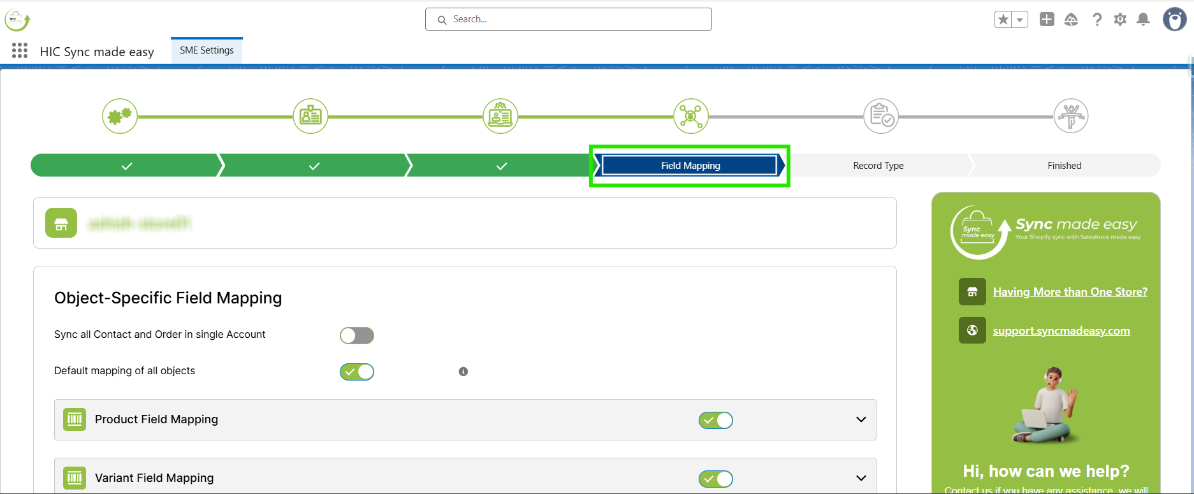
Step 2: Click on the Field Mapping step.
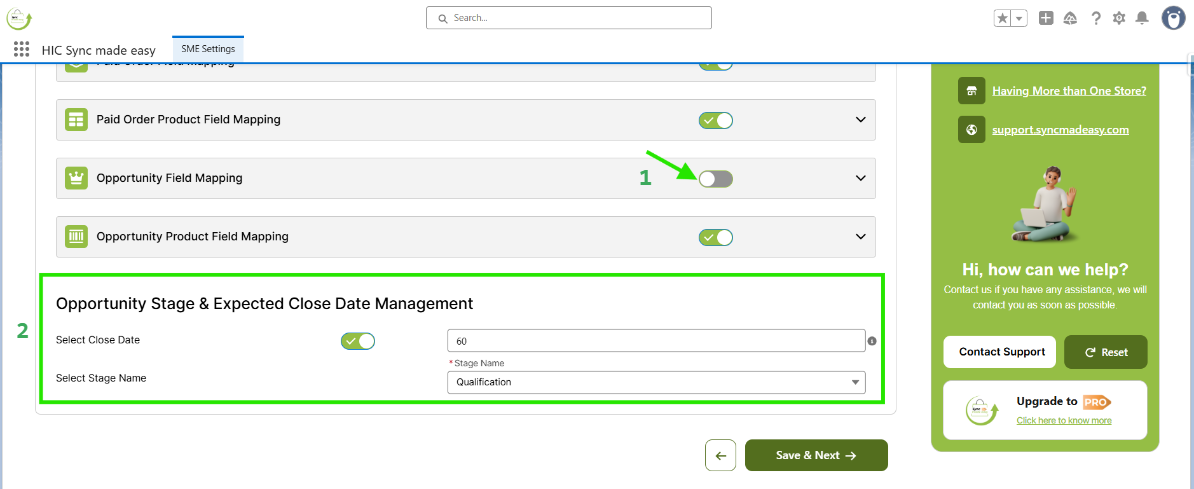
Step 3: You can also give a Default Date and Default Stage to all your opportunities. To do this, turn off the Opportunity Field Mapping toggle button, then scroll down to the Opportunity Settings section. Enable the toggle there, specify the number of days you want, and select the stage name by clicking on the Select Stage Name field.
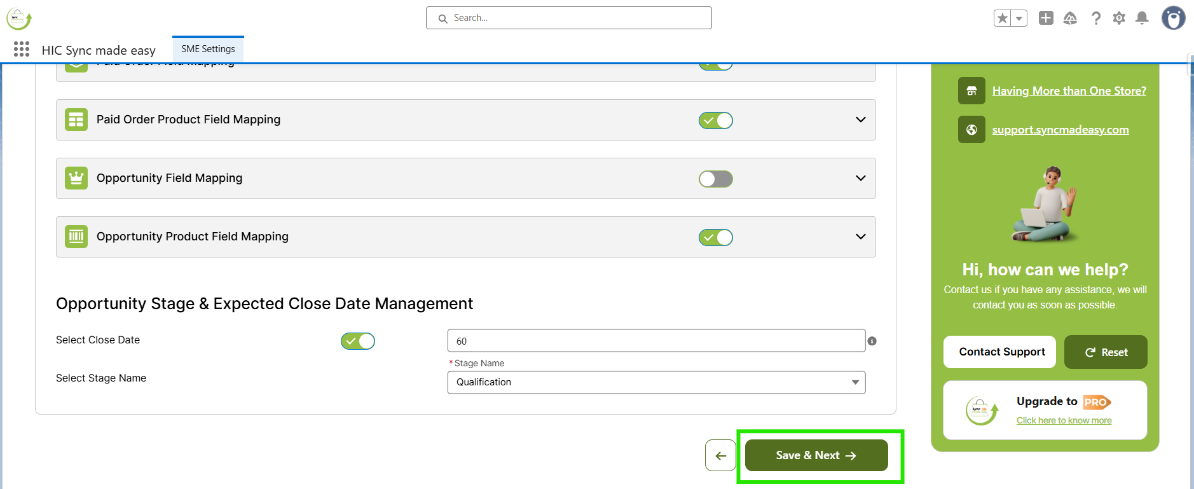
Step 4: Click “Save & Next”.
After you finish these steps, the Default Close Date and Stage will be set for your Opportunities.
Thanks!
Was this article helpful?
That’s Great!
Thank you for your feedback
Sorry! We couldn't be helpful
Thank you for your feedback
Feedback sent
We appreciate your effort and will try to fix the article