In this guide, we’ll walk you through the step-by-step process of how to start Batch Sync for Legacy Data After Store Connection and Complete Configuration. Follow the instructions below…
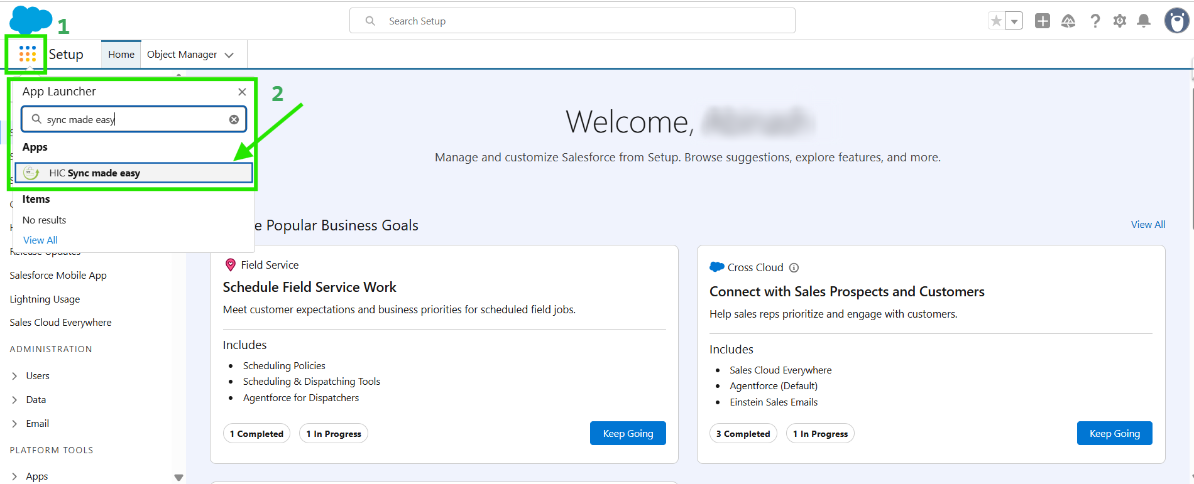
Step 1: Click on “App Launcher” and search for “Sync Made Easy” and click on it.
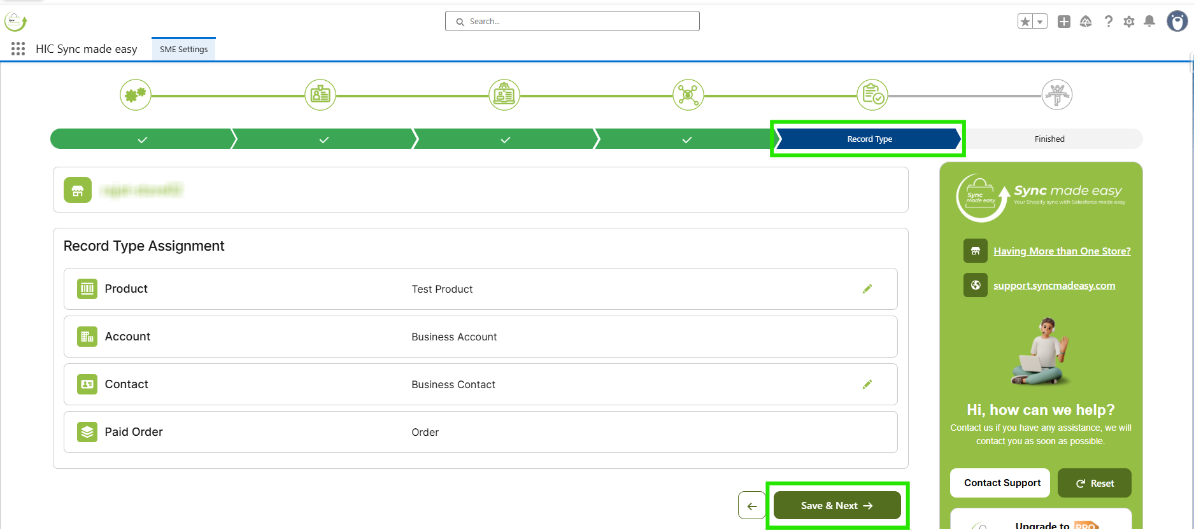
Step 2: Now, as your store is already connected and configured, let's go to the Record Type page and click on “Save & Next”.
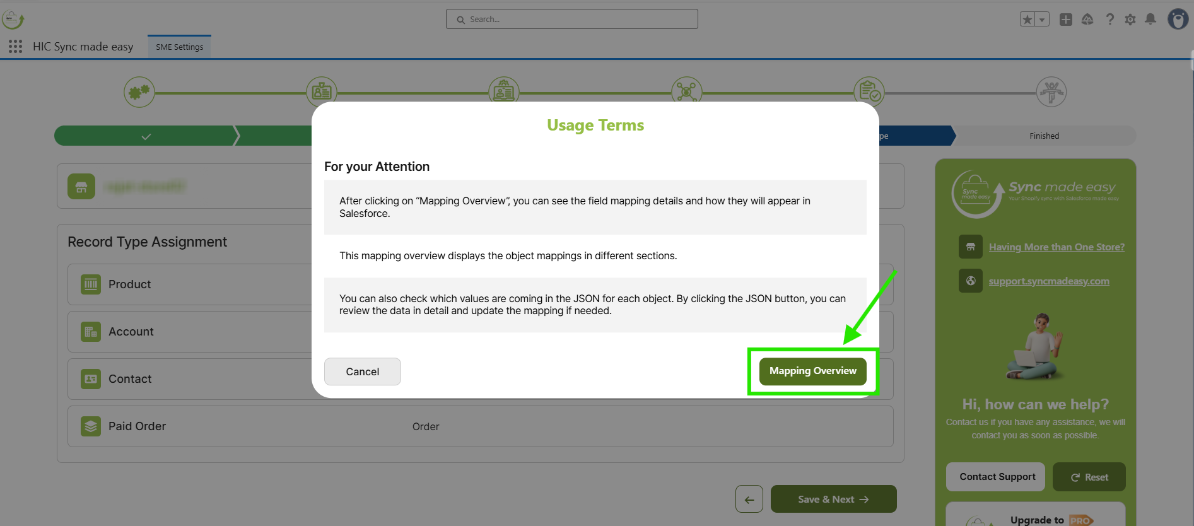
Step 3: Here, you will have the option to sync your legacy records in Salesforce. After completing this, you will see the “Usage Terms” pop-up window from where you can click the “Mapping Overview”.
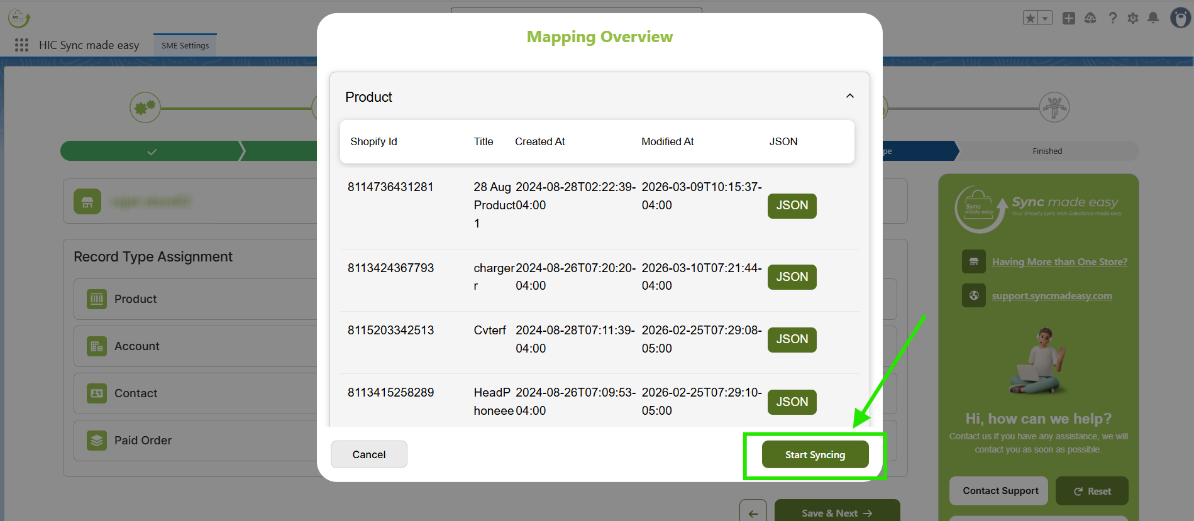
Step 4: Now, the Mapping Overview pop-up window is opened, click on “Start Syncing”.
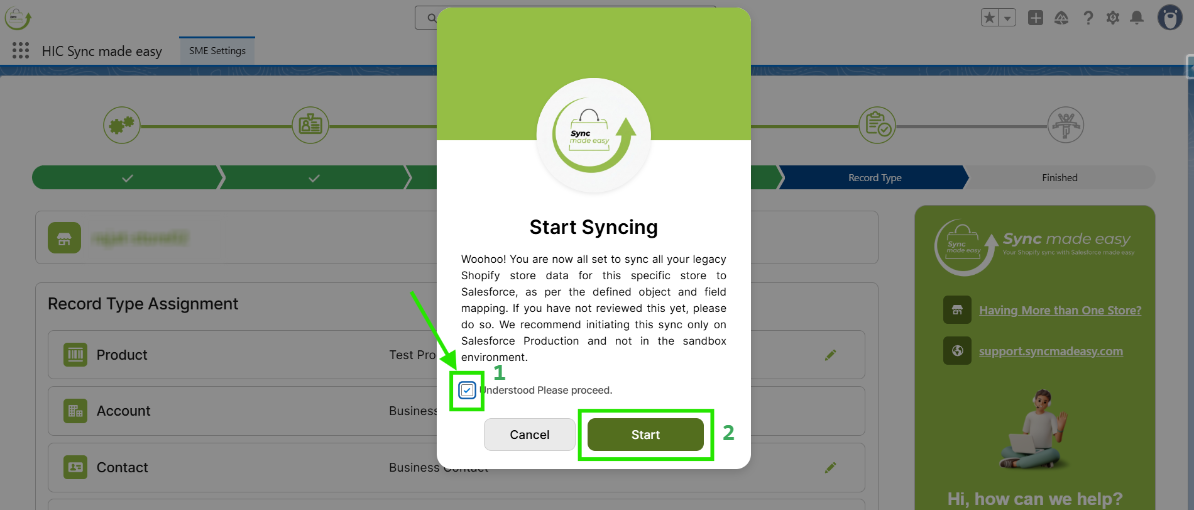
Step 5: In the Start Syncing pop-up modal, check the “I Understand, Please Proceed” checkbox and then click “Start”.
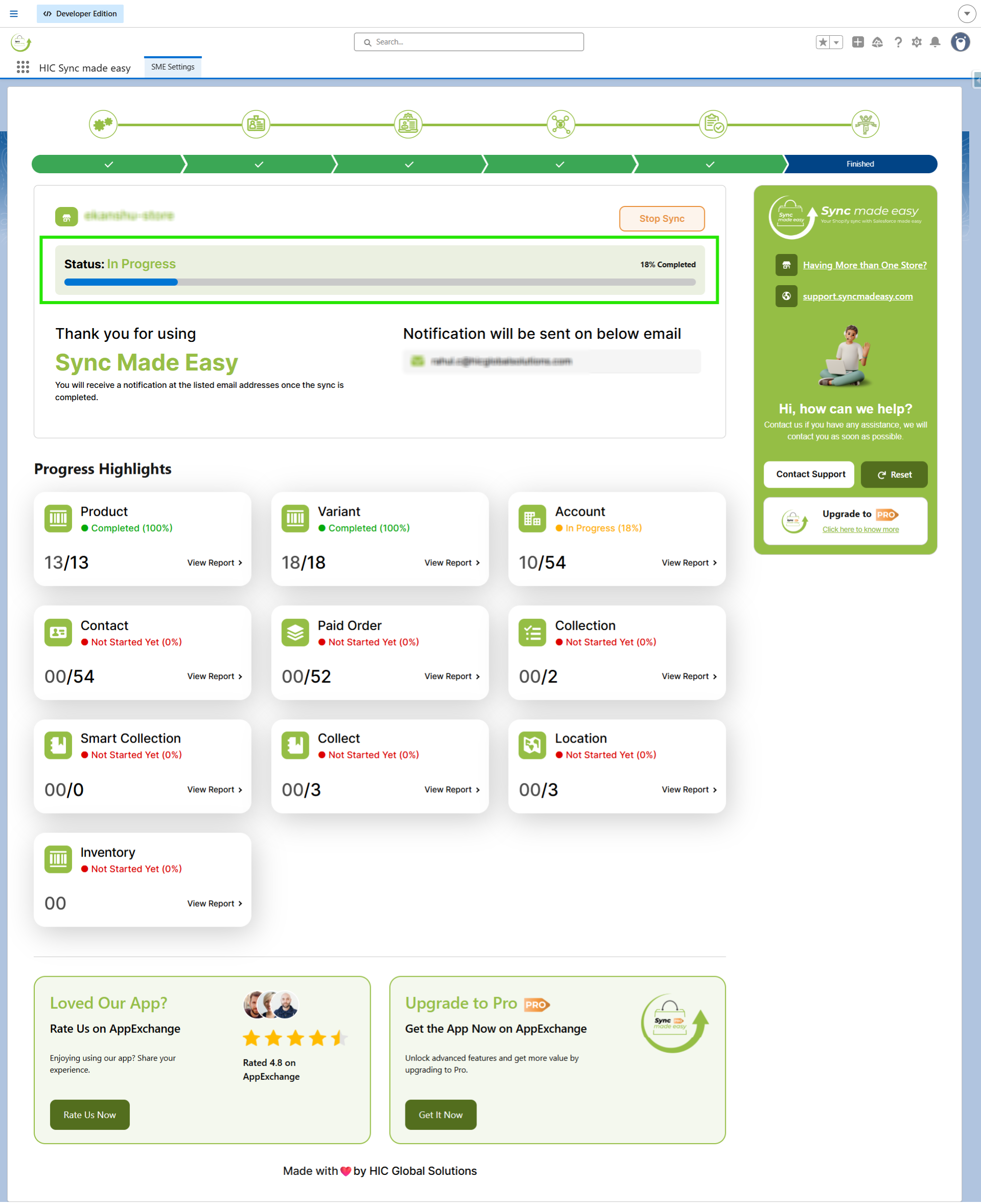
Step 6: After you click on “Start”, the legacy data sync will get started, and you can see the progress of your sync.
Note:
Once the batch sync is completed, you will be redirected to the Shopify Credentials page
Thanks!
Was this article helpful?
That’s Great!
Thank you for your feedback
Sorry! We couldn't be helpful
Thank you for your feedback
Feedback sent
We appreciate your effort and will try to fix the article