Below is a step-by-step guide to installing and configuring the Sync Made Easy package in Salesforce.
Step 1: Log in to Salesforce
Sign in to your Salesforce account using your admin credentials.
Step 2: Install the Sync Made Easy Package
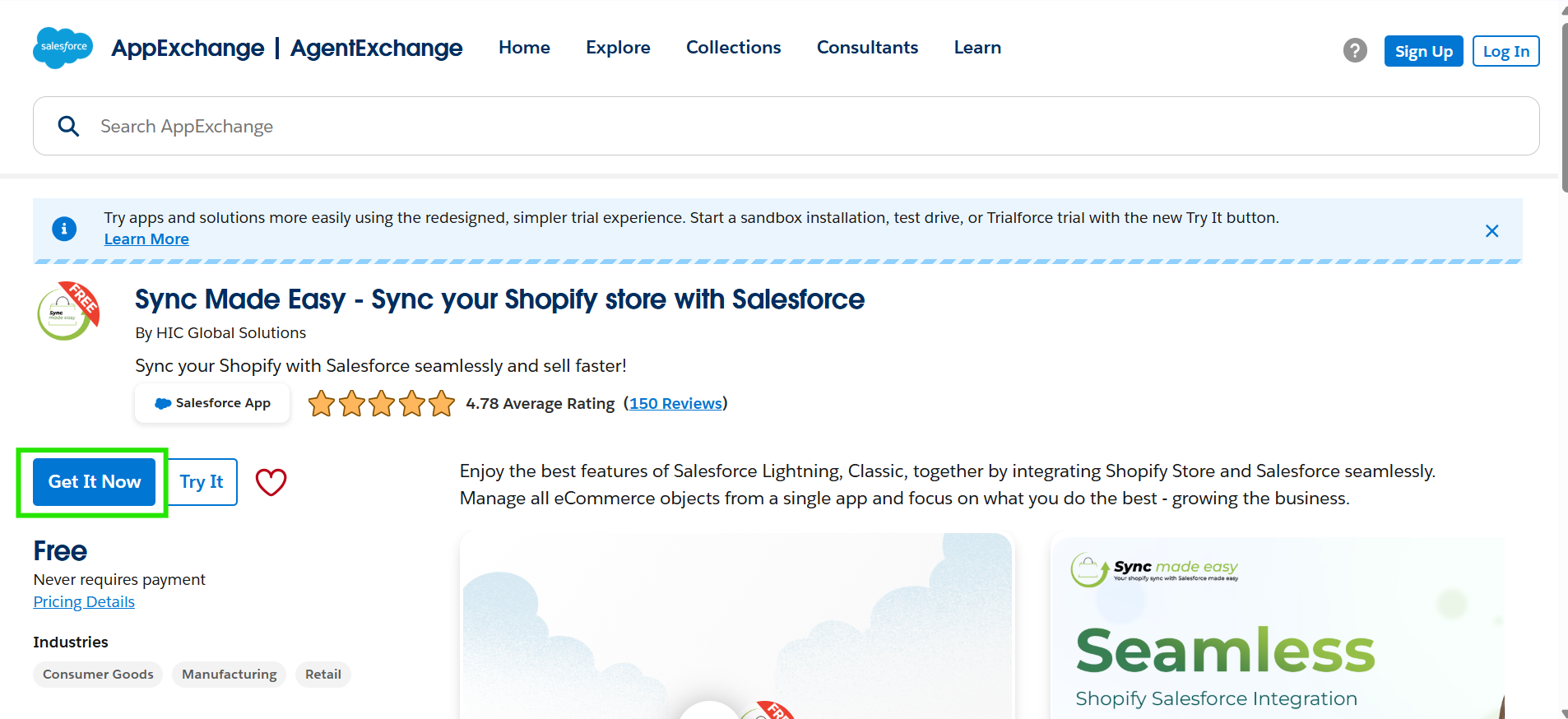
- Go to the Salesforce AppExchange.
- Search for “Sync Made Easy”.
- Click “Get It Now” and follow prompts to install the package.
Step 3: Verify Installed Package
After installation:
- Go to Salesforce Setup → Installed Packages
Confirm that Sync Made Easy appears in the list
Step 4: Open the App
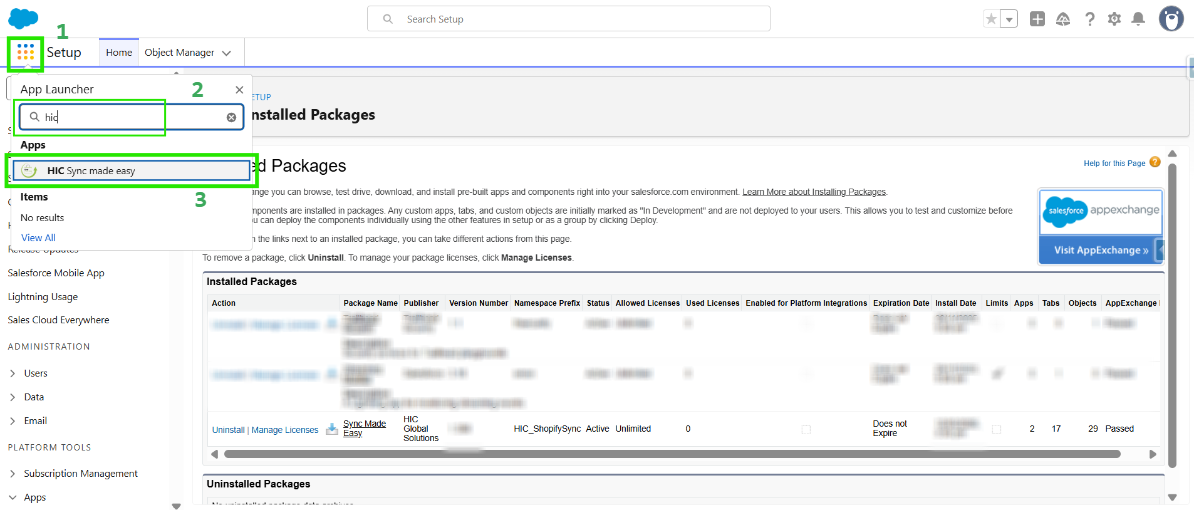
- From the Salesforce App Launcher, search HIC Sync Made Easy.
- Click to launch the app
Step 5: Creating A Site URL for your Org
Now, go to SME Settings. This brings you to Step 1 (Salesforce Configuration). In Step 1, we will register your site, create a Domain URL Remote setting, create a remote setting, and generate a self-signed certificate.
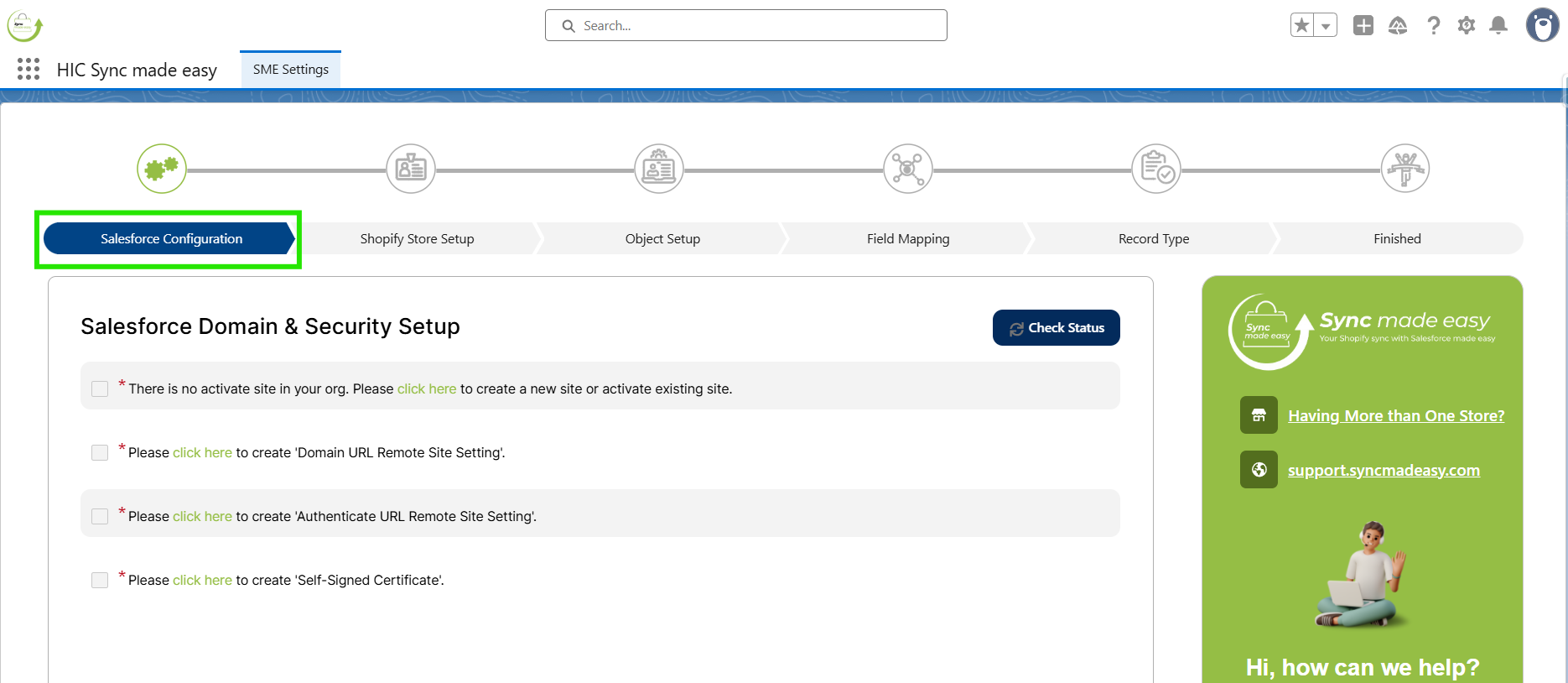
We will begin by creating a new site. You may check the status of your site by clicking the Check Status button. We recommend checking the status after completing every step on the page.
Step 6: Retrieving Shopify Access Token
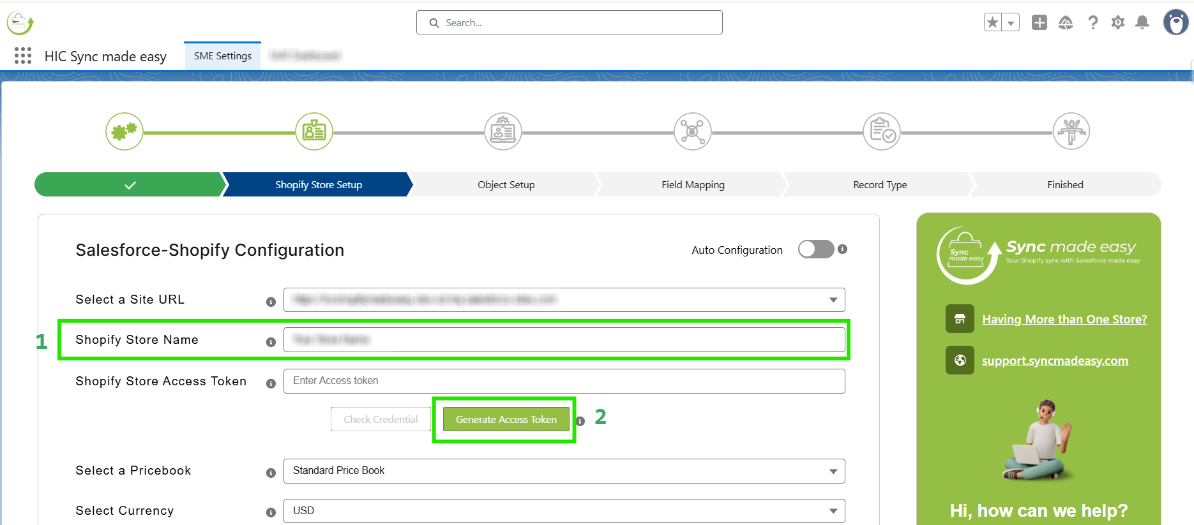
Here onwards, Step 2 begins, which is the Shopify Store Setup page. In Step 2, you will need the Shopify Store Name and Shopify Store Access token.
Step 7: Object Setup
On this page, you can view which Salesforce object is mapped to your Shopify objects.
You can also select “Person Account” or “Business Account”.
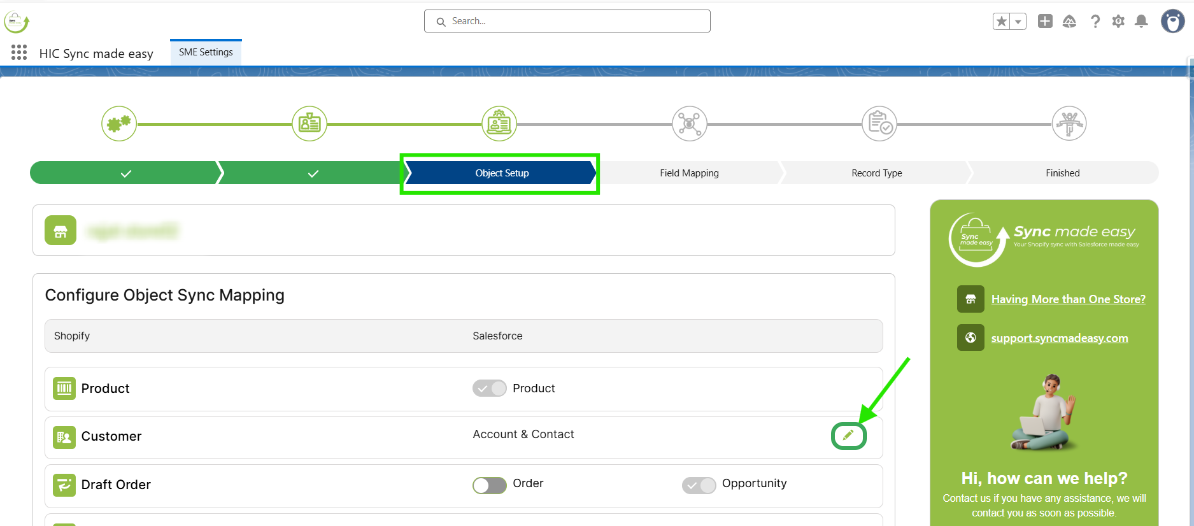
Step 8: Field Mapping
On the Field Mapping page, you can choose to use the default Field Mapping. Click on ‘Save & Next’.
Sync Made Easy comes with default field mapping that you can always use. For custom mapping, you can either turn off the toggle for all objects or just for the object in which you want to add your custom mapping.
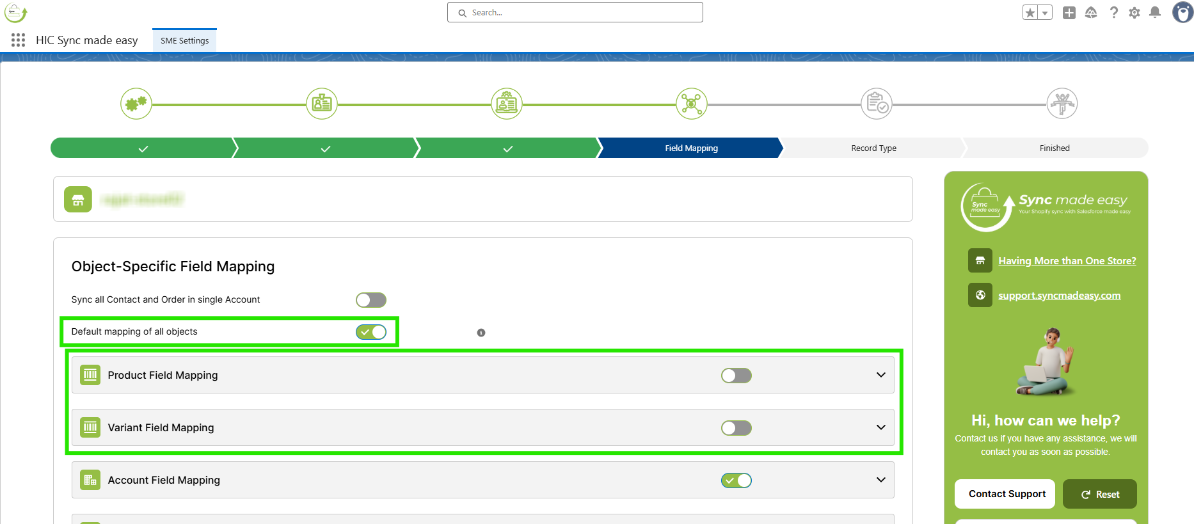
Step 9: Record Type
Here, whatever record type you select, the Record will be created by the respective record type only.
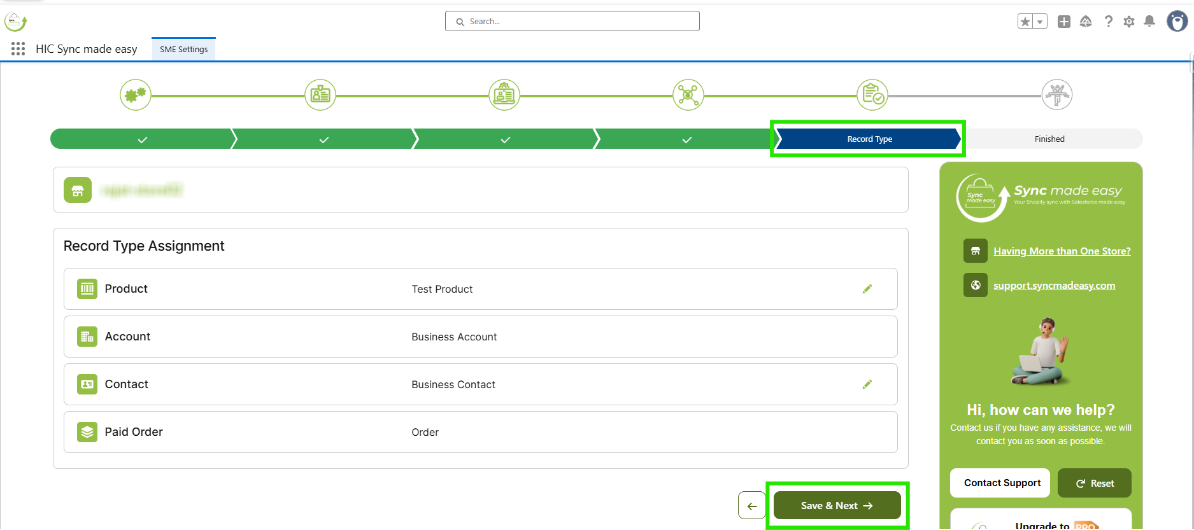
After completing all the configuration steps, when you click on “Save & Next”, you will reach the final step of the setup.
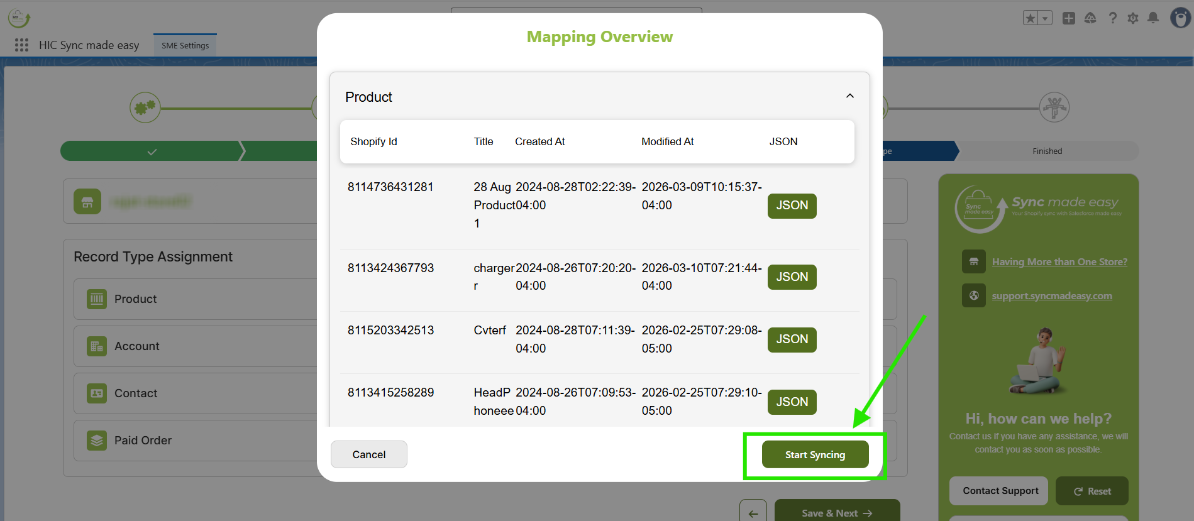
Here, you will have the option to sync your legacy records in Salesforce. After completing this, you will see the “Usage Terms” pop-up window from where you can click the “Mapping Overview”.
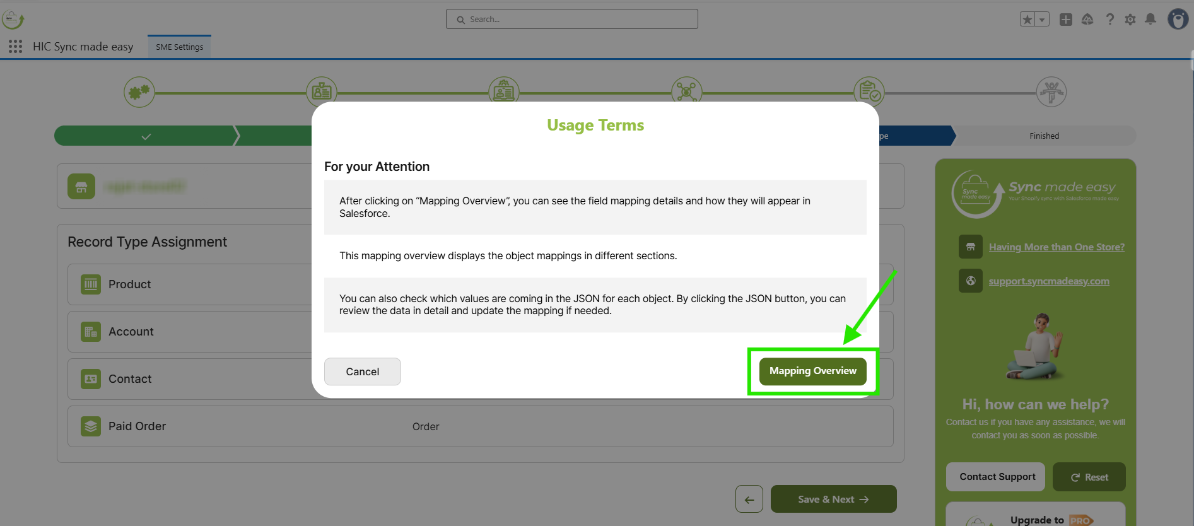
Now, the Mapping Overview pop-up window is opened, click on “Start Syncing”.
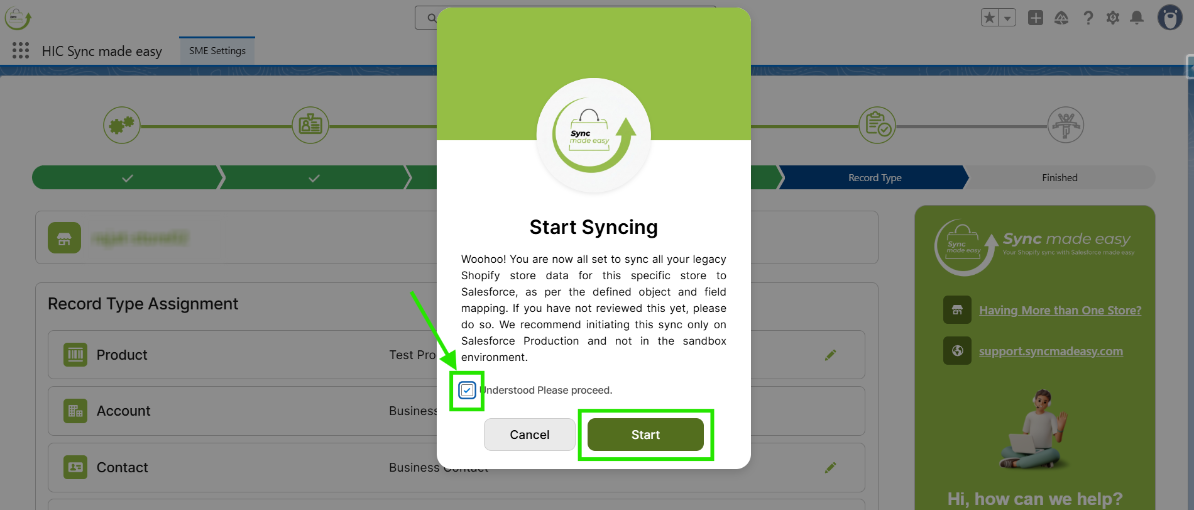
In the Start Syncing pop-up modal, check the “I Understand, Please Proceed” checkbox and then click “Start”.
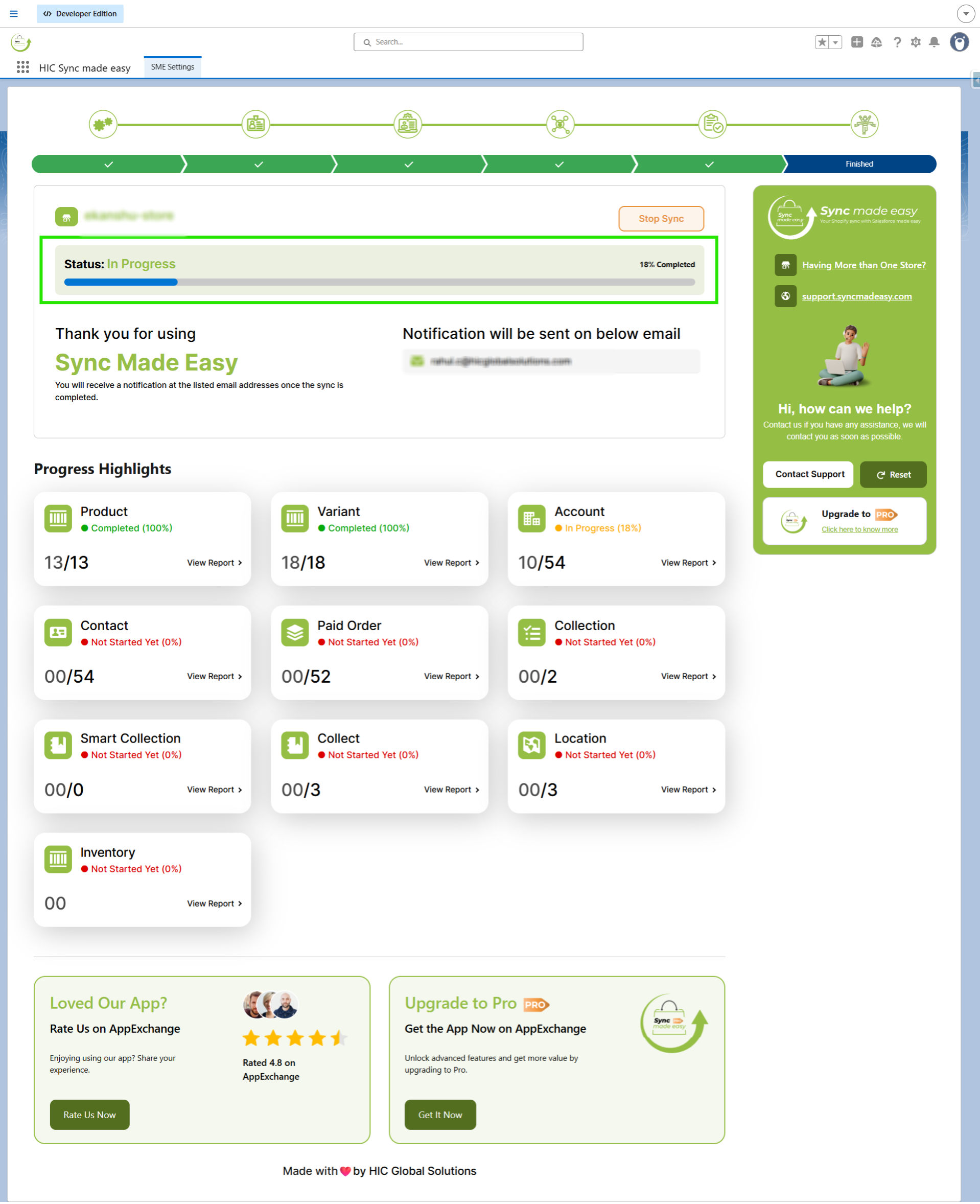
Step 10: Finished (Start Legacy Data Sync)
After you click on “Start”, the legacy data sync will get started, and you can see the progress of your sync.
Thanks!
Was this article helpful?
That’s Great!
Thank you for your feedback
Sorry! We couldn't be helpful
Thank you for your feedback
Feedback sent
We appreciate your effort and will try to fix the article
