In this guide, we will walk you through the process of syncing Salesforce product images to Shopify. When a product with an image is created in Salesforce and synced to Shopify, the image is also synced automatically. If the product is already synced and you add an image later, it will sync to Shopify as well.
Follow the steps below to easily enable and use this feature:
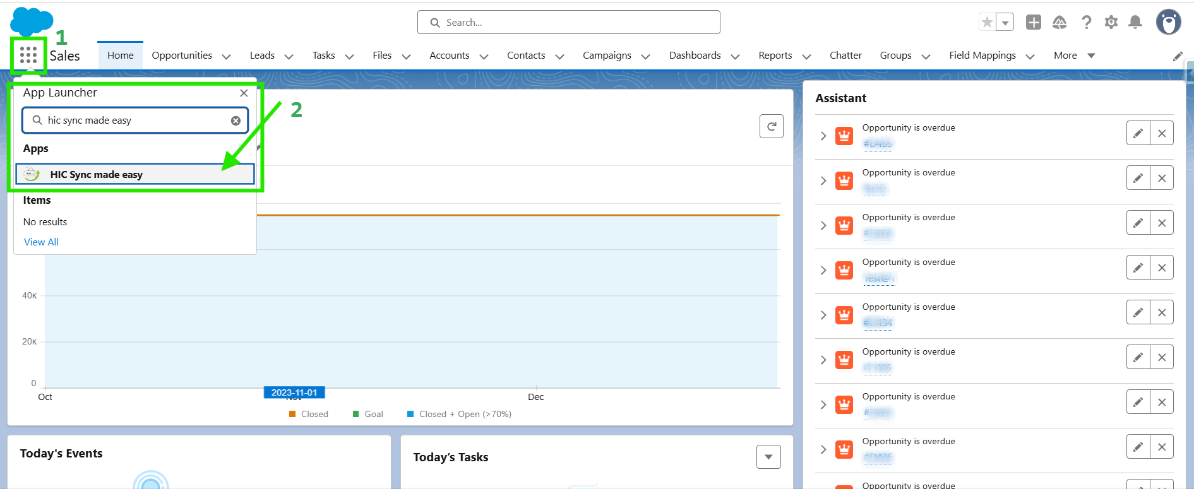
Step 1: Log in to Salesforce and in App Launcher search "HIC Sync made easy". Click on it.
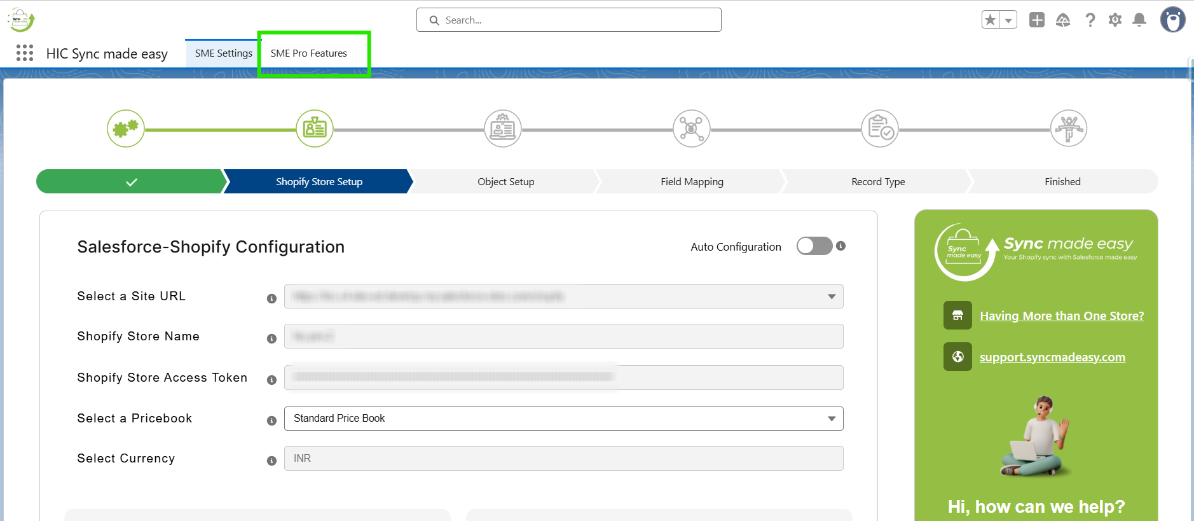
Step 2: Go to "SME Pro Features"
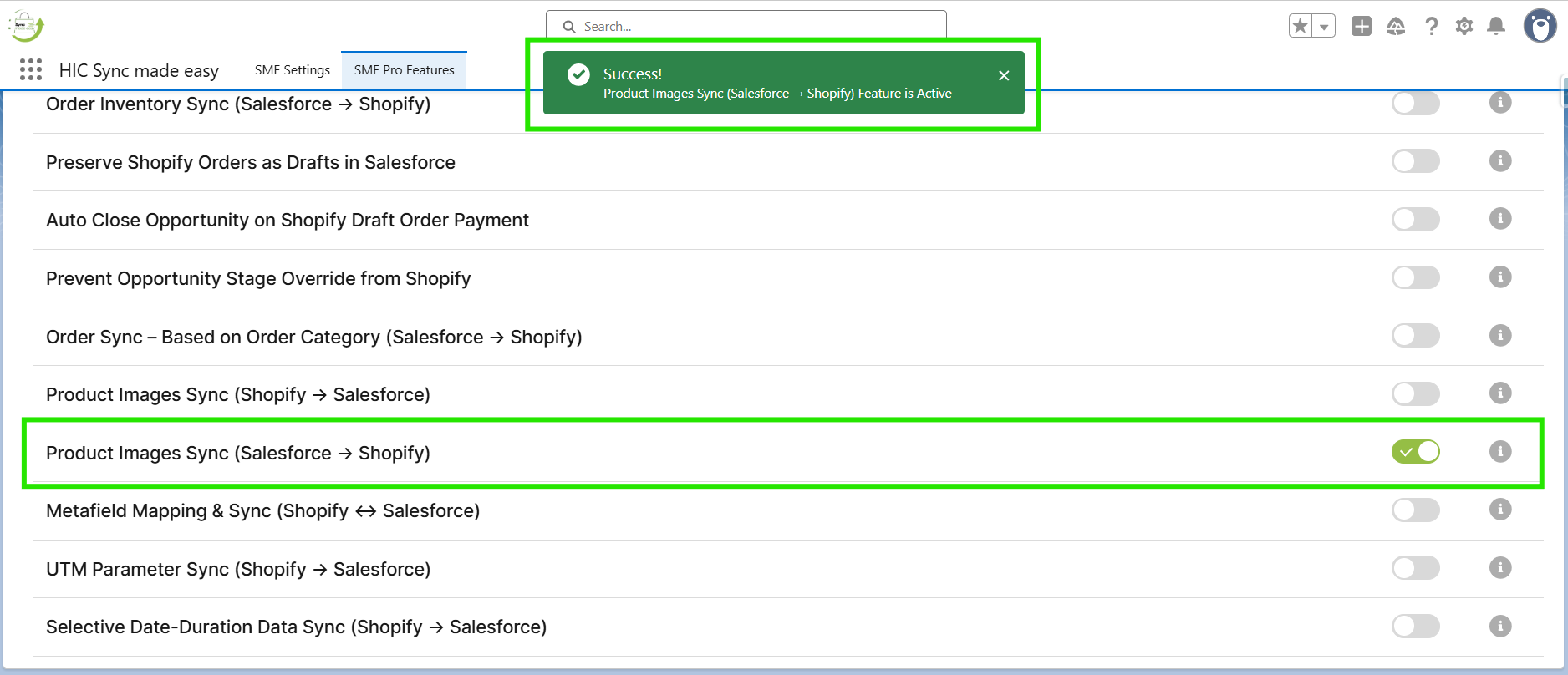
Step 3: Enable the “Product Images Sync (Salesforce → Shopify)” feature toggle button.
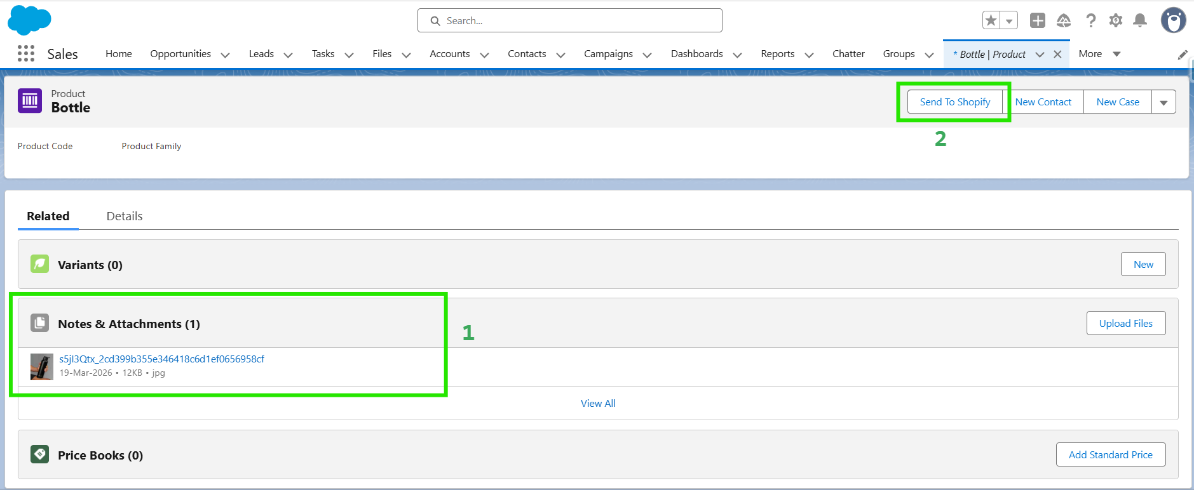
Step 4: In Salesforce, create a product and go to its Related section.
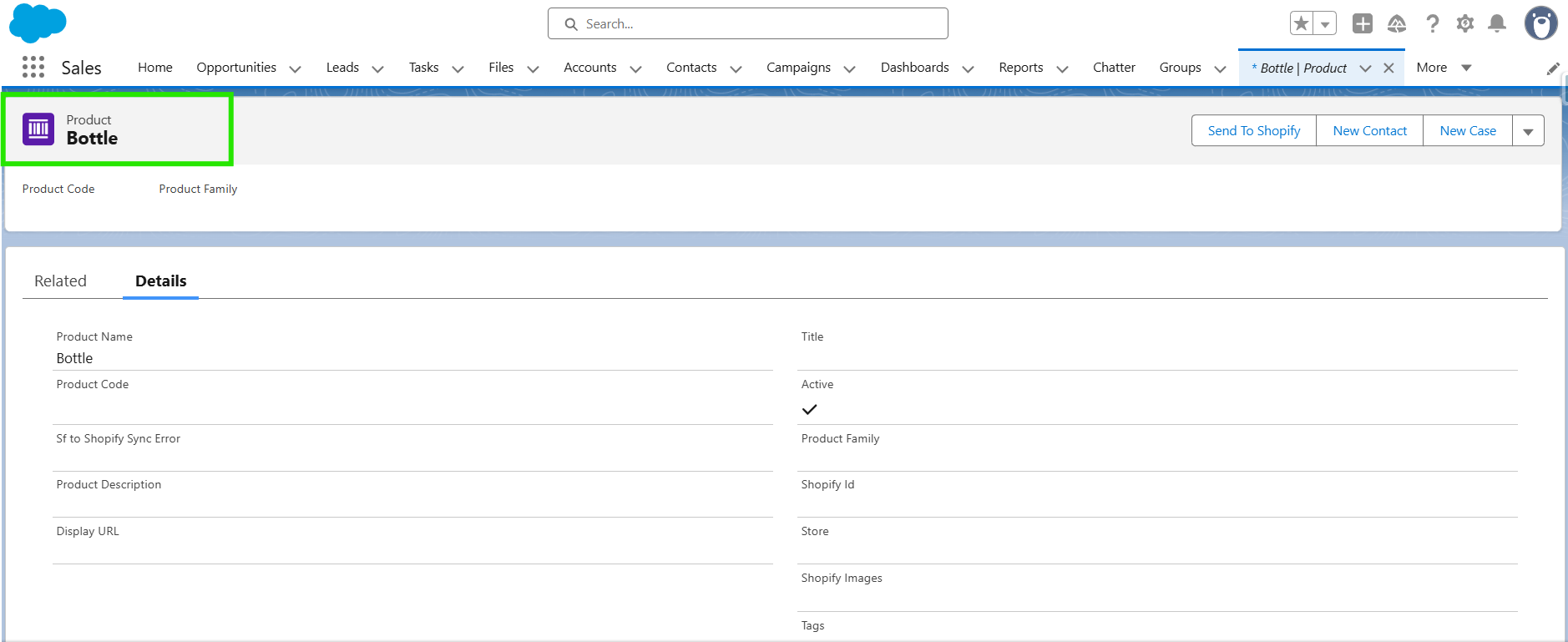
Step 5: In Notes & Attachments, add the product image. Then click on the Send to Shopify button to sync the product.
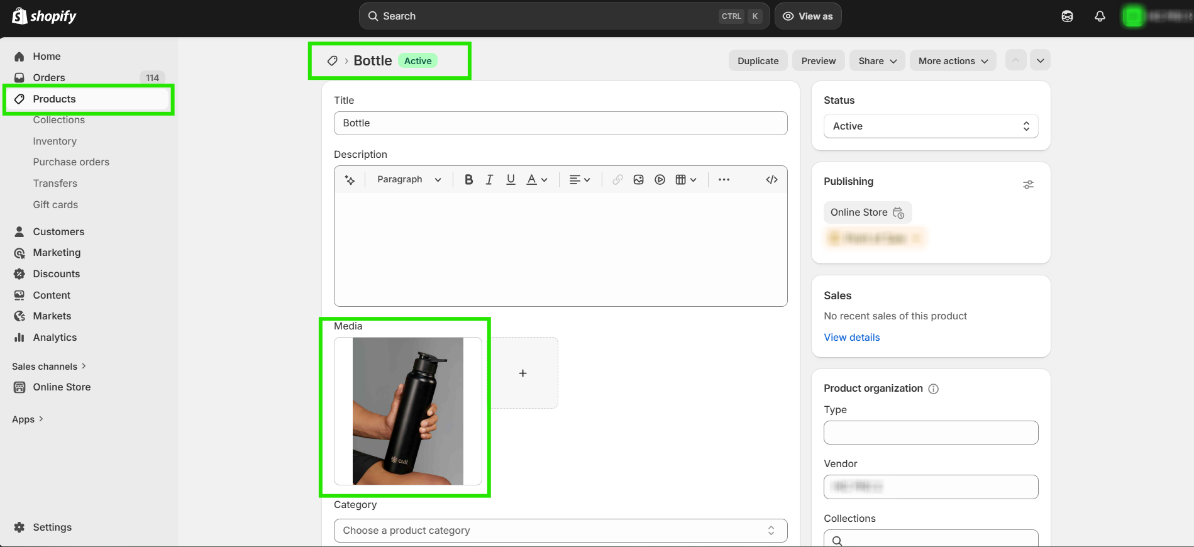
Step 6: Open Shopify and verify that the product image has been synced successfully.
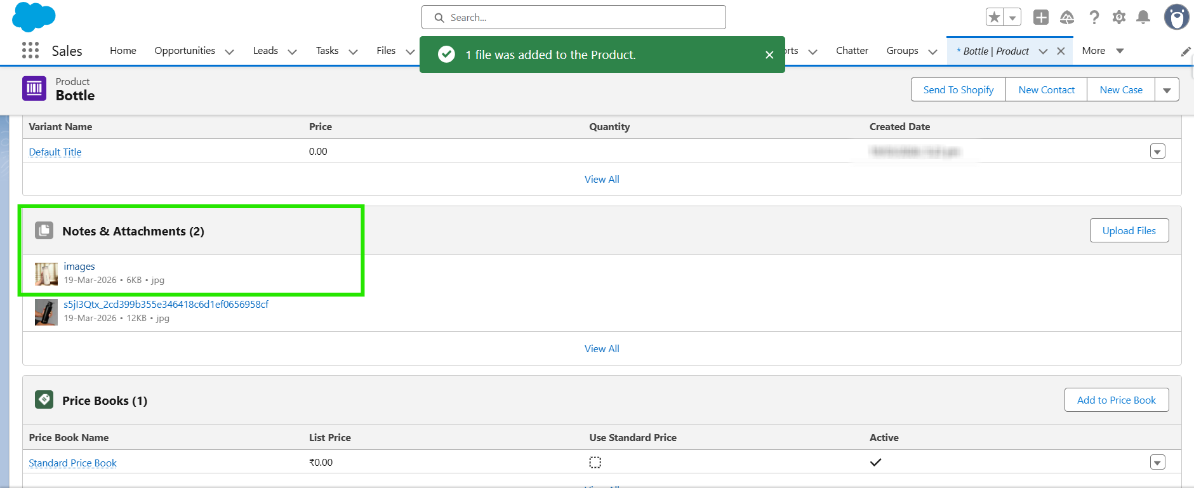
Step 7: Go back to Salesforce, add one more product image, and check the sync again in Shopify.
Step 8: In Shopify, the newly added image is also synced successfully.
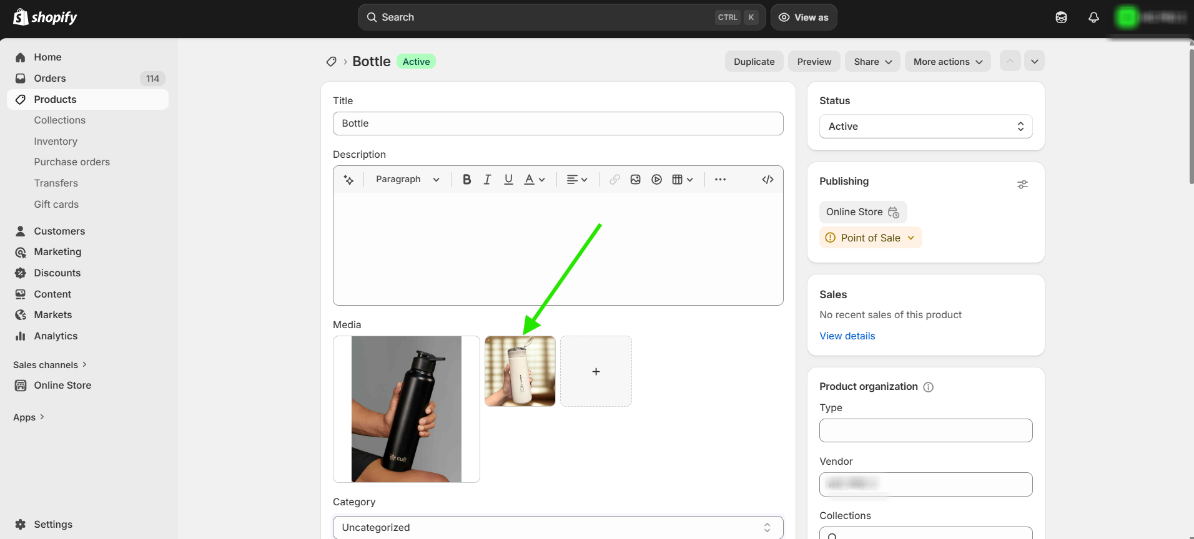
This completes the functionality of the Product Images Sync (Salesforce → Shopify) feature.
Thanks!
Was this article helpful?
That’s Great!
Thank you for your feedback
Sorry! We couldn't be helpful
Thank you for your feedback
Feedback sent
We appreciate your effort and will try to fix the article
