In this guide, we will walk you through how inventory is synced from Salesforce to Shopify using the Sync Inventory button. When inventory is updated in Salesforce, you can sync it to Shopify with a single click, ensuring accurate stock levels across both platforms.
Stay with us as we explore the step-by-step process to enable and utilize this feature effortlessly. Let’s get started!
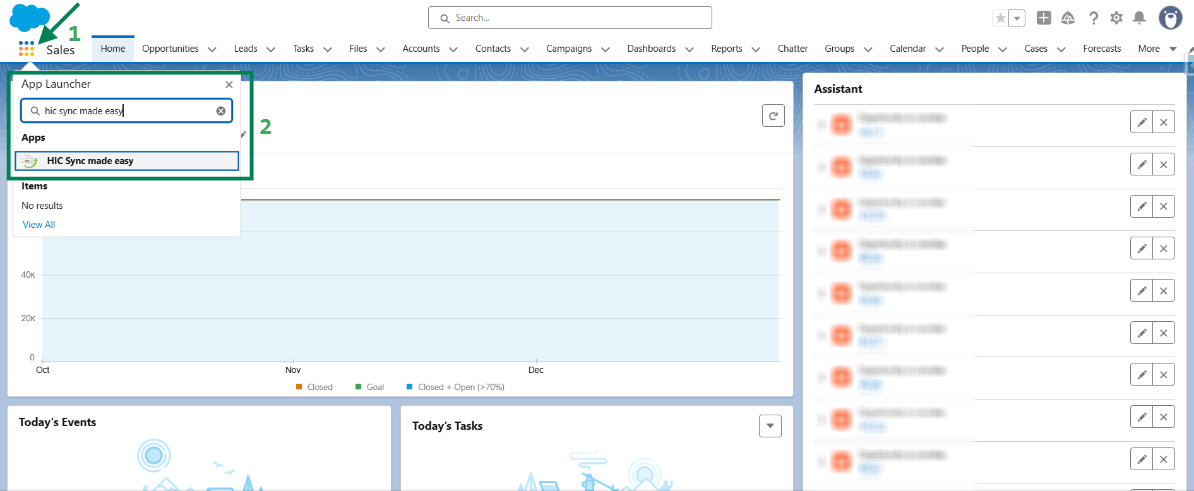
Step 1: Log in to Salesforce & in App Launcher search "HIC Sync made easy". Click on it.
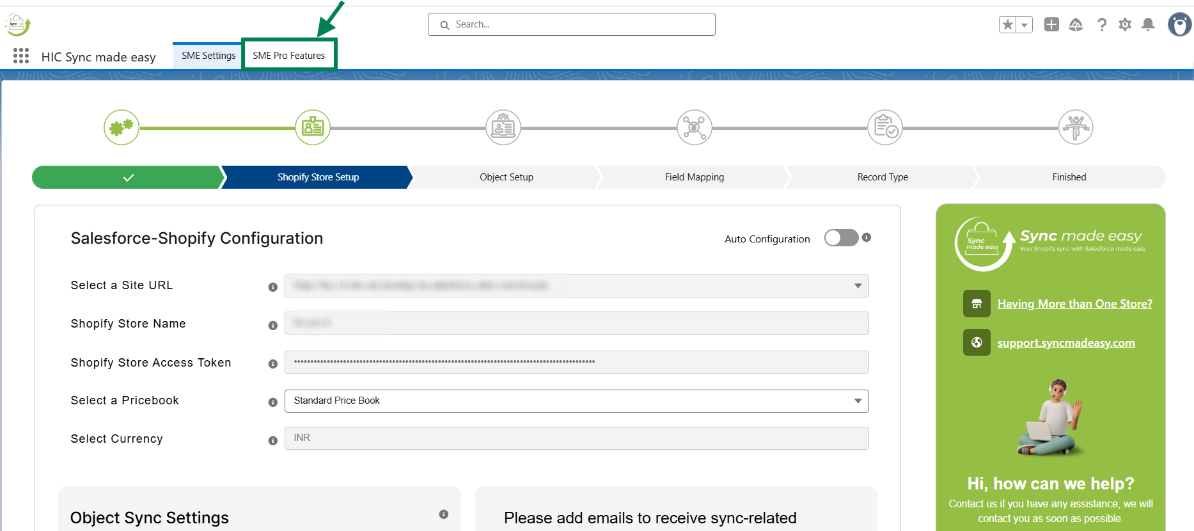
Step 2: Go to "SME Pro Features".
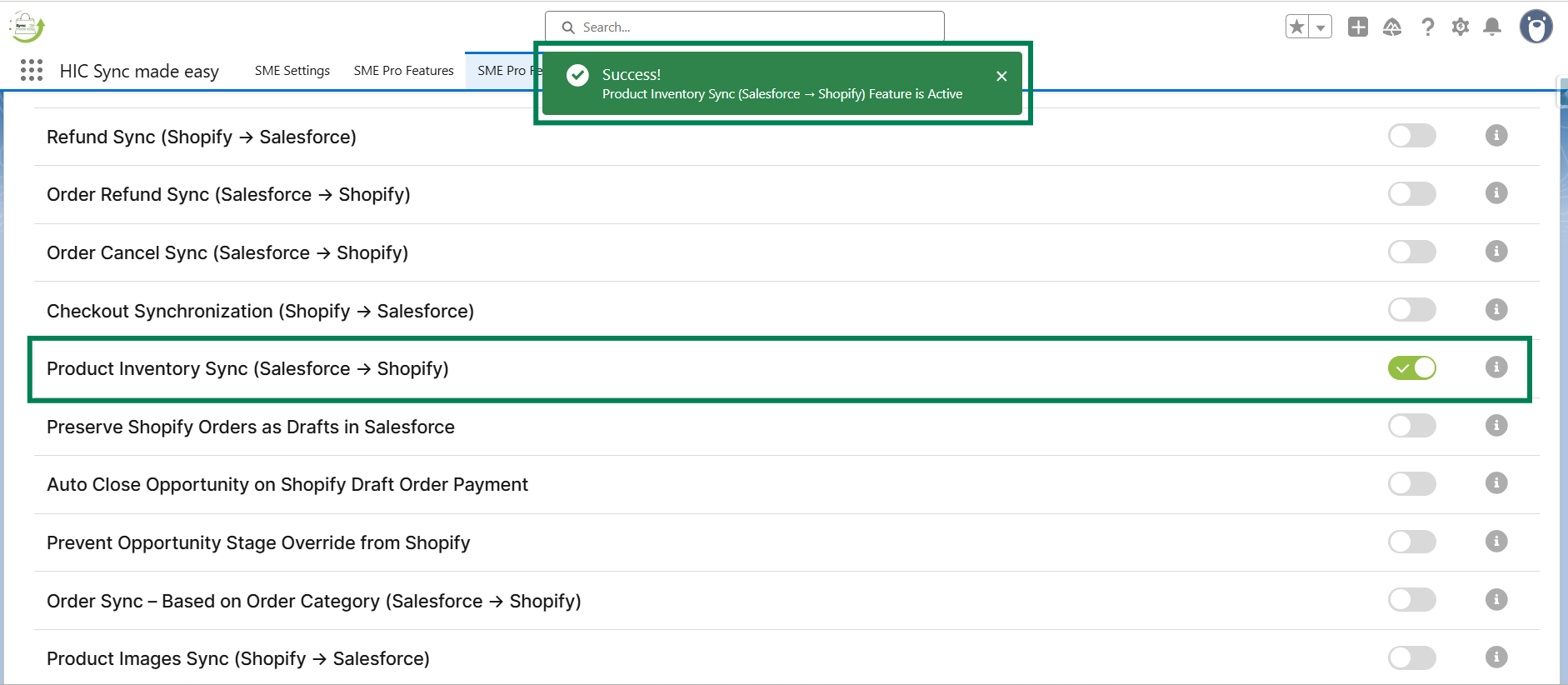
Step 3: Enable the “Order Inventory Sync (Salesforce → Shopify)” feature by clicking on the toggle button.
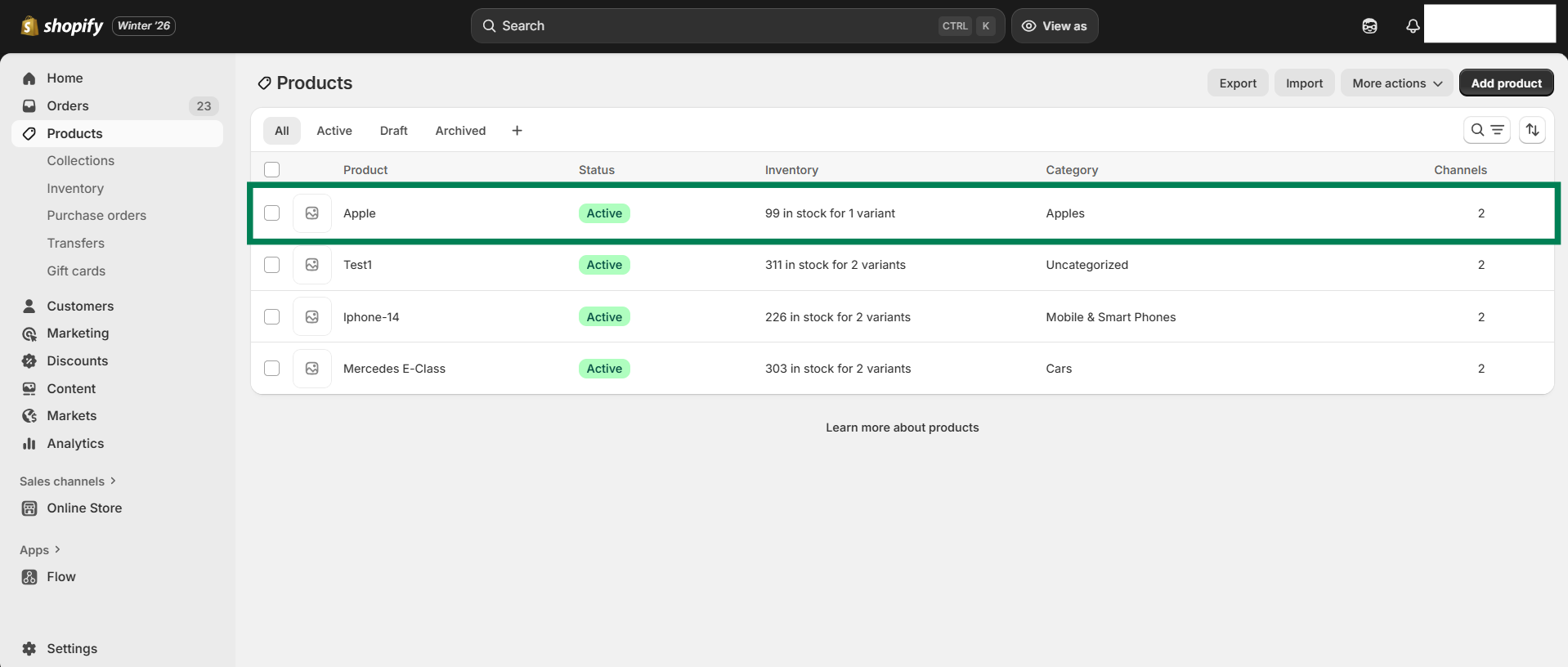
Step 4: Select an existing “Product” from “Shopify”.
Step 5: Copy the “Shopify ID” from the above URL in Shopify and search it in Salesforce. Open the “Product”.
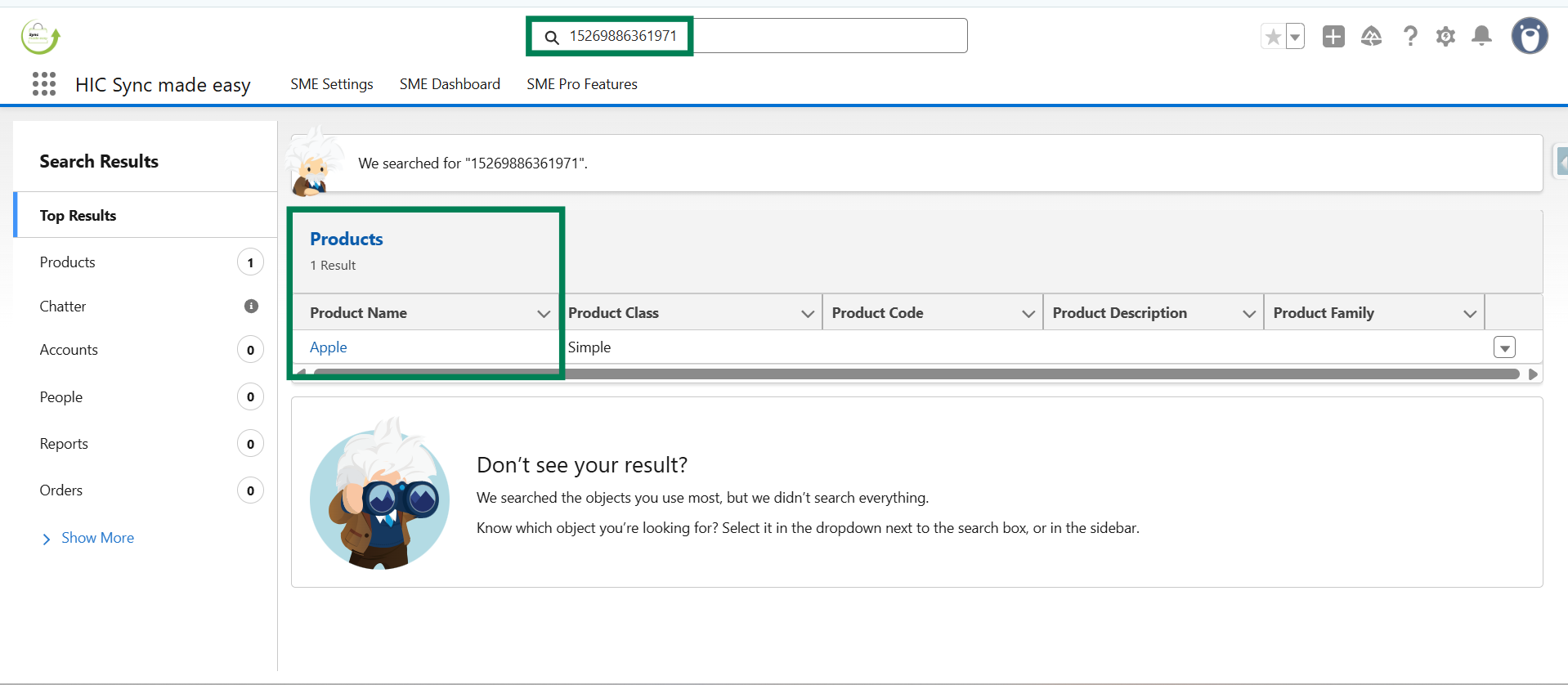
Step 6: From the Related section, click on “Variants”.
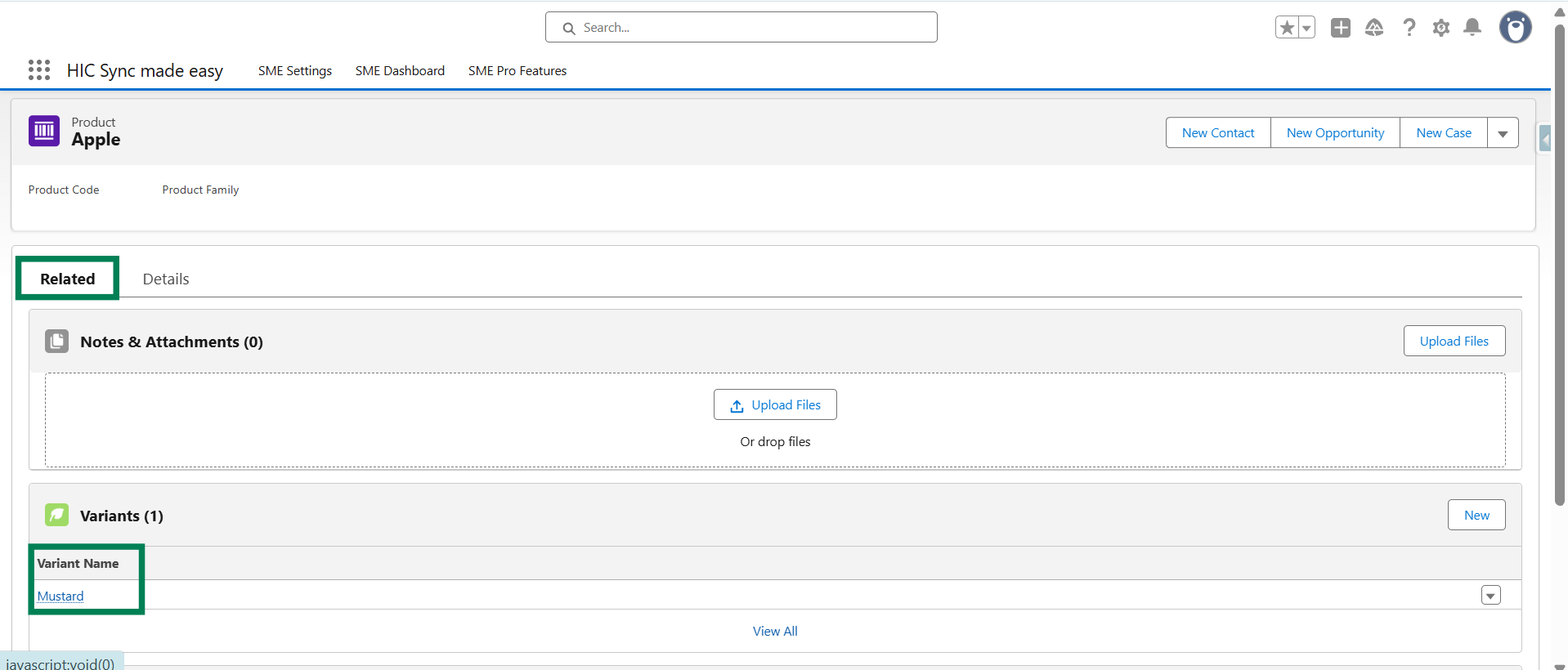
Step 7: From the related section in variants, click on “Inventories”
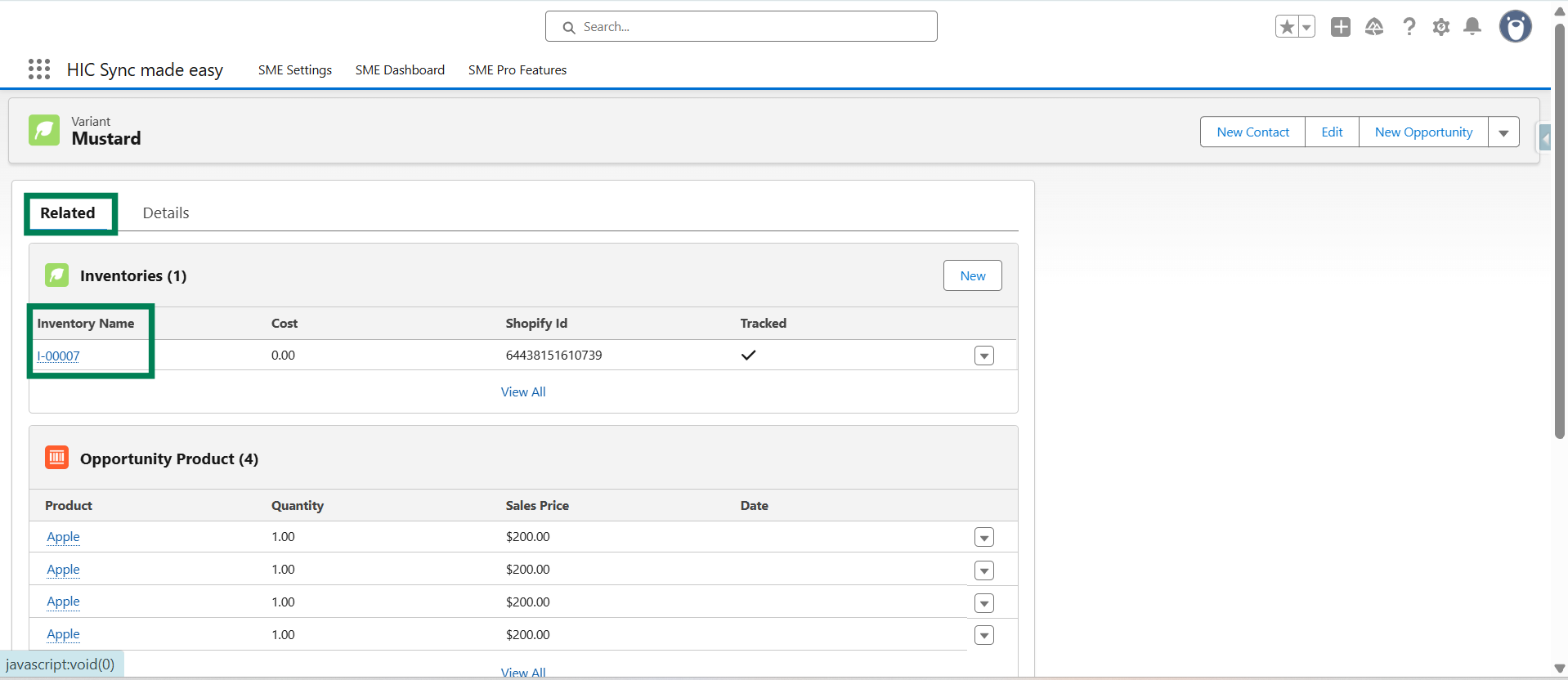
Step 8: From the related section in Inventories, click on “Inventory levels”
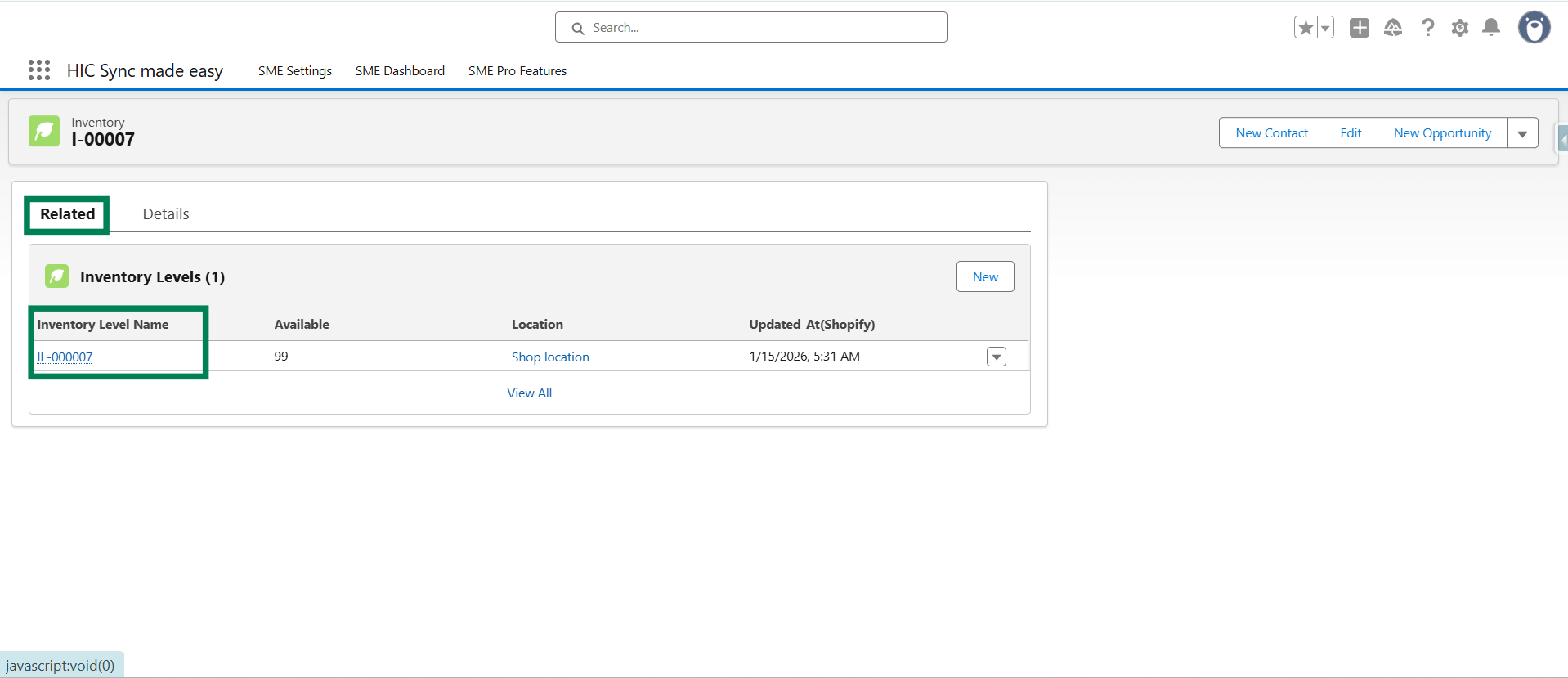
Step 9: Click the Edit icon for the Availability field, enter a value, click Save, and then click the ‘Sync Inventory’ button.
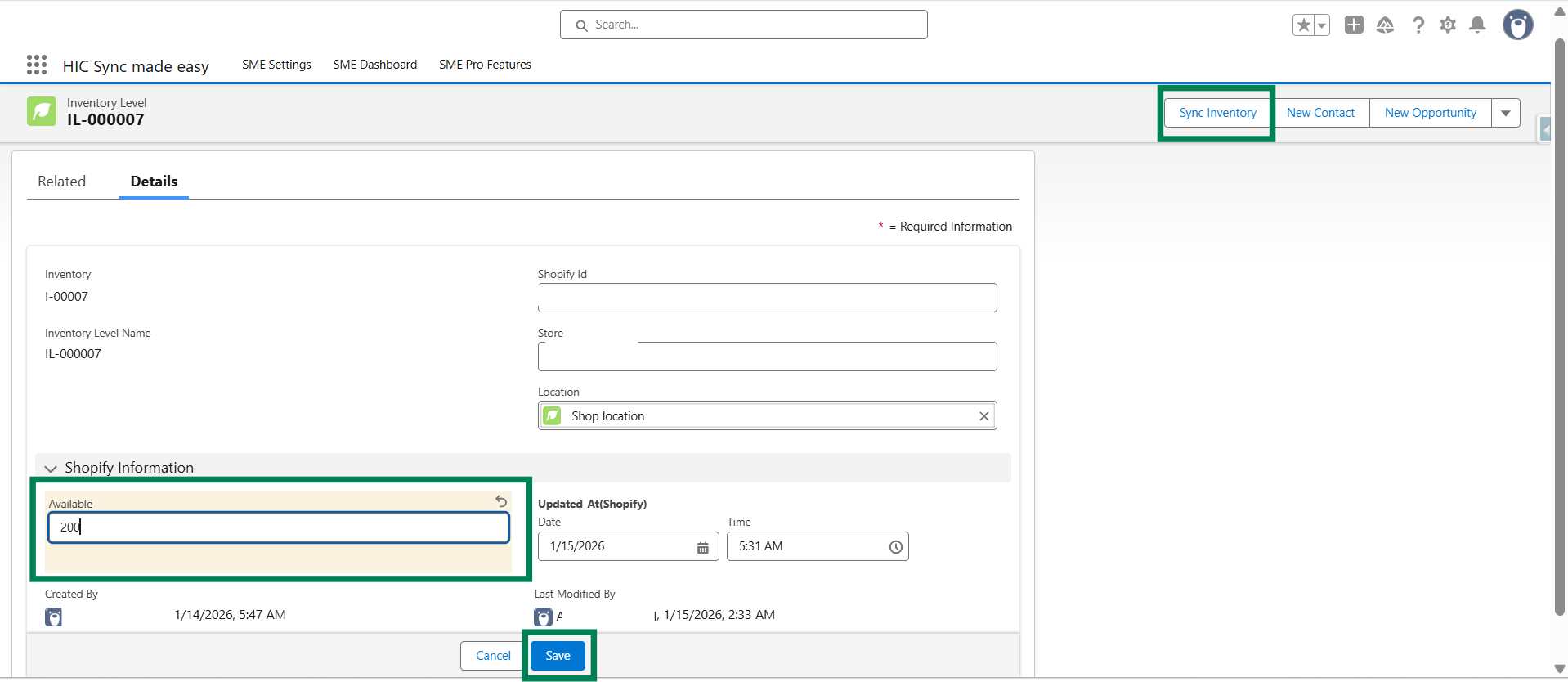
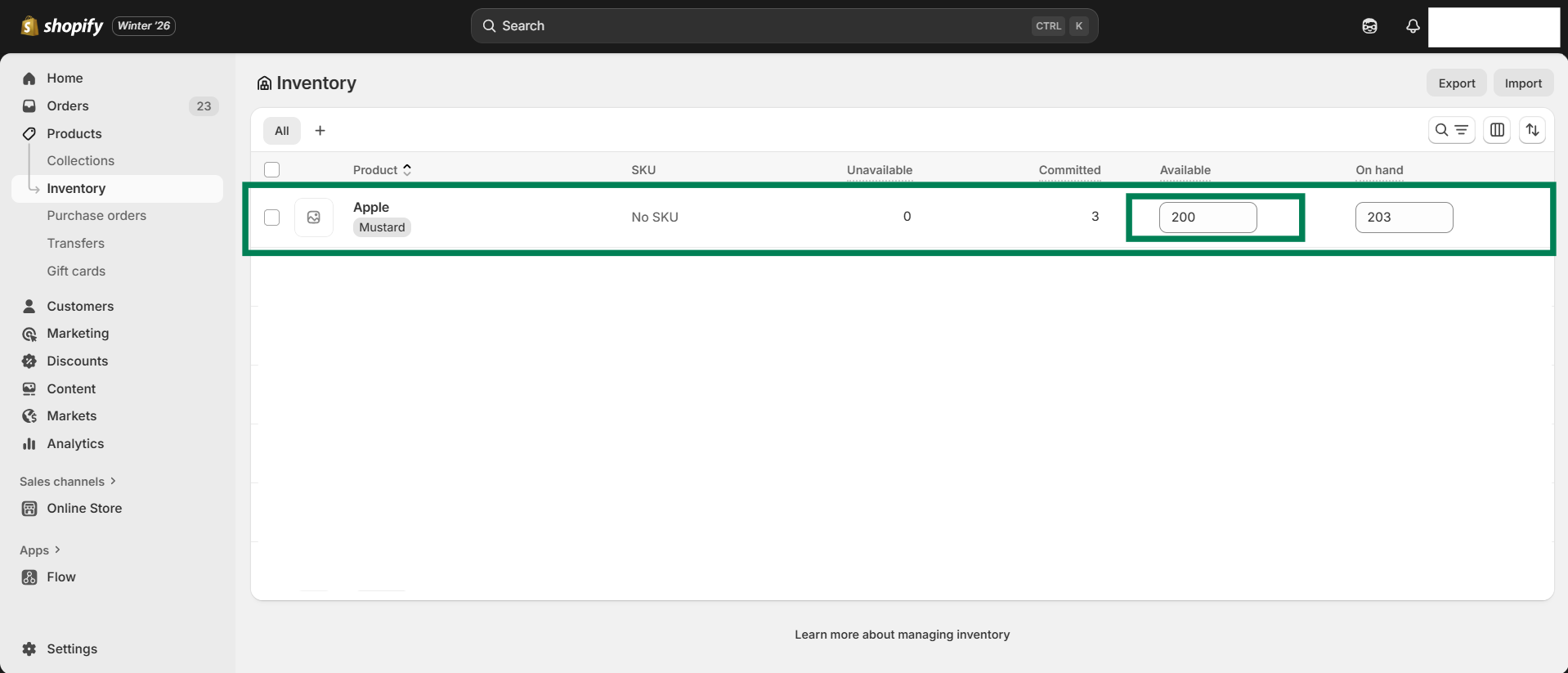
Step 10: After clicking on the “Sync Inventory” button, go back to Shopify and check that the inventory of the product is updated.
Thanks!
Was this article helpful?
That’s Great!
Thank you for your feedback
Sorry! We couldn't be helpful
Thank you for your feedback
Feedback sent
We appreciate your effort and will try to fix the article
