In this guide, we will walk you through how metafield mapping and syncing work between Shopify and Salesforce. This feature allows you to map Shopify metafields to the correct Salesforce objects and data types, ensuring smooth and accurate data sync. It works in both directions—Shopify to Salesforce and Salesforce to Shopify—helping keep your data consistent and both platforms aligned.
Follow the steps below to easily enable and use this feature:
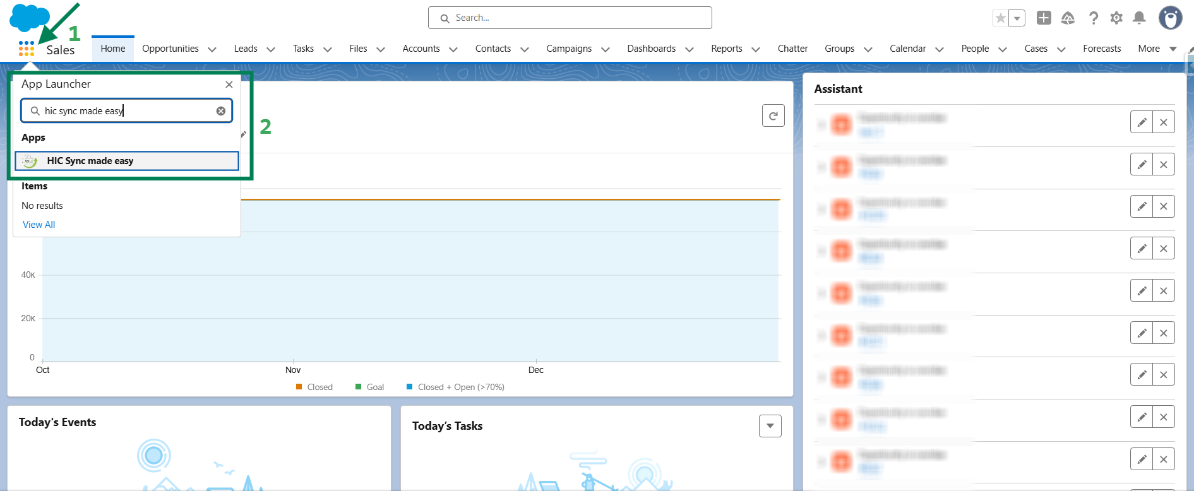
Step 1: Log in to Salesforce & in App Launcher search "HIC Sync made easy". Click on it.
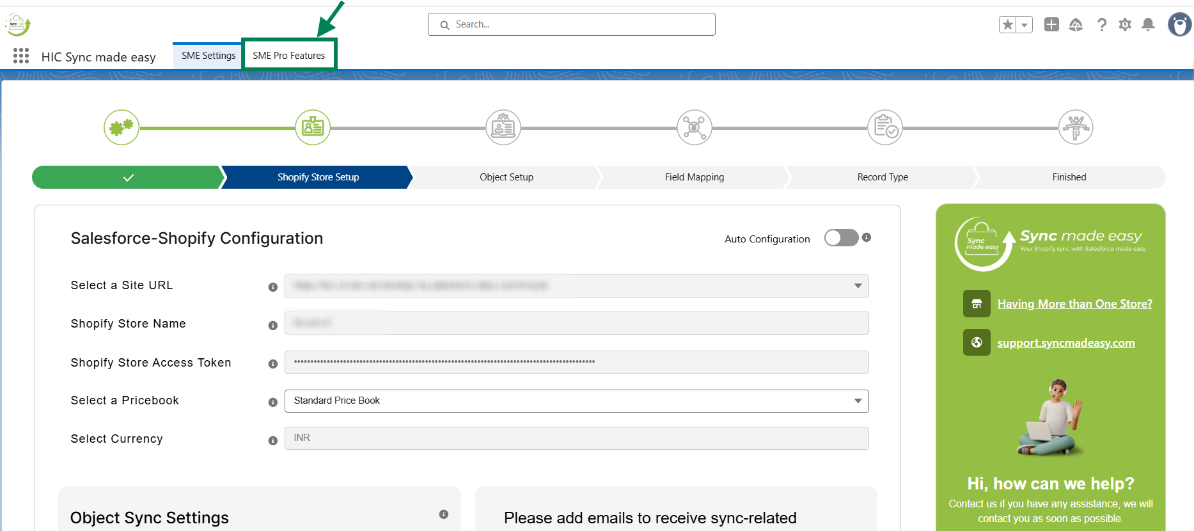
Step 2: Go to "SME Pro Features".
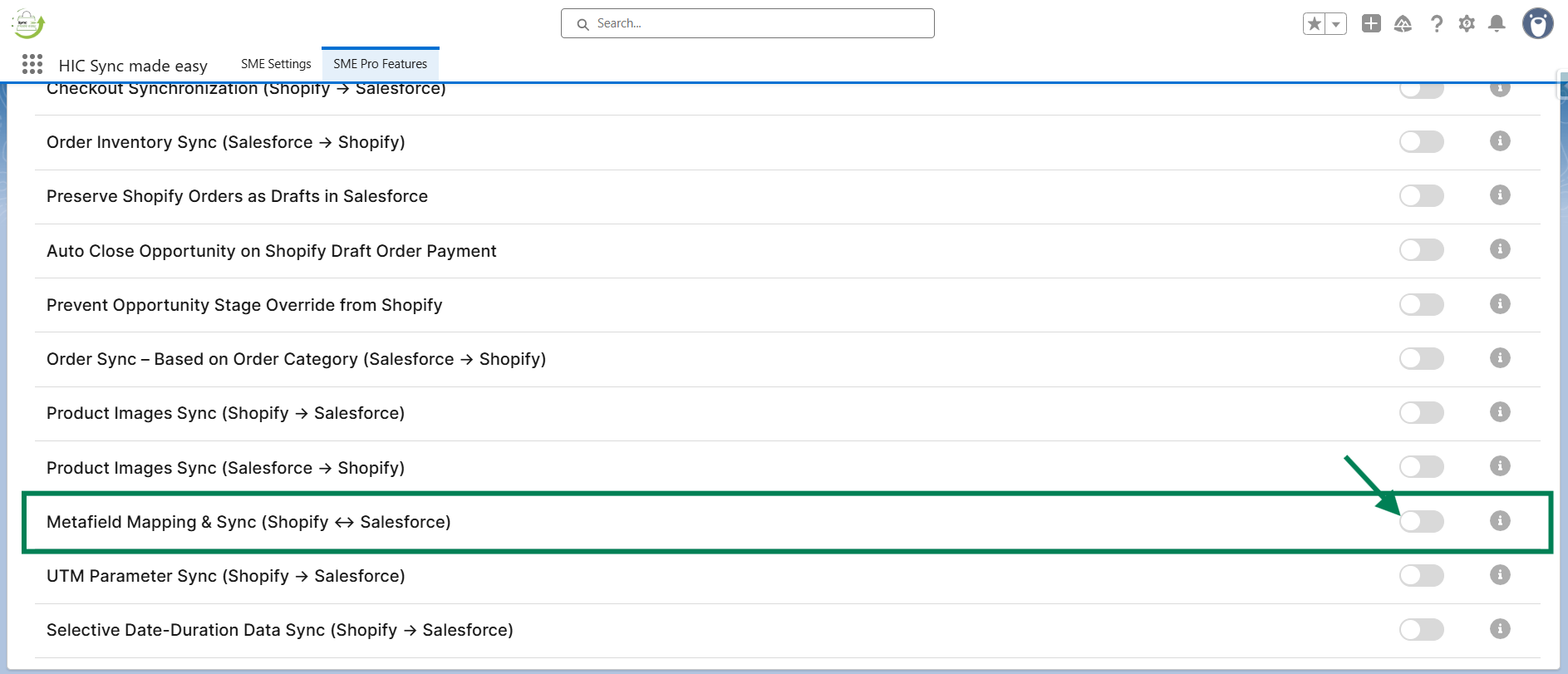
Step 3: Enable the “Metafield Mapping & Sync (Shopify ↔ Salesforce)” feature toggle button.
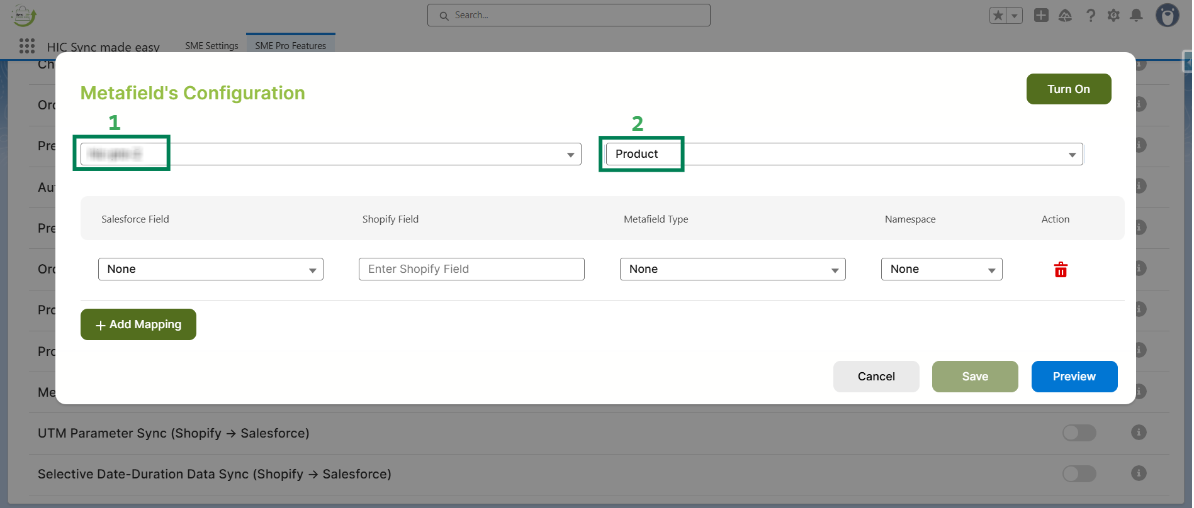
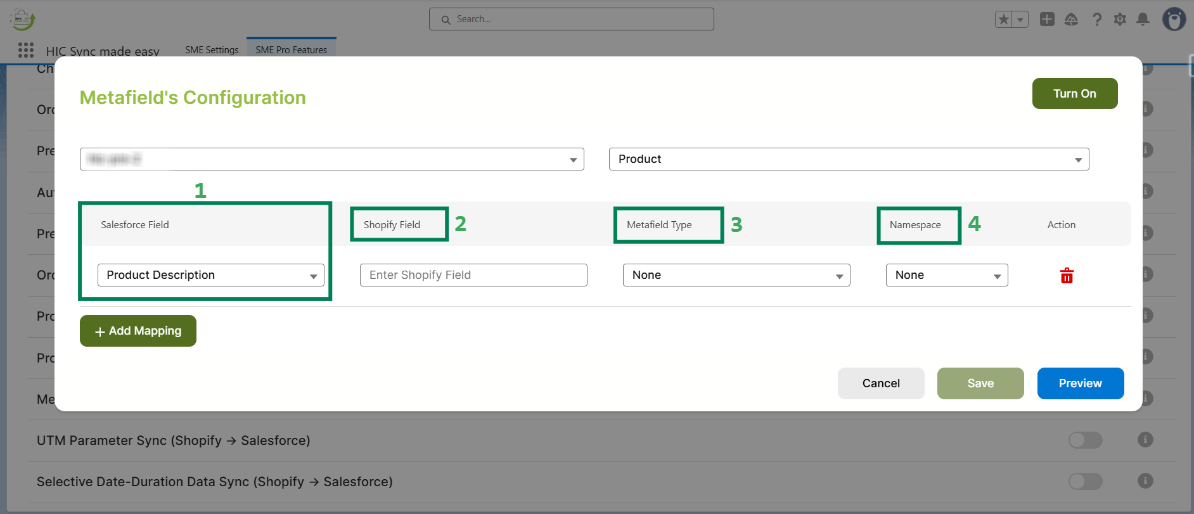
Step 4: Select your Shopify Store and the Salesforce Object where you want to map or sync metafields.
Note:
In the Salesforce object, you can select Account, Contact, Product, Order, Lead, or Opportunity.
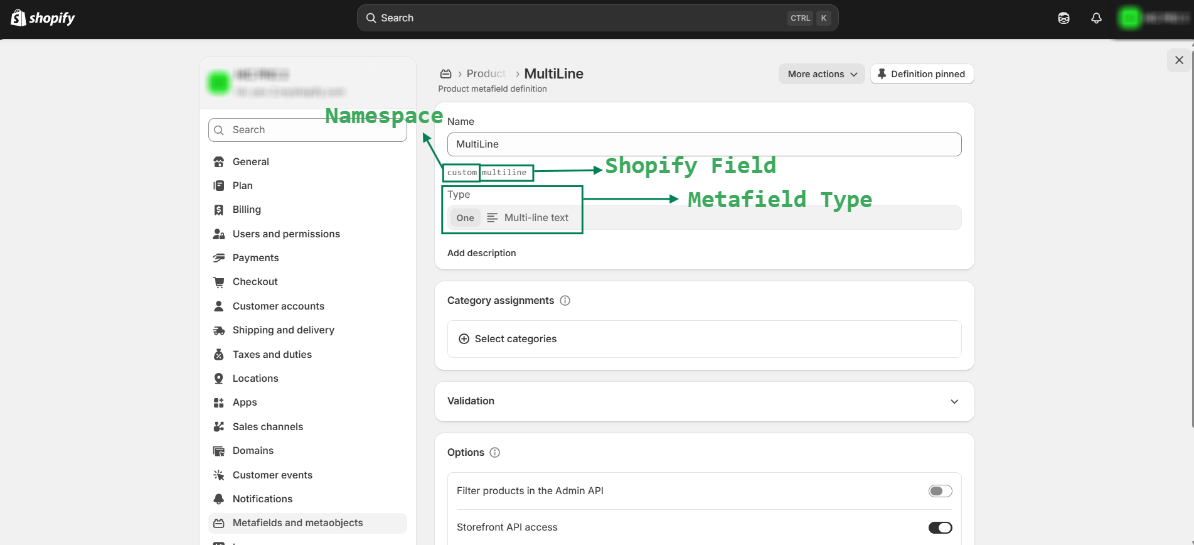
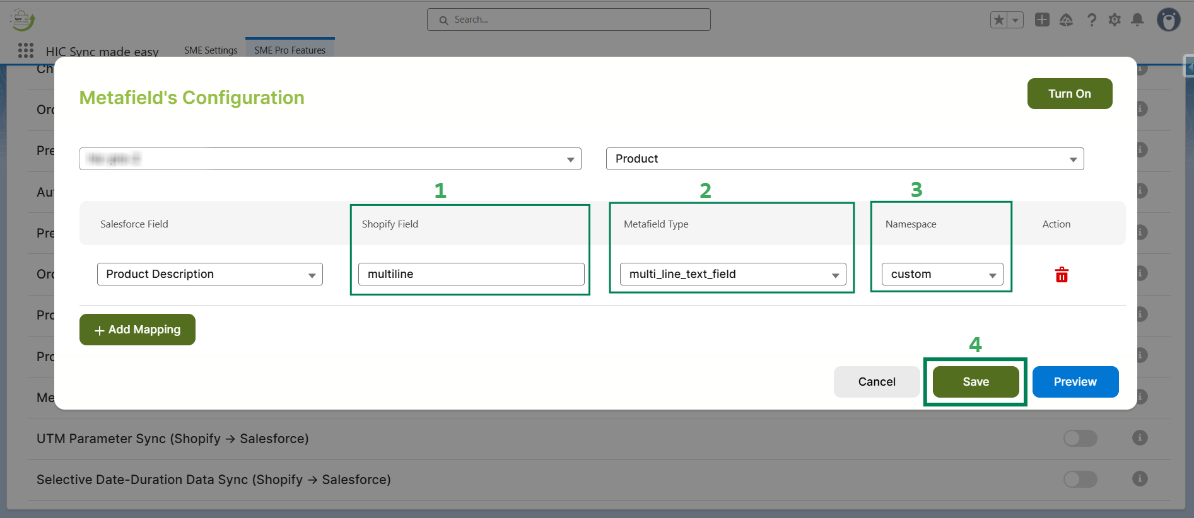
Step 5: Select the Salesforce field. Then, for the Shopify field, choose the metafield type and namespace from your Shopify store.
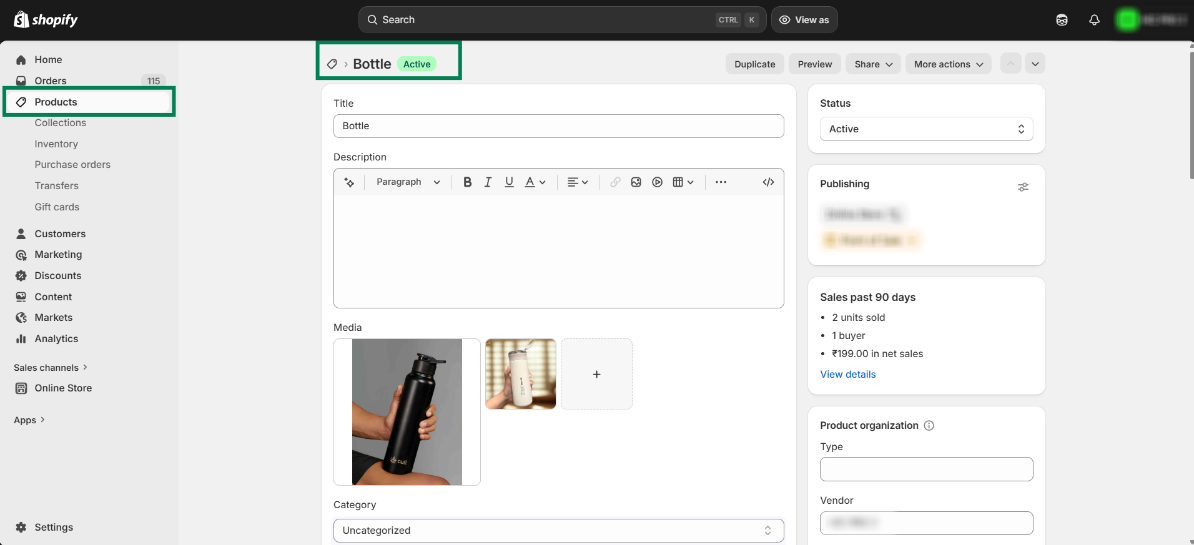
Step 6: In the Shopify Store, Open any Product and scroll down to the Metafields section.
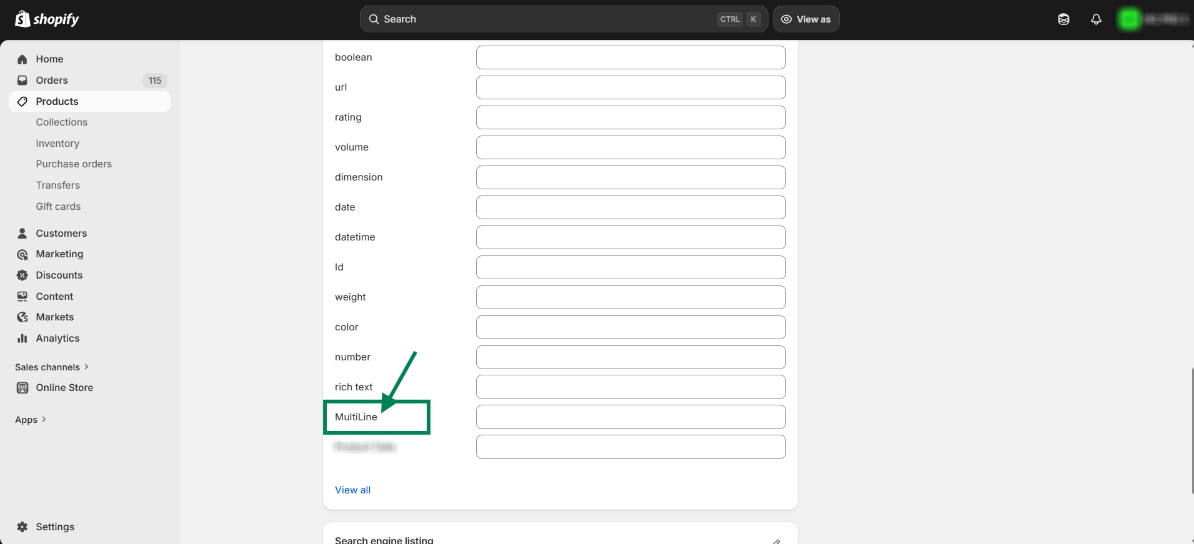
Please Note:
If no metafield is available in your store or you want to create one, follow these steps: Shopify Store → Settings → Metafields & Metaobjects → Select Object → Add Definition → Enter Name & Type → Save.
Step 7: Double-click the field name to view its details.
Step 8: It will open in a new tab. Copy the Shopify field name and check the metafield type and namespace.
Step 9: In the Metafield's Configuration, paste the Shopify field name, select the metafield type, and namespace. Then click on Save.
Note:
If you have added mappings for multiple objects or want to review them, simply click on the Preview button to view all mappings for the selected store.
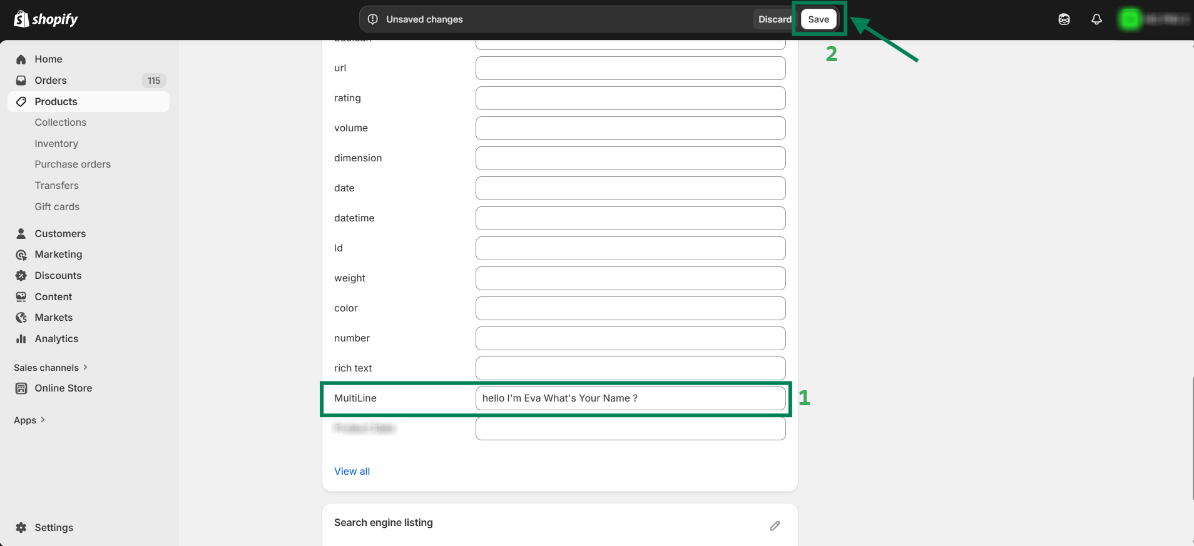
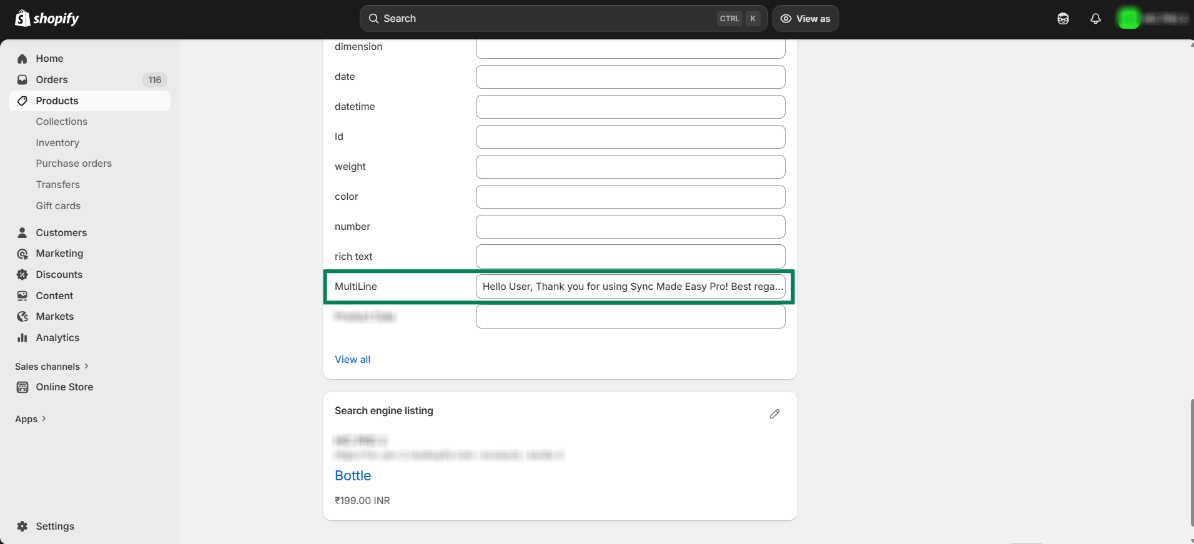
Step 10: Go back to the Shopify store and enter a value in the product’s multiline metafield. Click on Save.
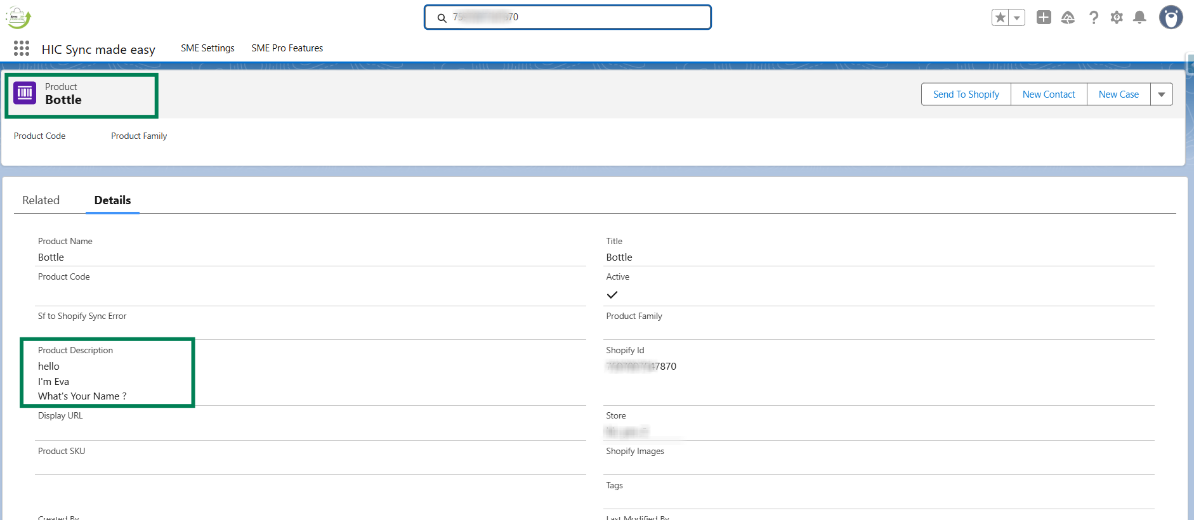
Step 11: Open the product in Salesforce & check the Description Field.
Note:
If you want to sync metafield values from Salesforce to Shopify, make sure the "Salesforce → Shopify Data Sync" feature is enabled.
Step 11: Now, for Salesforce to Shopify, update the Description and click the Send to Shopify button.
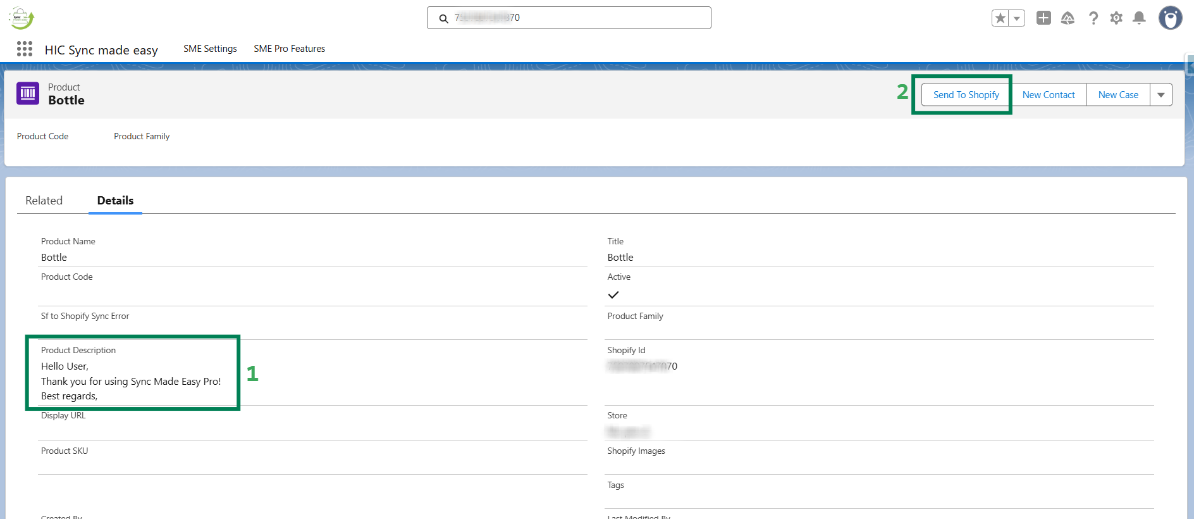
Step 12: In Shopify, simply refresh the page. The multiline field value will be updated.
Thanks!
Was this article helpful?
That’s Great!
Thank you for your feedback
Sorry! We couldn't be helpful
Thank you for your feedback
Feedback sent
We appreciate your effort and will try to fix the article
