In this Article, we will guide you through the step-by-step process to reset your store’s field mapping or copy the mapping from another store using the Reset button. Follow the instructions below to complete the process.
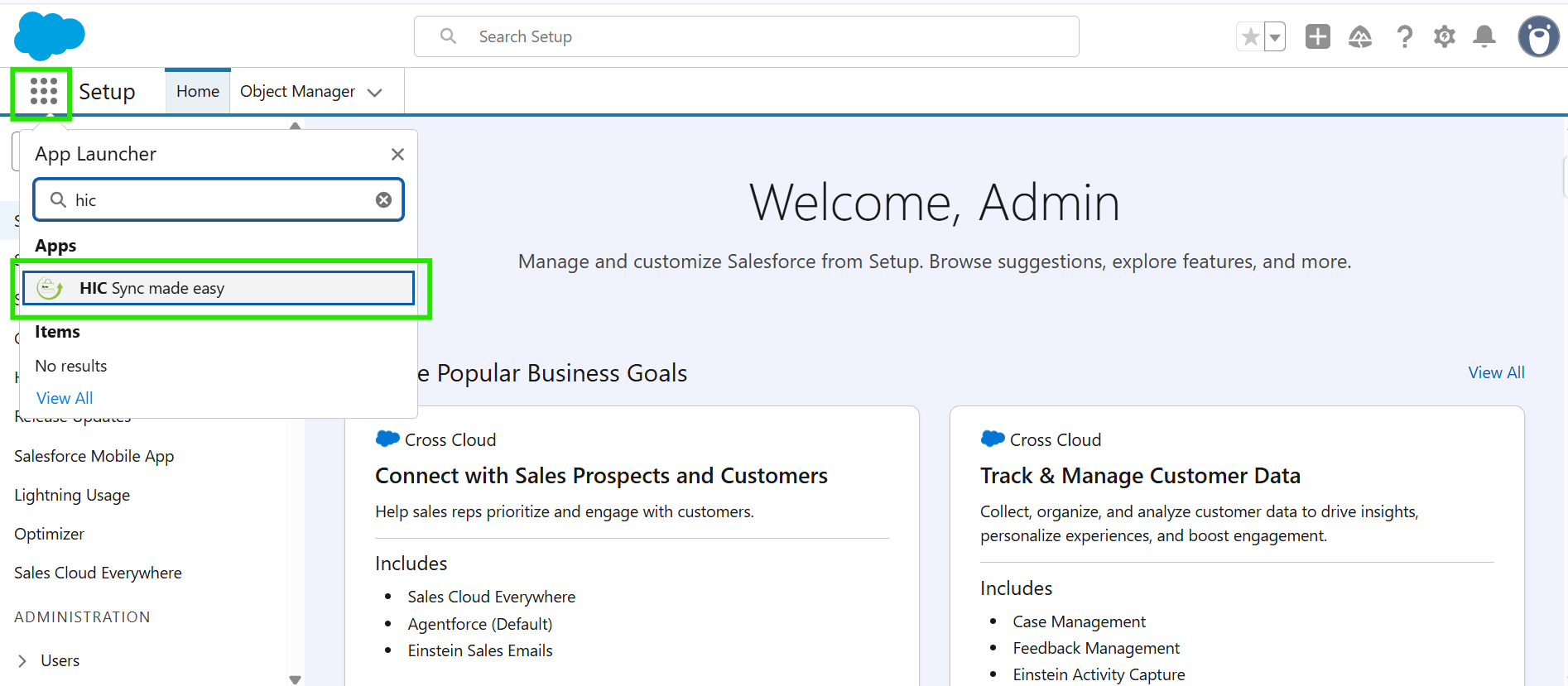
Step 1: Log in to your Salesforce account. Open the App Launcher, search for “HIC Sync Made Easy”, and click on it.
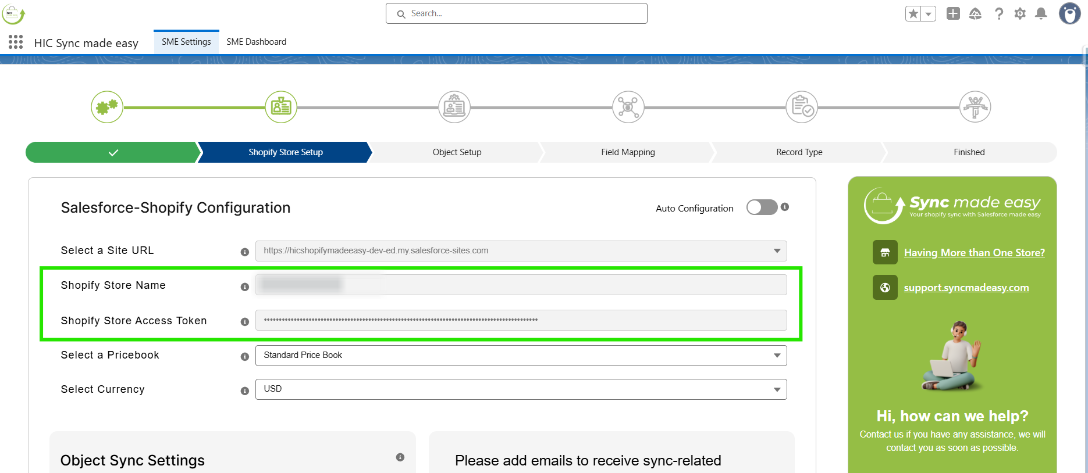
Step 2: In “Shopify Store Setup”, select the store for which you want to change or reset the field mappings.
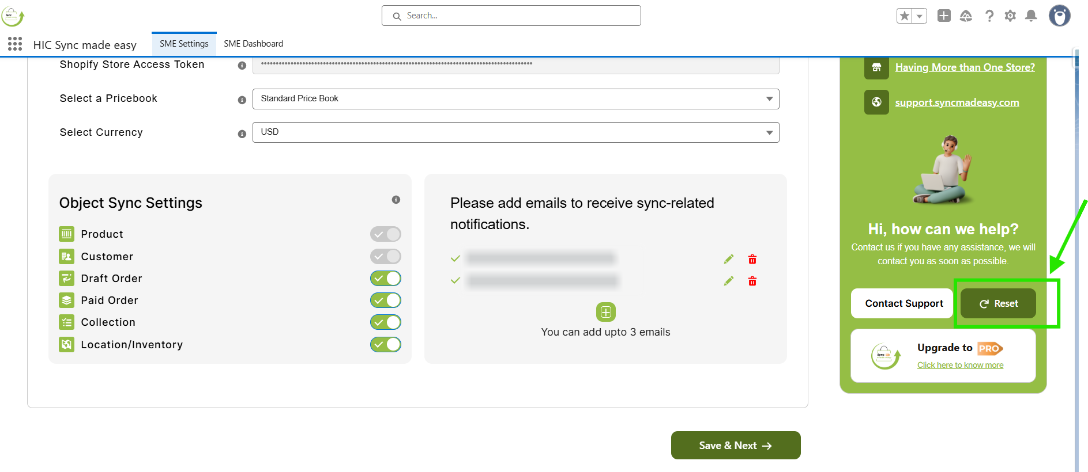
Step 3: Scroll down a little and click the Reset button.
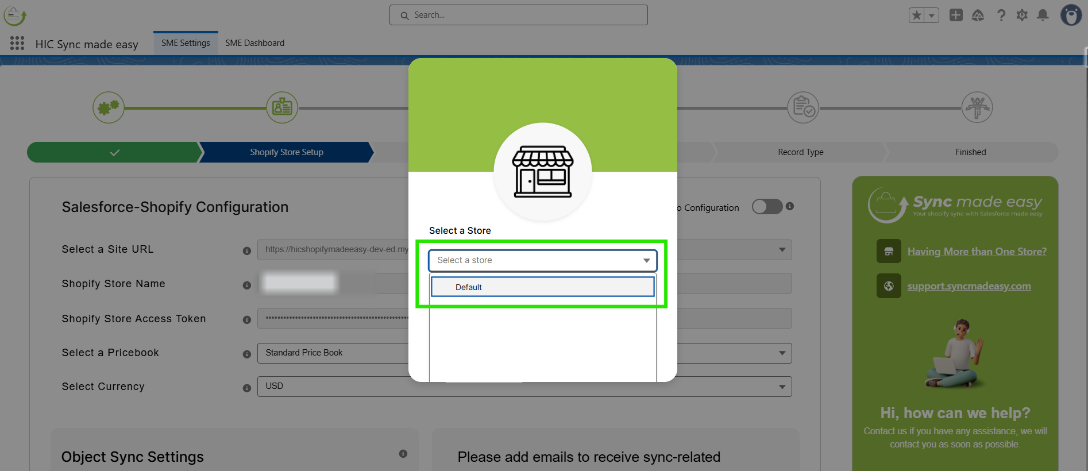
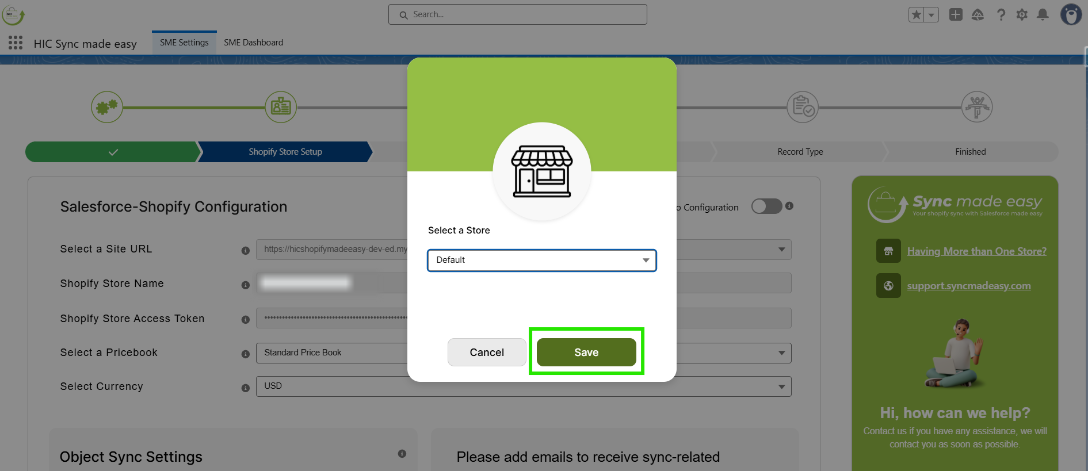
Step 4: In the “Select a Store” dropdown, choose the store whose field mapping you want to copy to your current store. If you want to restore the default mapping, select Default.
Step 5: After selecting the appropriate store, click Save to apply the changes.
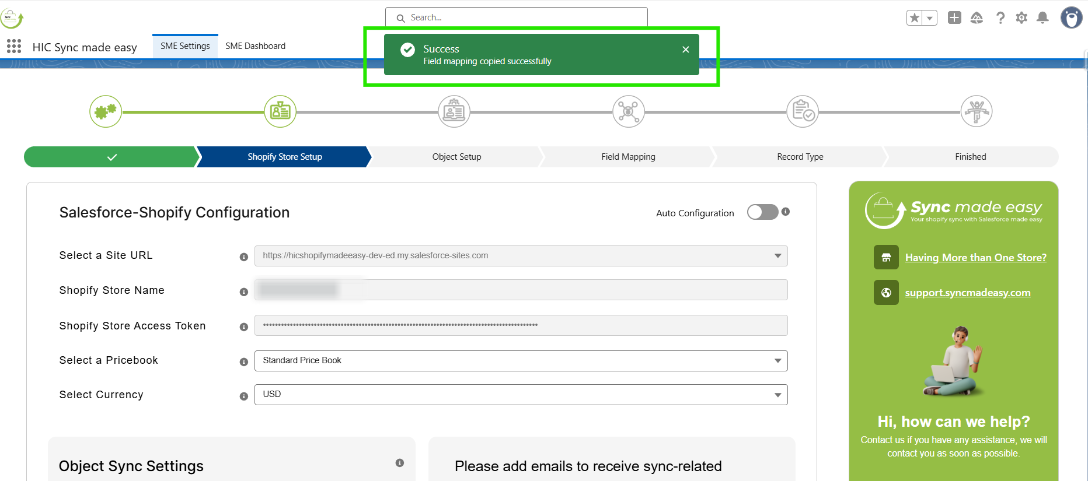
Step 6: Once the process is completed, you will receive a confirmation toast message stating:
“Field Mapping Copied Successfully”.
The Reset button lets you quickly restore default mappings or copy settings from another store, saving time and keeping mappings consistent.
Thanks!
Was this article helpful?
That’s Great!
Thank you for your feedback
Sorry! We couldn't be helpful
Thank you for your feedback
Feedback sent
We appreciate your effort and will try to fix the article