In this guide, we will walk you through how to use Sync Made Easy Pro in a Test Drive Org. If you don’t have a Salesforce org or want to explore the app before implementing it in your own environment, the Test Drive Org is a great place to get started.
It allows you to connect your Shopify store, try out key features, and understand how data sync works from Salesforce to Shopify in a safe, pre-configured setup. You can explore different functionalities, test real scenarios, and get a clear idea of how the app fits your business needs—without impacting your live data.
Follow the steps below to set up the Test Drive Org and start exploring the full capabilities of Sync Made Easy Pro.
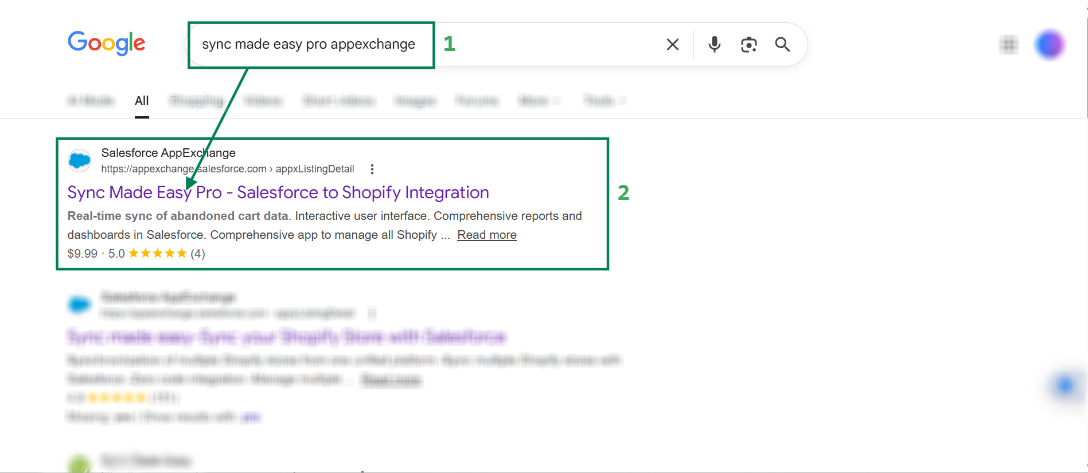
Step 1: Go to Google (or any search engine), search for “Sync Made Easy Pro AppExchange”, and open the first link.
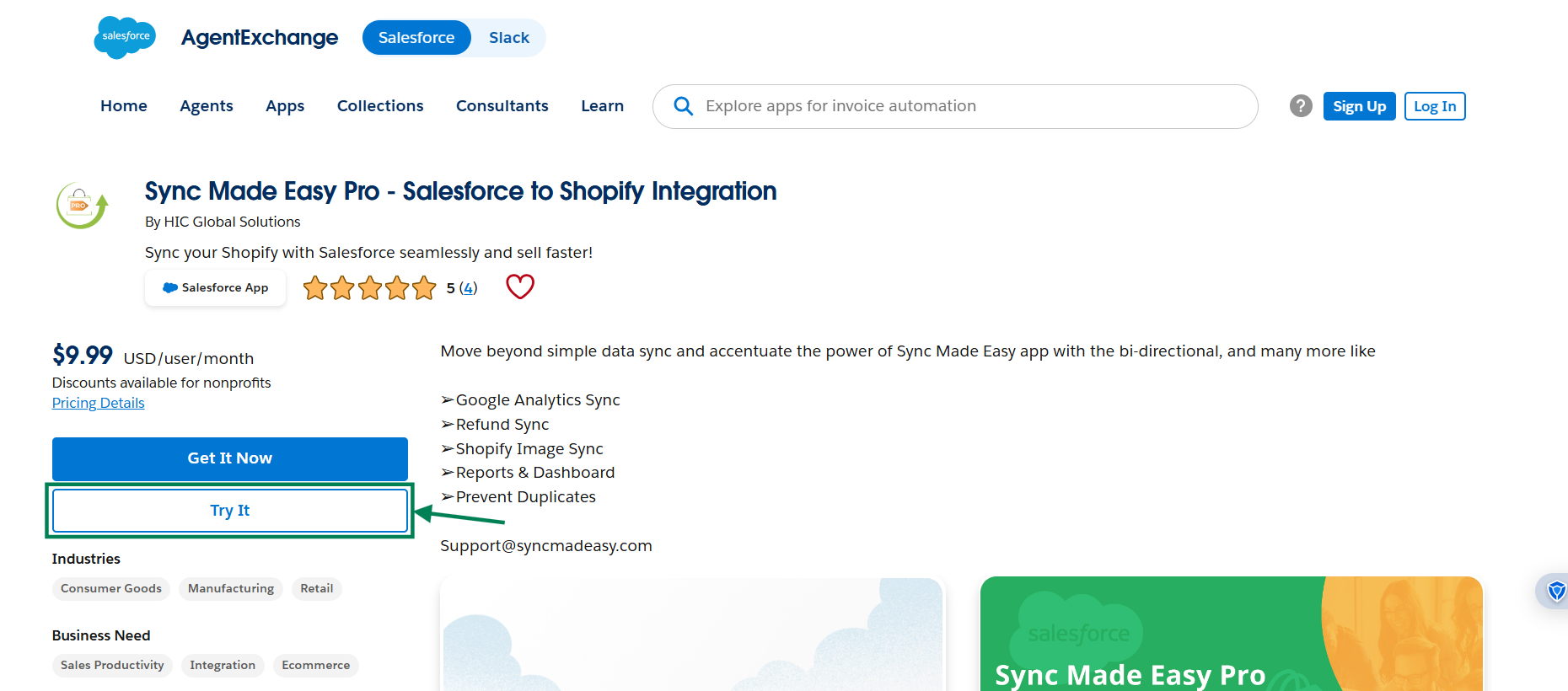
Step 2: You will be redirected to AppExchange. Click on the “Try It” button.
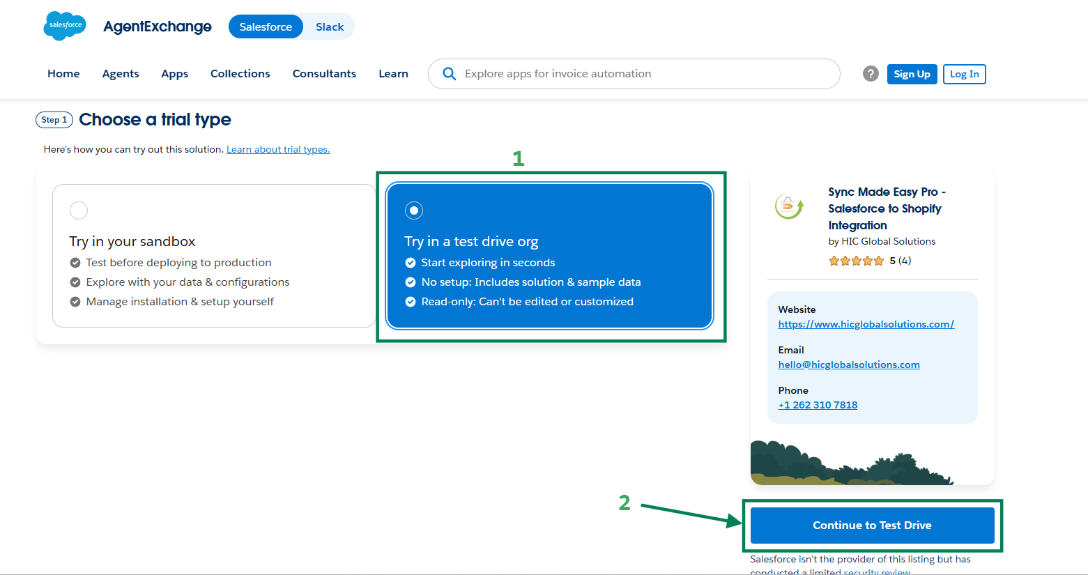
Step 3: Choose “Try in a Test Drive Org” and click the “Continue to Test Drive” button.
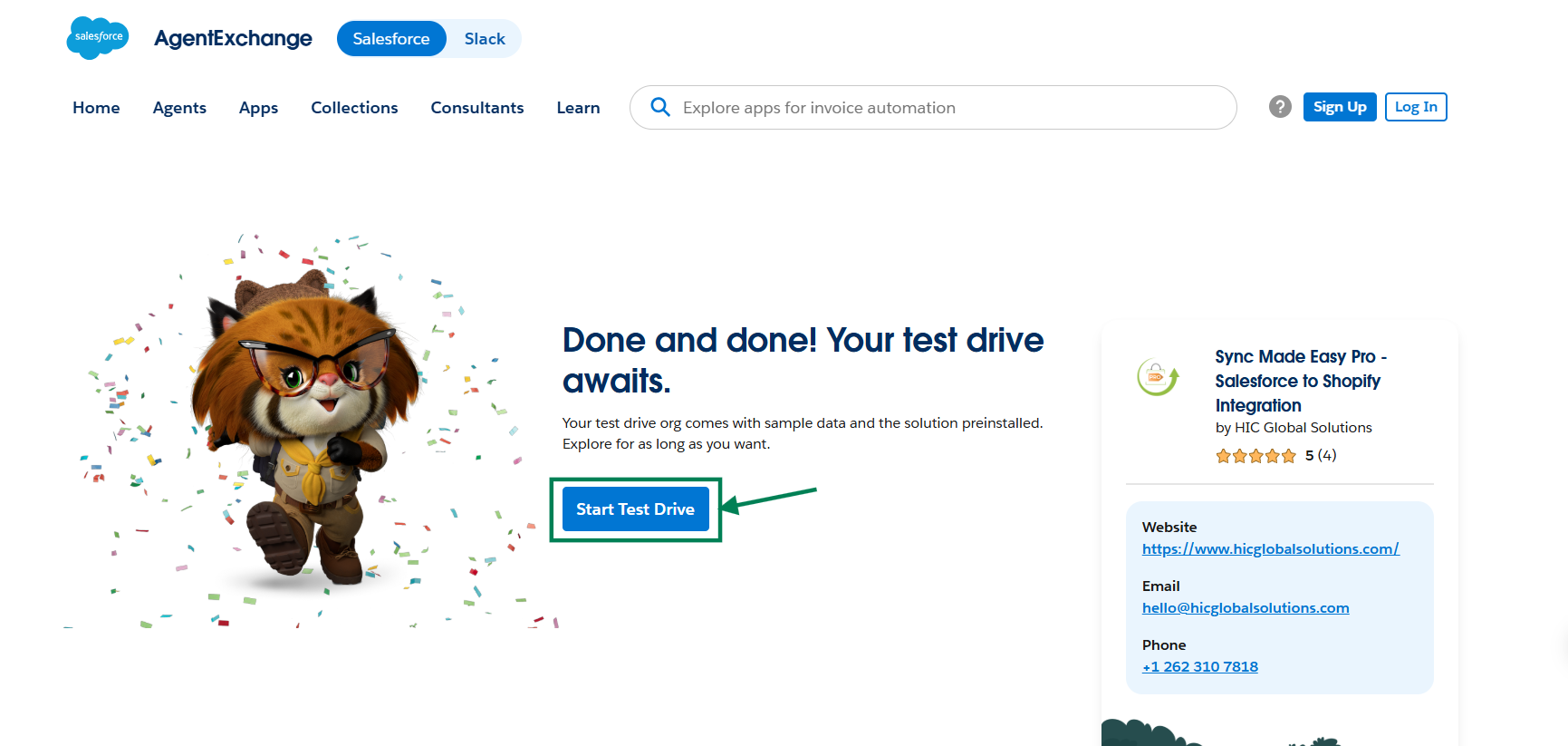
Step 4: Click on the “Start Test Drive” button to proceed.
Step 5: You will be redirected to the Shopify Store Setup page. Here, connect your Shopify staging store.
Note:
To learn how to add a new store, refer to "How to Add Multiple Stores in Sync Made Easy".
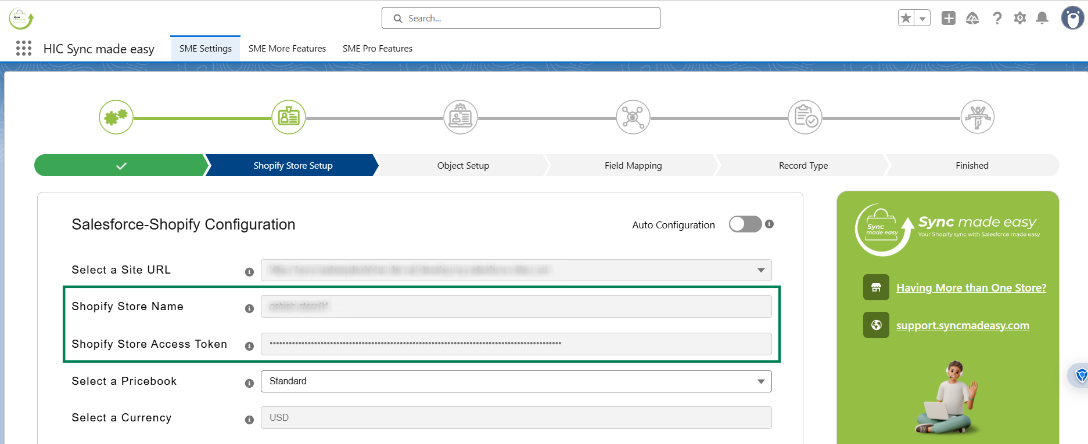
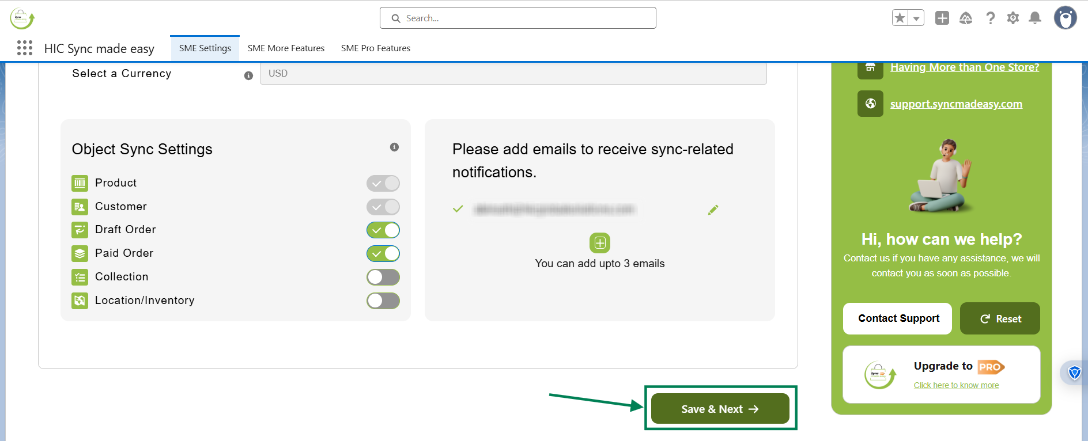
Step 6: Once your store is added, click Save & Next and configure the next steps if needed, or continue by clicking Save & Next.
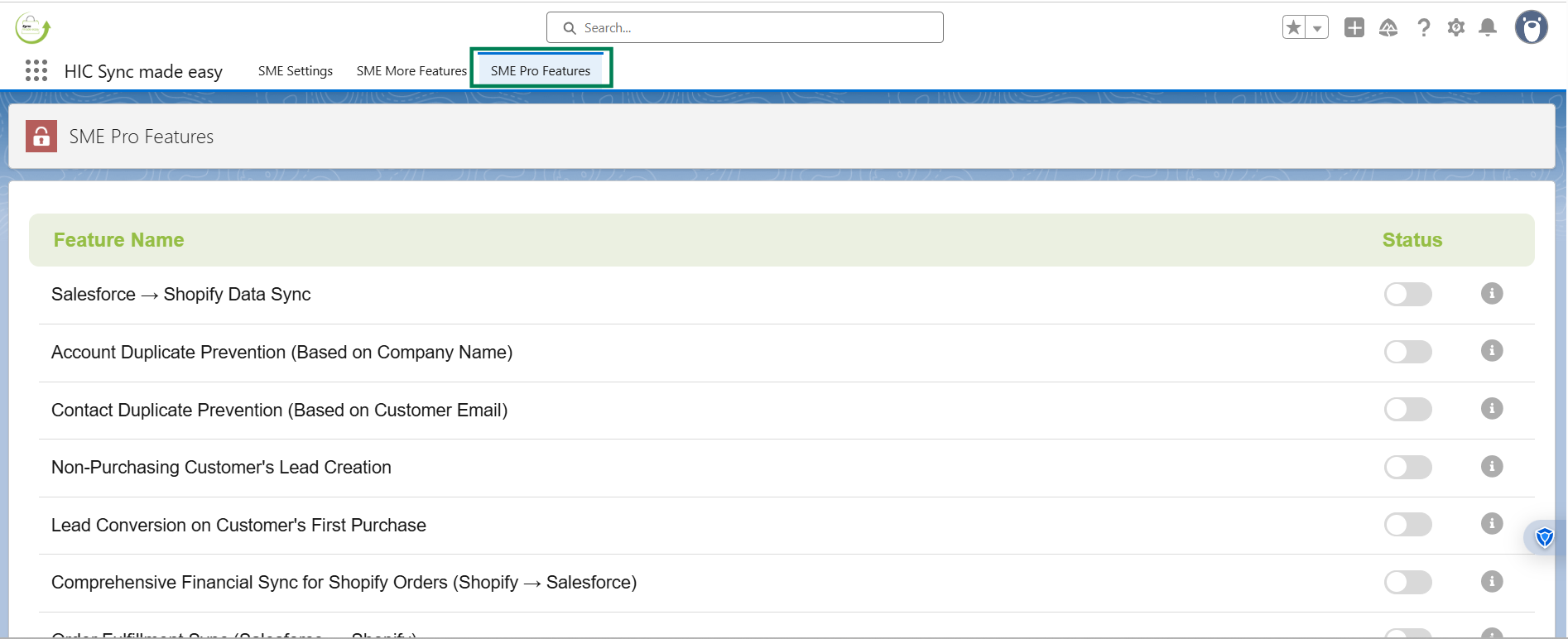
Step 7: Click on SME Pro Features. All features are inactive by default. Please activate the status toggle to enable these functionalities.
We hope this article helps! If you still face any issues, feel free to contact us at support@syncmadeasy.com.
Was this article helpful?
That’s Great!
Thank you for your feedback
Sorry! We couldn't be helpful
Thank you for your feedback
Feedback sent
We appreciate your effort and will try to fix the article