In this guide, we’ll walk you through how the Customer Transaction Details Sync from Shopify to Salesforce. Whenever a Transaction is completed in Shopify, Salesforce automatically generates a Transaction deatils record.
Stay tuned as we break down the step-by-step process to enable and use this feature effortlessly. Let’s dive in !
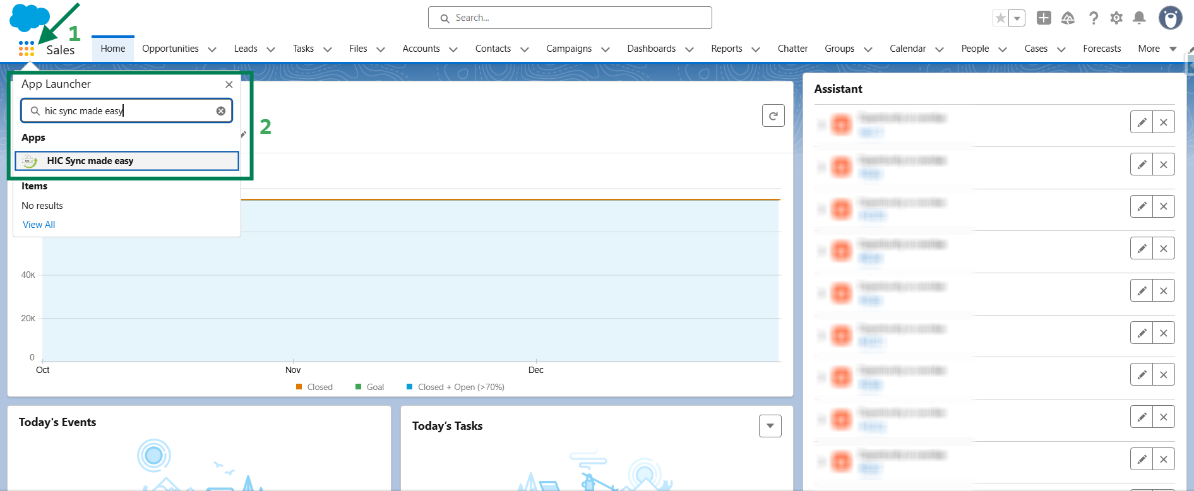
Step 1: Log in to Salesforce and in App Launcher search "HIC Sync made easy". Click on it.
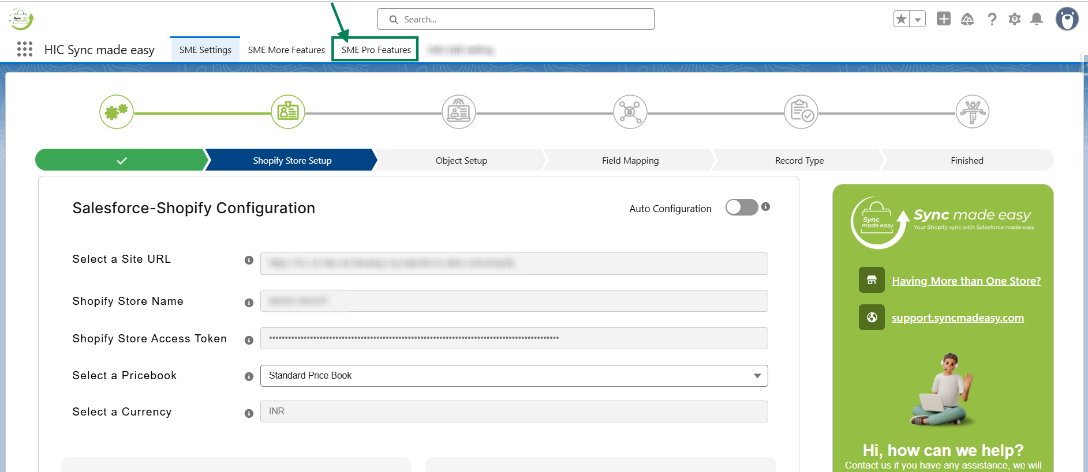
Step 2: Go to "SME Pro Features" tab.
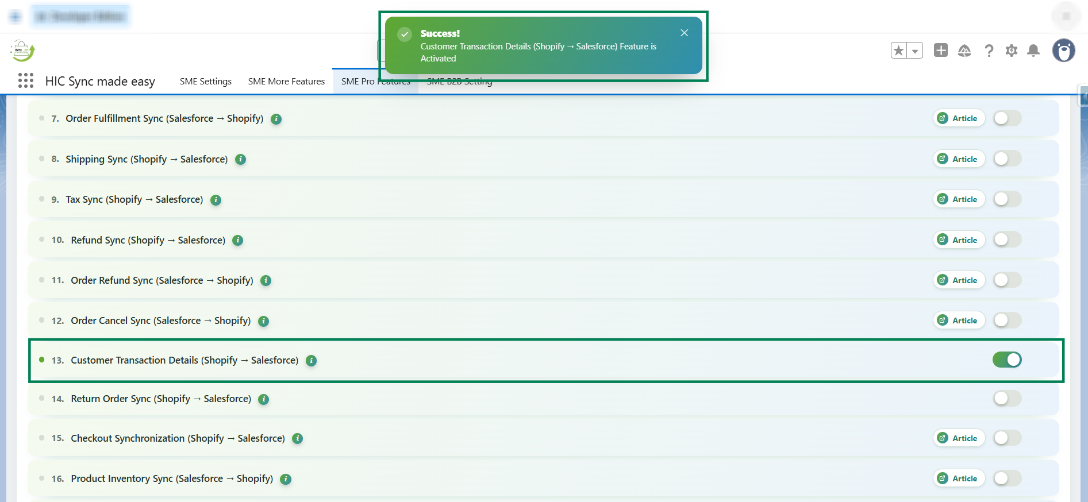
Step 3: Enable the “Customer Transaction Details (Shopify → Salesforce)” feature toggle button.
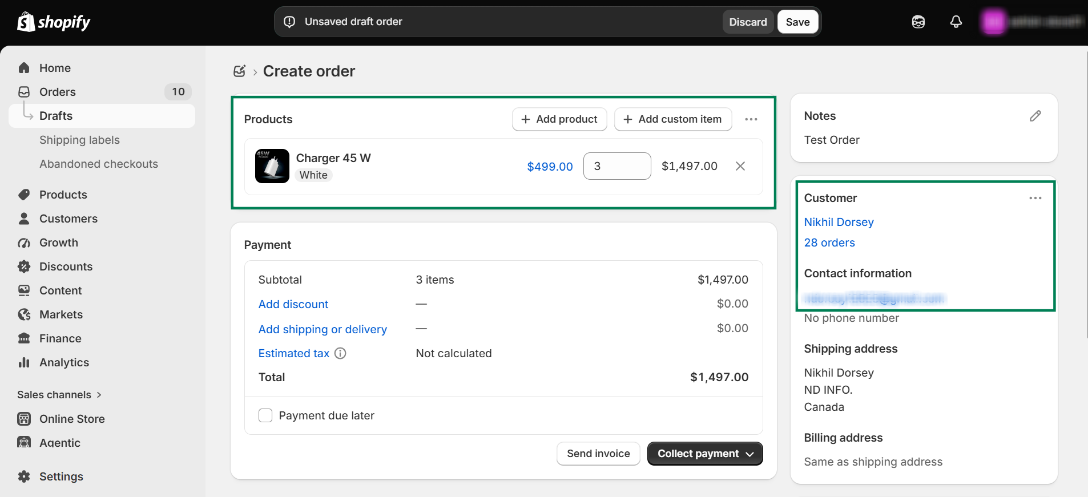
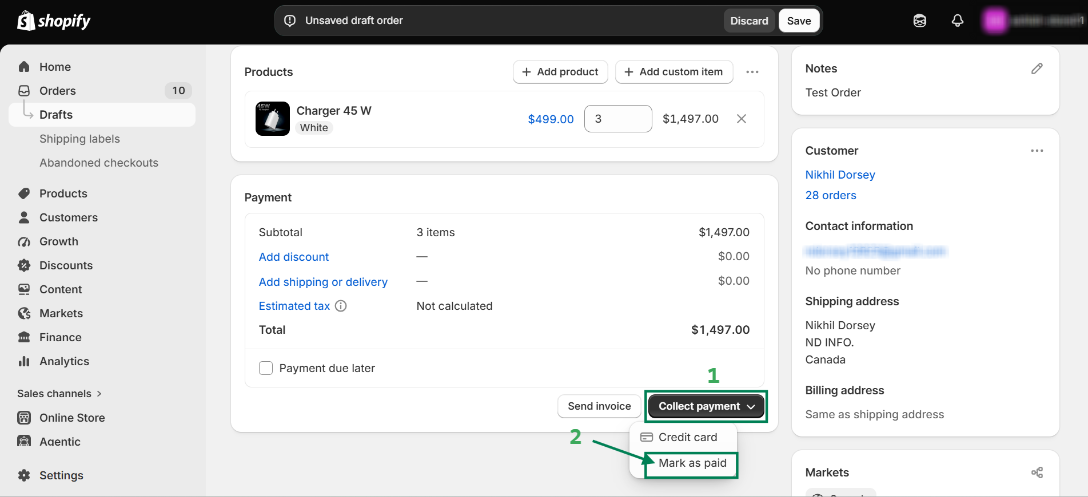
Step 4: Go to your Shopify store and create an order.
Step 5: Click on “Collect Payment” and mark the order as paid by selecting “Mark as Paid”.
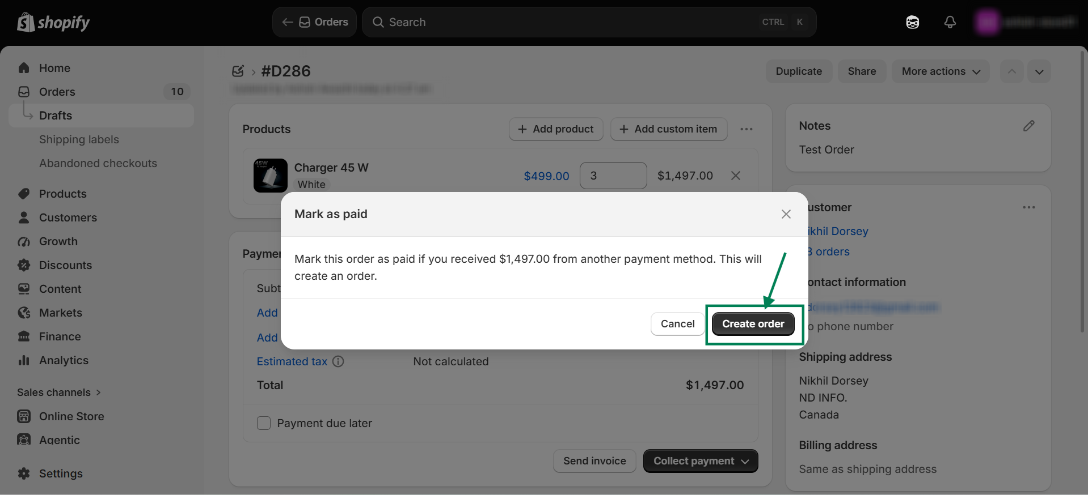
Step 6: Click on “Create Order” in Shopify.
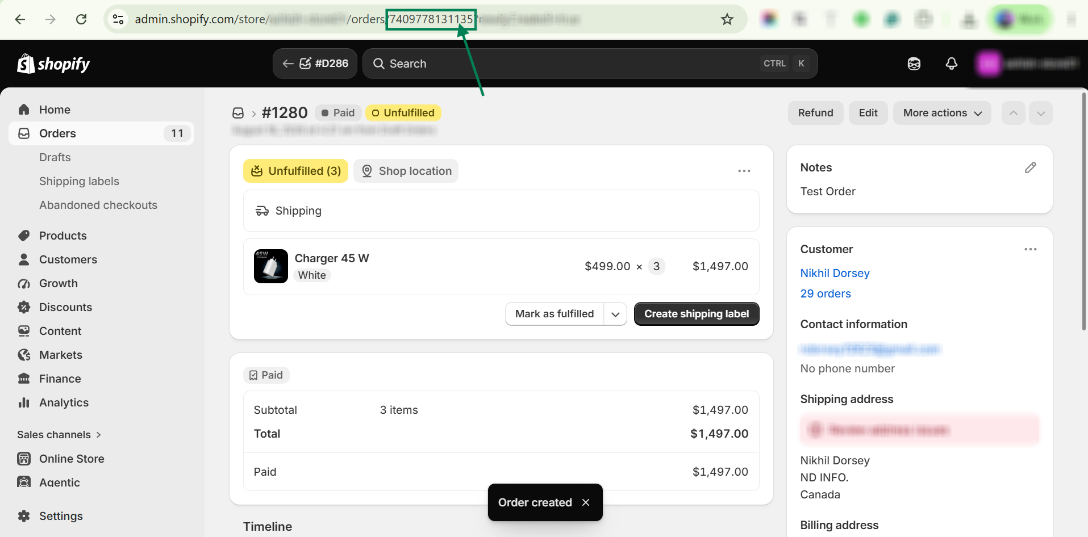
Step 7: Copy the Shopify ID of the order.
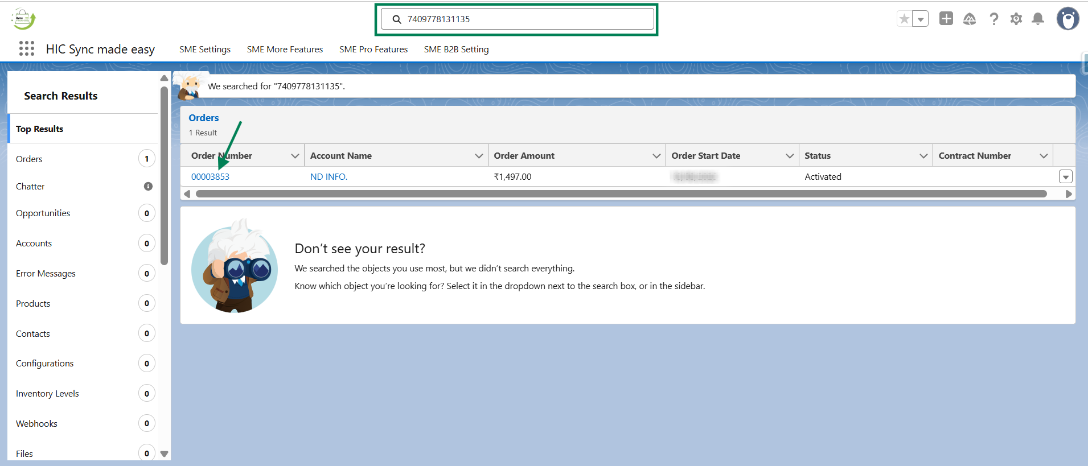
Step 8: In Salesforce, search for the order using the Shopify ID.
Step 9: Open the "Order" in Salesforce and navigate to the "Related" section of the order.
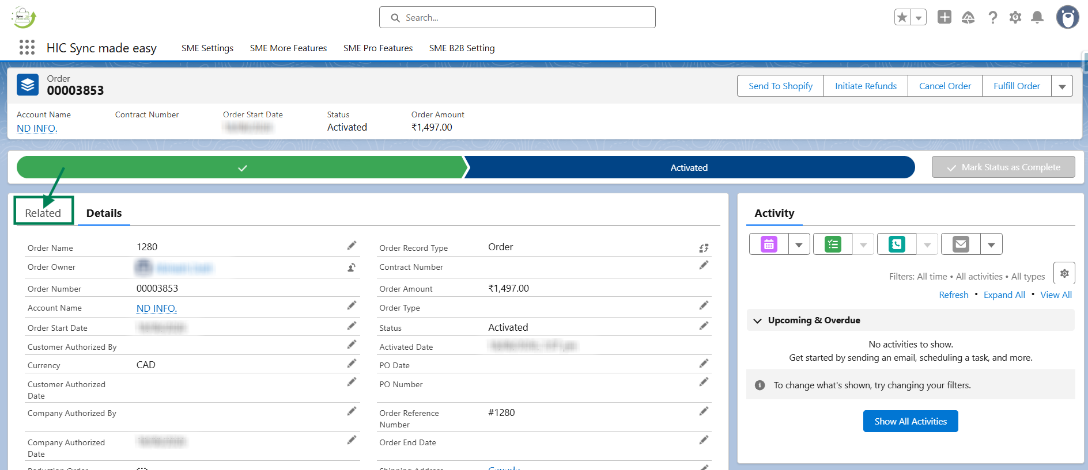
Step 10: Scroll down to locate the Order Transactions section.
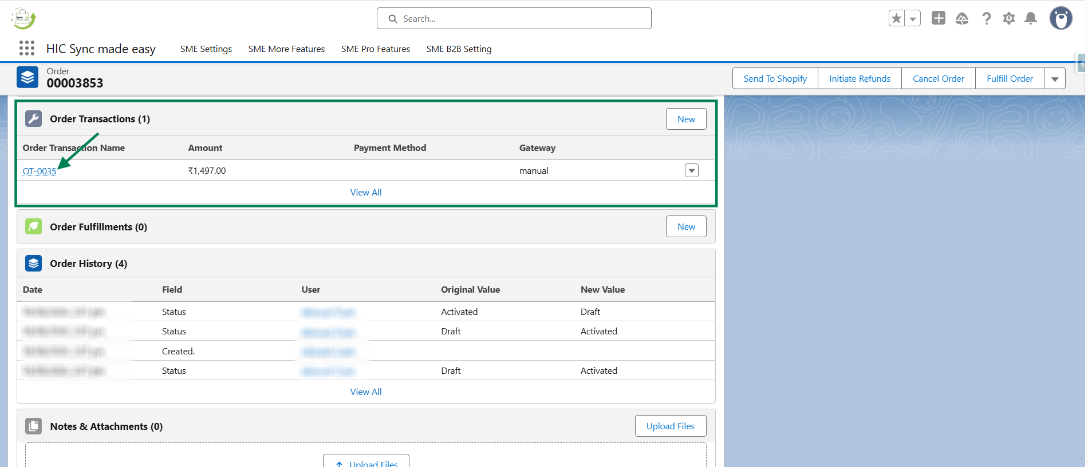
Step 11: Open the Order Transaction associated with the order to view the details.
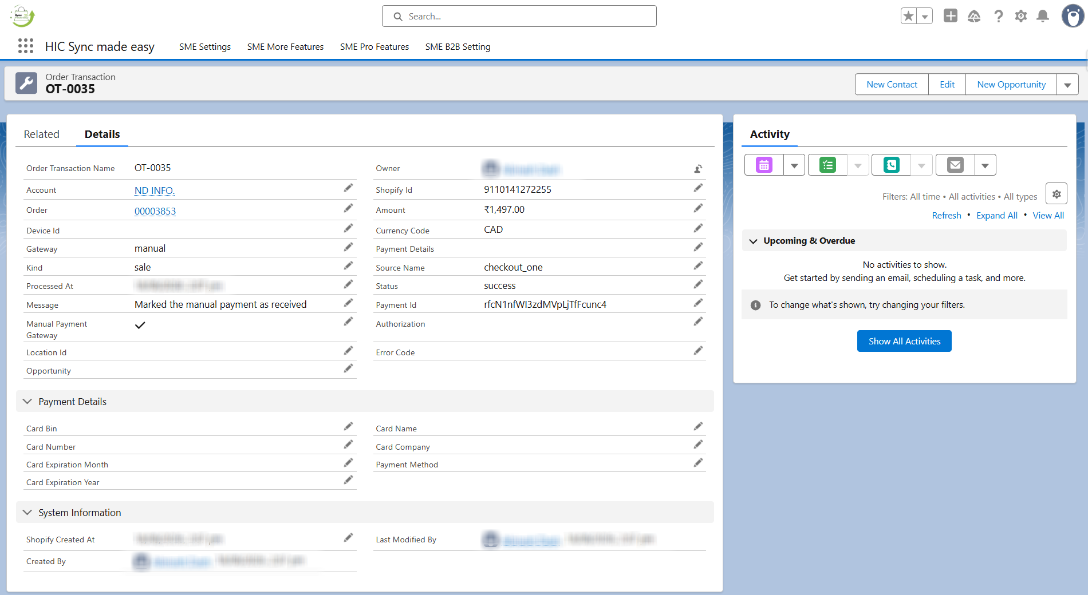
This concludes the functionality of Order Transaction Details synchronization from Shopify to Salesforce.
Thank you!
Was this article helpful?
That’s Great!
Thank you for your feedback
Sorry! We couldn't be helpful
Thank you for your feedback
Feedback sent
We appreciate your effort and will try to fix the article
