A Related List lets you display records that are linked to a particular object (for example, Orders, Products, Cases, or any custom object). Using the steps below, you can add a related list to any object in Salesforce.
Steps to Add a Related List
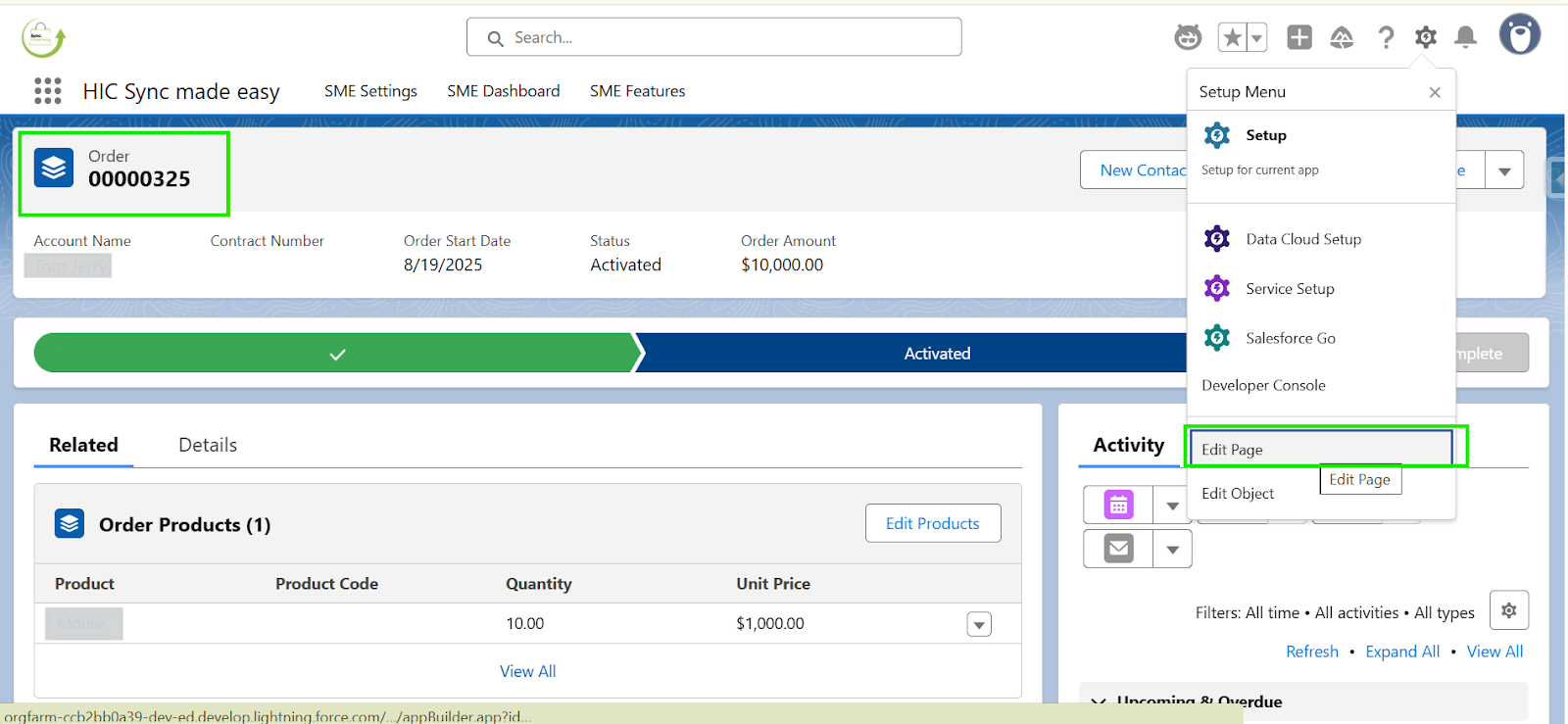
Step 1: Open the record page, click the gear icon (⚙ Setup), and then select Edit Page.
Step 2: On the record page preview, click the object (either in the Related or Details section), and then select Object Layout (as shown in the preview).
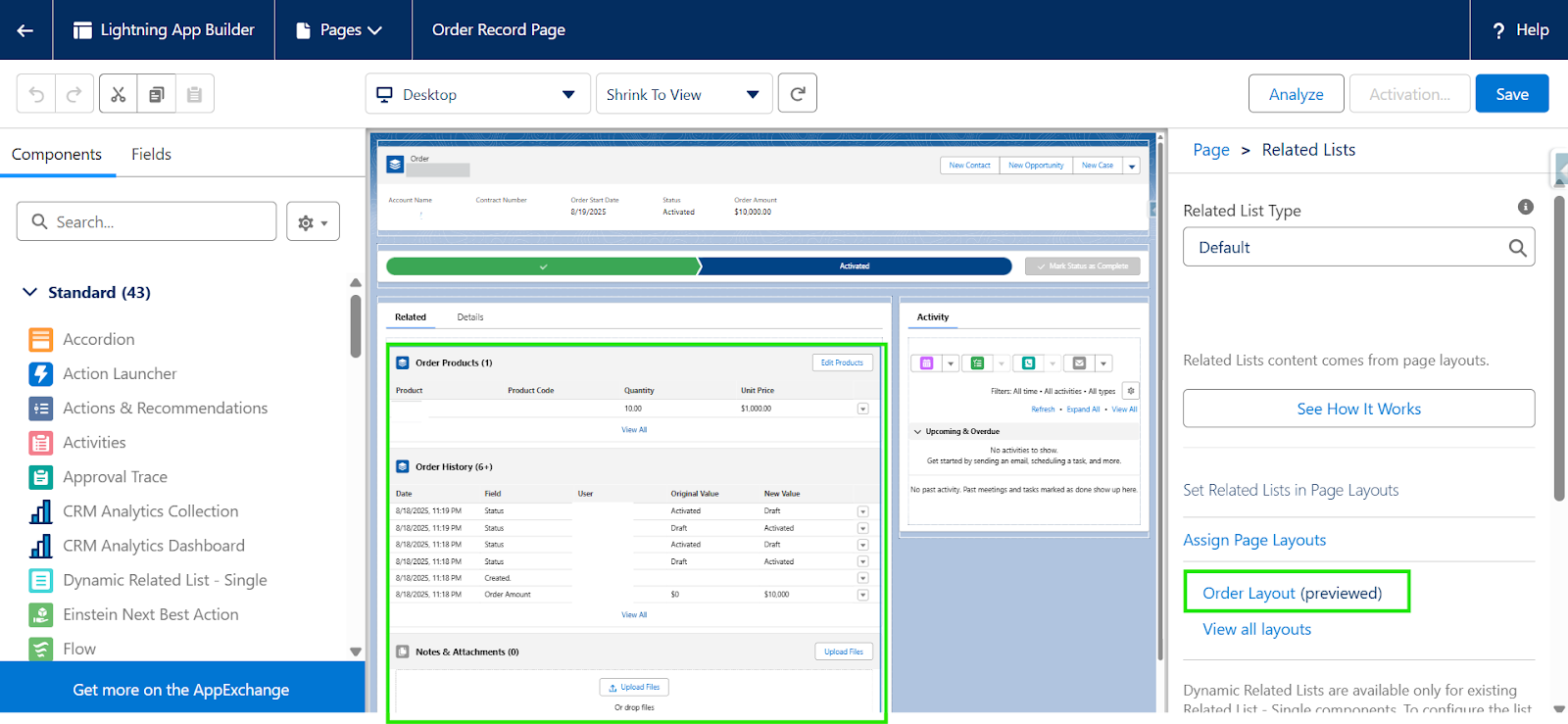
Note:
Note: If your page layout appears differently, you may be using a Lightning page. Follow the guide How to Add Related Lists, Fields, and Buttons to a Dynamic Page Layout in Salesforce to make updates
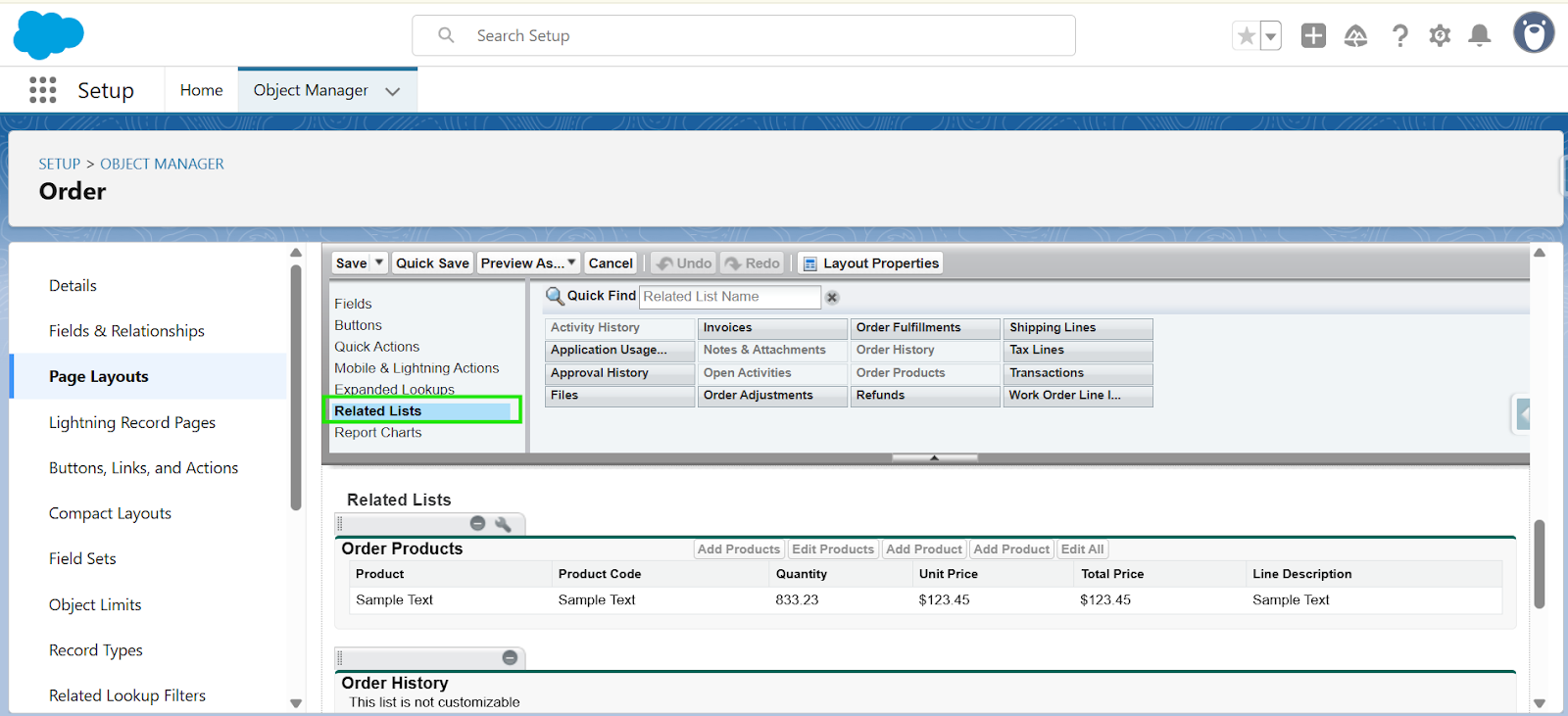
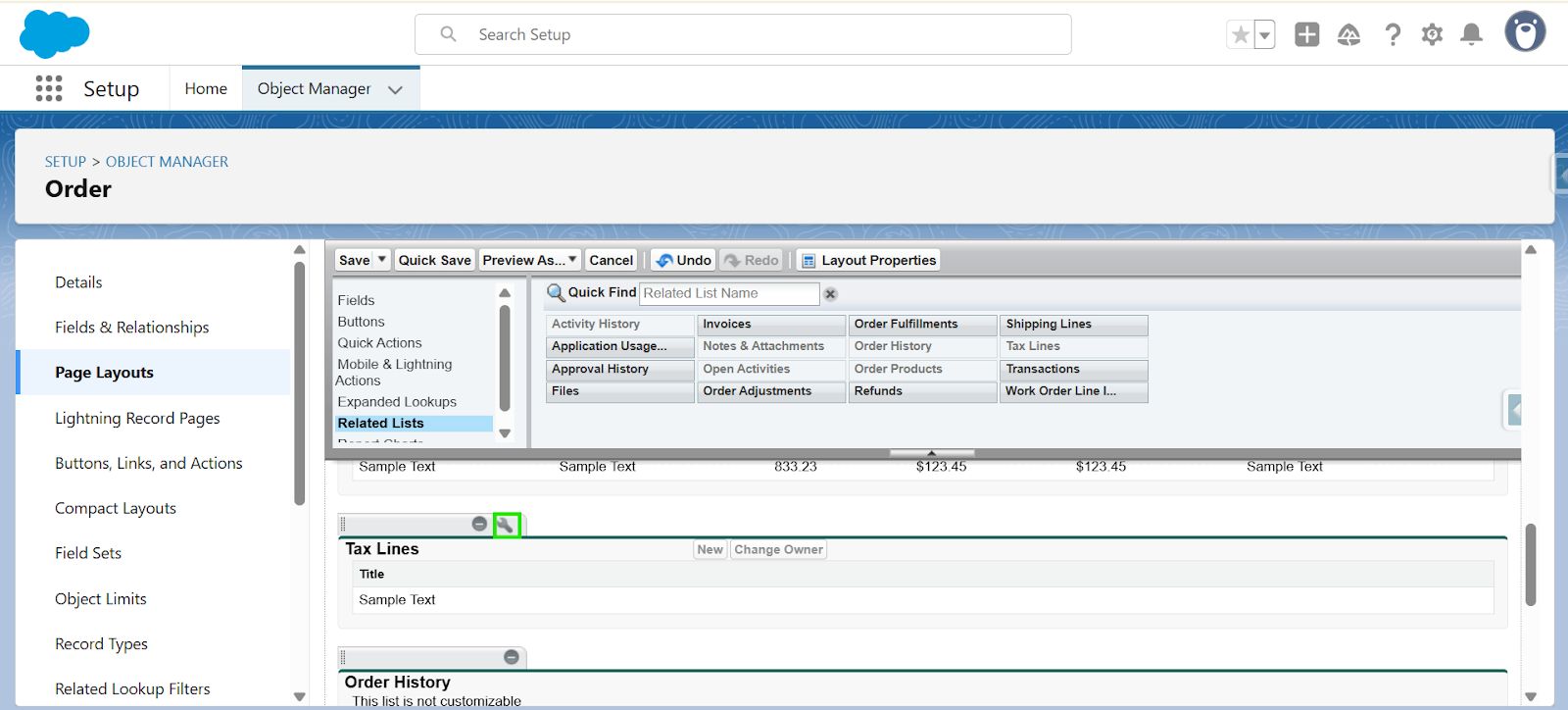
Step 3: In the Page Layout editor, go to Related Lists, and drag the required related list item (e.g., Tax Lines) into the Related Lists section.
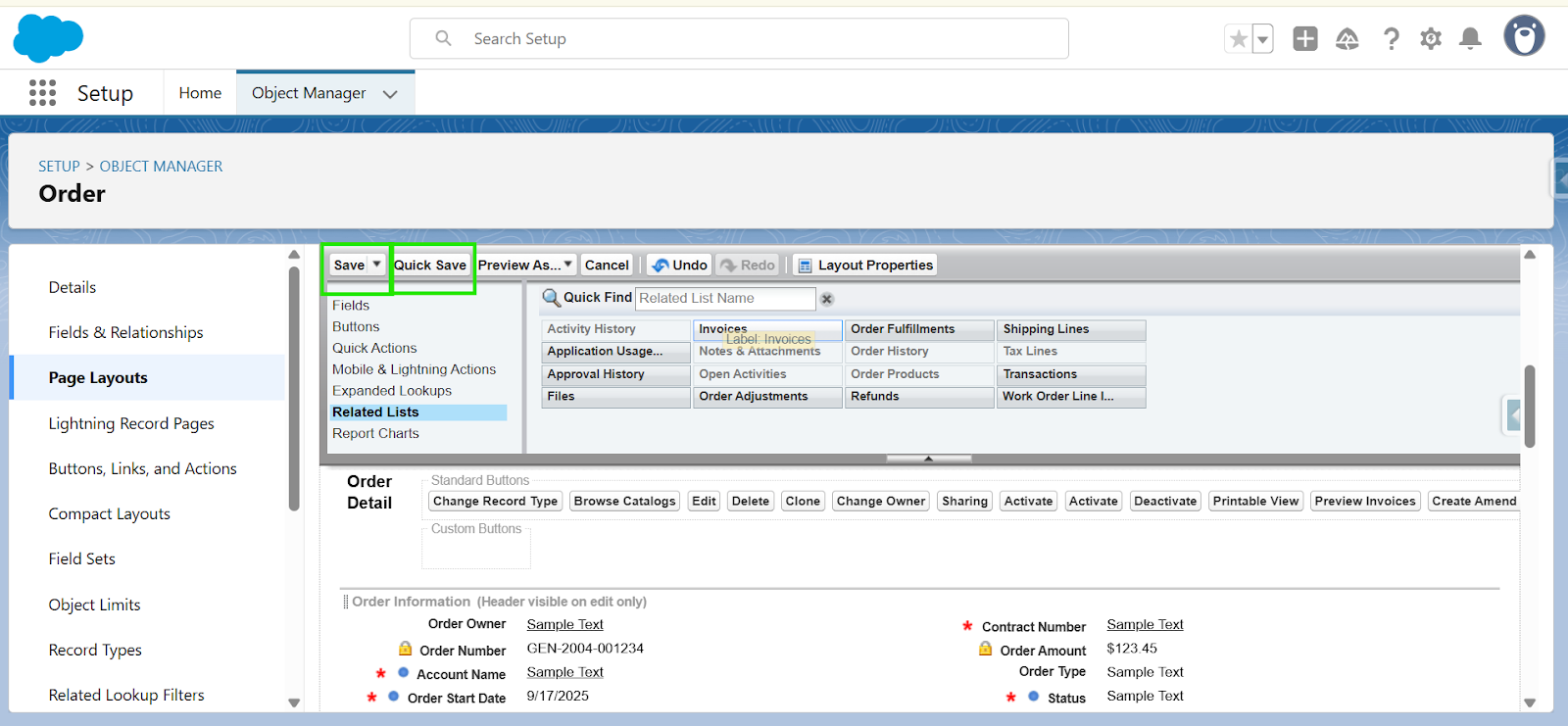
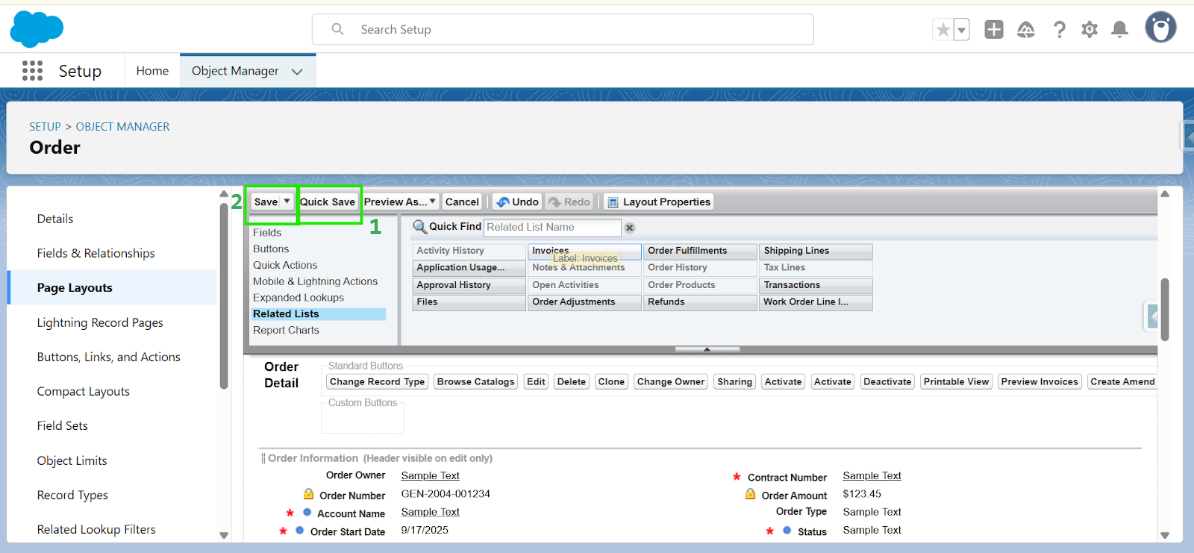
Step 4: After adding the related list, click on Quick Save, and then Save to apply your changes.
Customize Related Lists
If you want to further to edit a related list.
Step 1: In the Page Layout editor, Click on Related list.
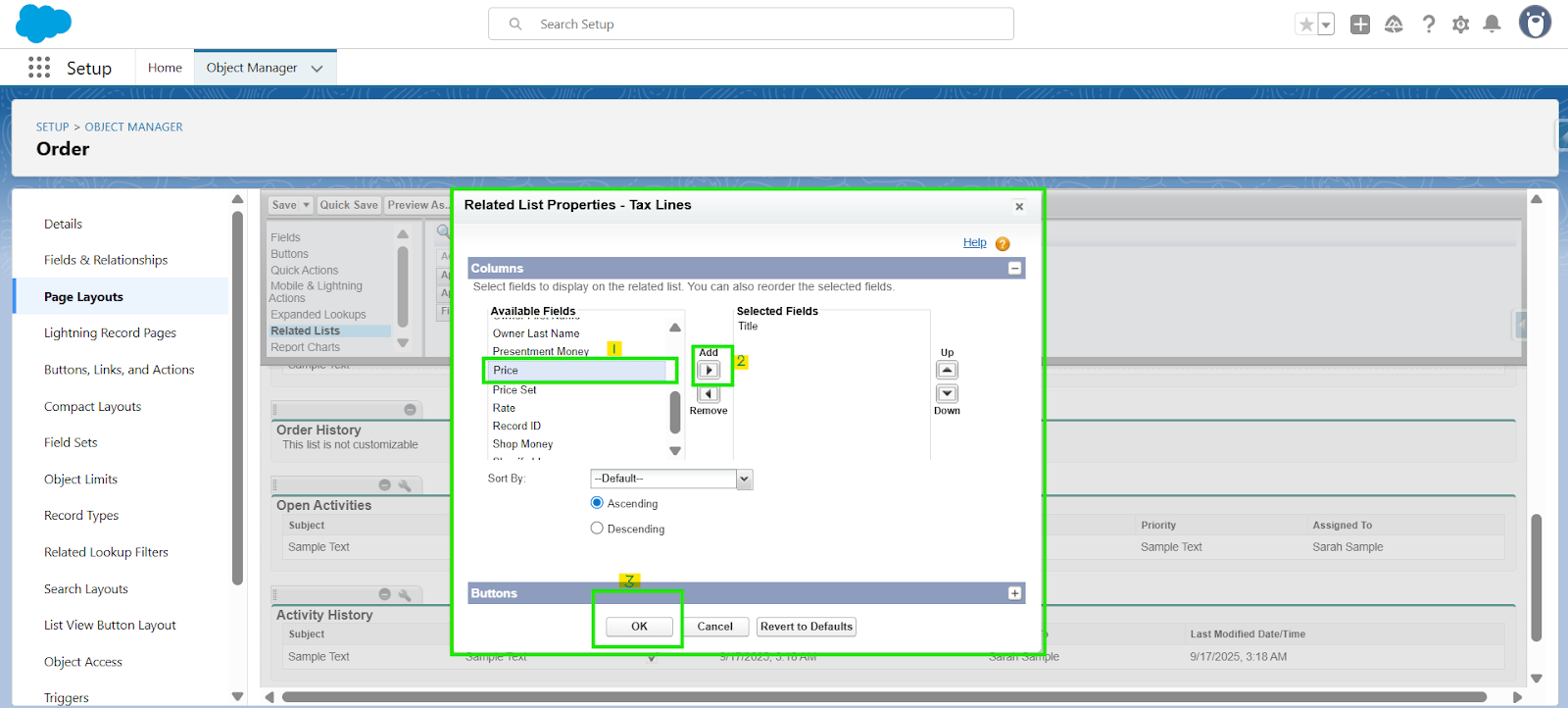
Step 2: A configuration window will appear. In this window, select the fields you want to display in the related list. Use the arrow buttons to move fields between Available Fields and Selected Fields, arrange them in the desired order, and then click OK.
Step 3: After editing the related list, click Quick Save, and then Save to apply your changes
These steps will help you customize your Salesforce record pages to better fit your needs.
Thanks!
Was this article helpful?
That’s Great!
Thank you for your feedback
Sorry! We couldn't be helpful
Thank you for your feedback
Feedback sent
We appreciate your effort and will try to fix the article