This guide provides step-by-step instructions on how to add custom buttons, fields, and related lists to a Salesforce record page using the Dynamic Page Layout feature in Lightning App Builder.
Open the Record Page in Lightning App Builder
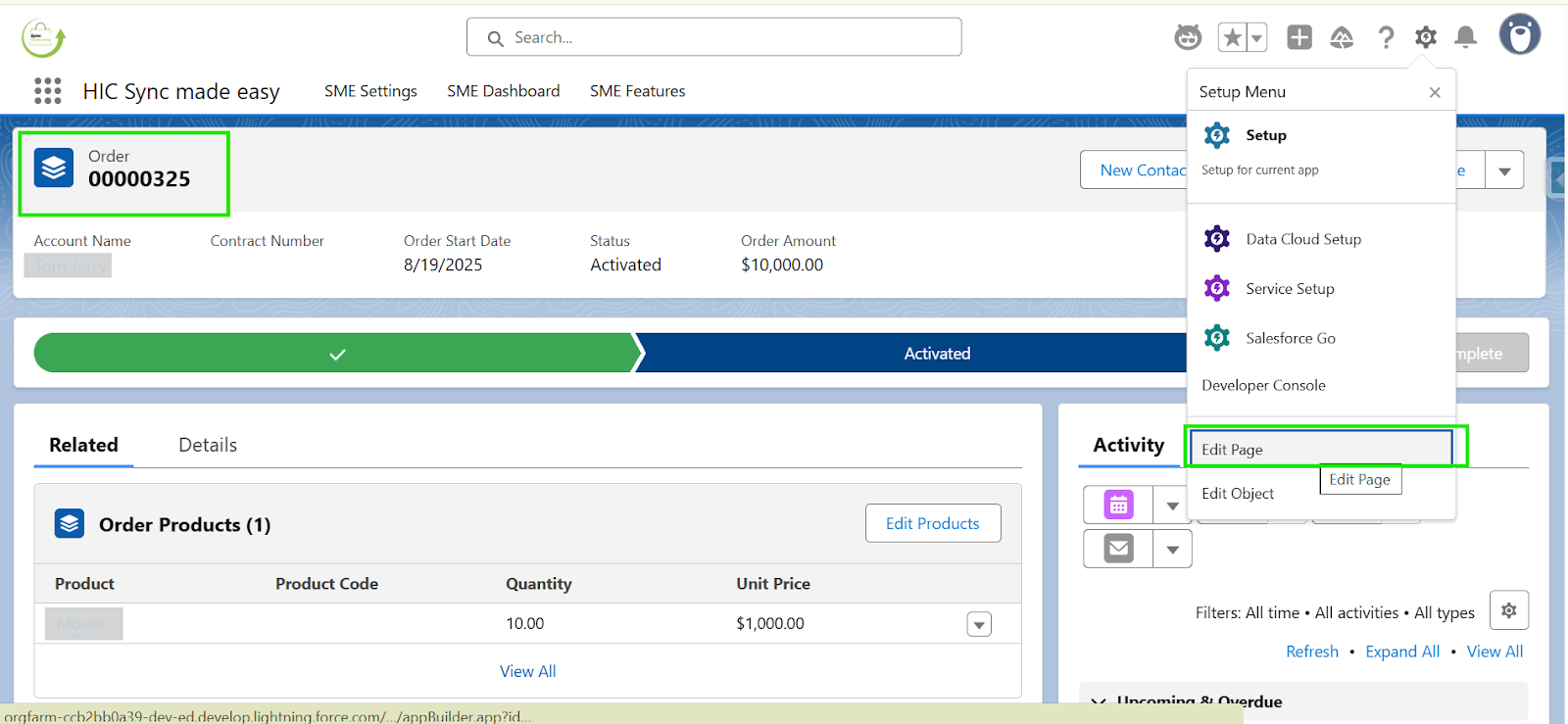
To begin, open the desired record page (for example, an Order). Click the gear icon (⚙) in the top-right corner, then select Edit Page.
Add a Custom Button to the Page
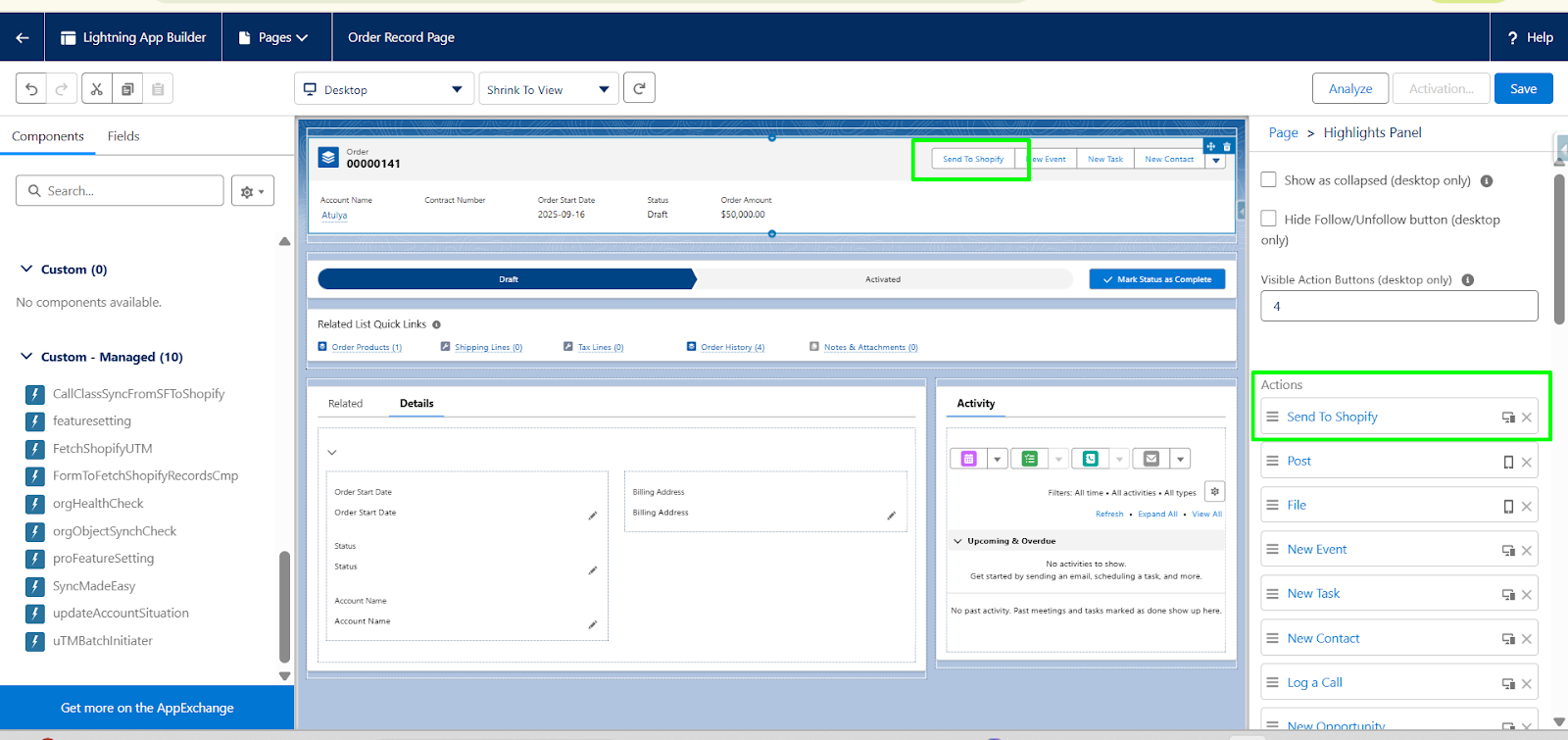
Step 1: From the Lightning App Builder, select the section where you want to add a button, scroll down the right panel, and click Add Action.
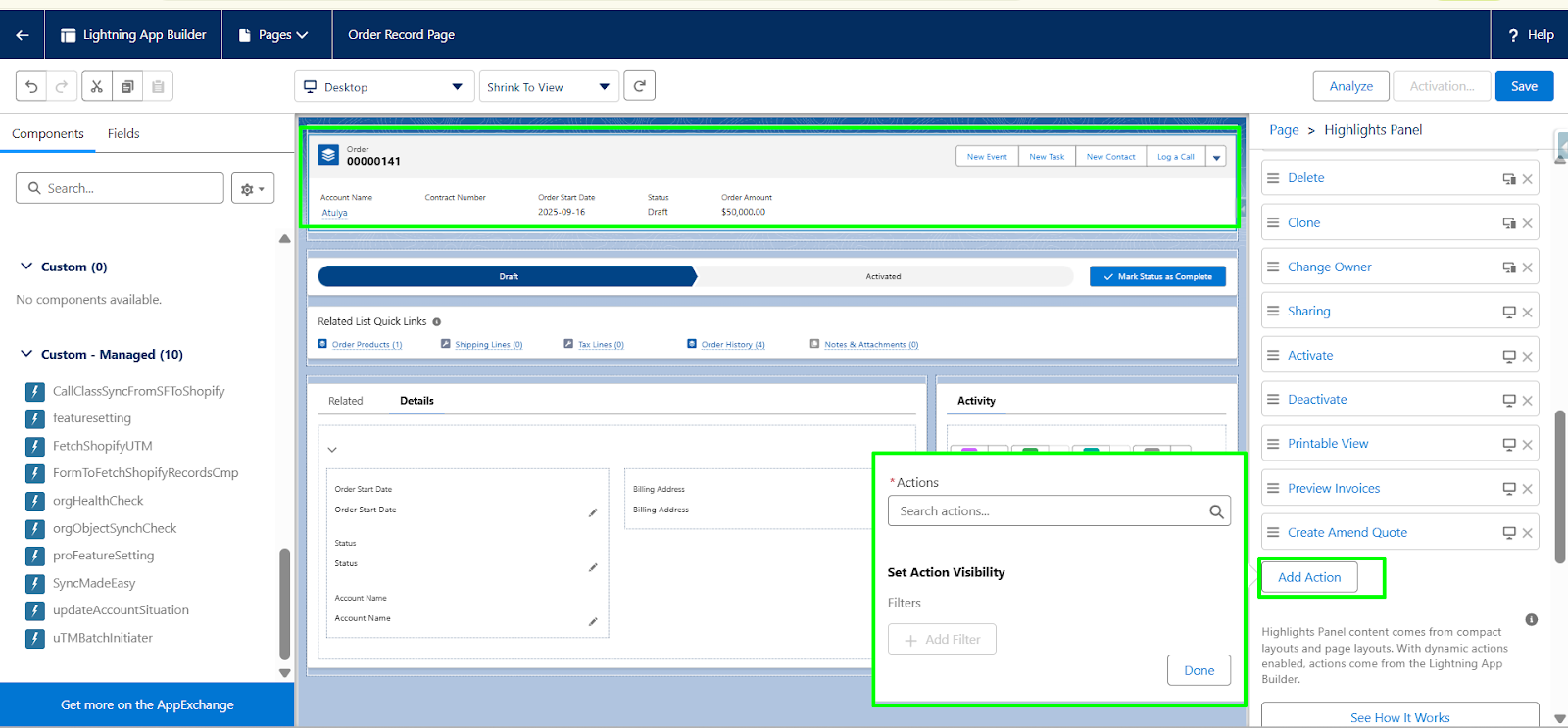
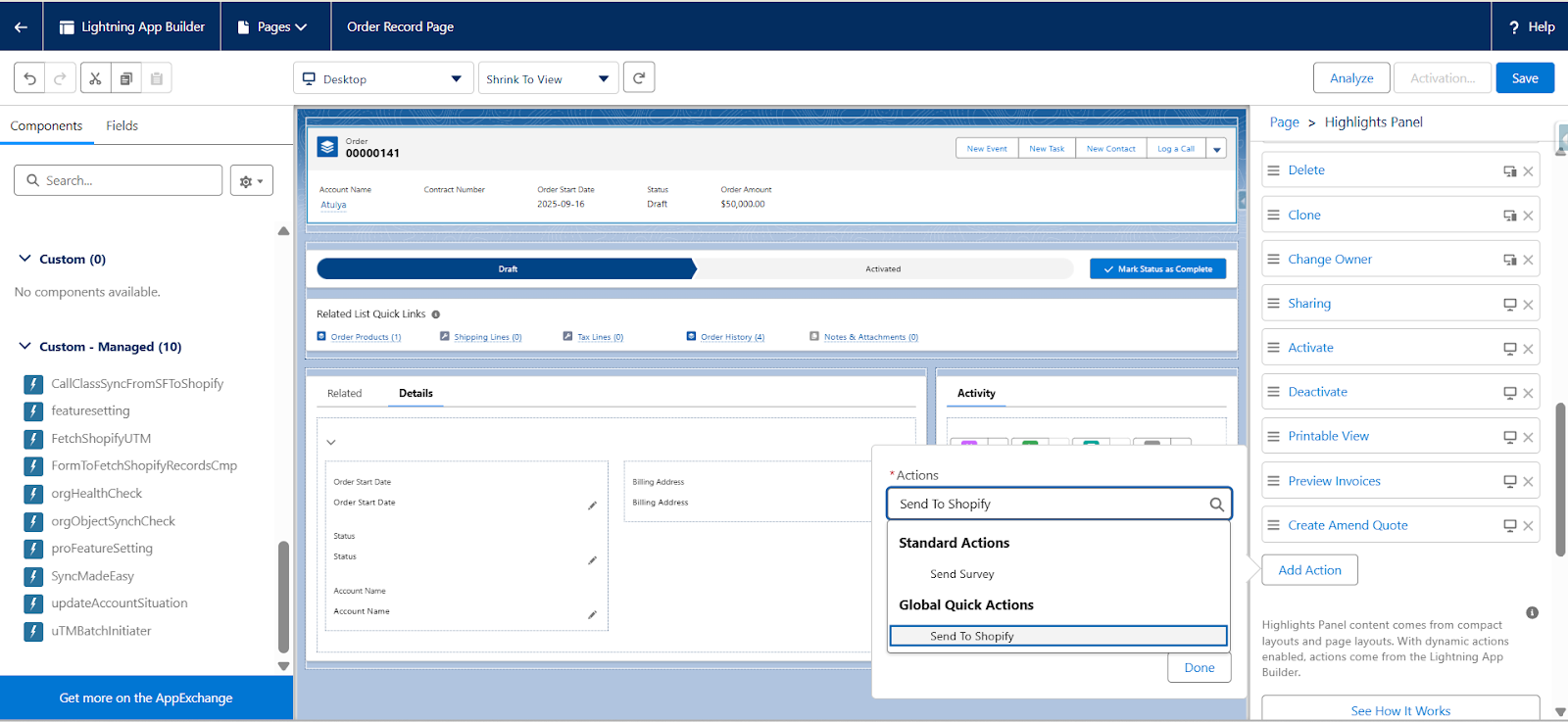
Step 2: In the search bar, enter the button name (e.g., Send to Shopify) and select it from the list.
Step 3: Drag and drop the button to the top of the Action Section.
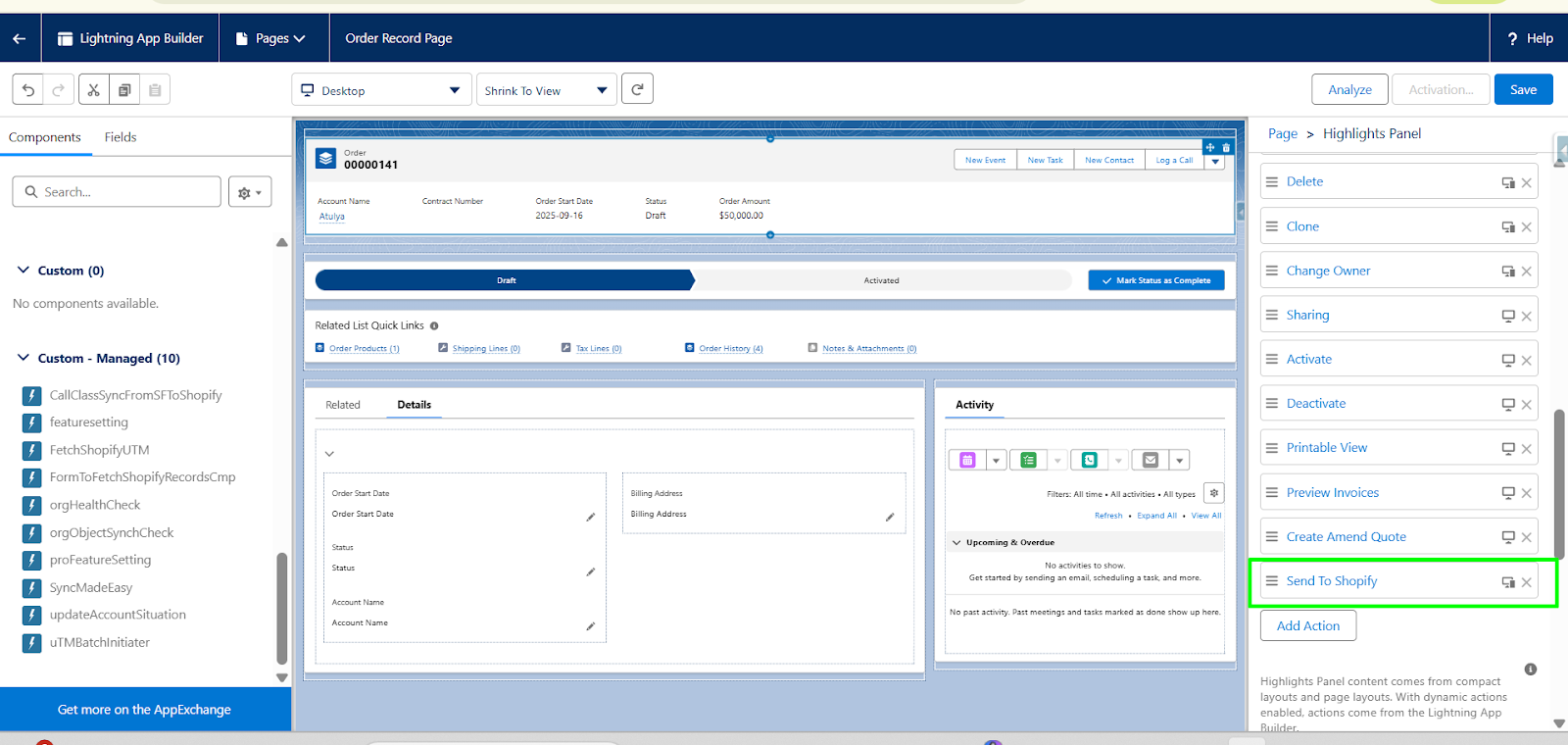
Step 4: Click Save in the top-right corner. The button will now appear on the record page.
Add a Field to the Page Layout
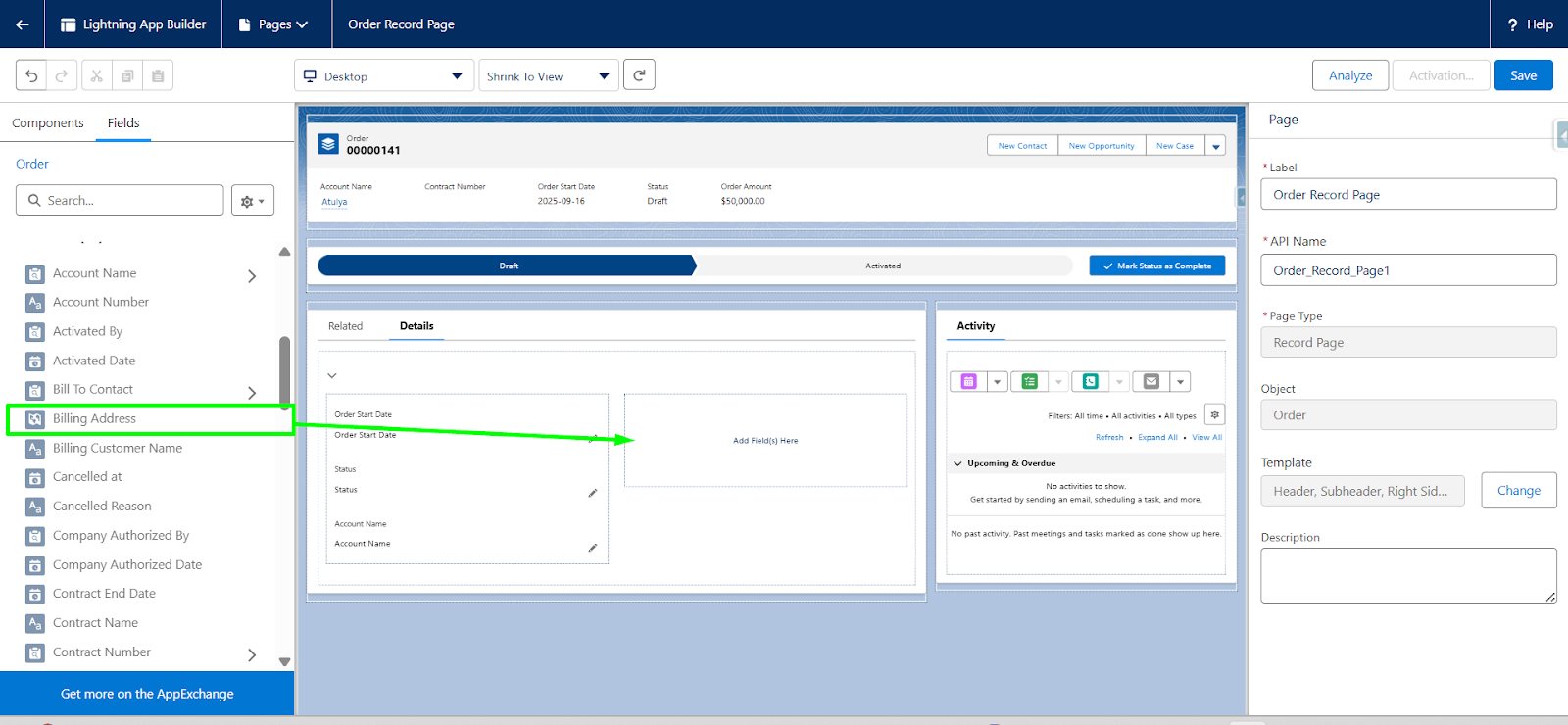
Step 1: In the Lightning App Builder, go to the Fields section, then drag and drop the required field from the left-hand panel to the desired location on the page layout.
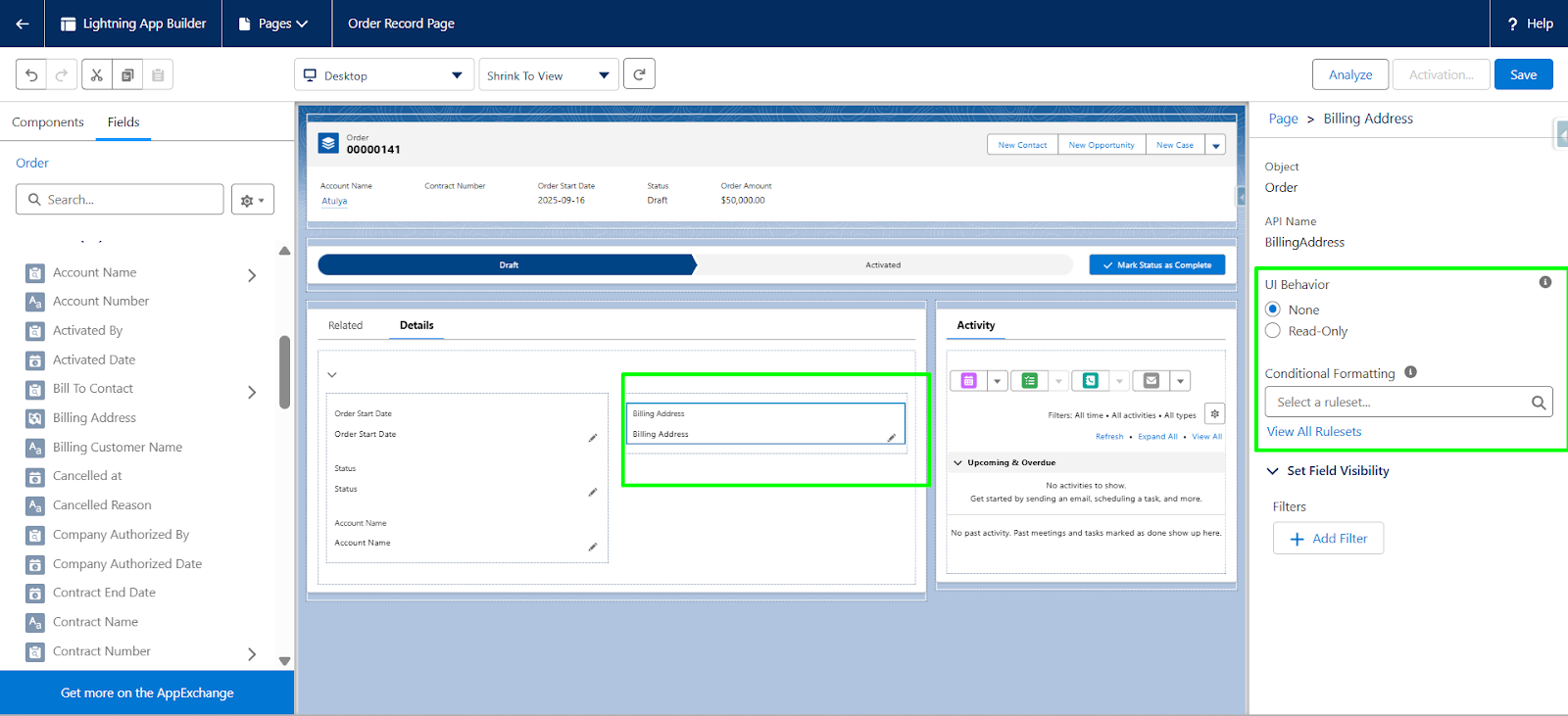
Step 2: Adjust the field's visibility and behaviour from the right-hand panel under Field Settings, then click Save.
Add a Related List to the Page Layout
Step 1: In the Lightning App Builder, locate the Related Lists section. Drag the Related List – component from the left-hand panel.
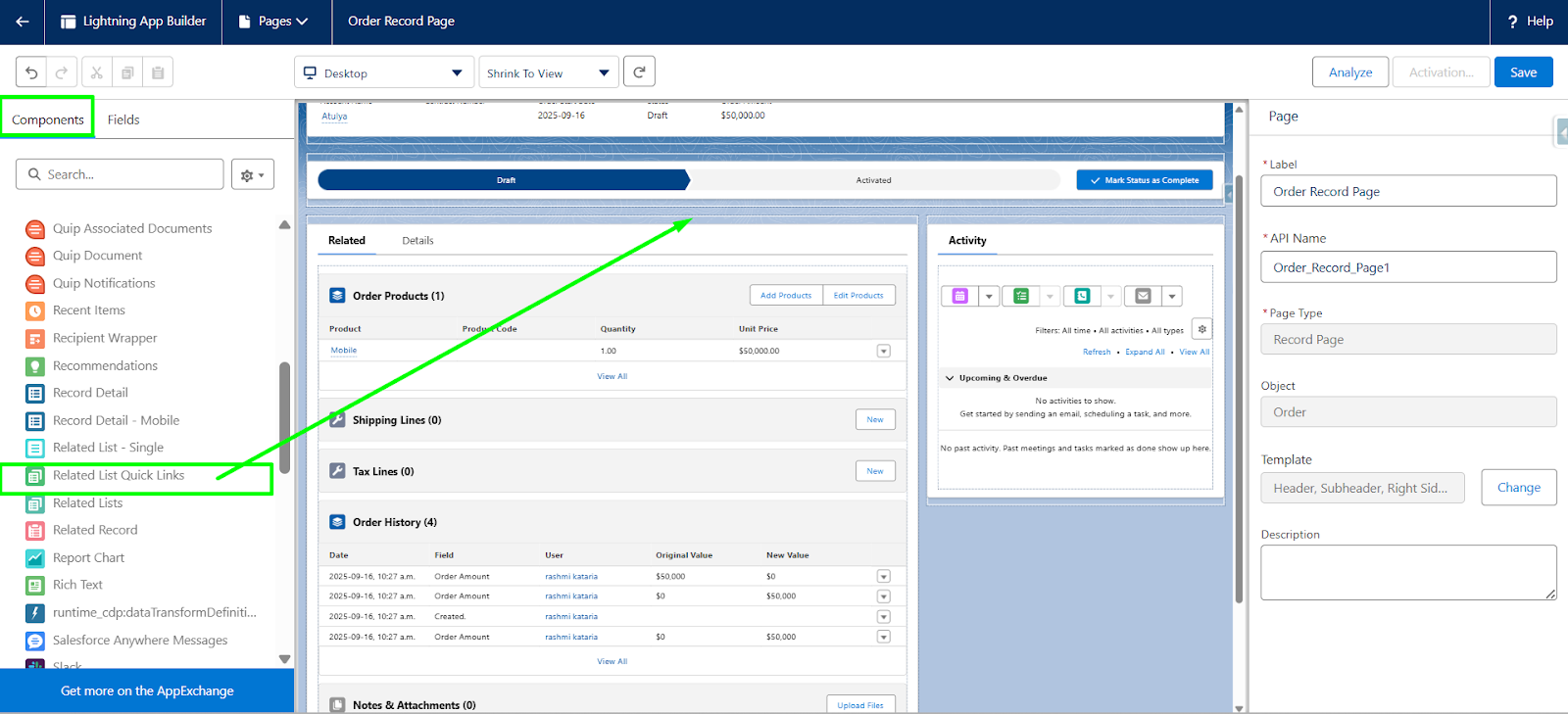
Step 2: Drop it onto the desired section of the page. And click Save.
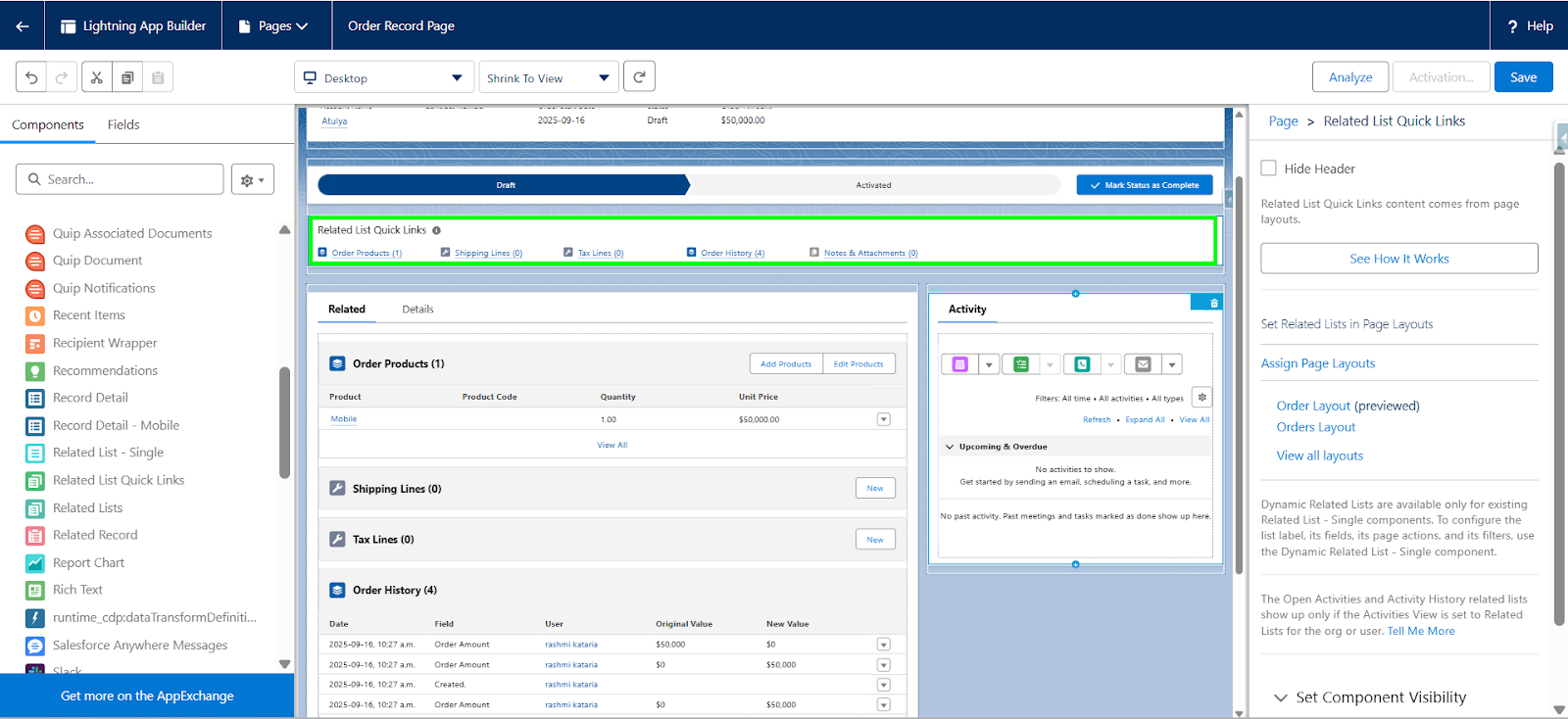
These steps will help you customize your Salesforce record pages to better fit your needs.
Thanks!
Was this article helpful?
That’s Great!
Thank you for your feedback
Sorry! We couldn't be helpful
Thank you for your feedback
Feedback sent
We appreciate your effort and will try to fix the article