In this guide, we’ll walk you through the step-by-step process of adding an HIC_ShopifySync.AuthenticateAllApexClass to a Salesforce Site. Follow the instructions below…
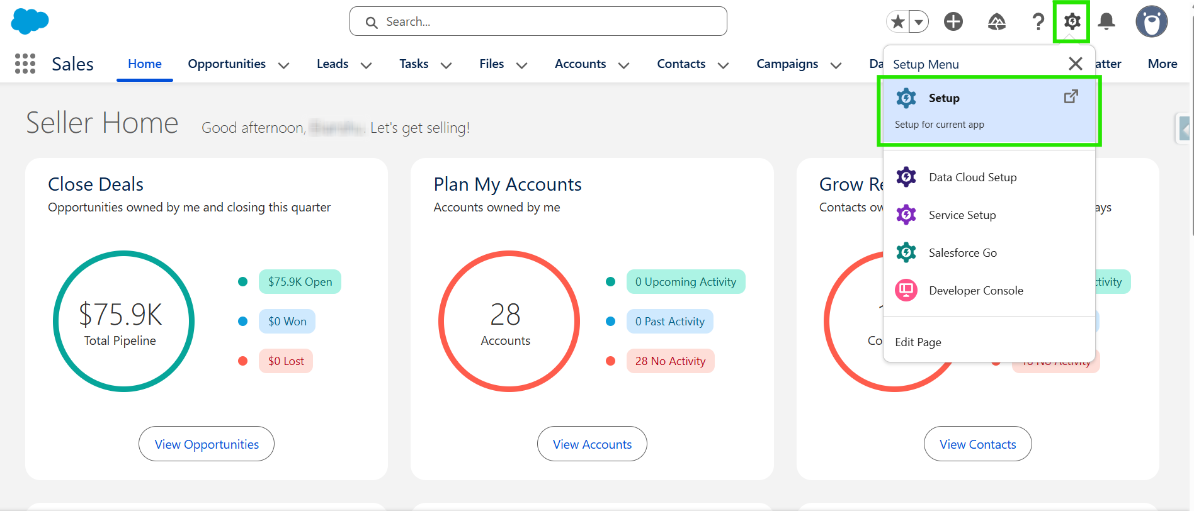
Step 1: Click the Gear Icon, then click “Setup”.
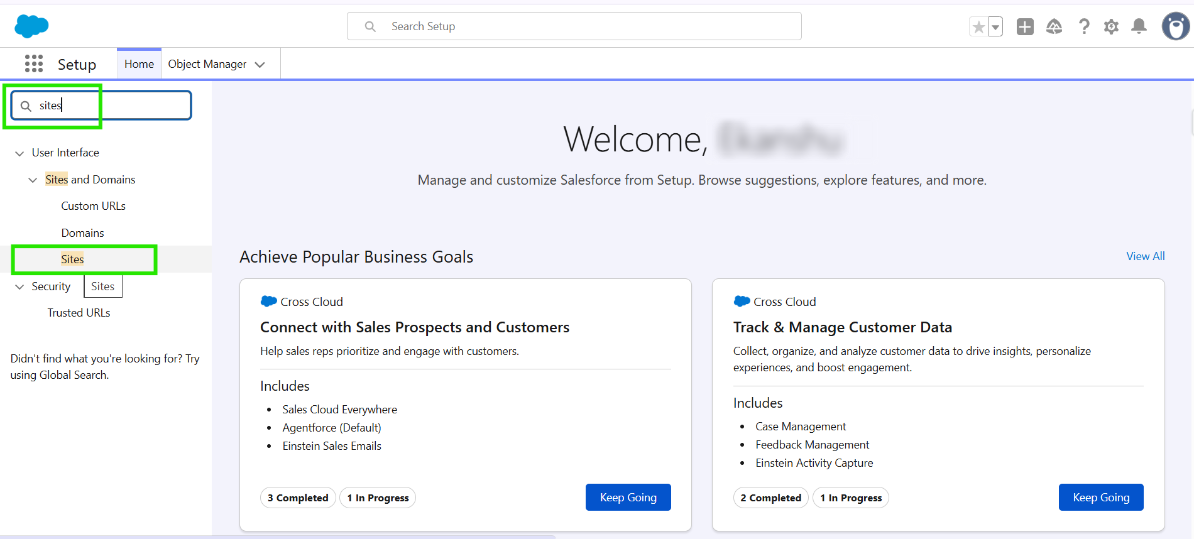
Step 2: In the Quick Find box, search for Sites and click on “Sites”.
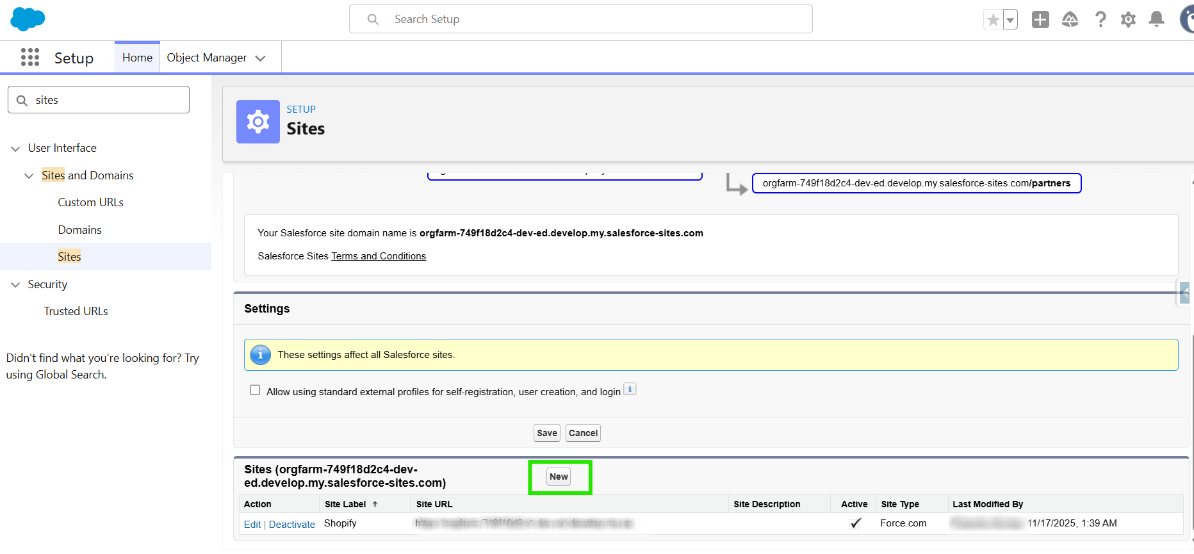
Step 3: Scroll down a bit. If no sites are available, or if you want to create a new one, click “New” and create your site.
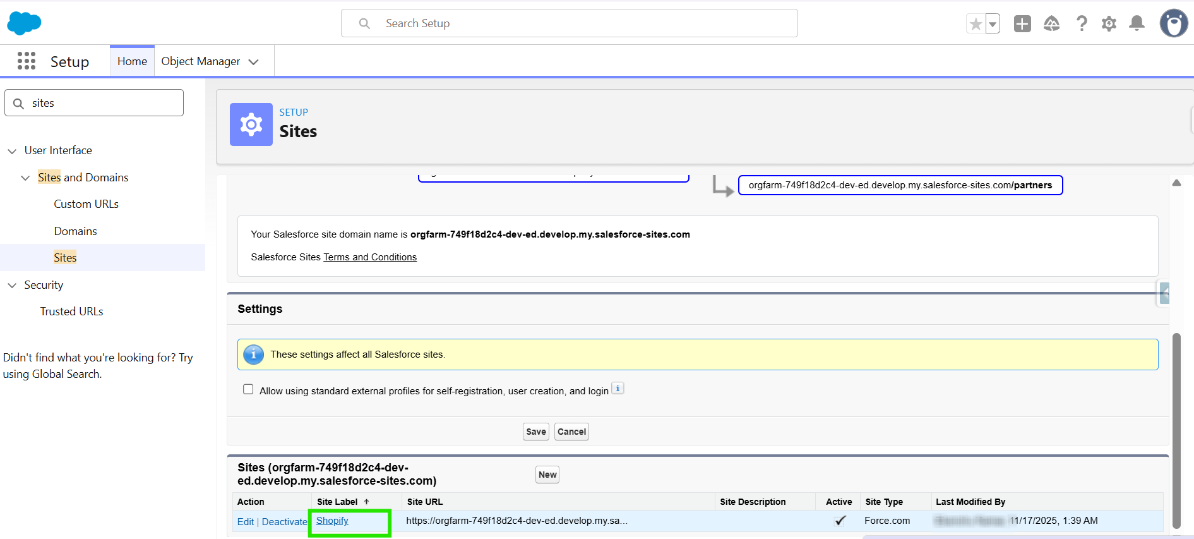
Step 4: If a site already exists, simply click on the site’s label name.
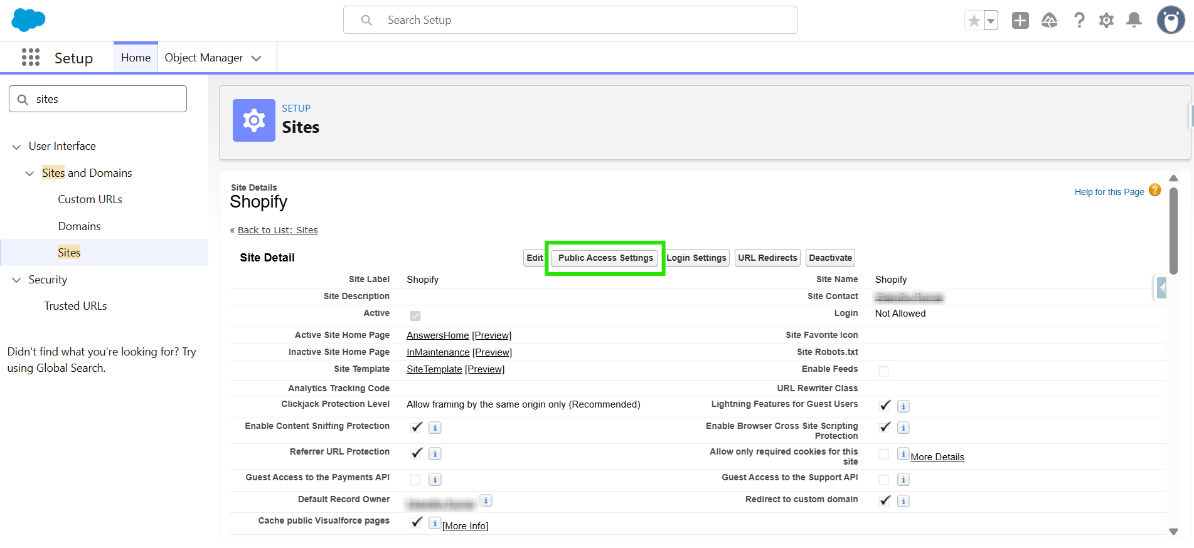
Step 5: On the following page, you should be able to see the site details. Click on “Public Access Settings”.
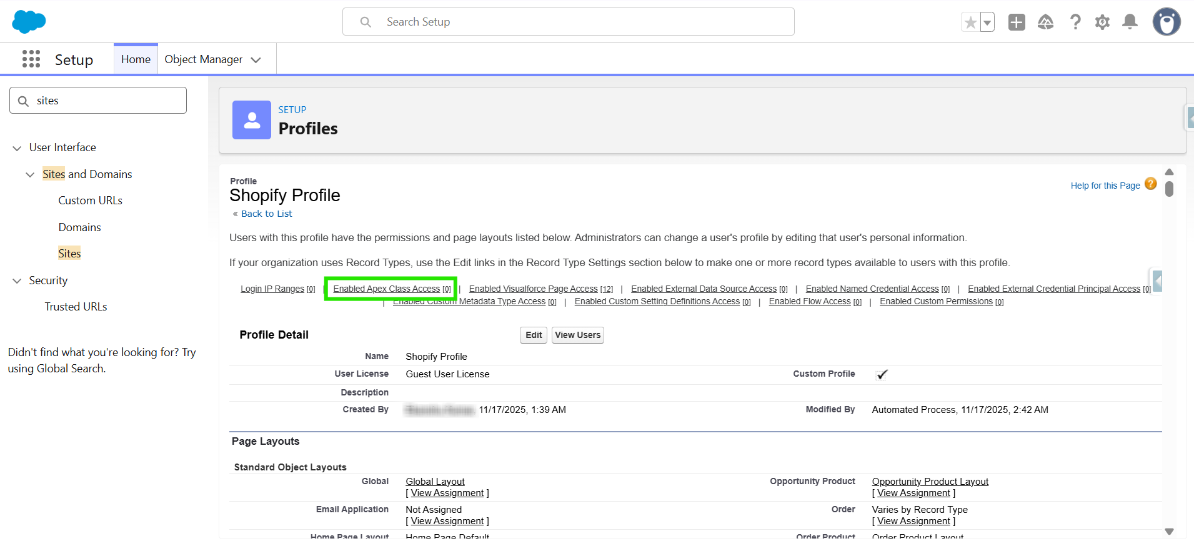
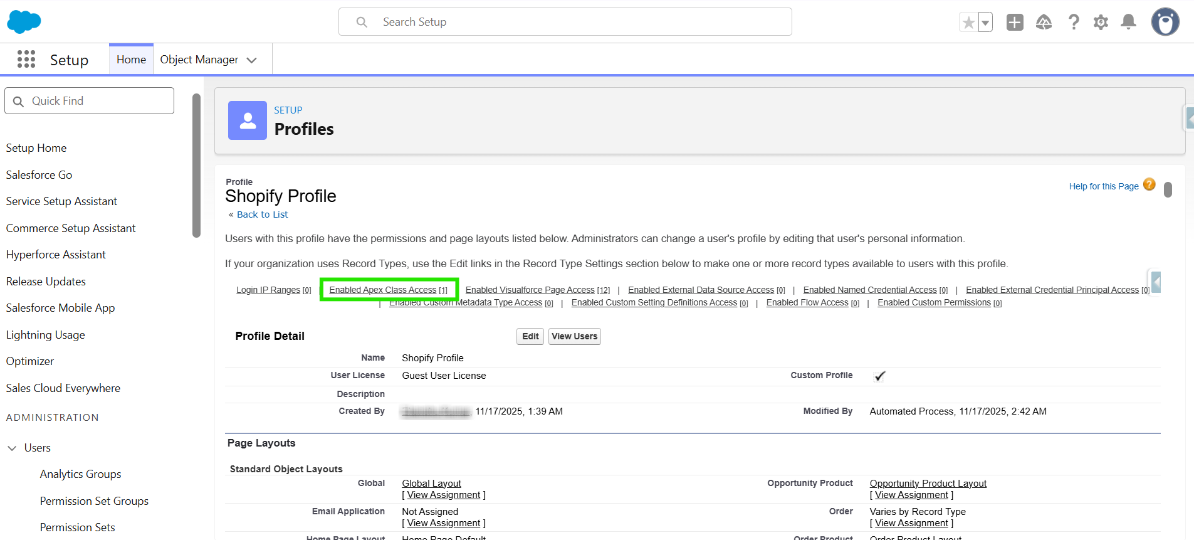
Step 6: This will bring you to the Profile page. Here, click on “Enabled Apex Class Access”.
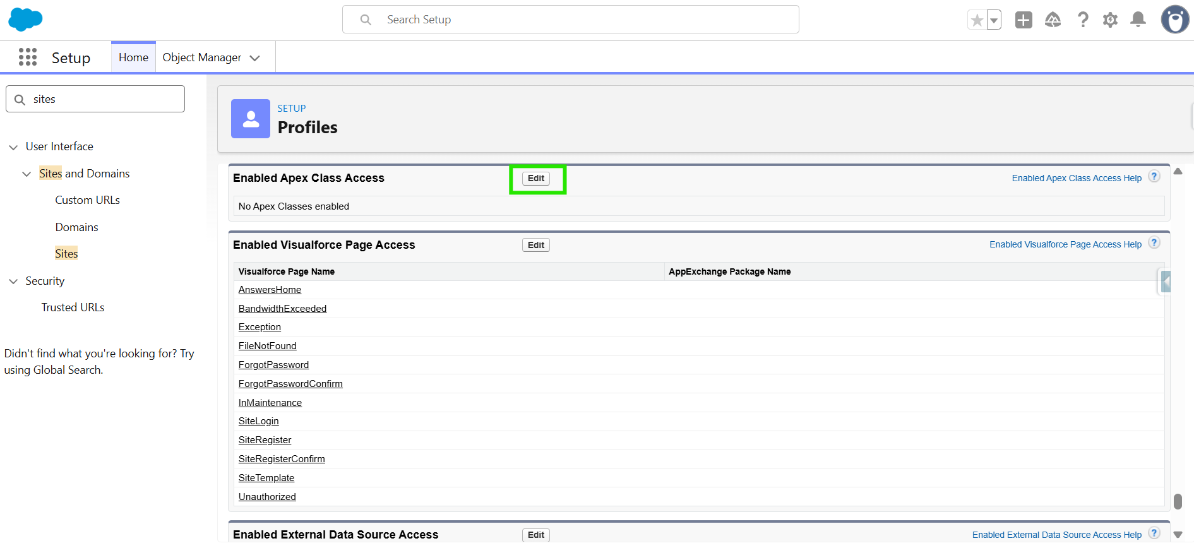
Step 7: Now, Click on “Edit”.
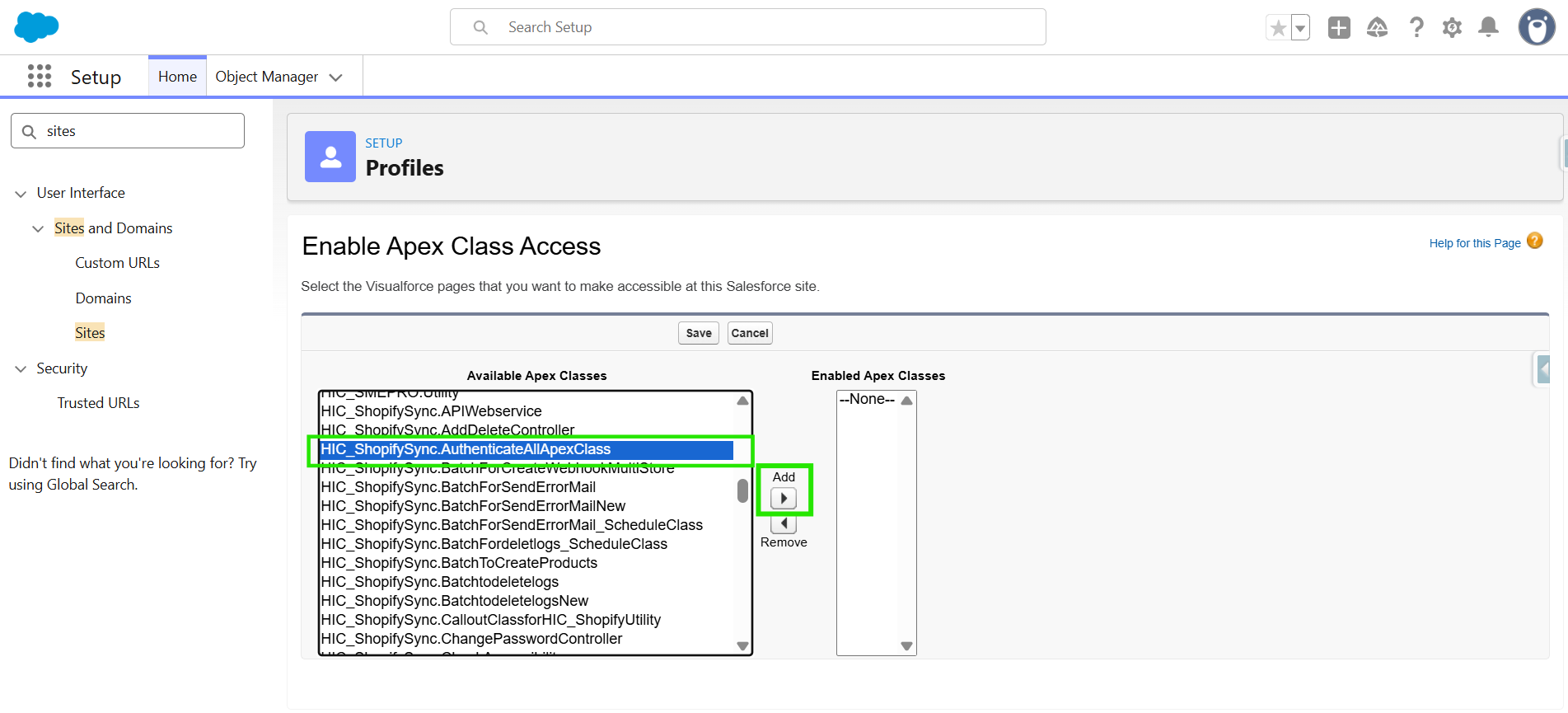
Step 8: You will be navigated to the Enable Apex Class access page. Here, select “HIC_ShopifySync.AuthenticateAllApexClass” then click on “ADD”.
Step 9: Click on “Save”.

Step 10: On the Profile page, verify that the Apex class has been added to the Enabled Apex Class Access section.
Thanks!
Was this article helpful?
That’s Great!
Thank you for your feedback
Sorry! We couldn't be helpful
Thank you for your feedback
Feedback sent
We appreciate your effort and will try to fix the article