If you need to immediately halt the synchronization between Shopify and Salesforce — without uninstalling the integration app from Salesforce — there are a couple of safe and effective methods you can use.
Method 1: Remove the “Authenticate All Apex Class” from the Salesforce “Sites” that is connected in the Shopify Store Setup page.
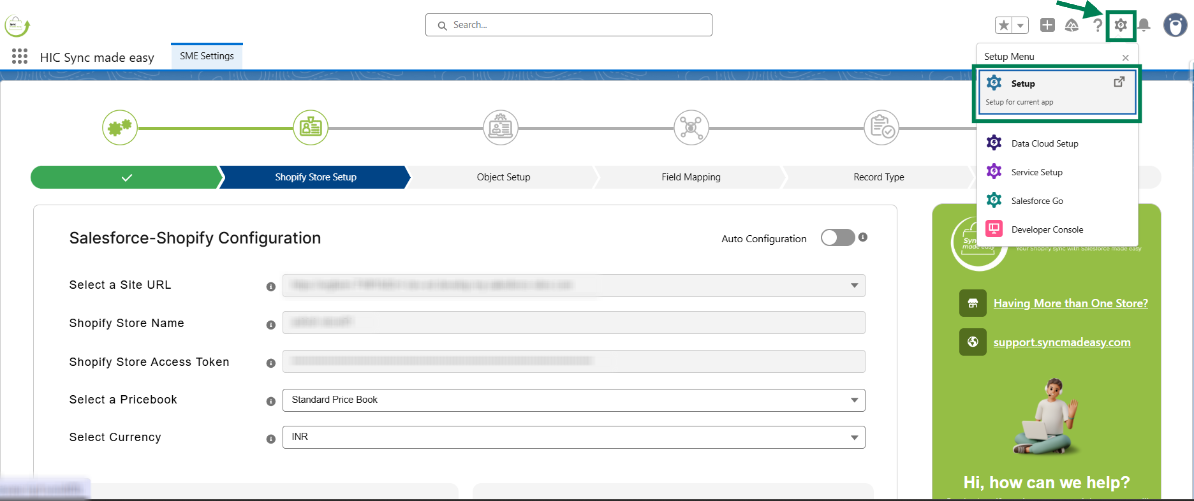
Step 1: Click the “Setup” icon, then select “Setup”.
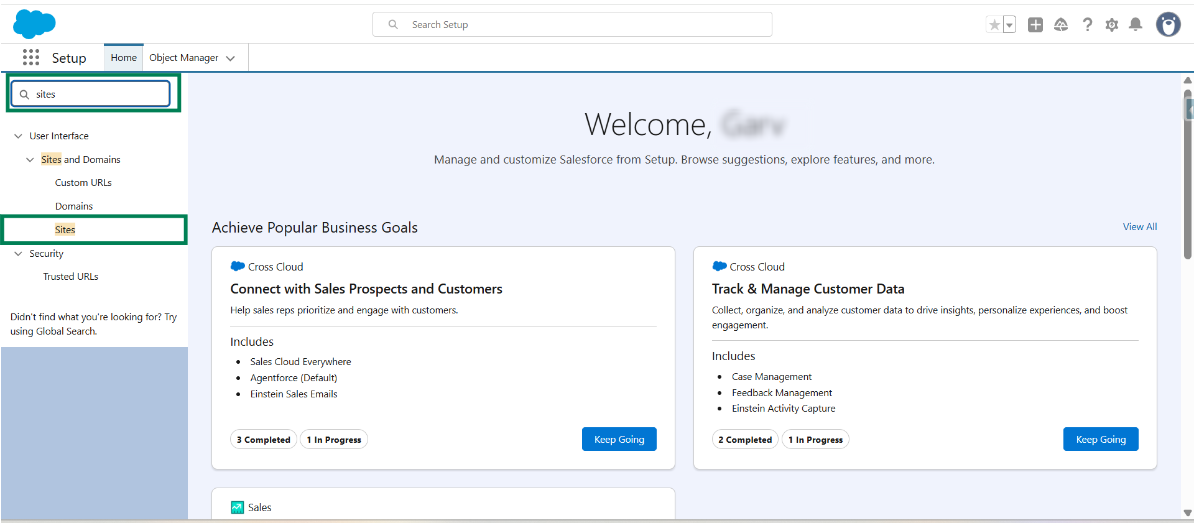
Step 2: Search “Sites” in the “Quick find” box and click on it.
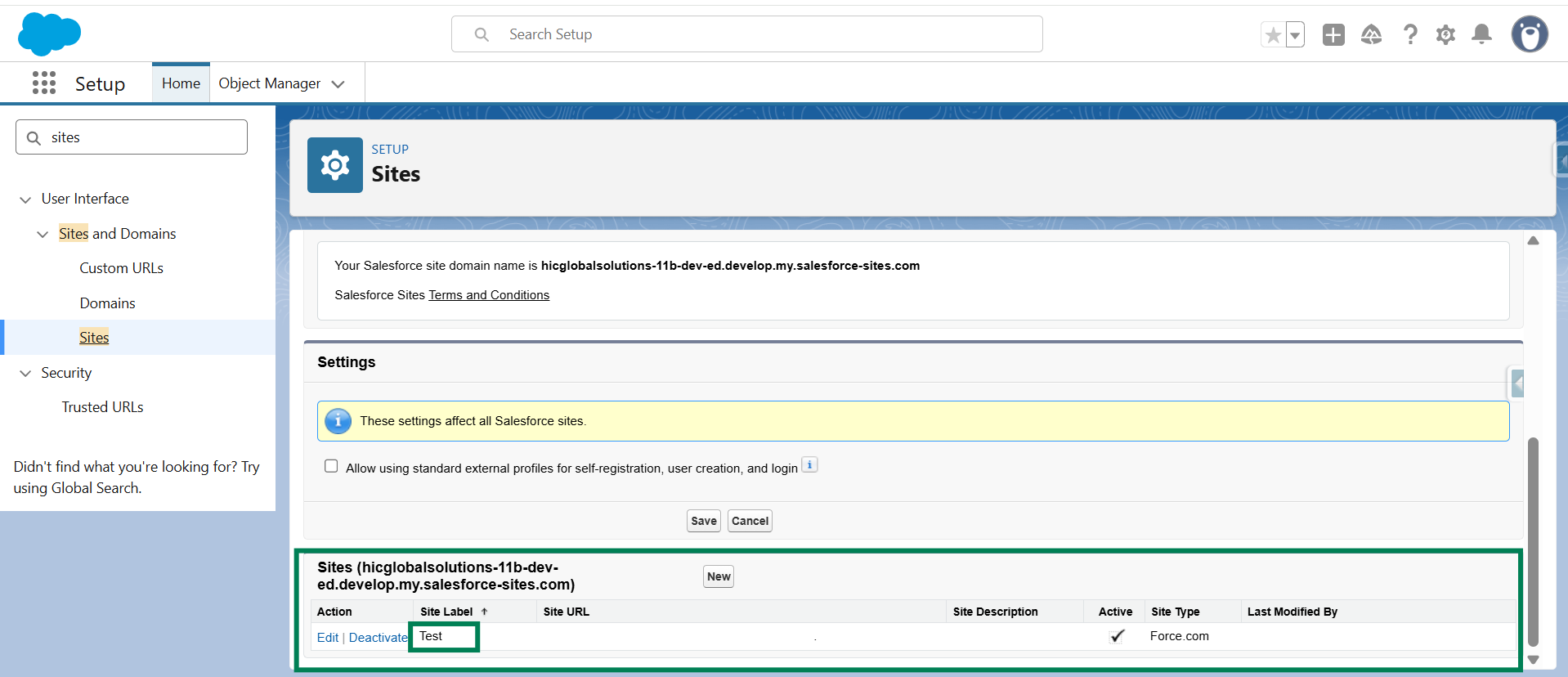
Step 3: Locate the site label associated with your Sync Made Easy setup, then click “Site Label name" for that specific site.
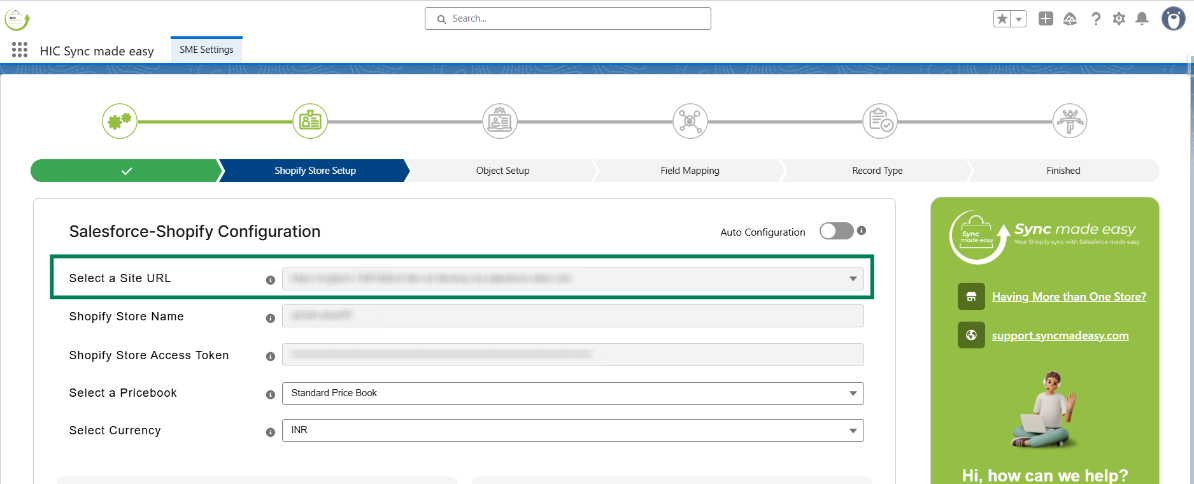
Note:
Ensure that the Site URL on the “Shopify Credential” page matches the Site URL configured in Sync Made Easy.
Step 4: Click on “Public Access Settings”.

Step 5: Click on “Enabled Apex Class Access”.
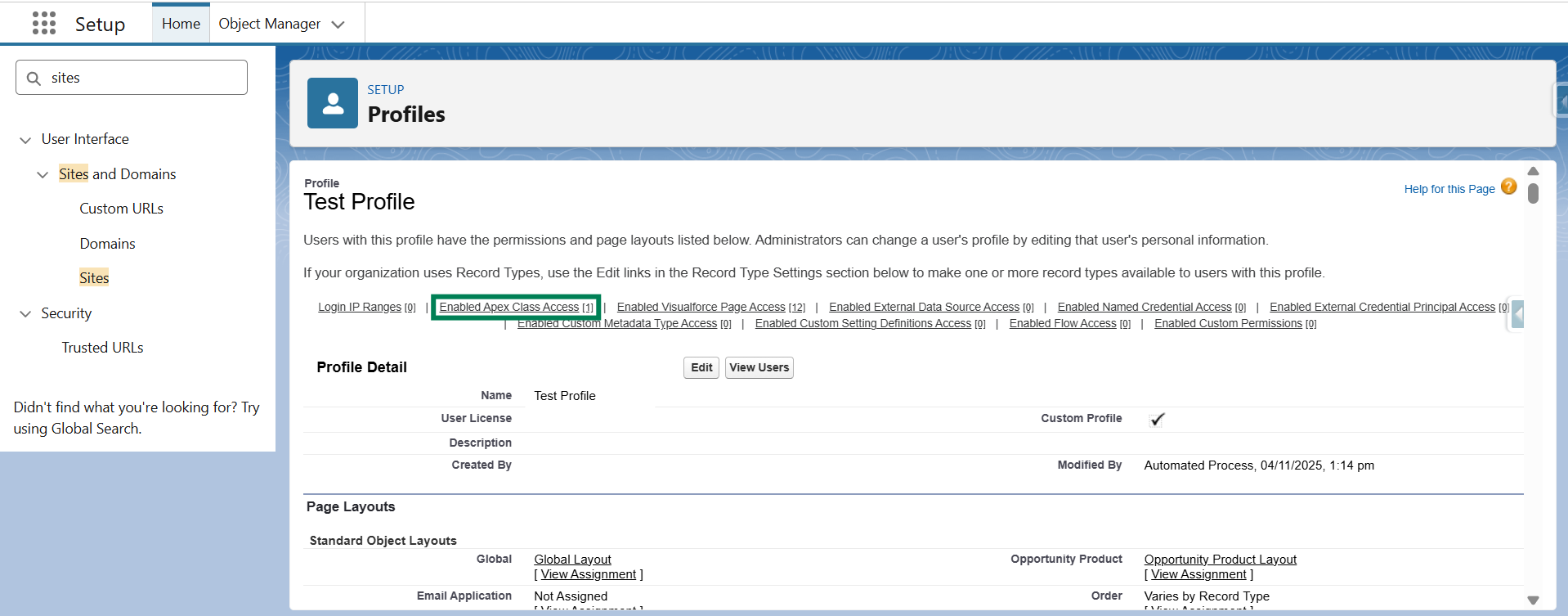
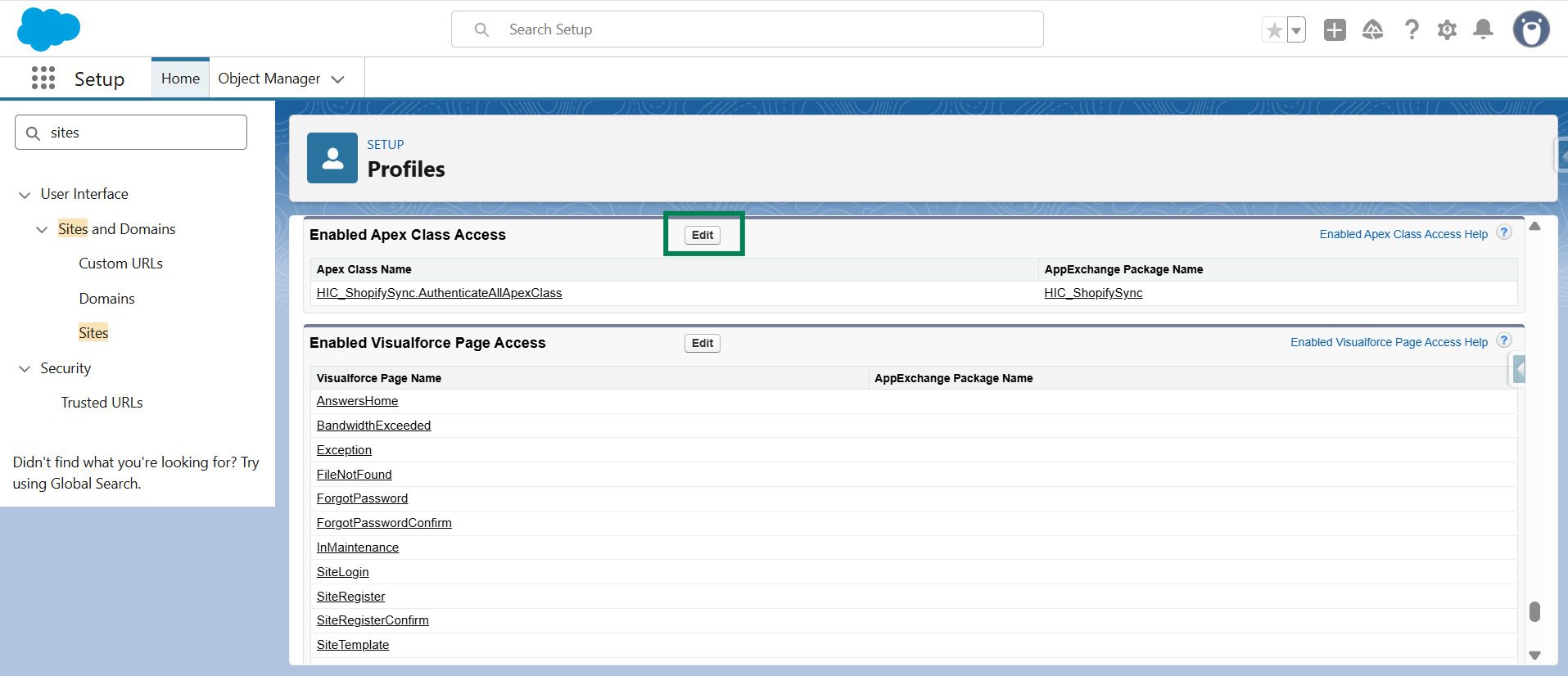
Step 6: Click “Edit”.
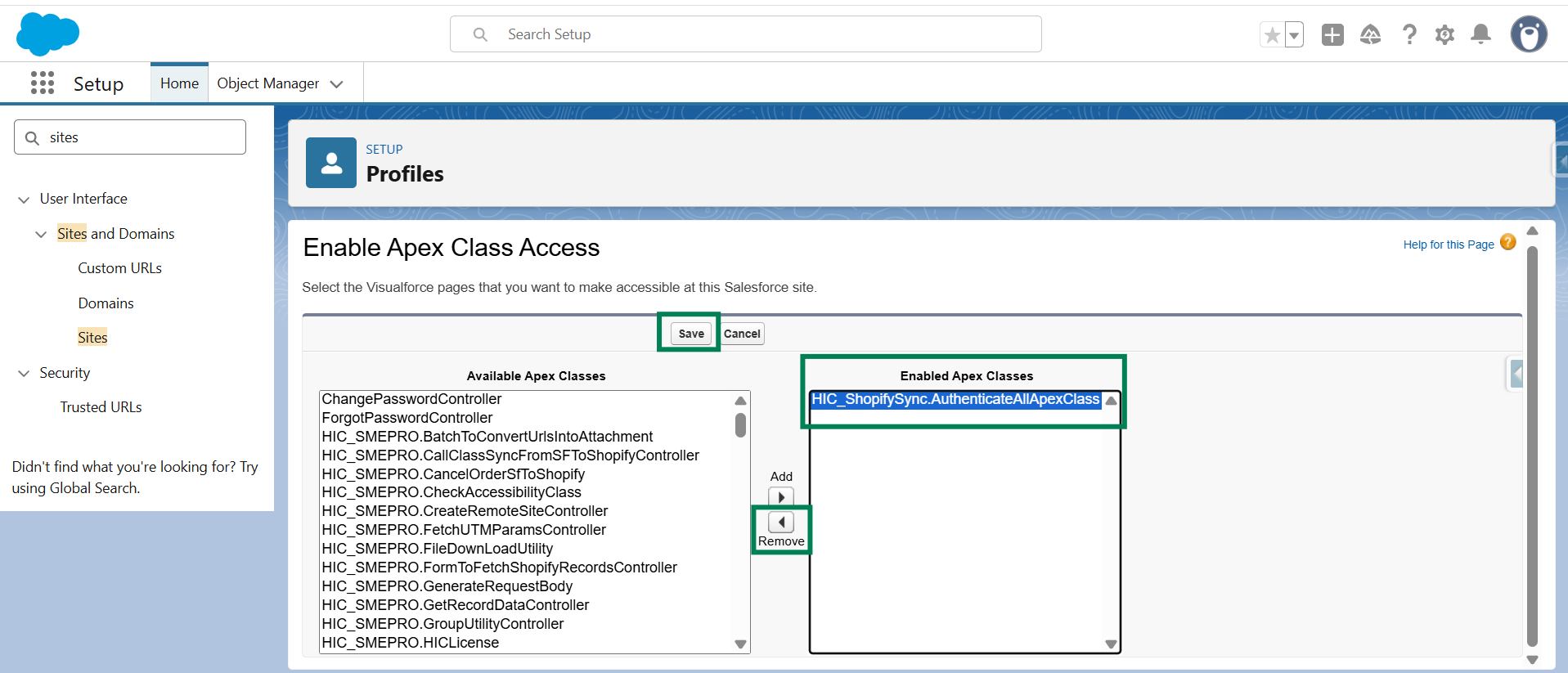
Step 7: Select the “HIC_Shopifysync.AuthenticateAllApexClass” and click the “remove arrow” icon, and then click on “Save".
Method 2: Disable Sync at the Shopify Level
If you prefer to stop the sync without removing the store from Salesforce, you can disable the integration at Shopify.
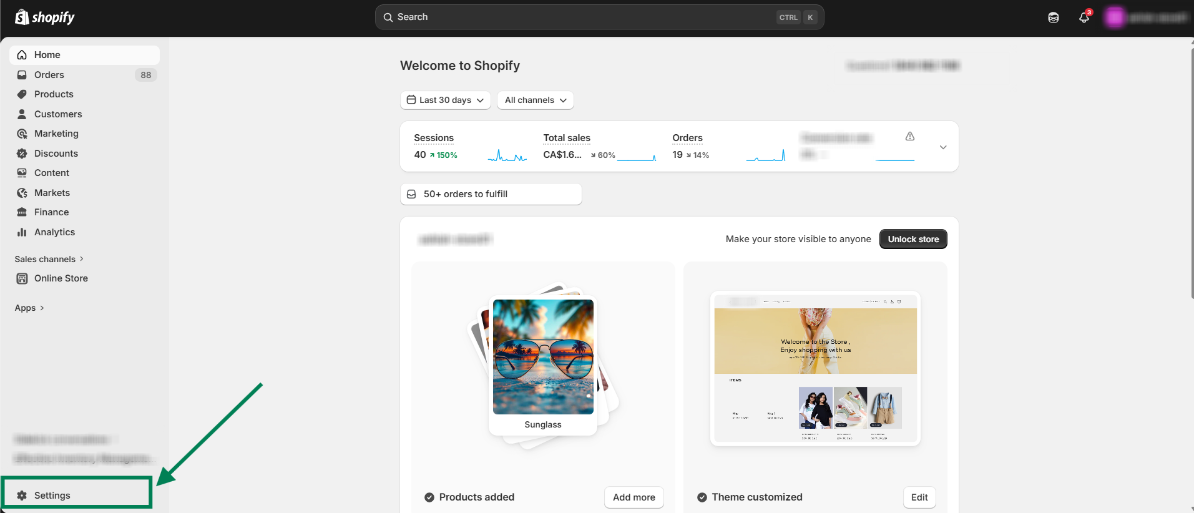
Step 1: From your Shopify Store, Go to "Settings".
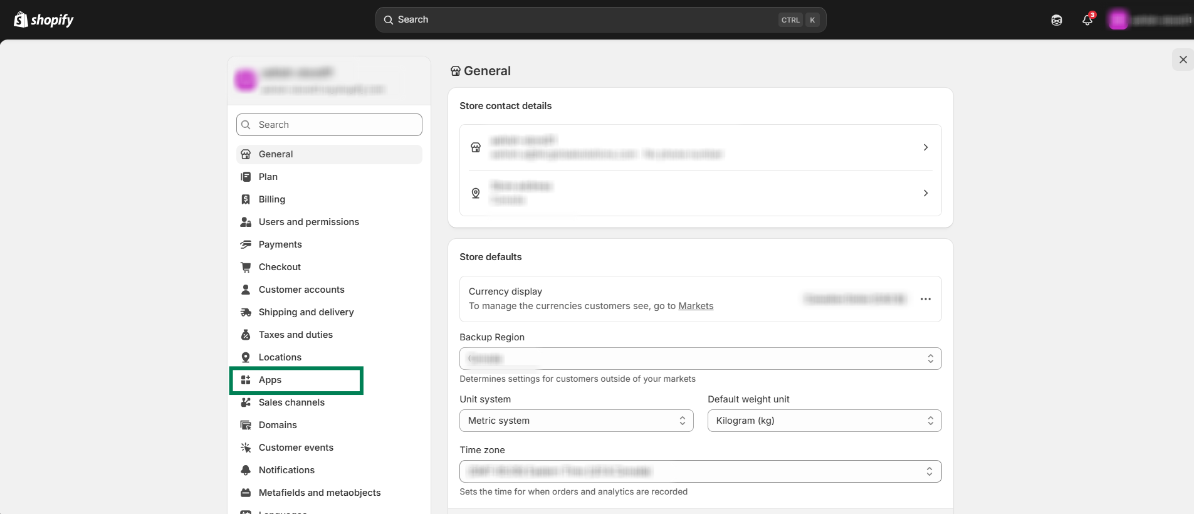
Step 2: Go to “Apps”.
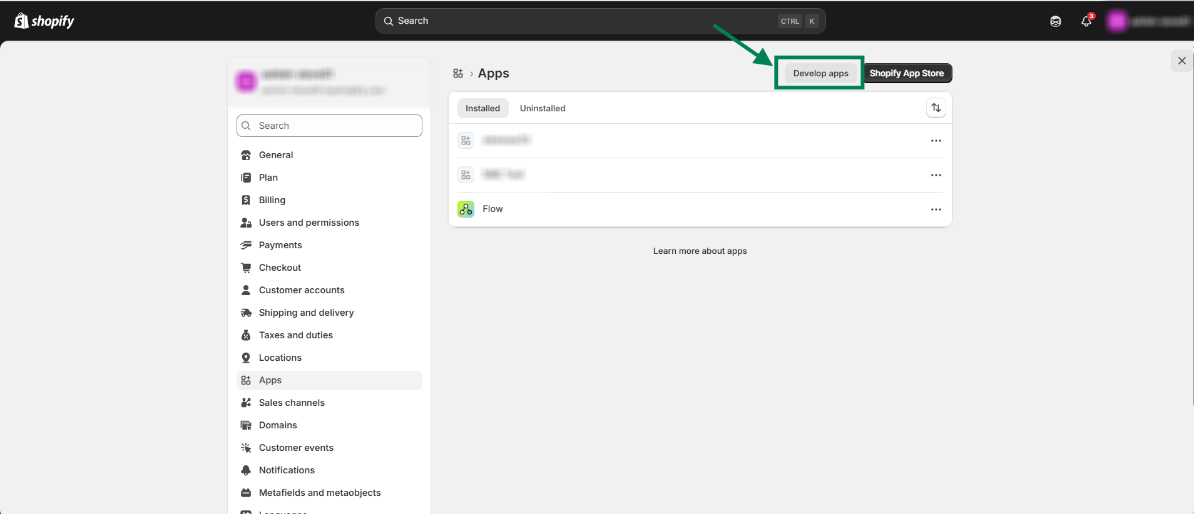
Step 3: Click on “Develop Apps”.
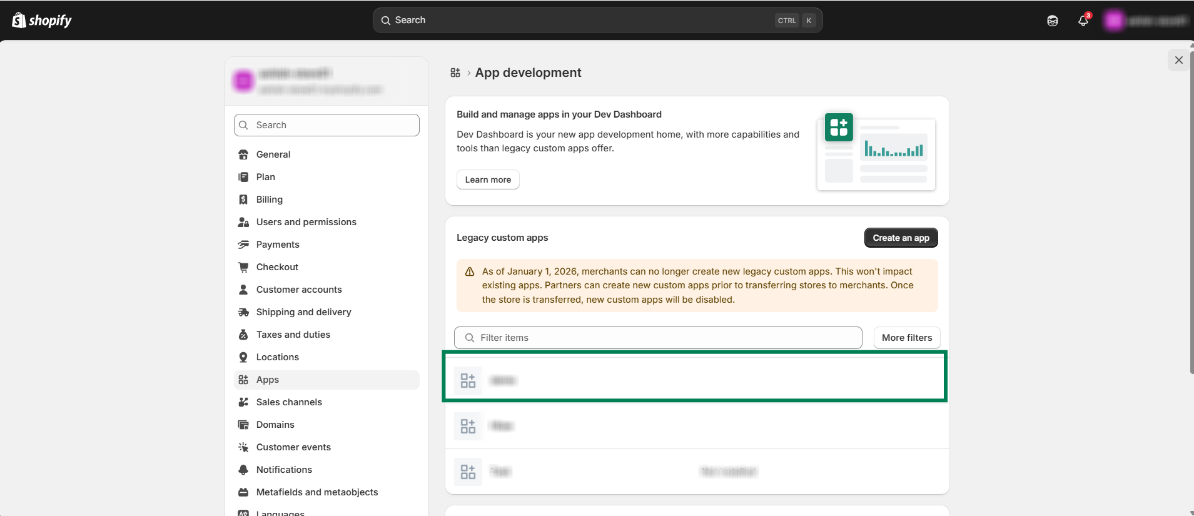
Step 4: Click the App installed from “Legacy Custom Apps” that you want to disable.
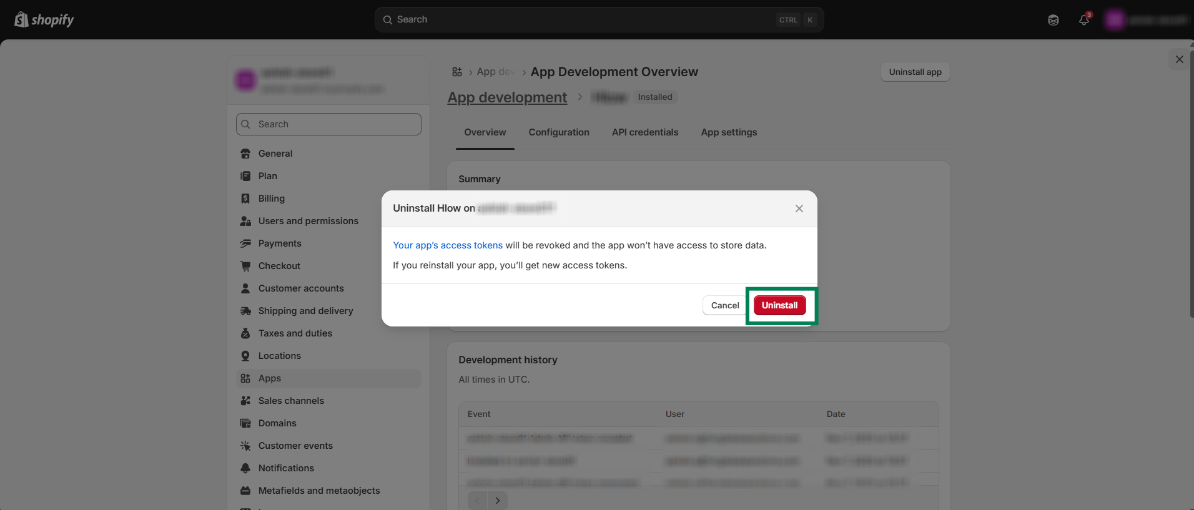
Step 5: Click “Uninstall app”.
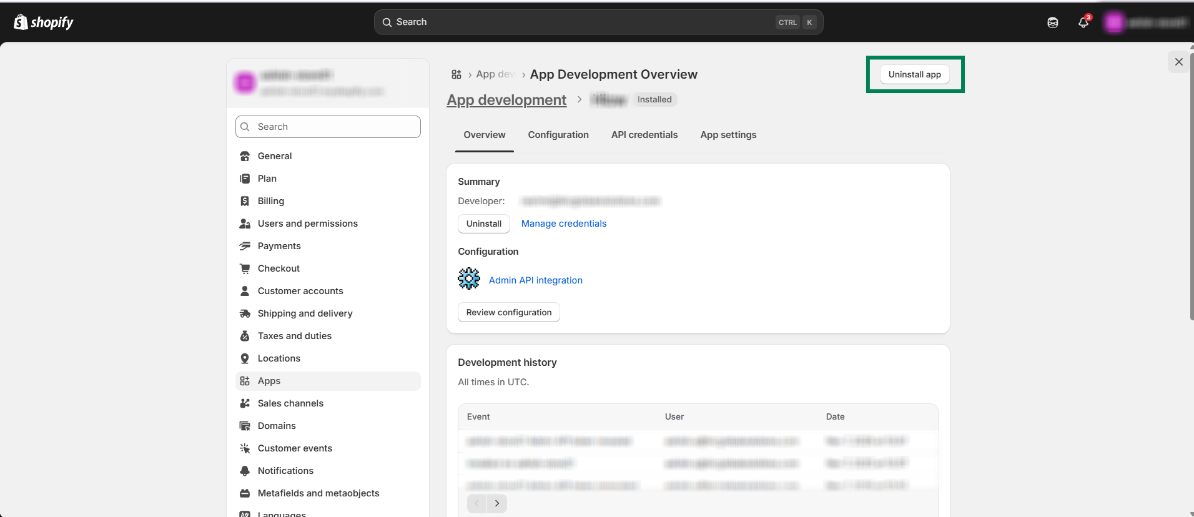
Step 6: Again, Click on “Uninstall”.
By following these steps, you can successfully stop the sync between Shopify & Salesforce.
Hope this helps!
Was this article helpful?
That’s Great!
Thank you for your feedback
Sorry! We couldn't be helpful
Thank you for your feedback
Feedback sent
We appreciate your effort and will try to fix the article
