In this guide, we’ll walk you through the step-by-step process for creating a new Shopify Certificate if the existing certificate has expired. Follow the instructions below…
Step 1: Click the Gear Icon, then click “Setup”.

Step 2: In the Quick Find box, search for “Certificate and Key Management” and click on it.

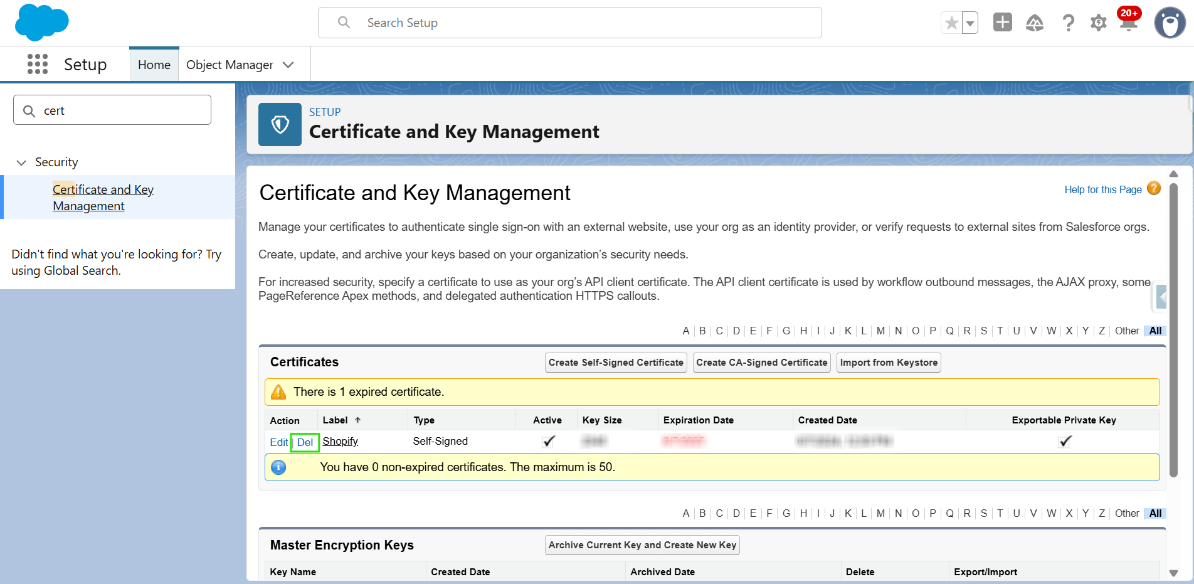
Step 3: If the certificate has expired, delete it by clicking the “Delete” button.
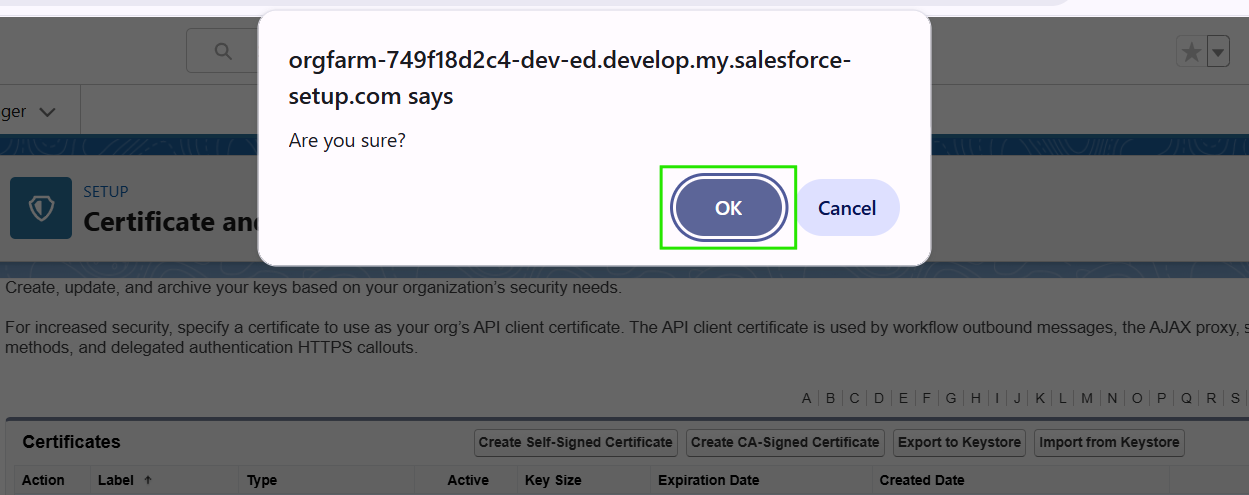
Step 4: Click “OK” to confirm the deletion.
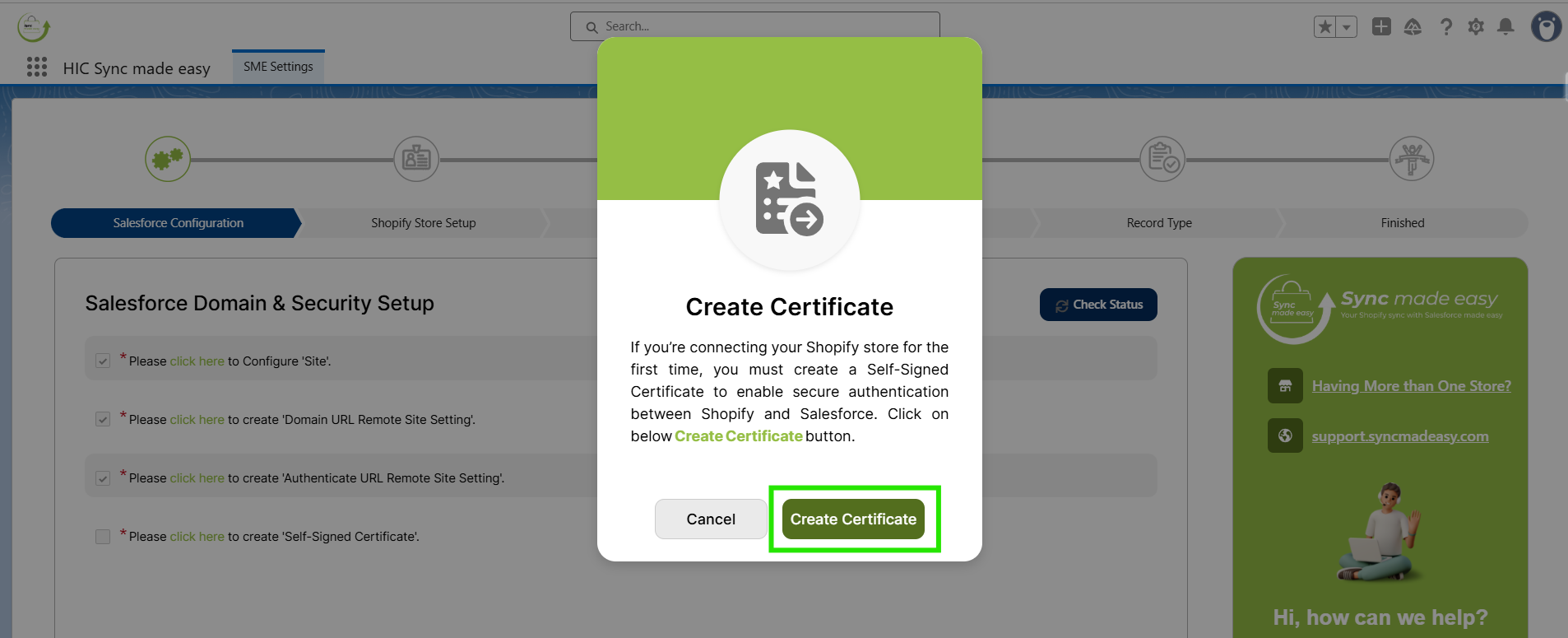
Step 5: Go back to the SME Settings Page & click on the “Create Certificate” button.
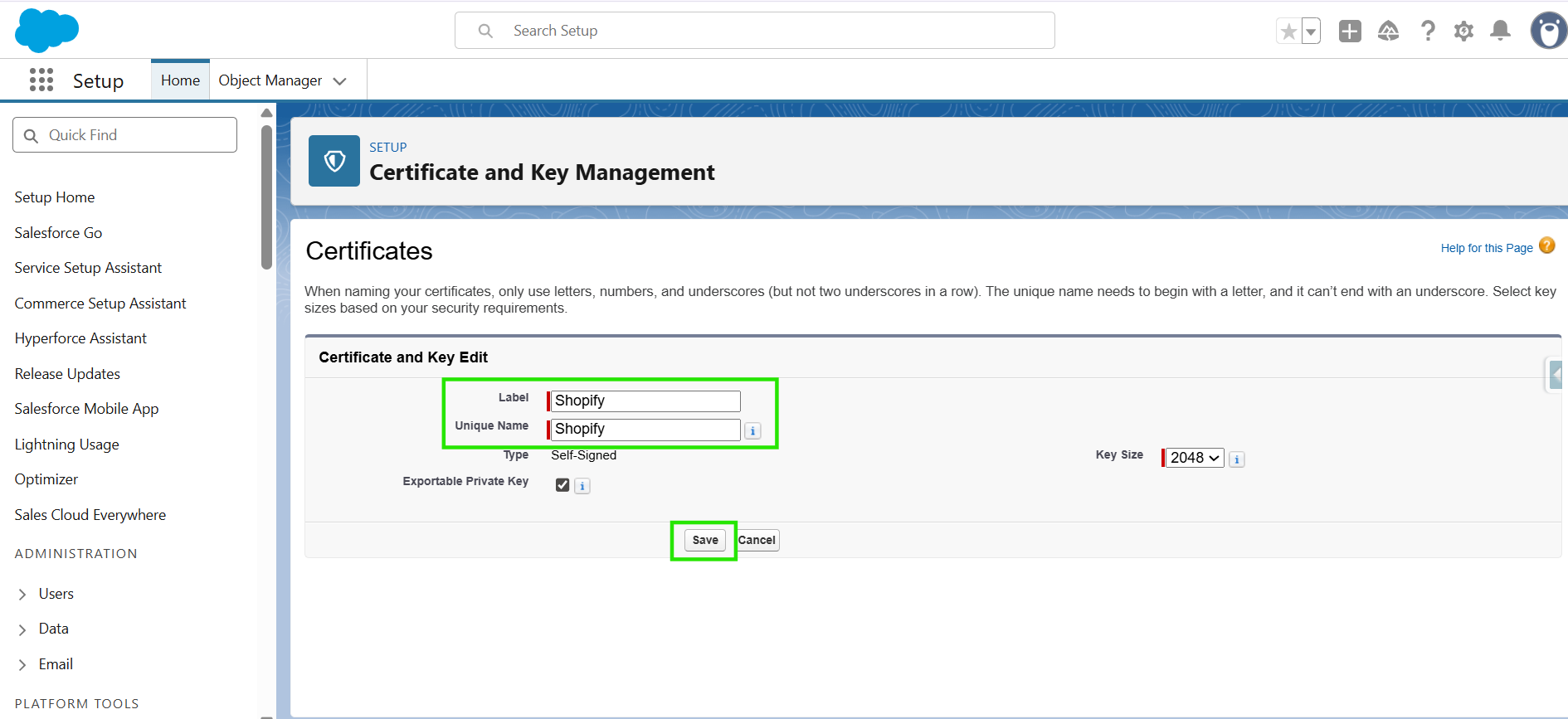
Step 6: You will be redirected to this page. Click “Save”.
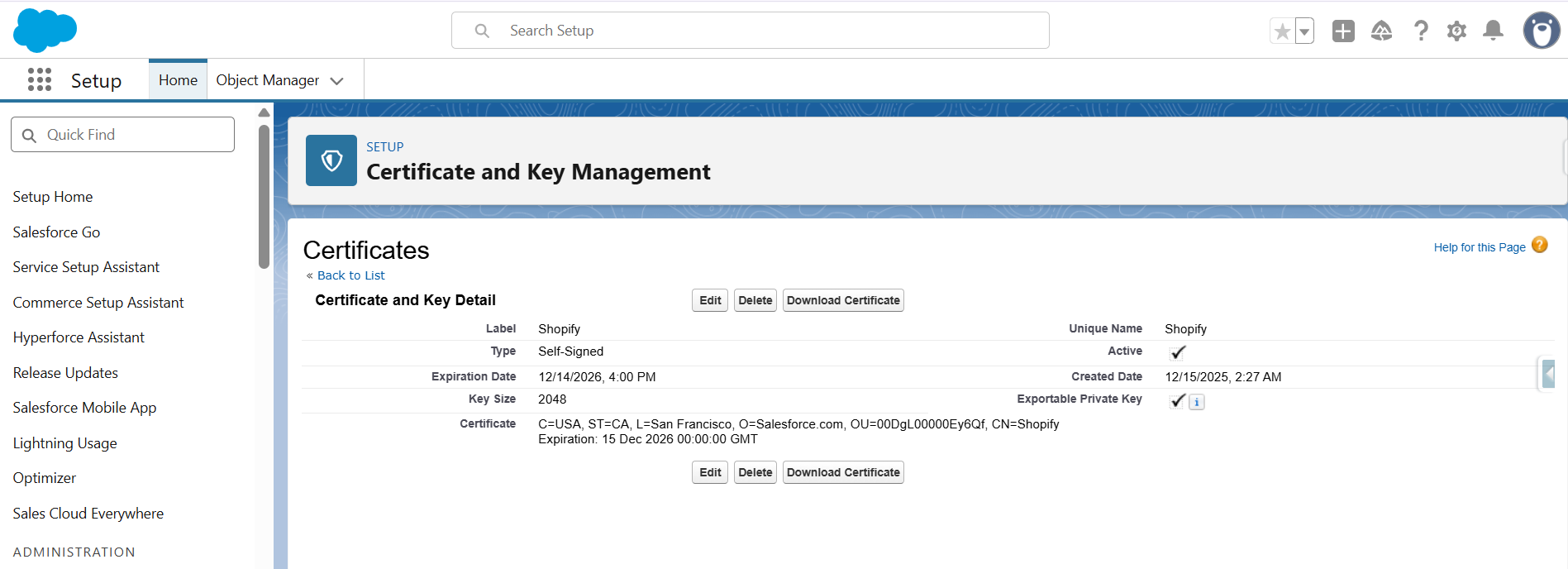
Step 7: On this page, you can verify that your certificate has been successfully created.
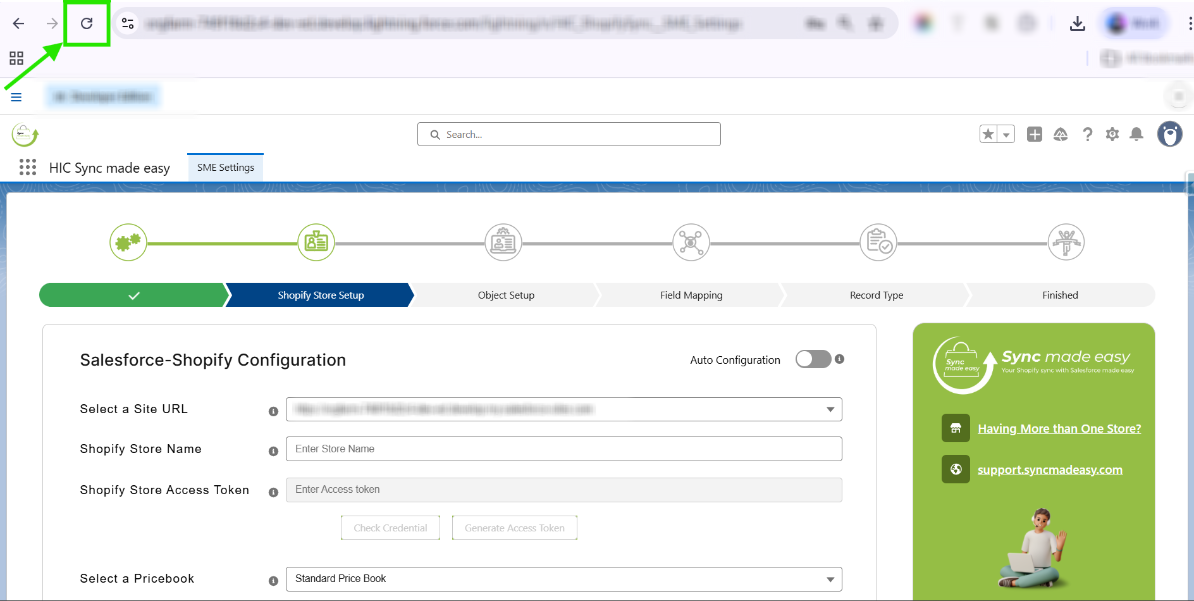
Step 8: Now go back to “SME Settings” and refresh the page. You will be redirected to the Shopify Store Setup page.
Thanks!
Was this article helpful?
That’s Great!
Thank you for your feedback
Sorry! We couldn't be helpful
Thank you for your feedback
Feedback sent
We appreciate your effort and will try to fix the article
