In this blog, we will walk you through the step-by-step process to check sync error messages in your Salesforce org. Follow the instructions below to identify errors and ensure a smooth synchronization process.
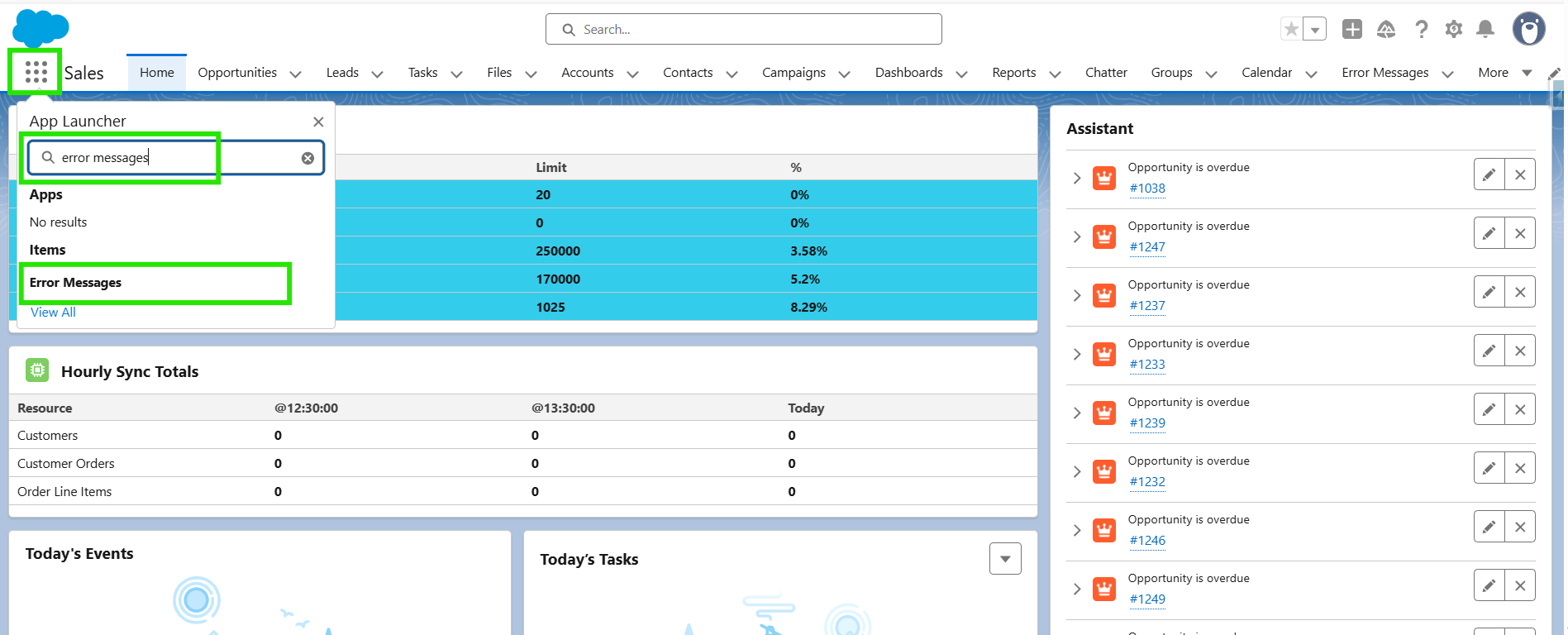
Step 1: Log in to your Salesforce account. Open the App Launcher, search for “Error Messages”, and click on it.
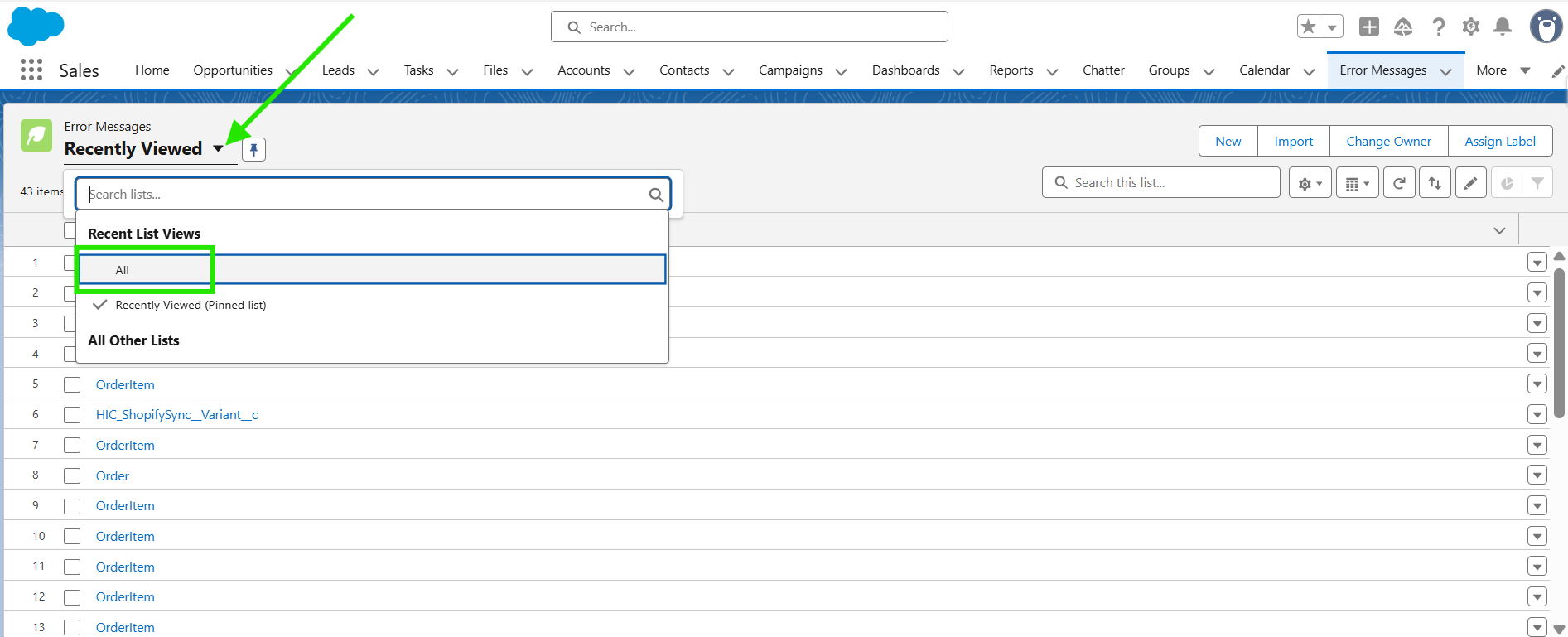
Step 2: In the Error Messages tab, select the “All” list view.
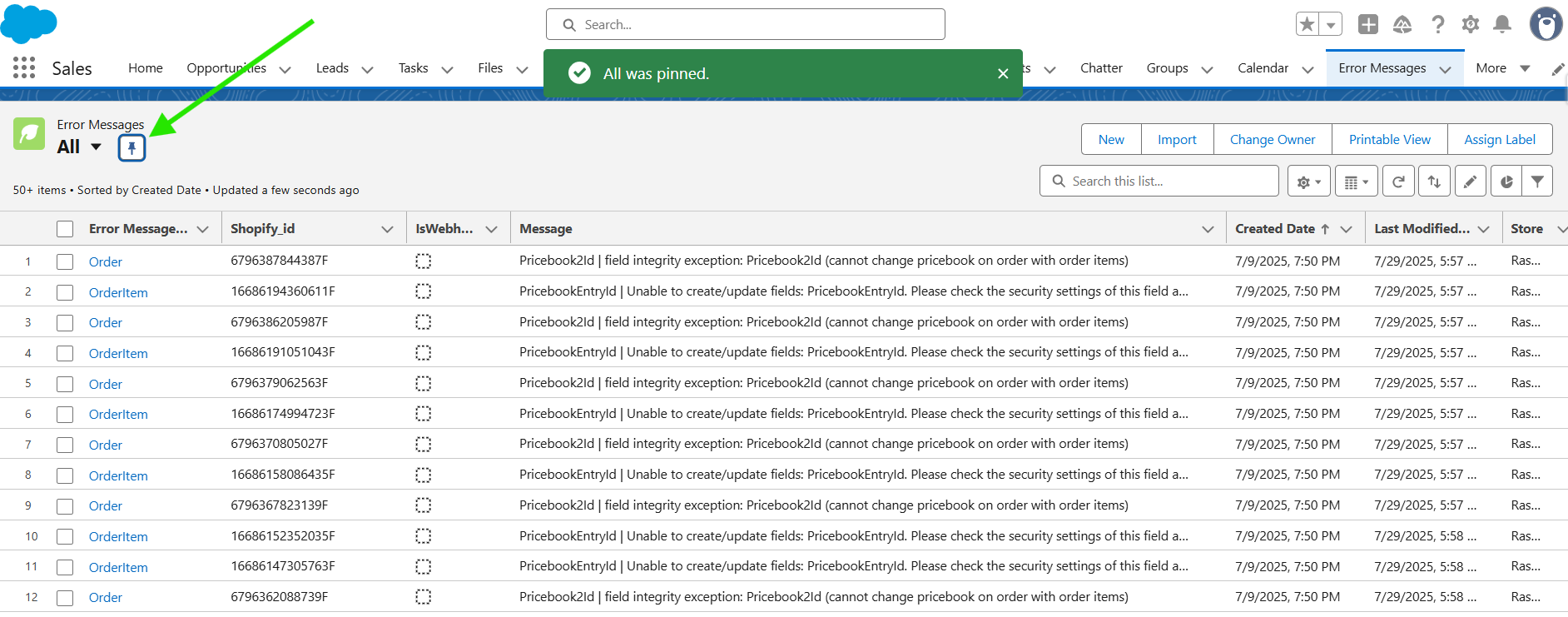
Step 3: Click on “Pin” to make this list your default view.
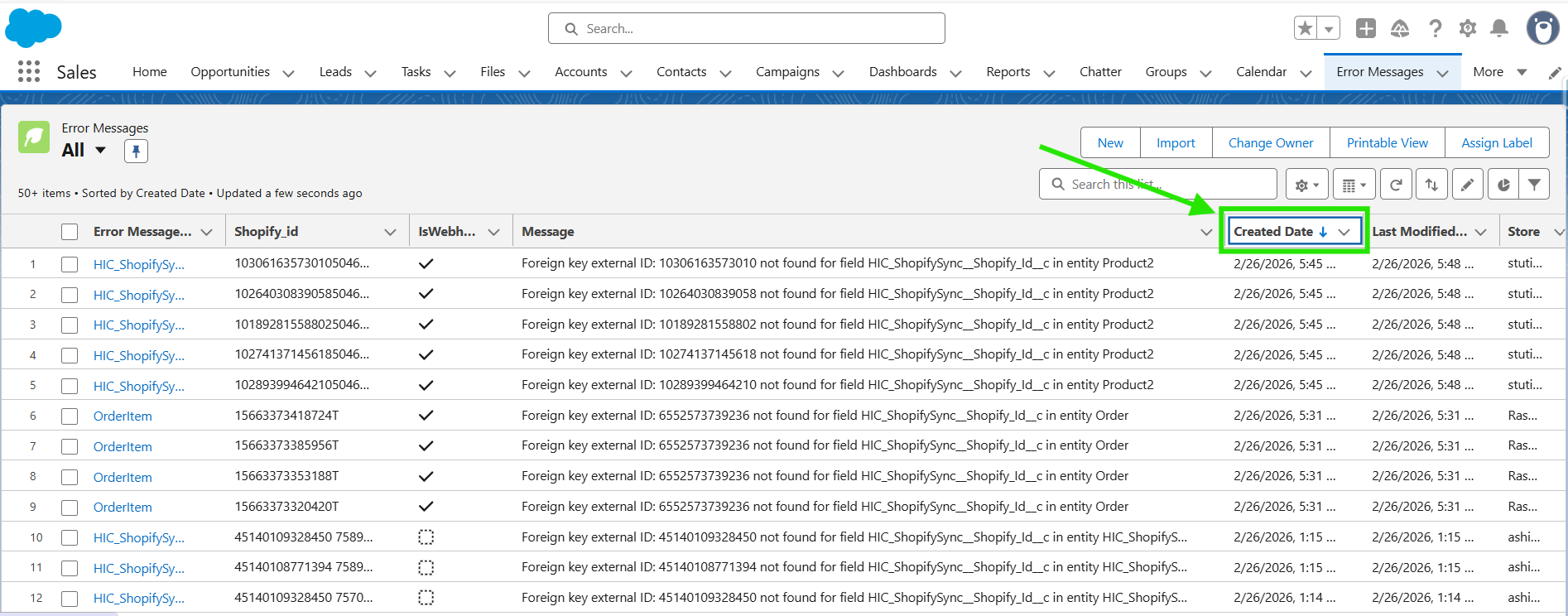
Step 4: Click on the “Created Date” column to sort the records and view the most recently generated error messages.
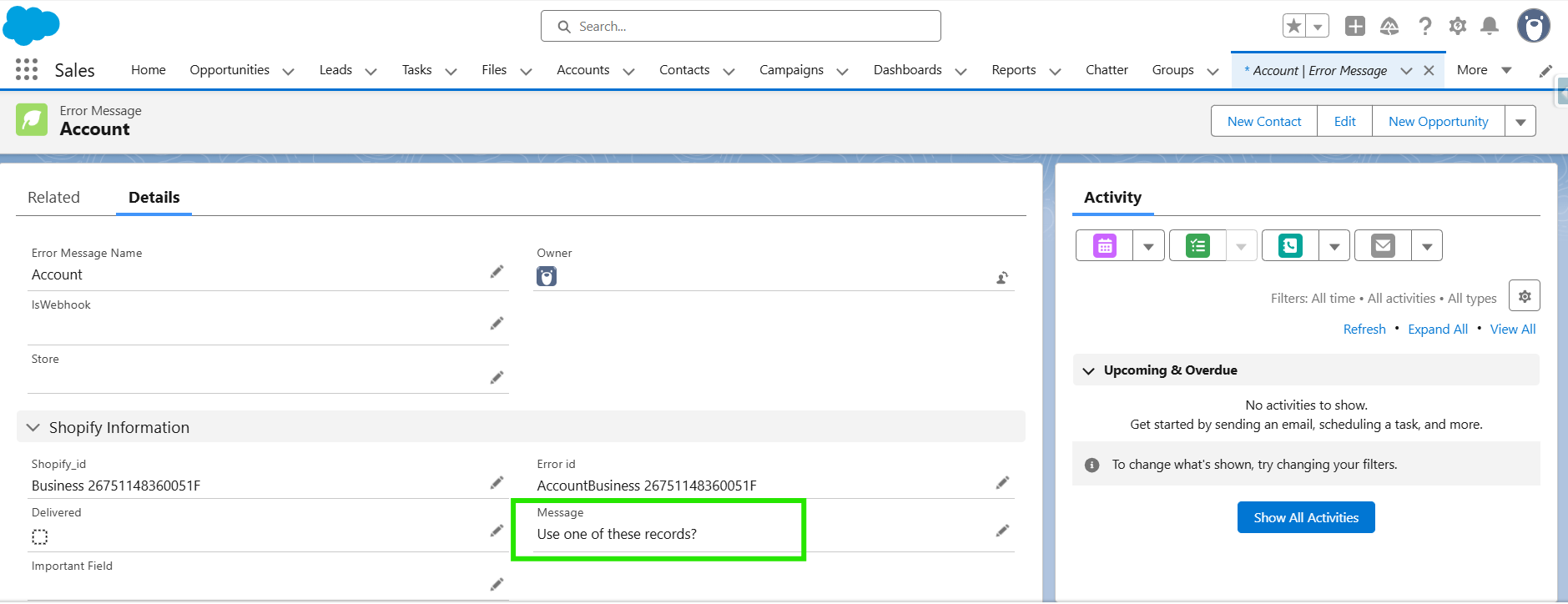
Step 5: Open any record & check the Message field to understand why the error was generated and what caused the sync failure.
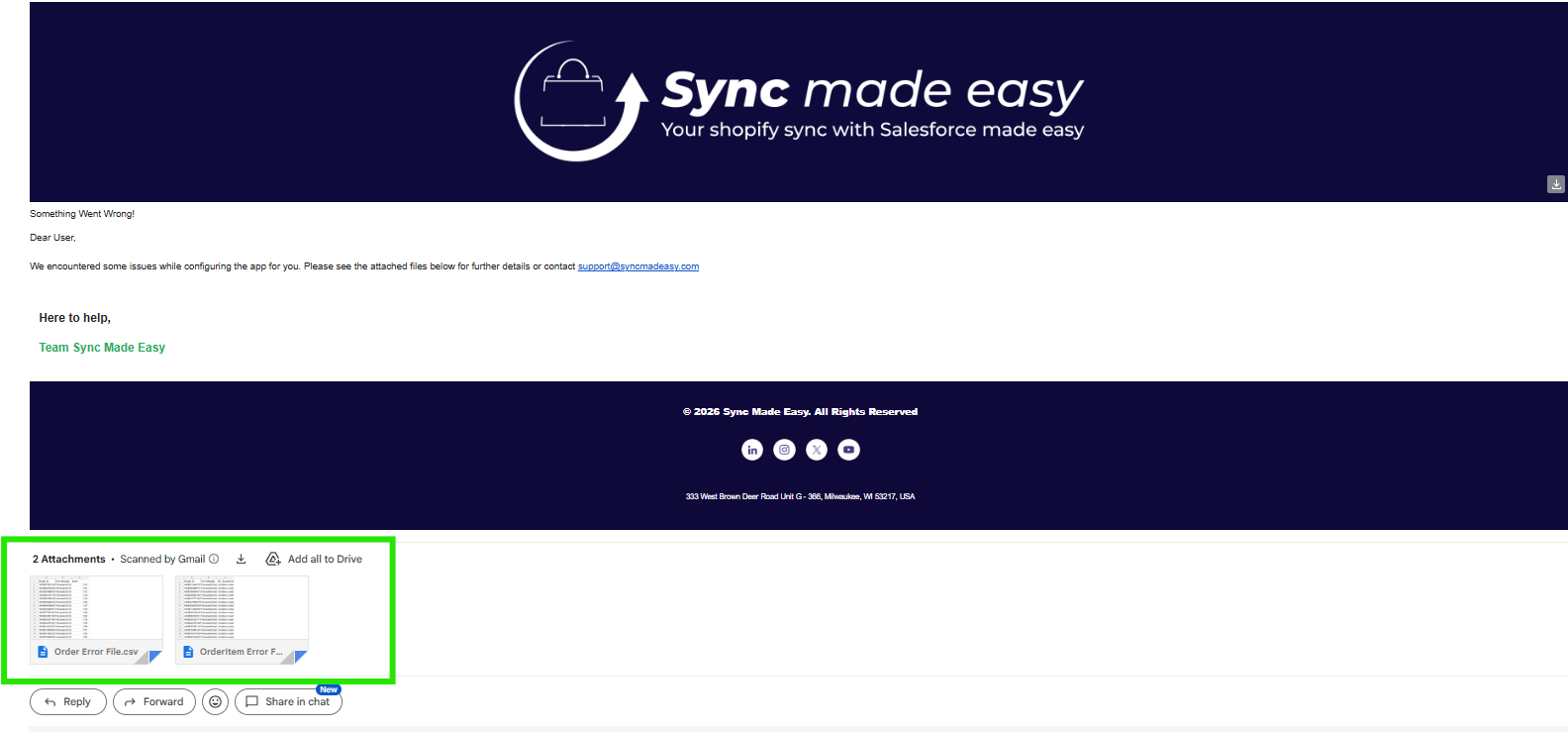
Step 6: If error logs exist, you will also receive the details in a CSV/Excel file sent daily to your registered email address.
Conclusion: By regularly checking the Error Messages section and reviewing the details provided in the Message field, you can quickly identify and resolve sync issues. Monitoring daily email reports also helps you stay informed about any errors, ensuring a smooth and uninterrupted synchronization process.
Was this article helpful?
That’s Great!
Thank you for your feedback
Sorry! We couldn't be helpful
Thank you for your feedback
Feedback sent
We appreciate your effort and will try to fix the article