Here’s a walkthrough to uninstall the Sync Made Easy Pro package from your org. Follow the steps below to complete the uninstallation easily:
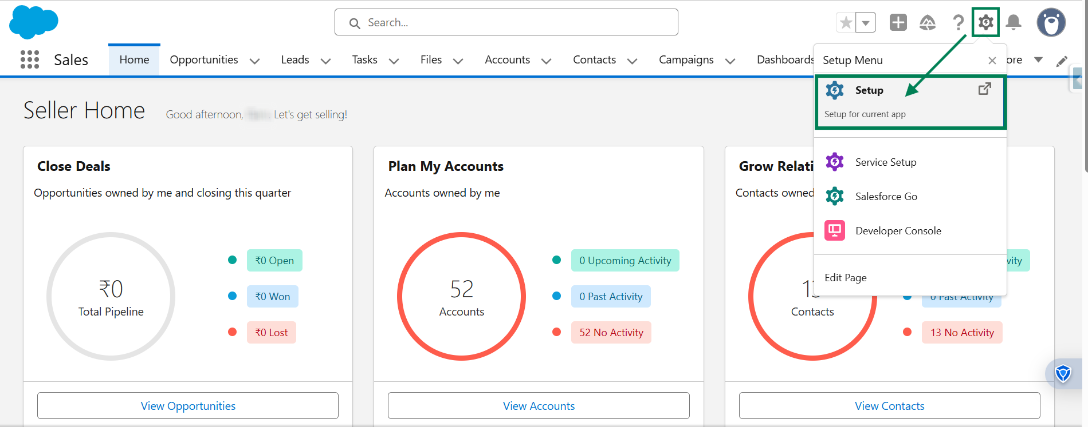
Step 1: Log in to your Salesforce account. Click on the (gear icon) and select Setup.
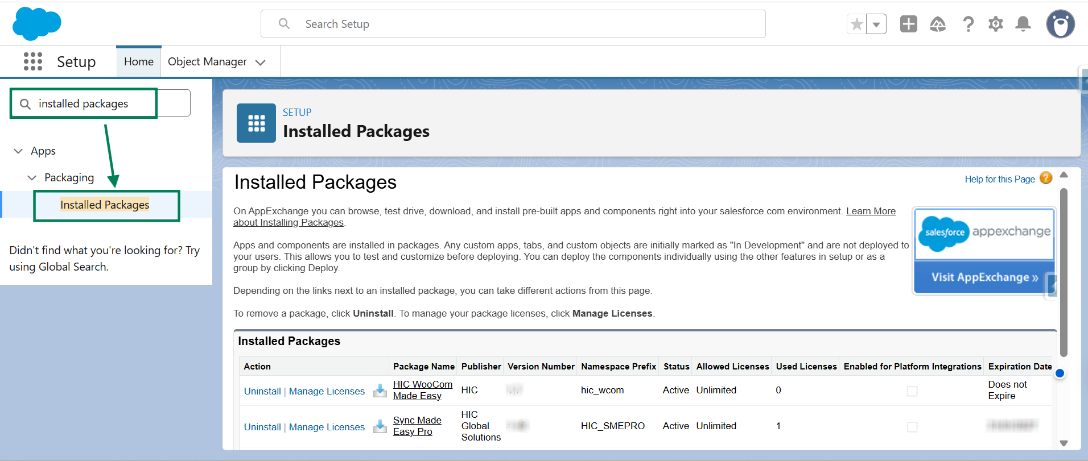
Step 2: In the Quick Find box, search for Installed Packages and open it.
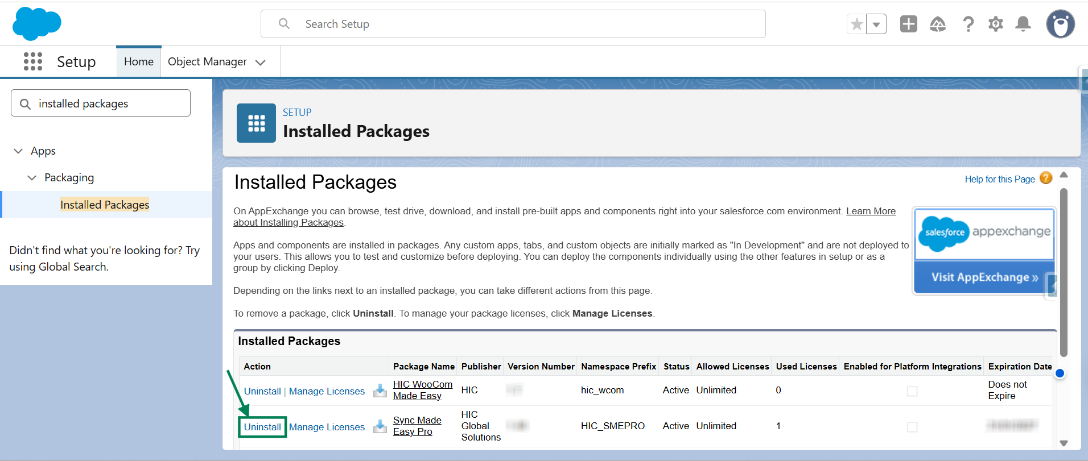
Step 3: Find Sync Made Easy Pro and click on Uninstall.
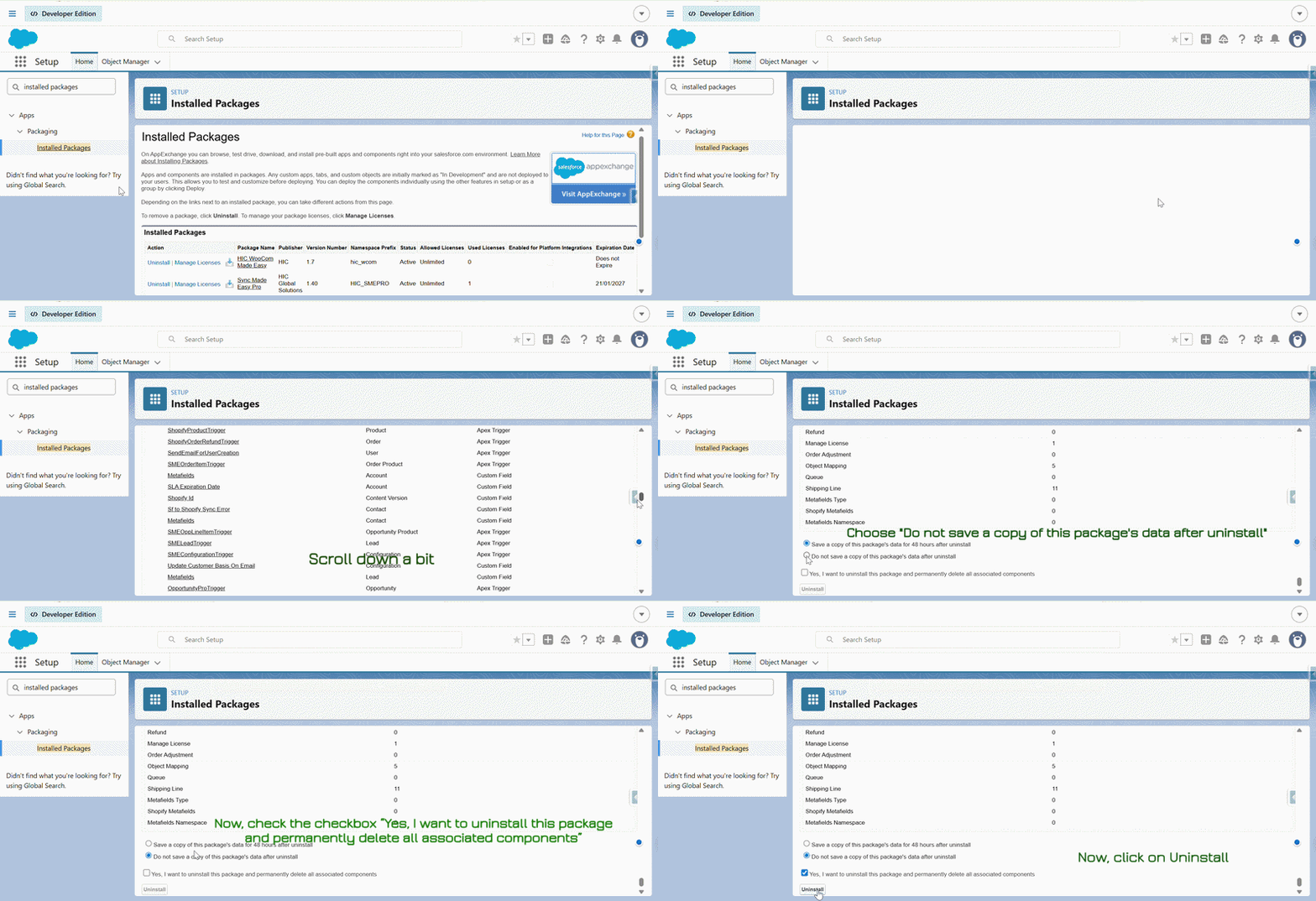
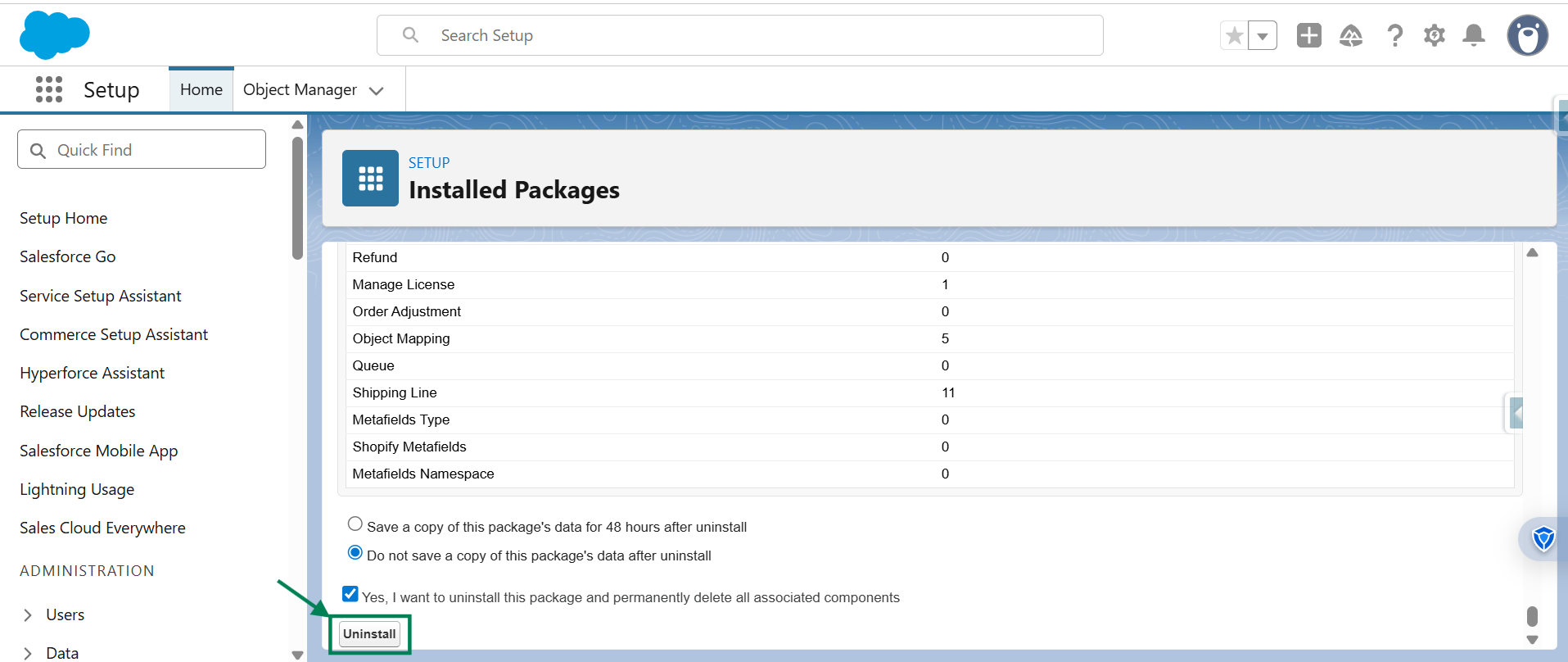
Step 4: Scroll down, check the required checkbox, and click Uninstall to proceed as shown in the GIF.
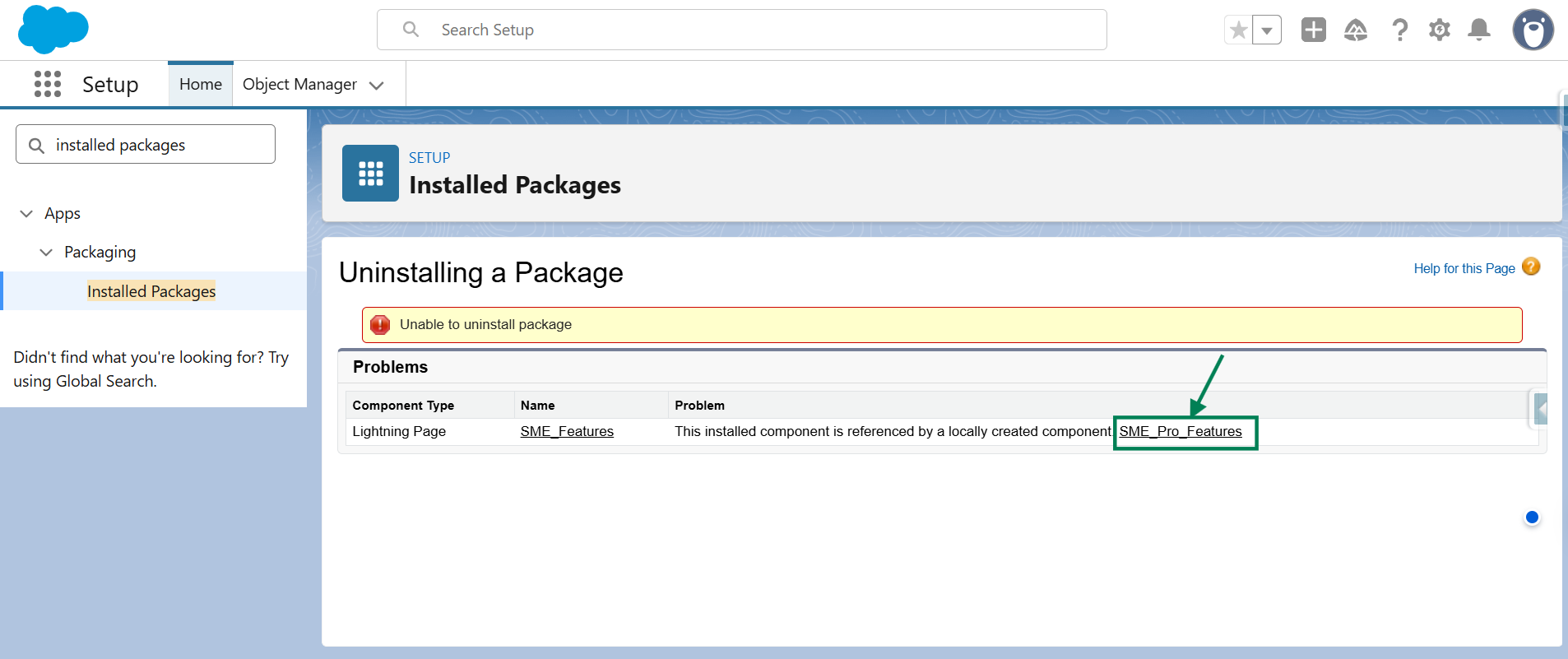
Step 5: You also need to delete the tab. So click on SME_Pro_Features.
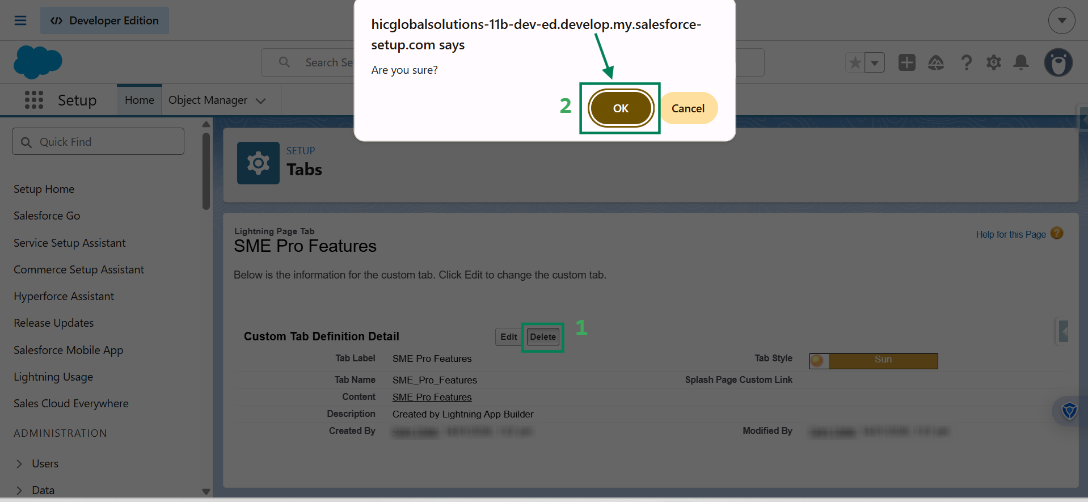
Step 6: Click Delete, then click OK in the confirmation pop-up.
Step 7: Go back, refresh the page, and click Uninstall again to continue.
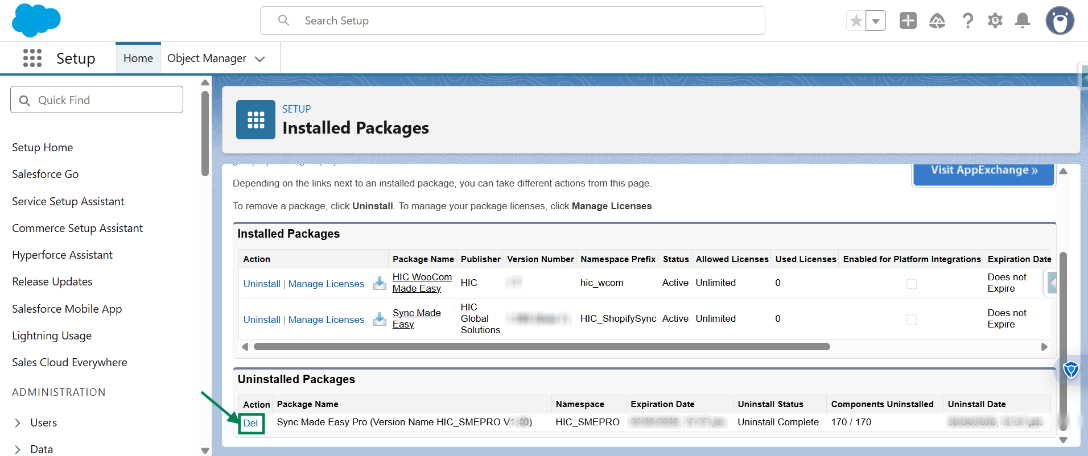
Step 8: The package will now be uninstalled. If you want to delete associated data, click on the Del button.
We hope this article helps! If you still face any issues, feel free to contact us at support@syncmadeasy.com.
Was this article helpful?
That’s Great!
Thank you for your feedback
Sorry! We couldn't be helpful
Thank you for your feedback
Feedback sent
We appreciate your effort and will try to fix the article