In this guide, we’ll walk you through how a Wholesale Business Storefront (B2B Shopify) works. It explains how businesses can manage wholesale customers, offer customized pricing, process bulk orders, and streamline the purchasing experience through Shopify’s B2B storefront
Stay tuned as we break down the step-by-step process to enable and use this feature effortlessly. Let’s dive in !
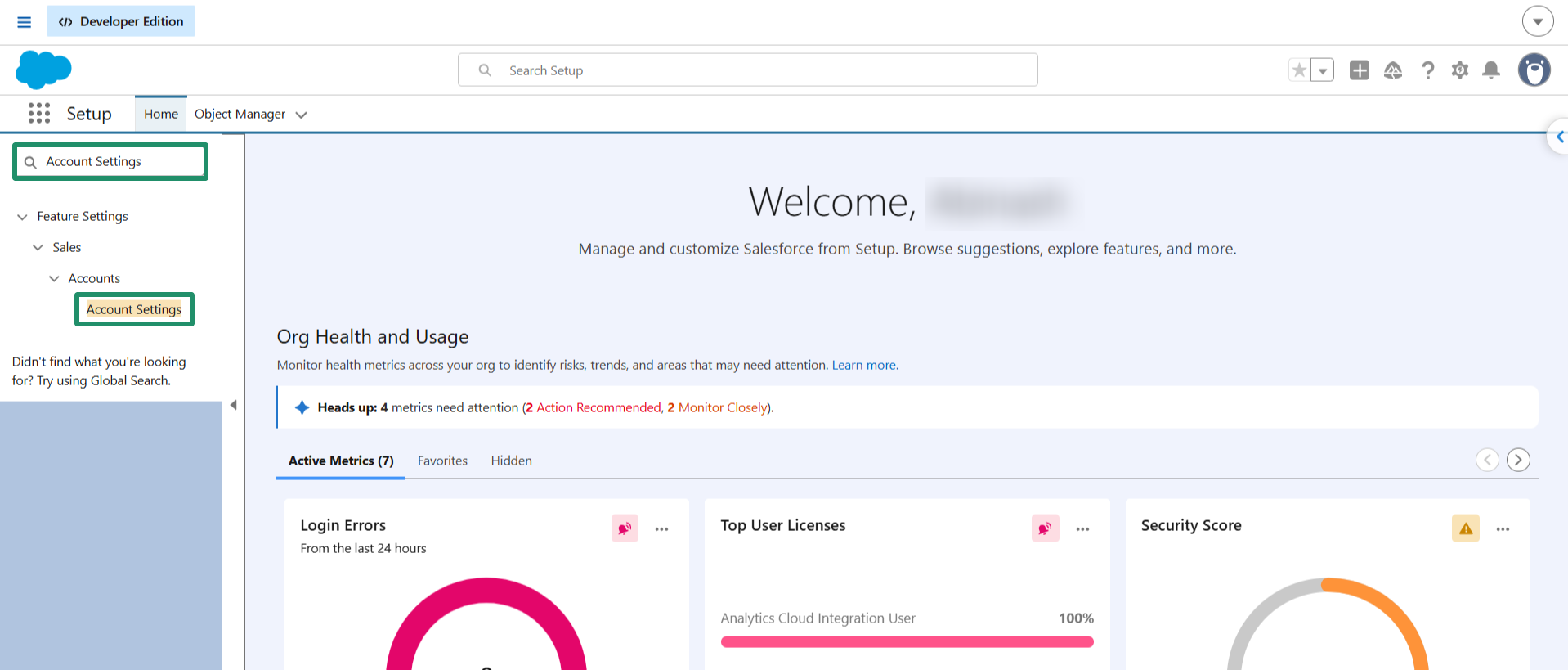
Step 1: Log in to Salesforce and search for "Account Settings" from the Quick Find box.
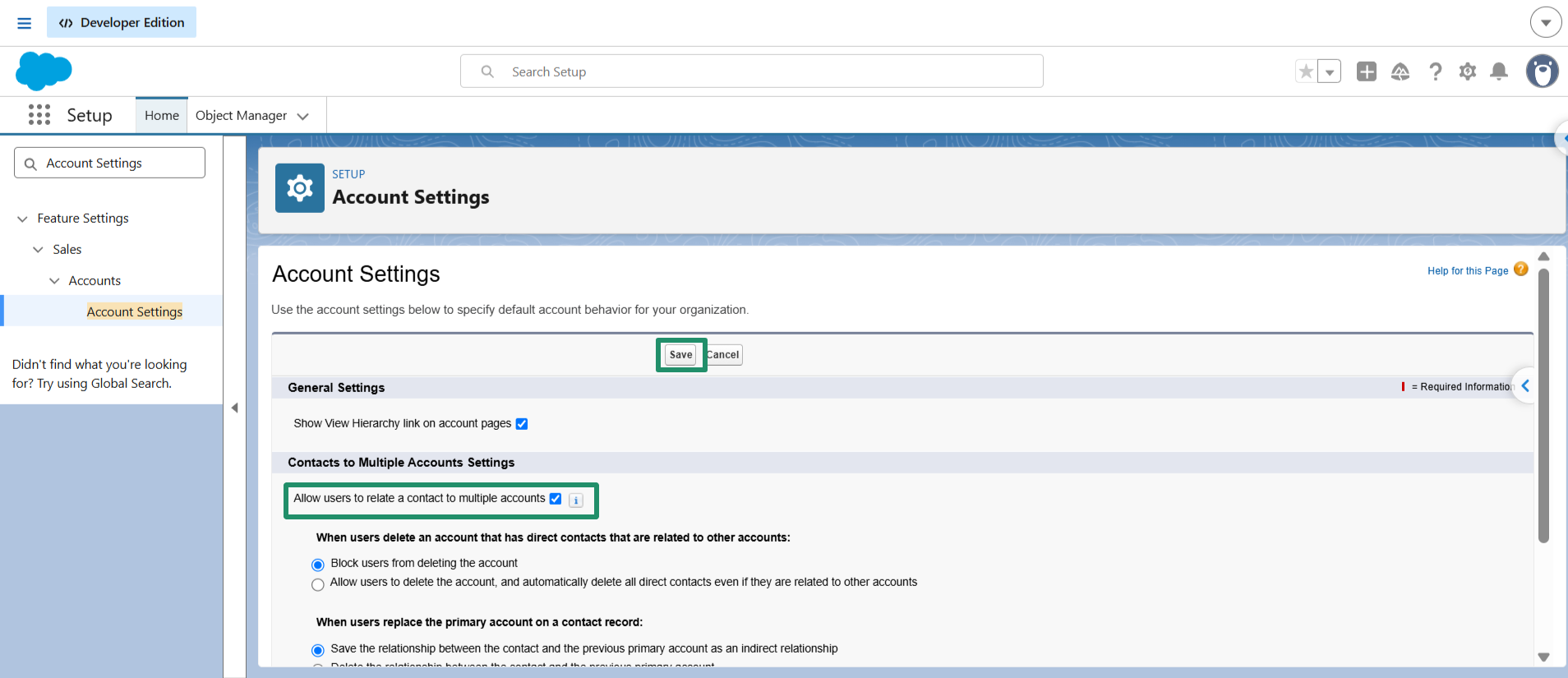
Step 2: Click on Edit and then check the Checkbox as shown below, and then click on Save.
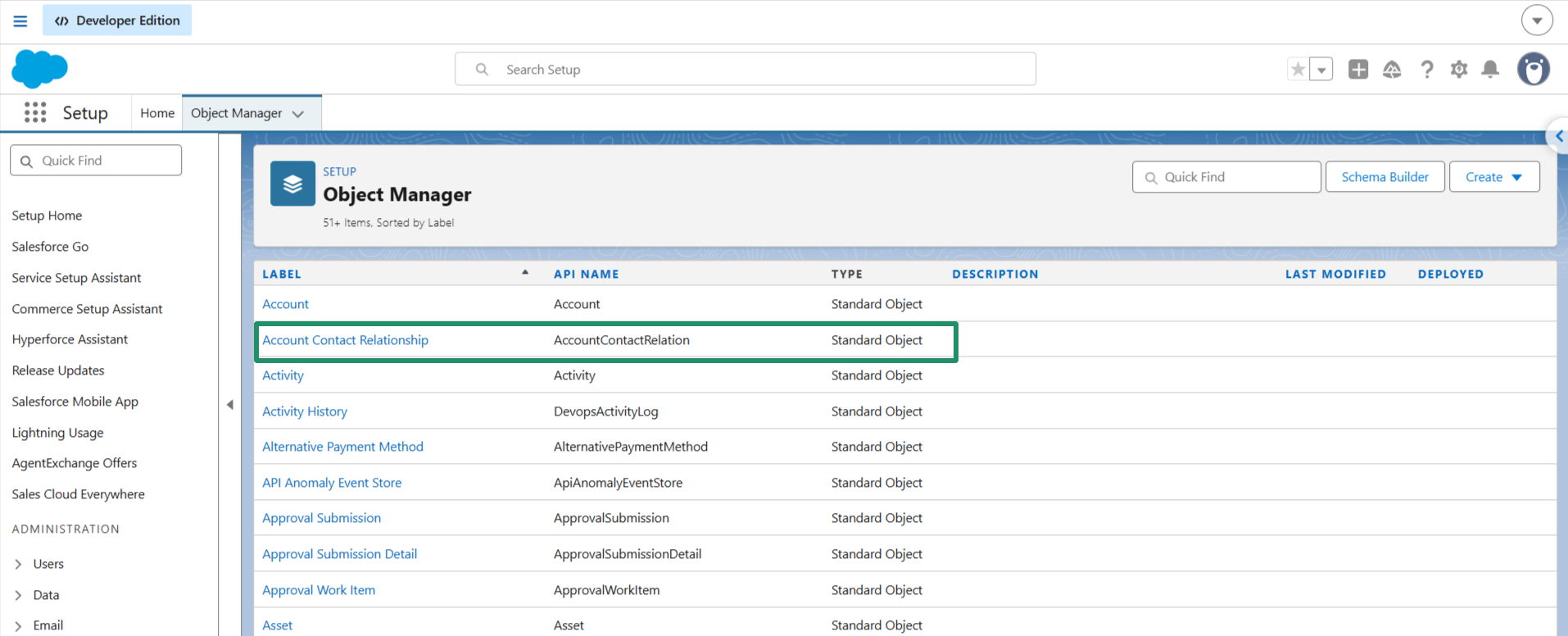
Step 3: From the Object Manager, go to the Account Contact Relationship object
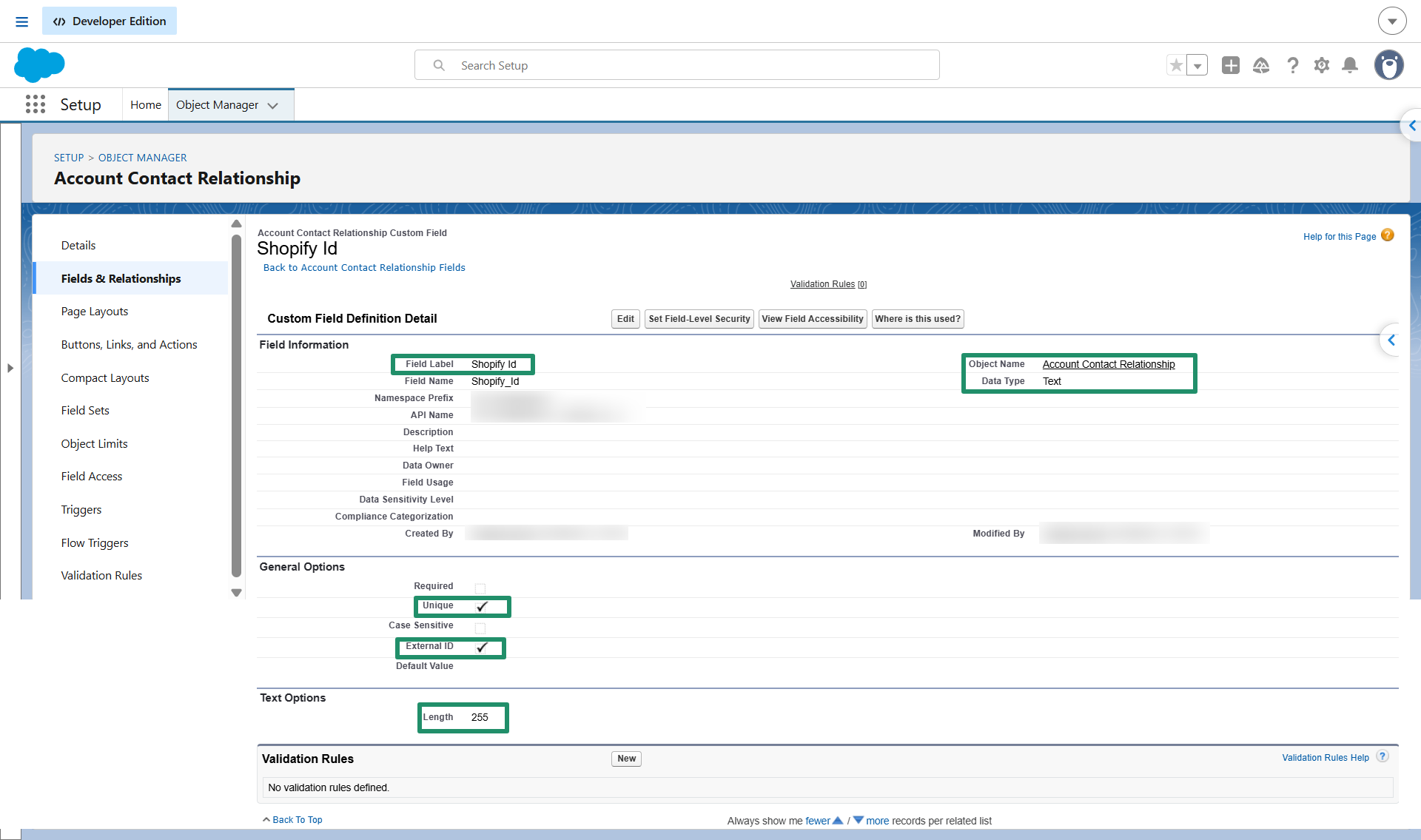
Step 4: Create one Text field under the Account Contact Relationship named "Shopify ID" and mark the Unique and External ID checkboxes as true, as shown below.
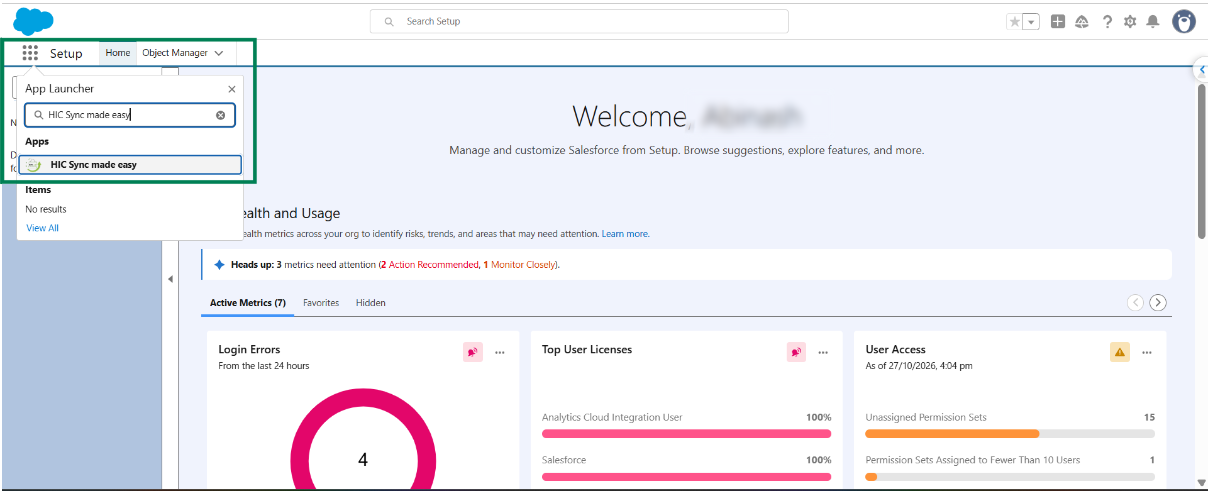
Step 5: From the App Launcher, search for HIC Sync made easy and click on it
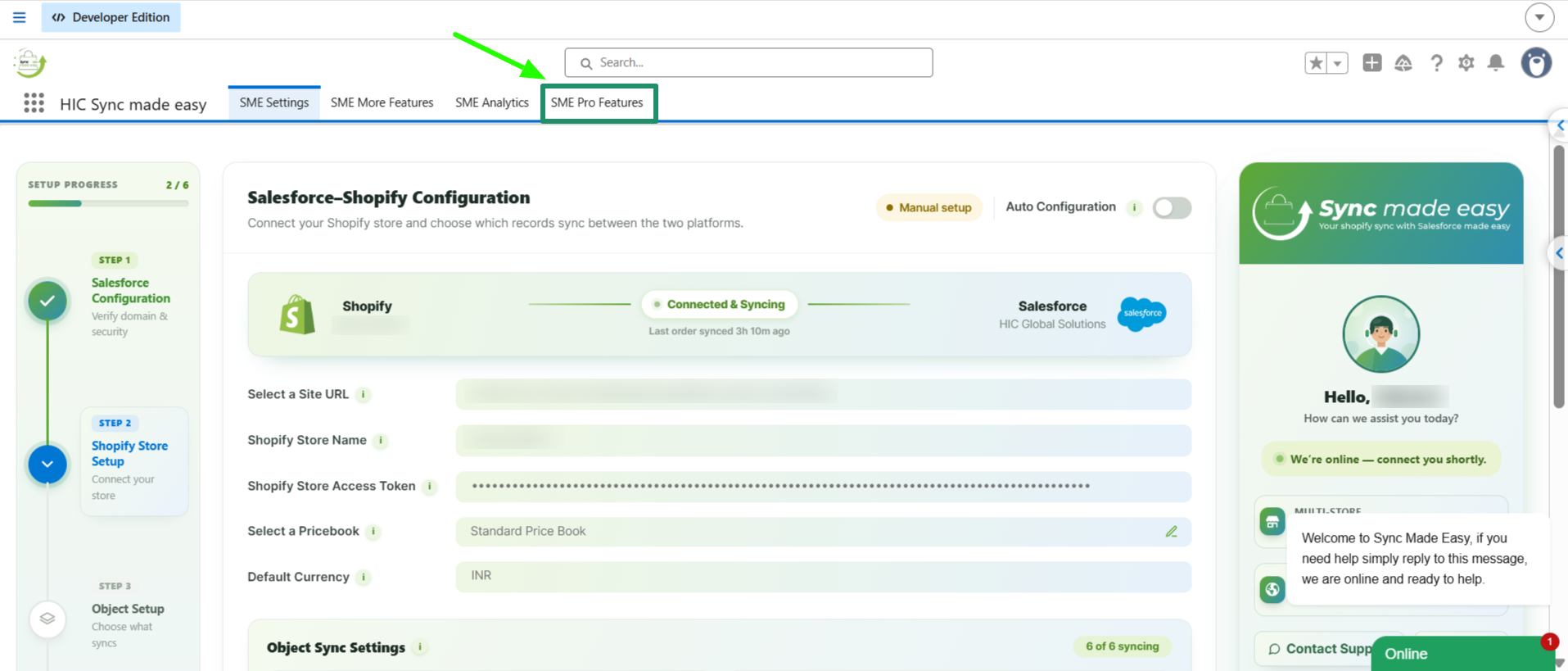
Step 6: From the SME Settings page, click on the SME Pro Features tab.
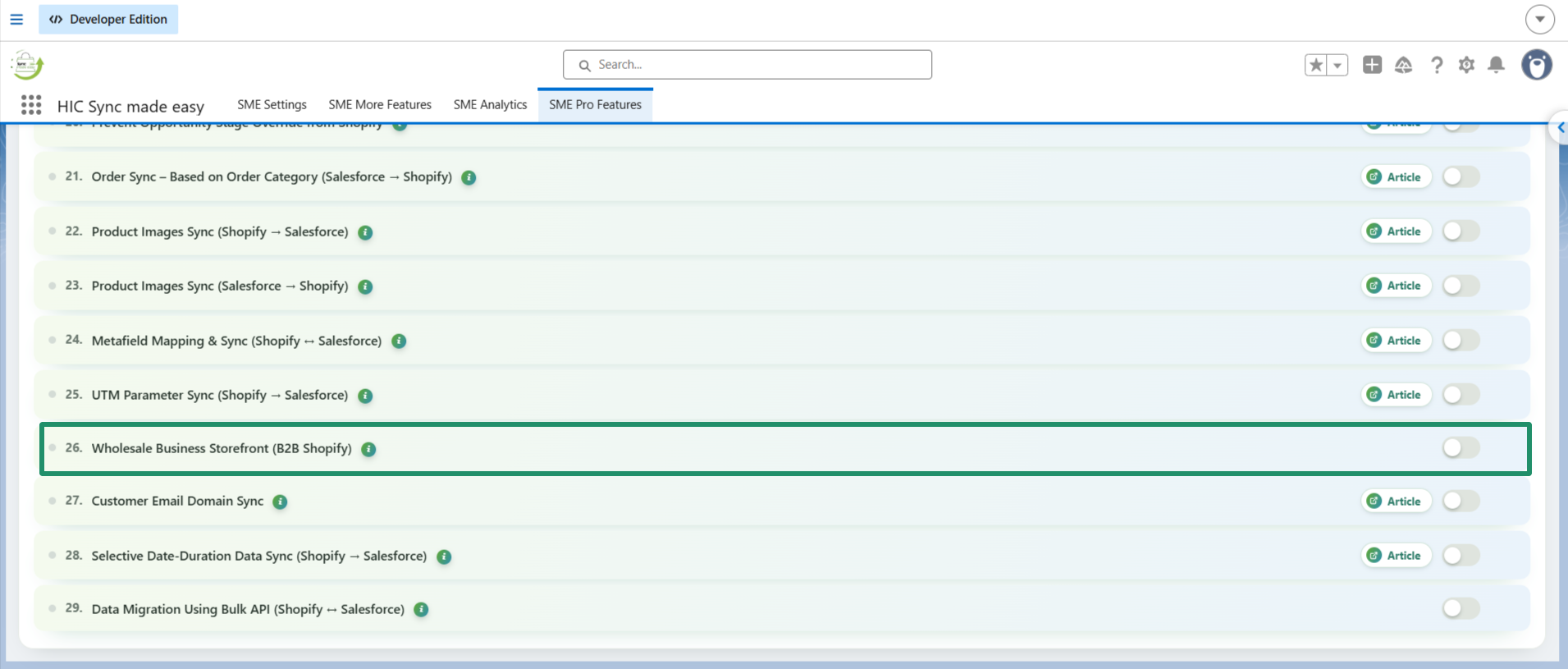
Step 7: Enable the Wholesale Business Storefront (B2B Shopify) feature by clicking on the toggle button.
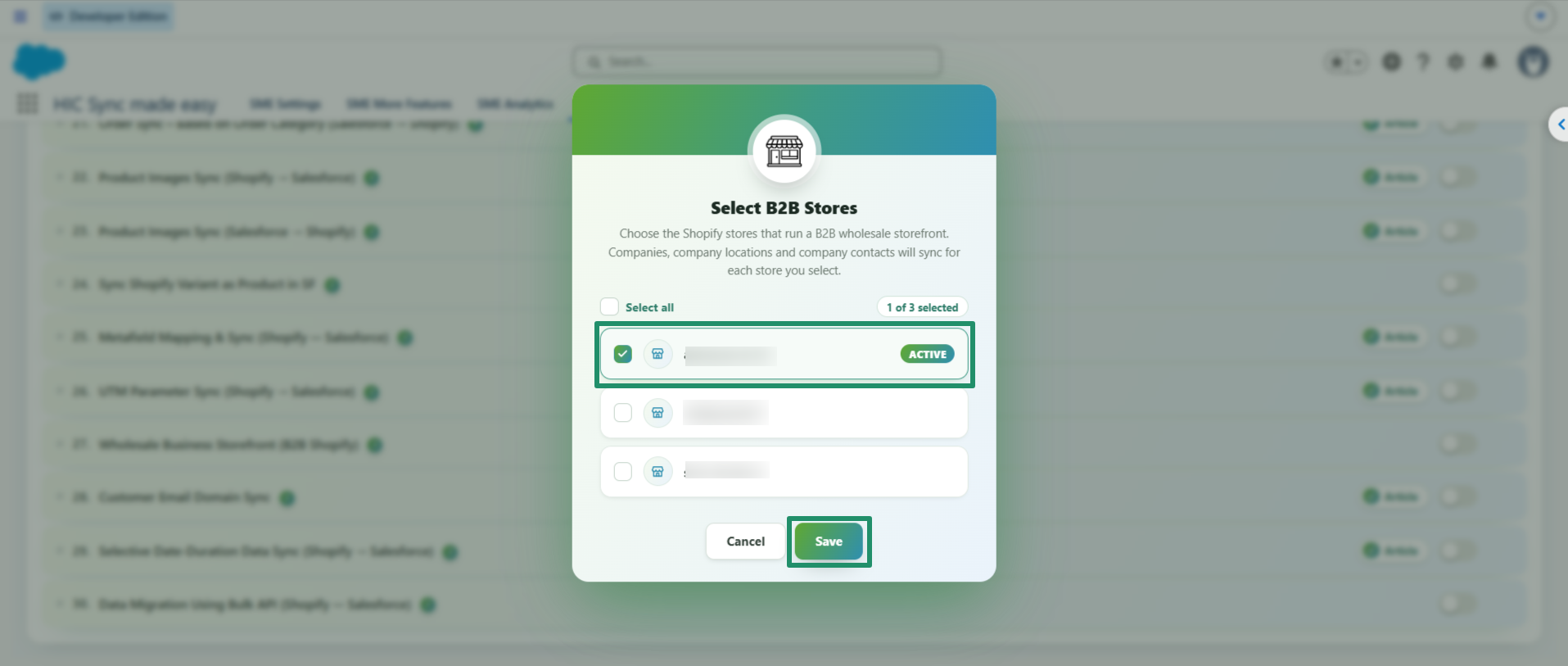
Step 8: Select the Shopify store for which you want to enable the B2B feature and click on Save.
Step 9: Now go to your Shopify Store and create one Company
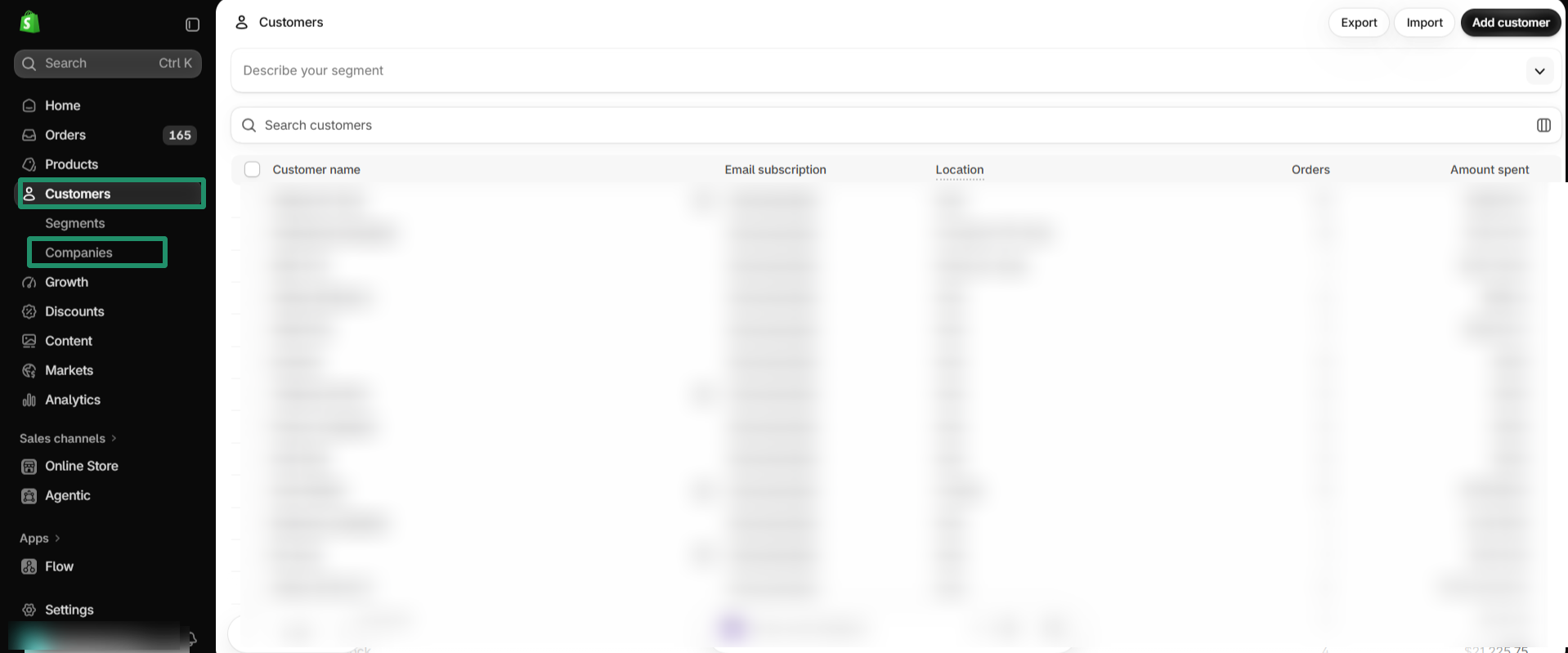
Step 10: Click on "Add Company"
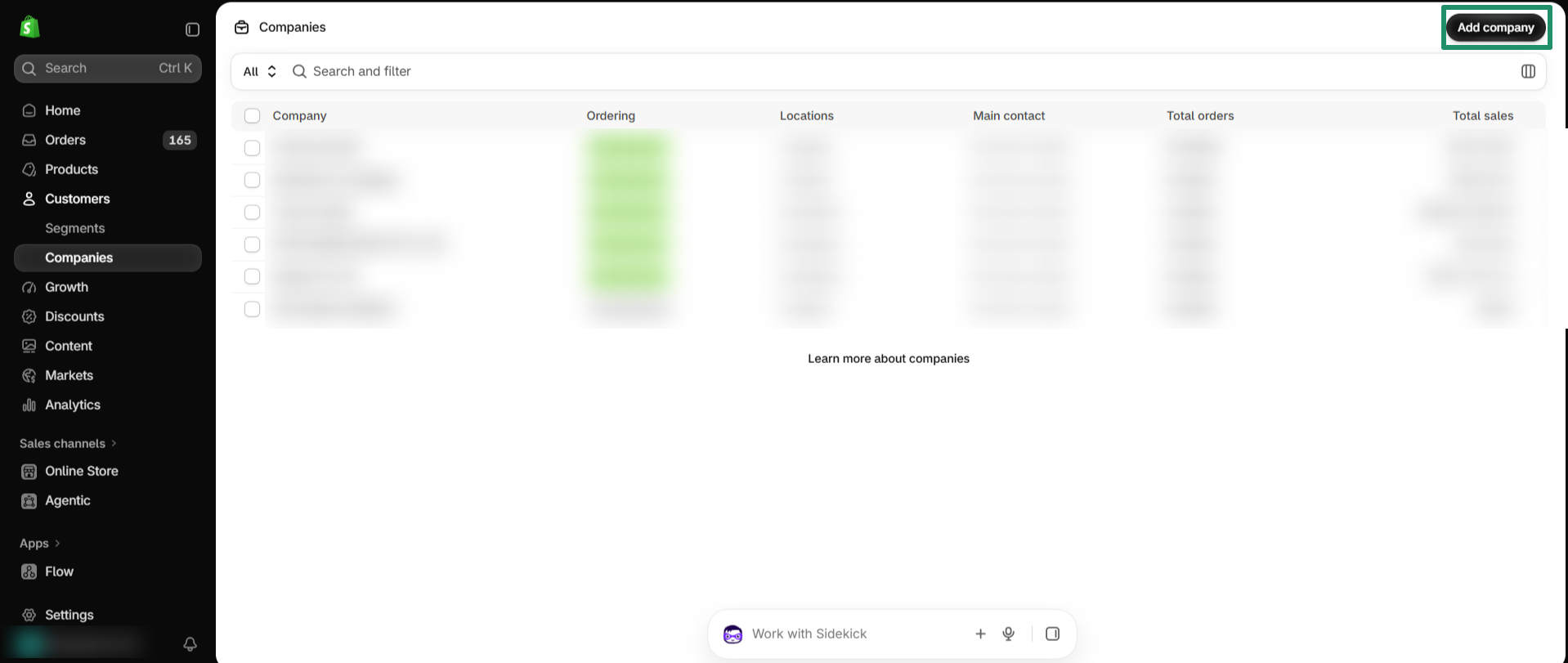
Step 11: Fill in all the information about your company (Company Name, Company ID, Location, Location ID), then click on Save.
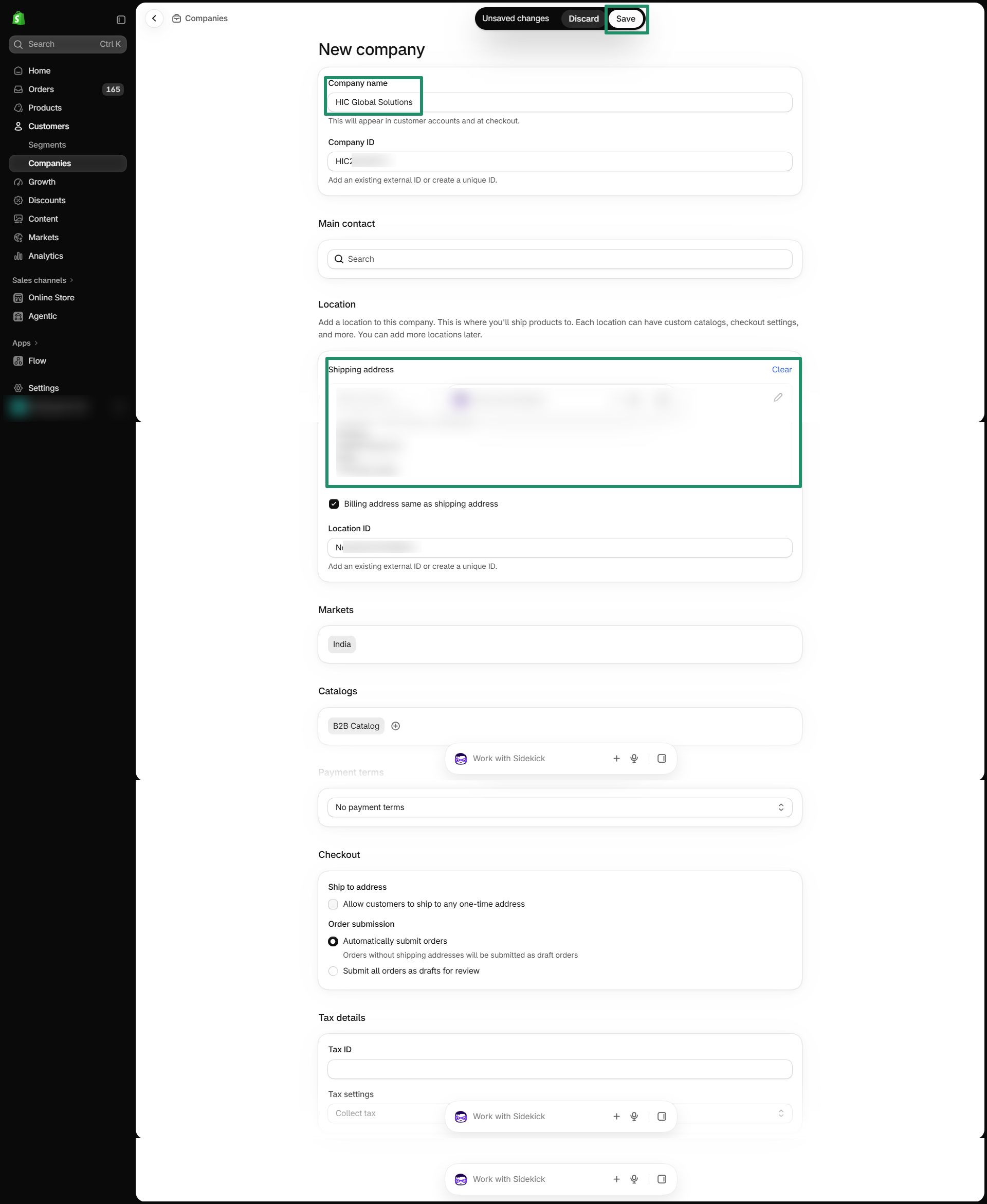
Step 12: Click on "Add Customer"
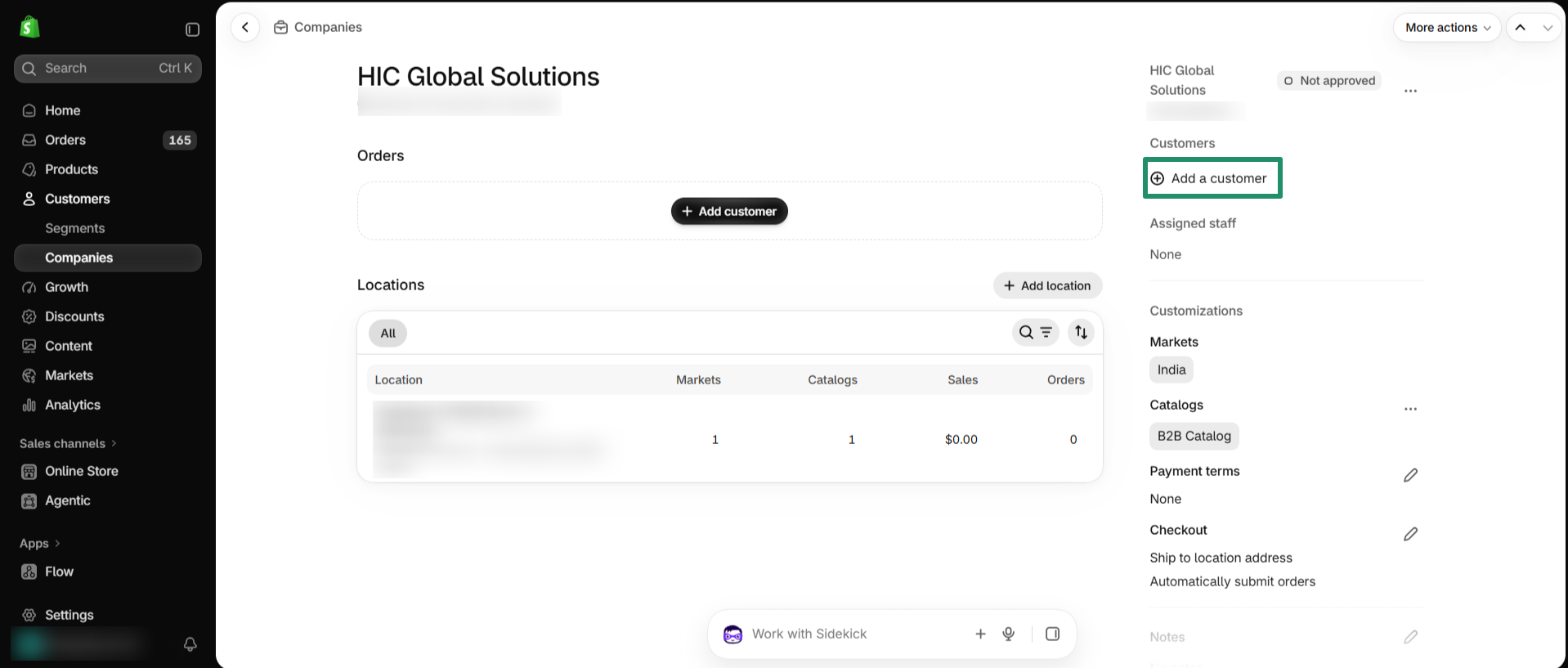
Step 13: Select the Customer you want to add to your Company.
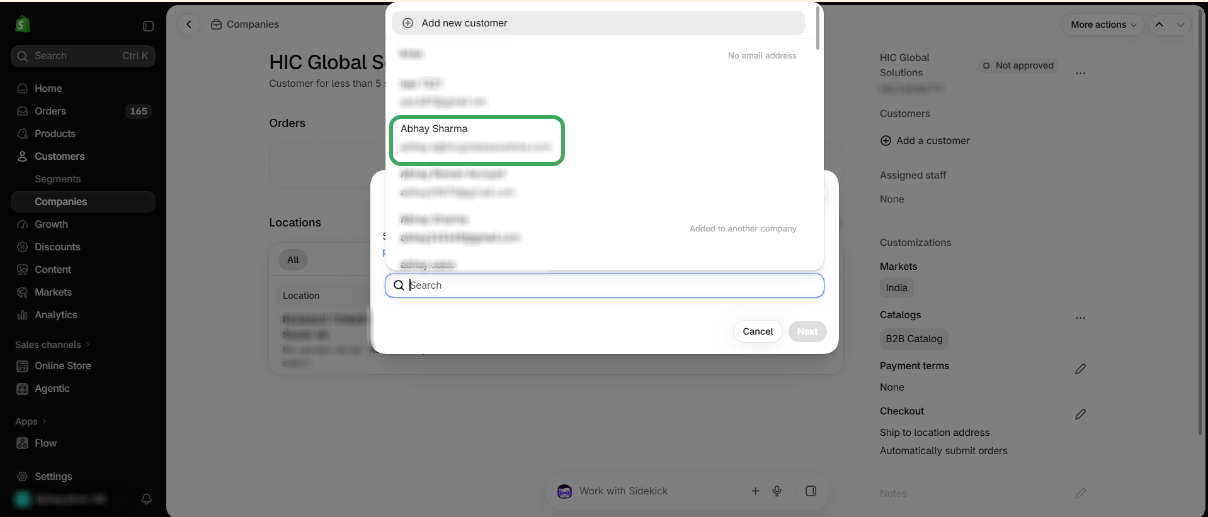
Step 14: After selecting the Customer, select the Location you want to add that customer, and click Save.
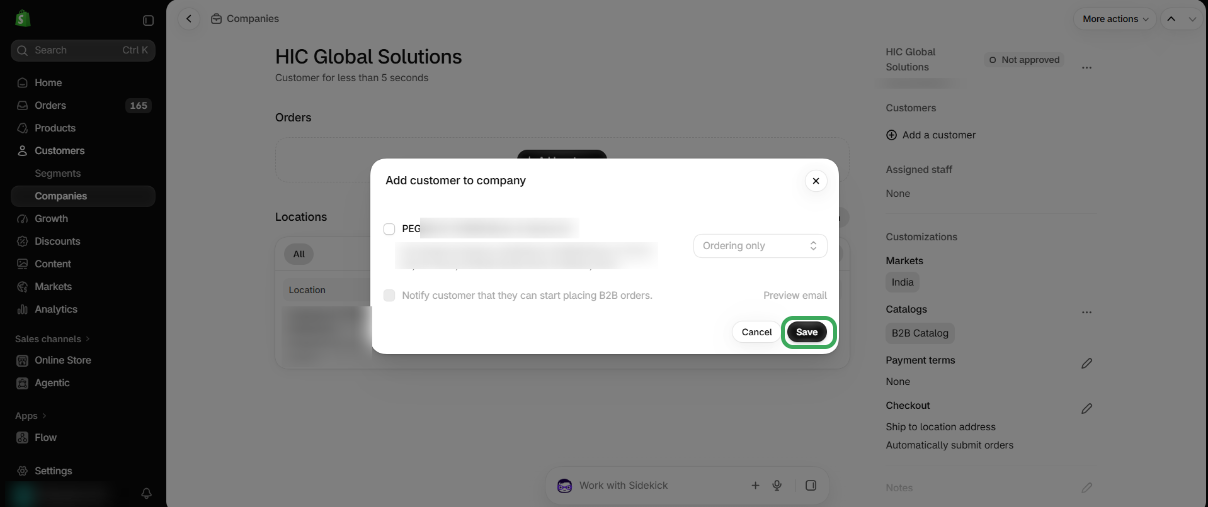
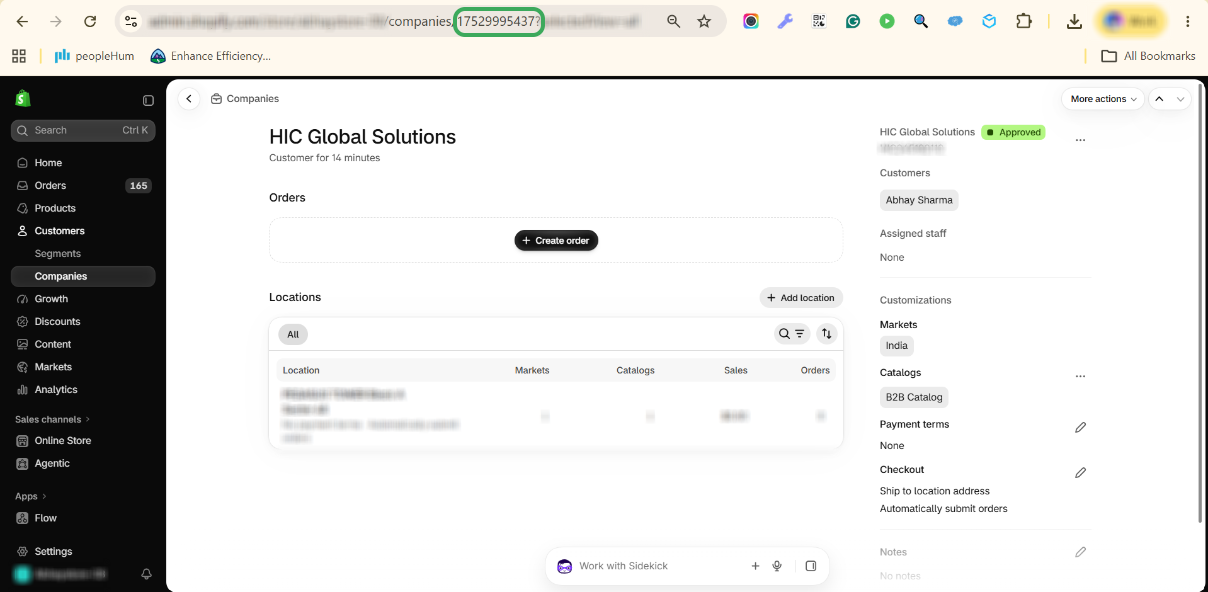
Step 15: Copy the Company ID from the URL above.
Step 16: Search for that ID in Salesforce Global Search and open the record.
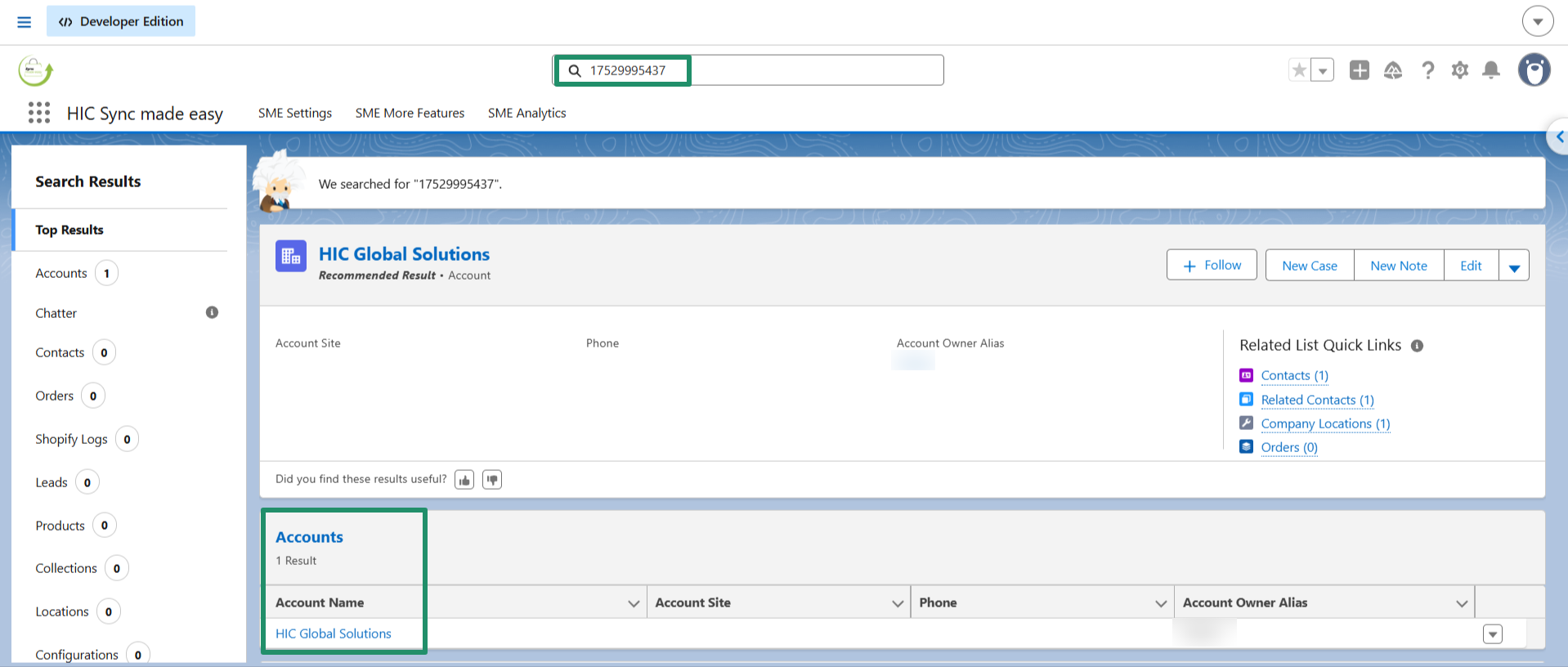
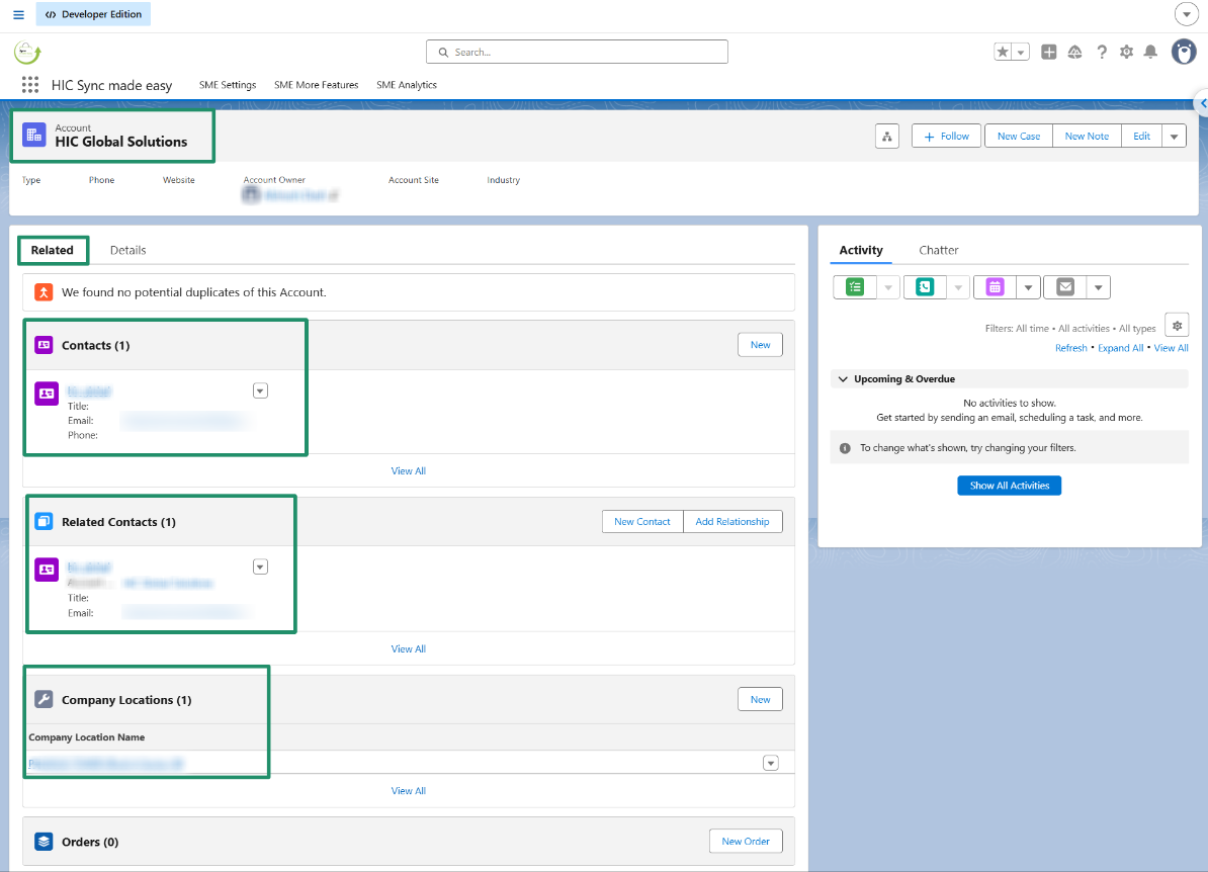
Step 17: On the Related tab, you will see the Contact, Related Contact, and Company location information.
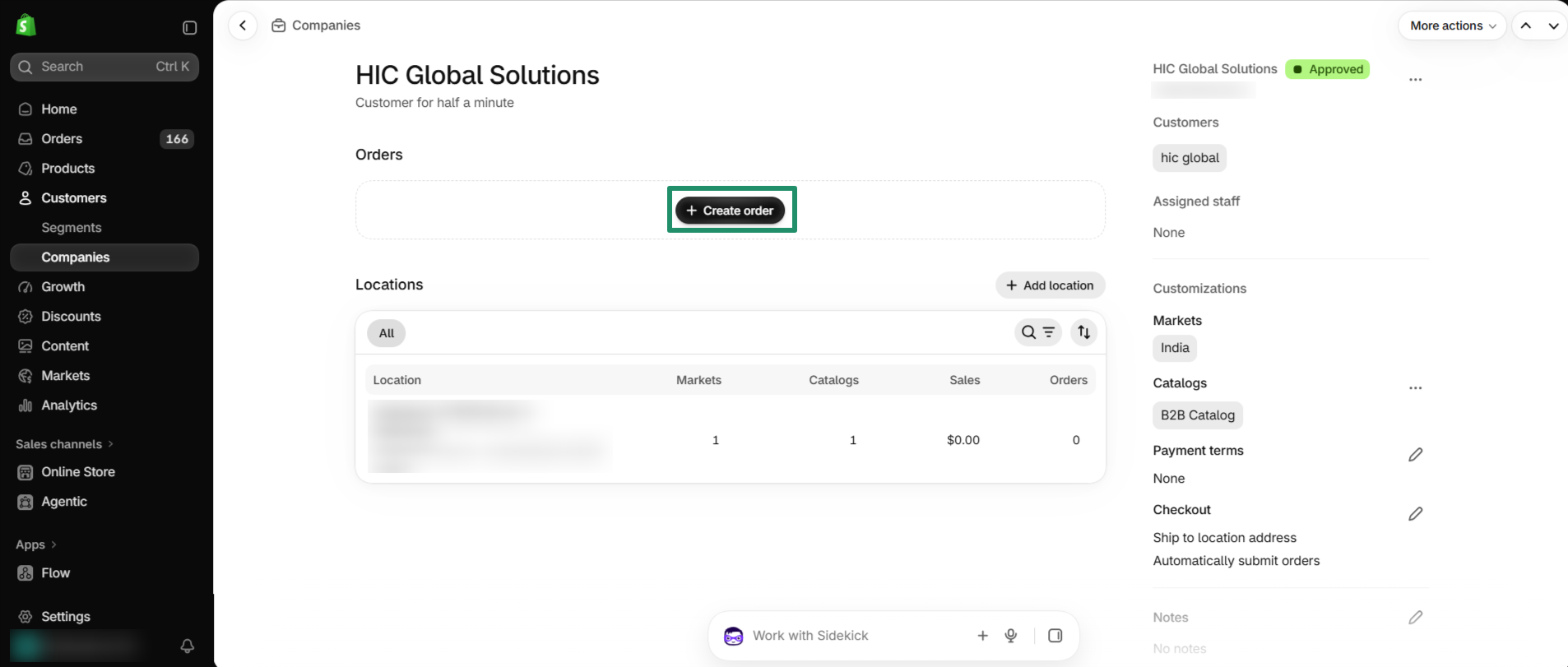
Step 18: Go to your Shopify Store and create an Order under the same company that you have just created.
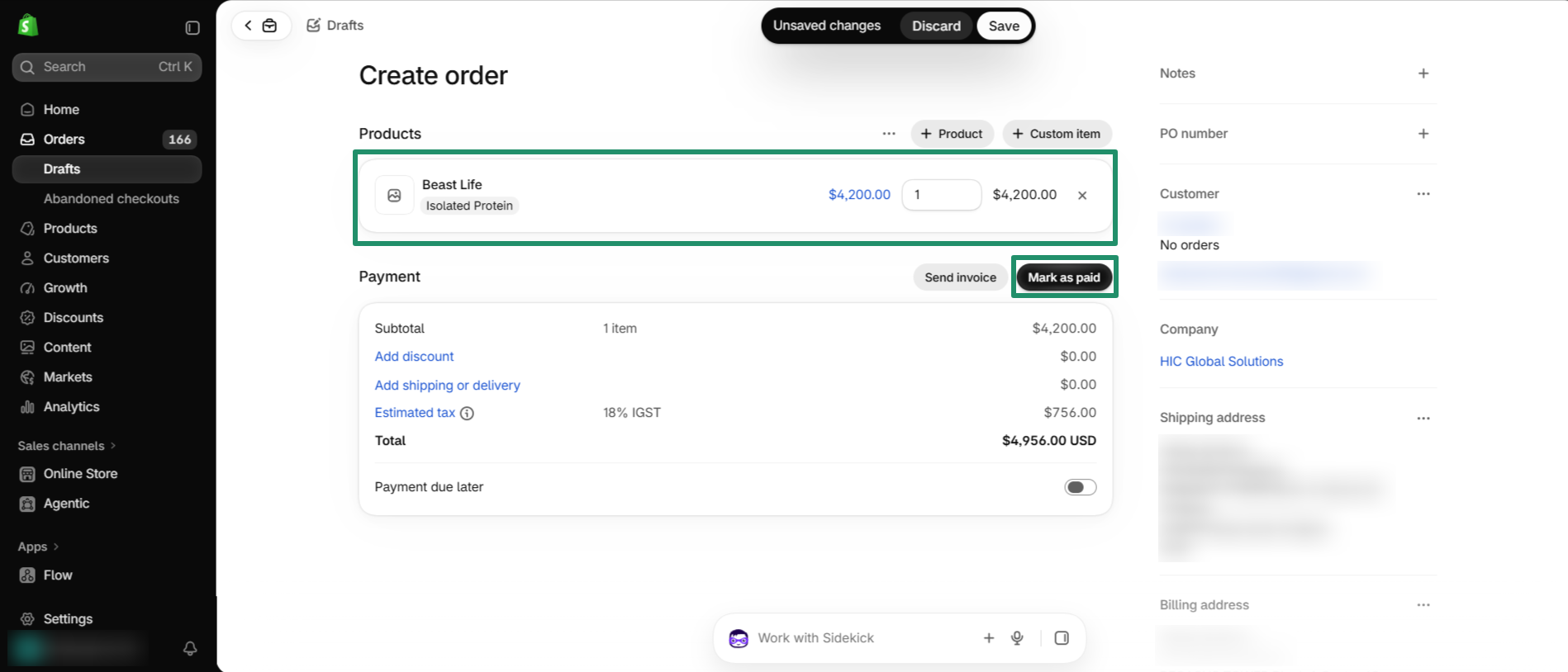
Step19: Select Product to create an order and then click on "Mark as Paid"
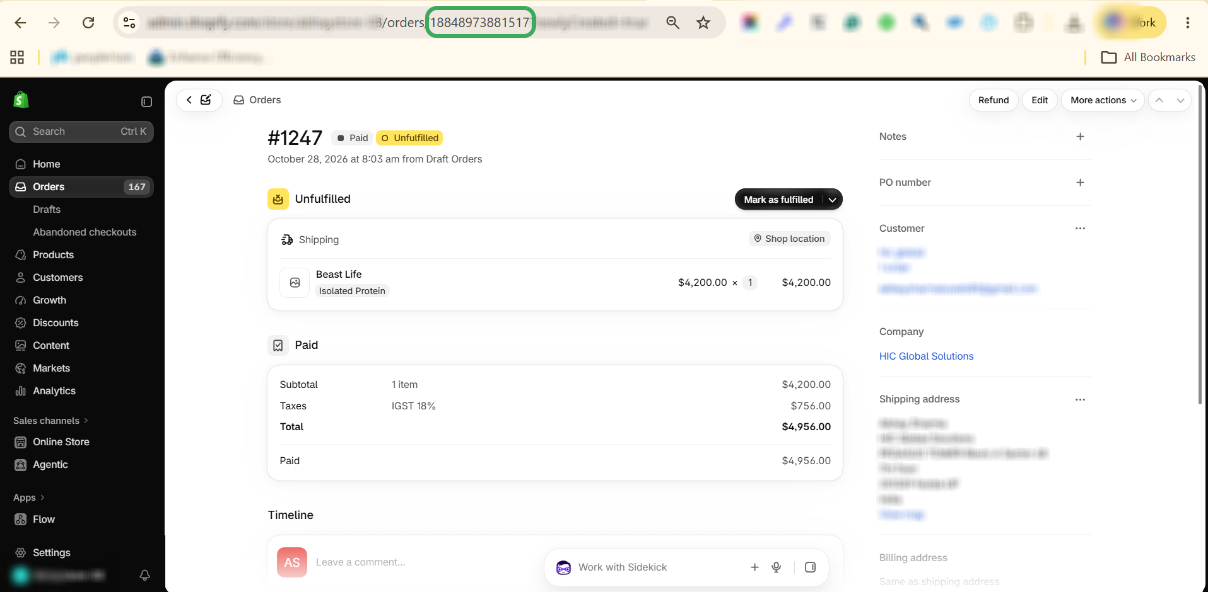
Step 20: Copy the Shopify ID from the above URL
Step 21: Search for the order in Salesforce by entering the Shopify ID in the Global Search bar.
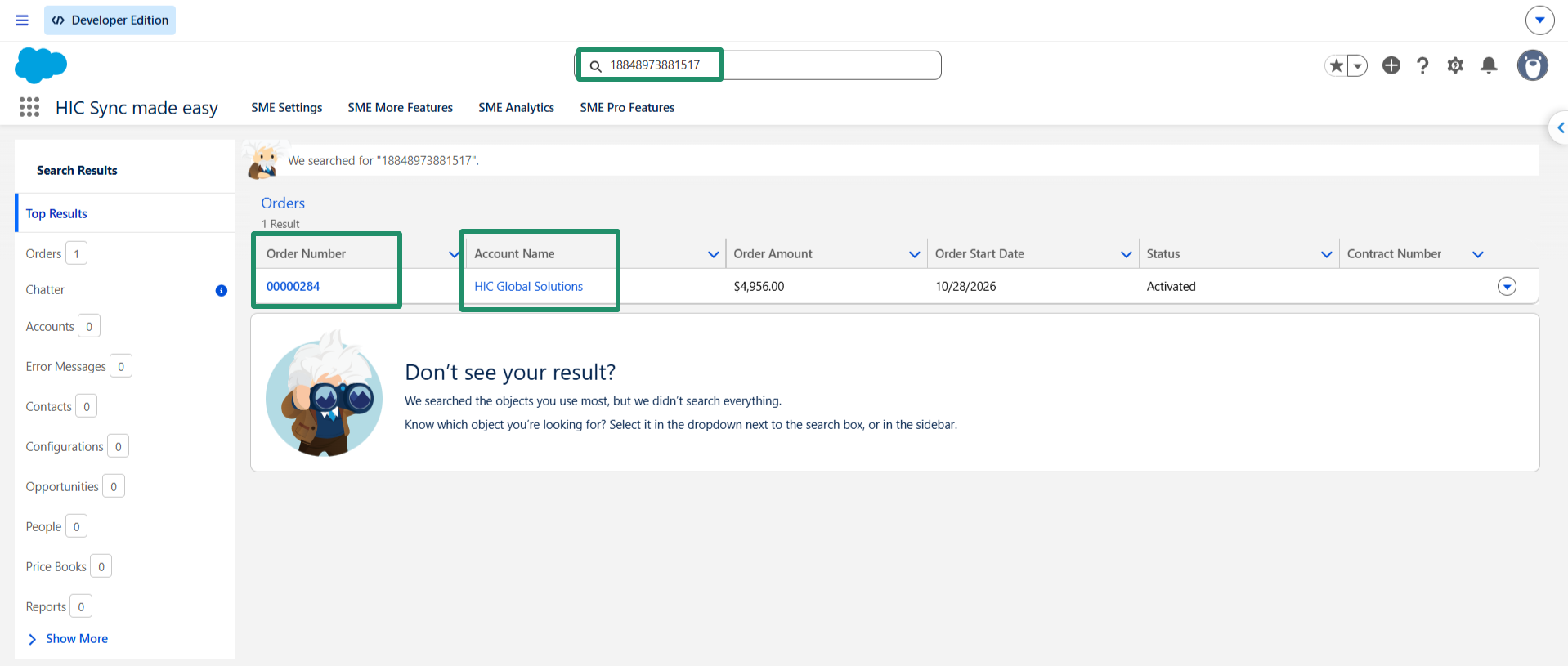
Step 22: Open the record and, in the detail section, you will see all the information related to the Order.
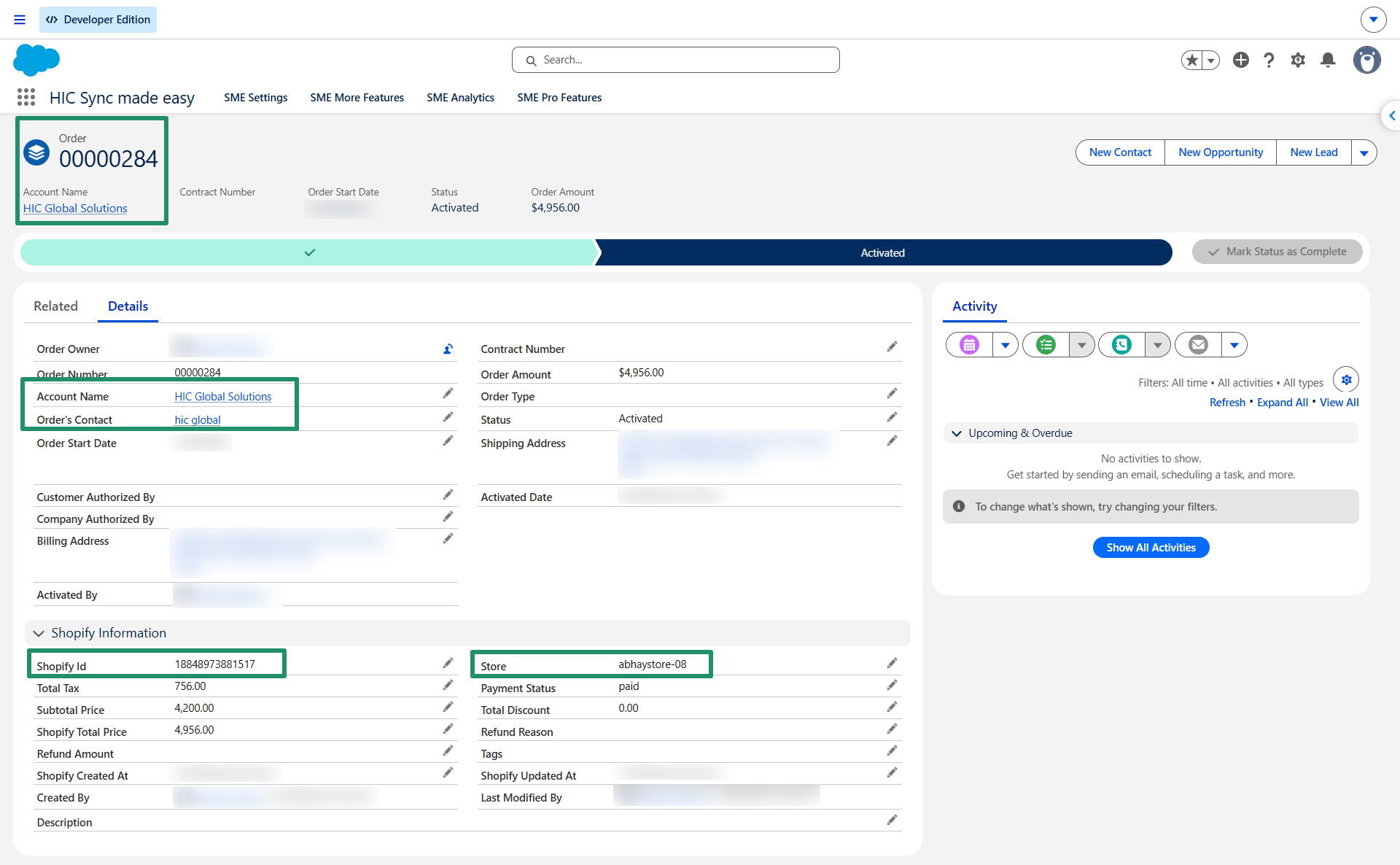
This concludes the functionality of Wholesale Business Storefront (B2B Shopify) synchronization from Shopify to Salesforce.
Thank you!
Was this article helpful?
That’s Great!
Thank you for your feedback
Sorry! We couldn't be helpful
Thank you for your feedback
Feedback sent
We appreciate your effort and will try to fix the article
