In this article, we’ll walk you through the "Sync Shopify Variant as Product in Salesforce" feature, which allows each Shopify product variant to be synced as an individual Product record in Salesforce, making it easier to manage and track product variants separately.
Stay tuned as we break down the step-by-step process to enable and use this feature effortlessly. Let’s dive in!
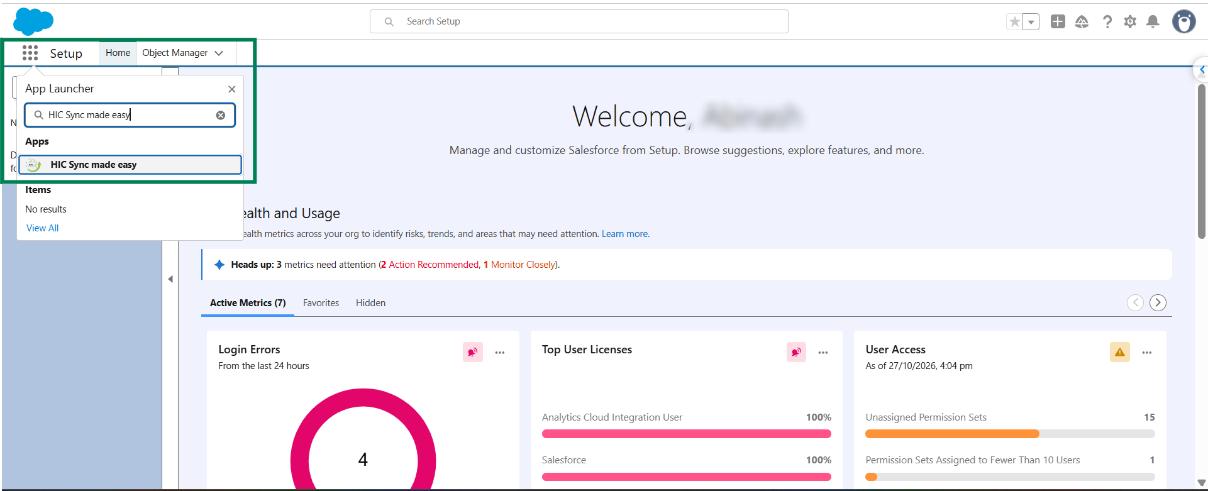
Step 1: Log in to Salesforce and, in App Launcher, search for "HIC Sync made easy". Click on it.
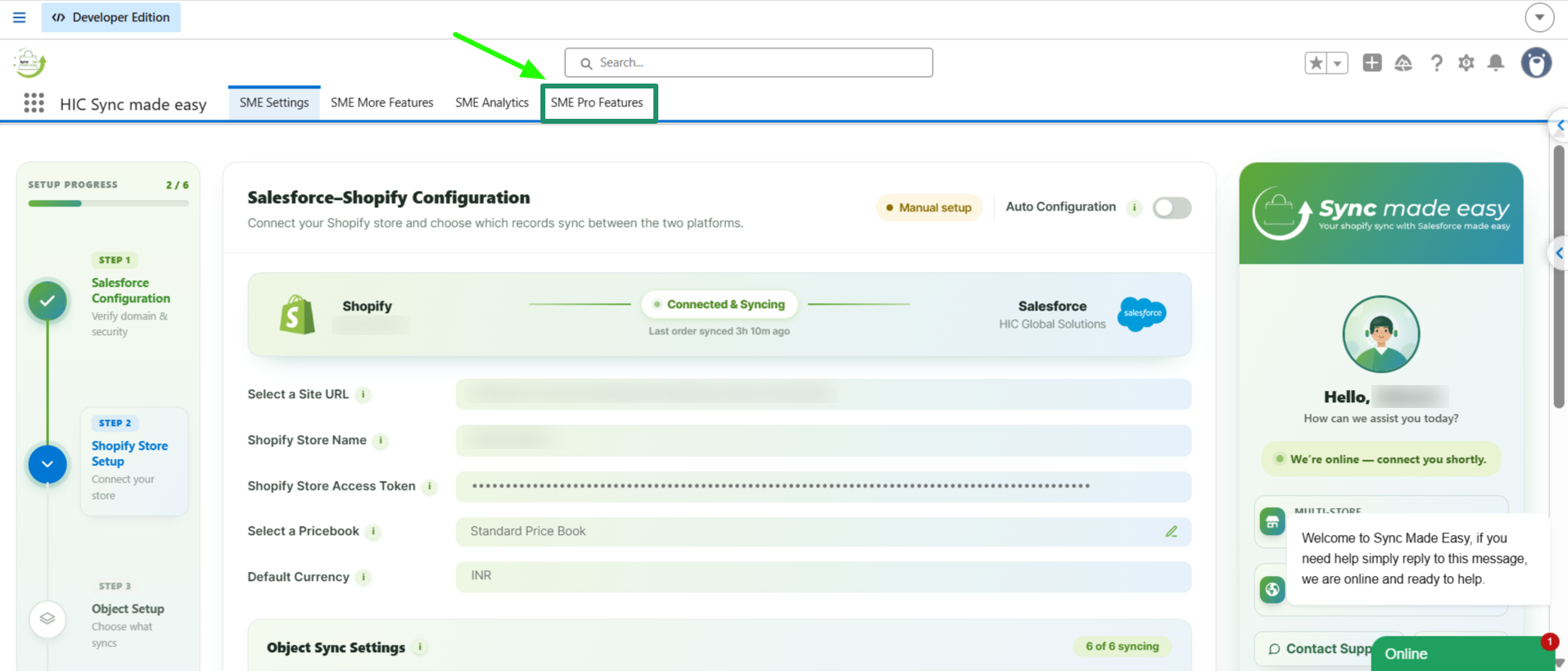
Step 2: Go to "SME Pro Features".
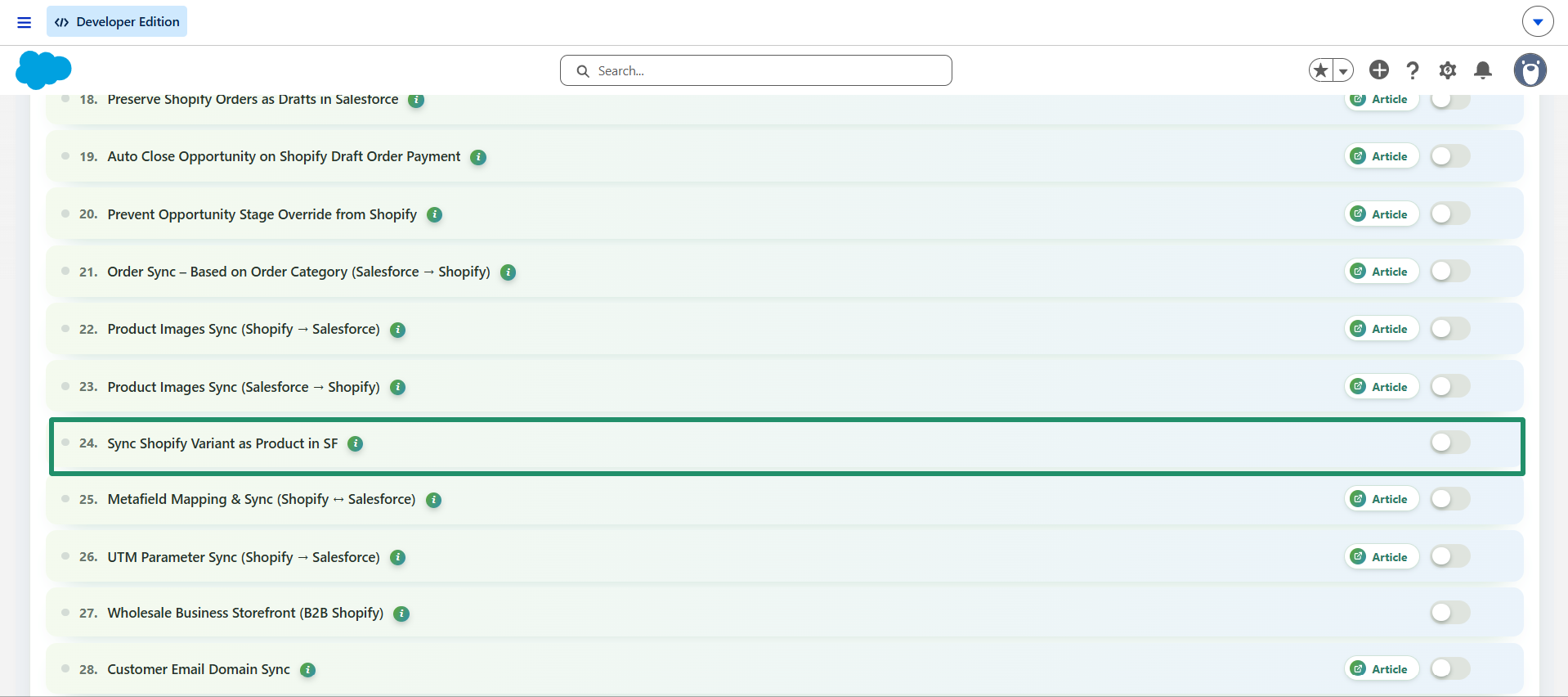
Step 3: Enable the "Sync Shopify Variant as Product in SF" feature toggle button.
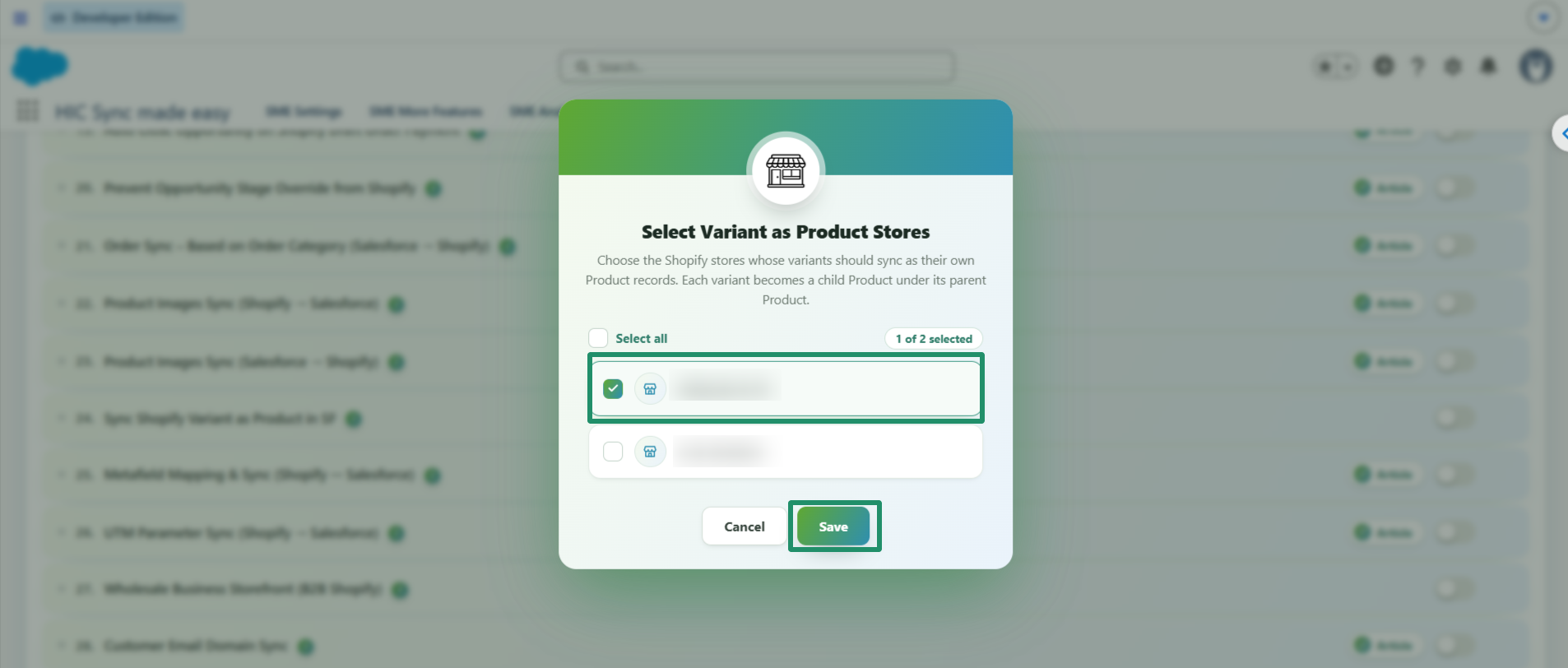
Step 4: Select the Store for which you want to enable this feature, and click Save.
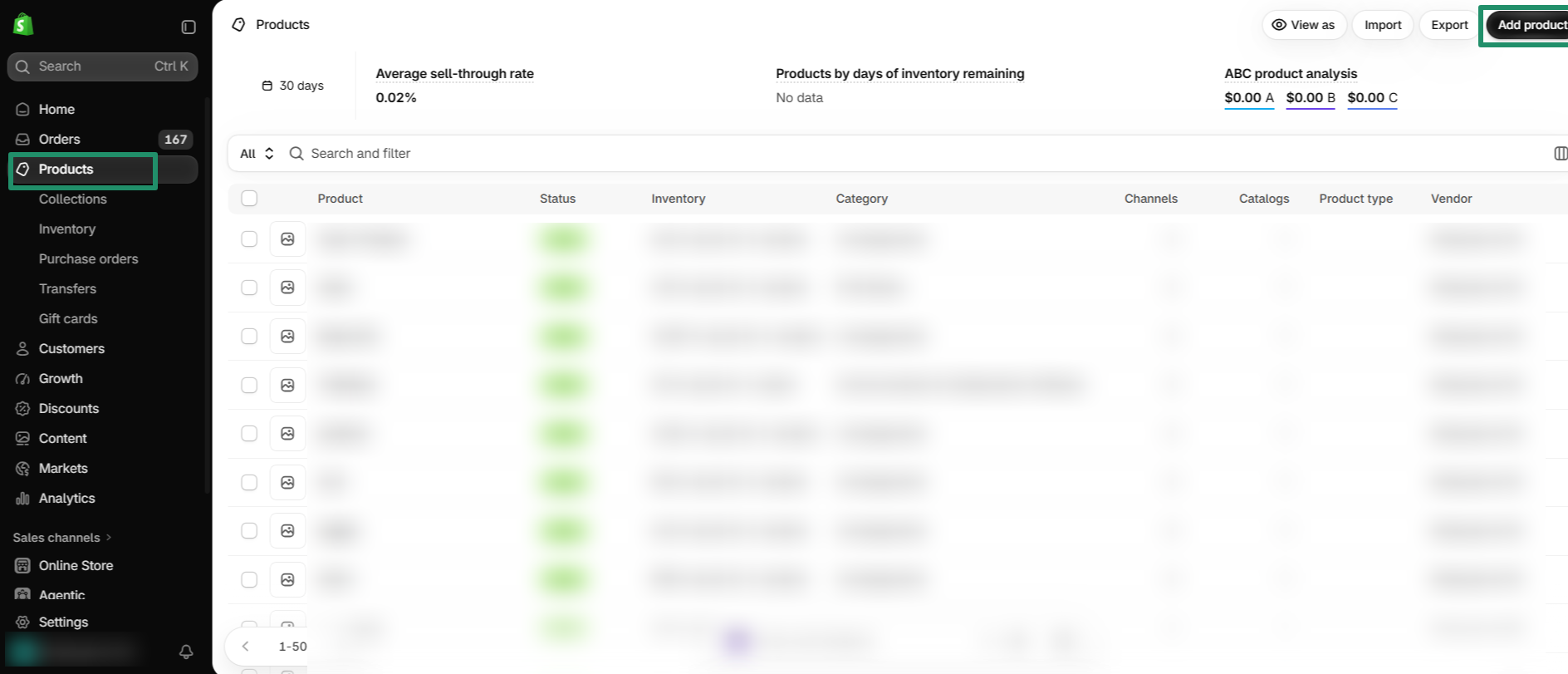
Step 5: Now go to your Shopify Store for which you have enabled this feature and create one "Product" and add its "Variants"
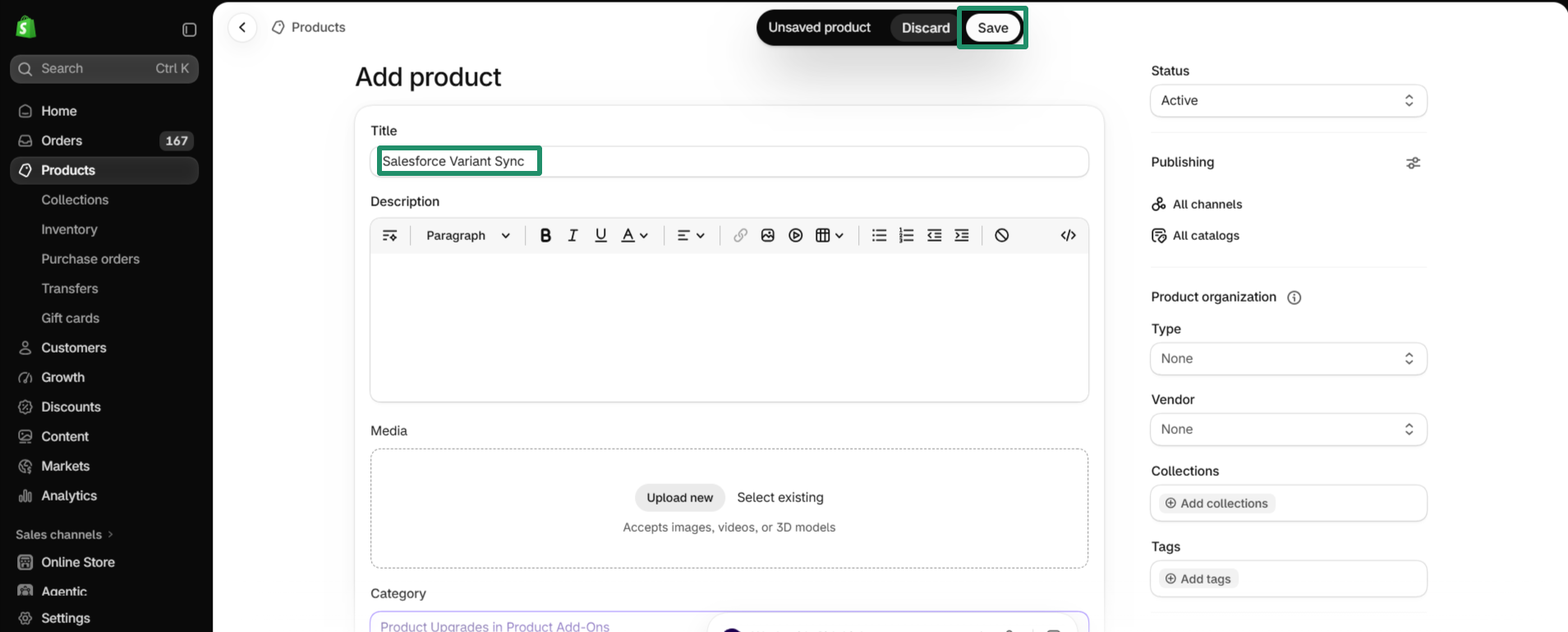
Step 6: After filling in all the details of the product and its variants, click on "Save"
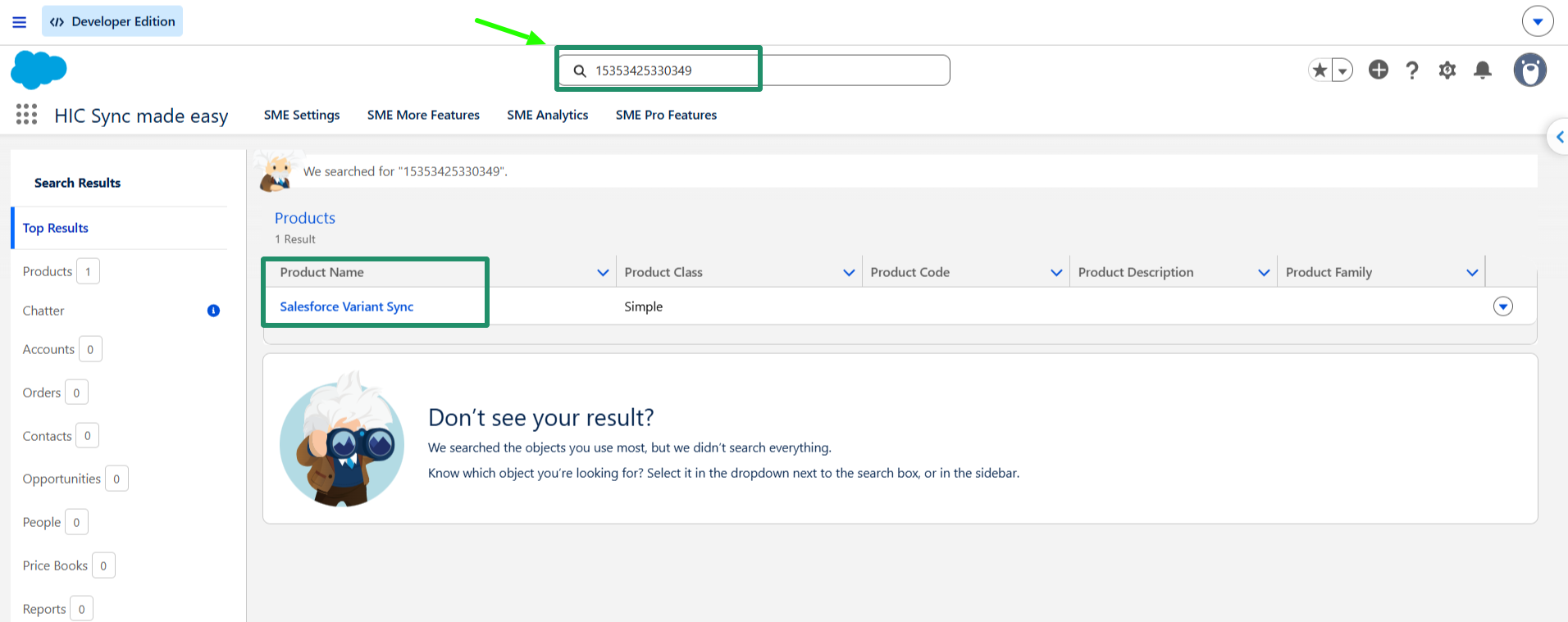
Step 7: Copy the ''Shopify ID" from the URL above and search for it in Salesforce.
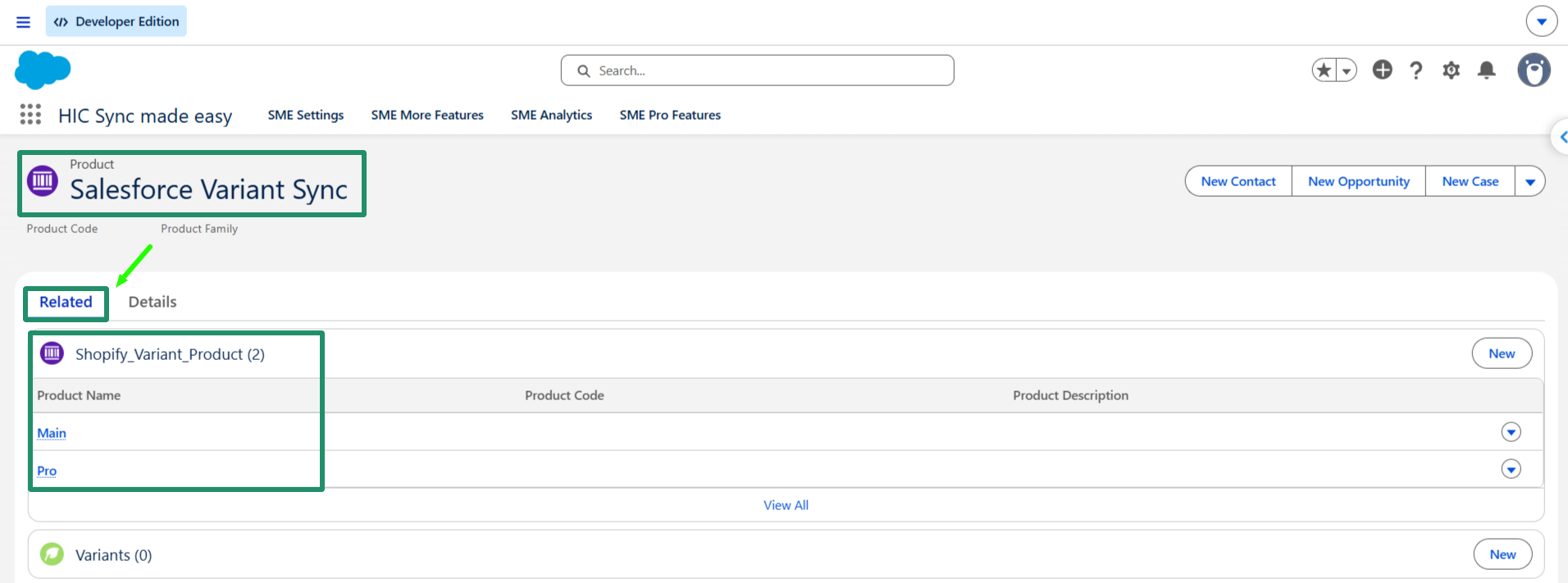
Step 8: Open the record and navigate to the "Related" section. You will see the associated Shopify_variant_Product records. Open any variant record to proceed.
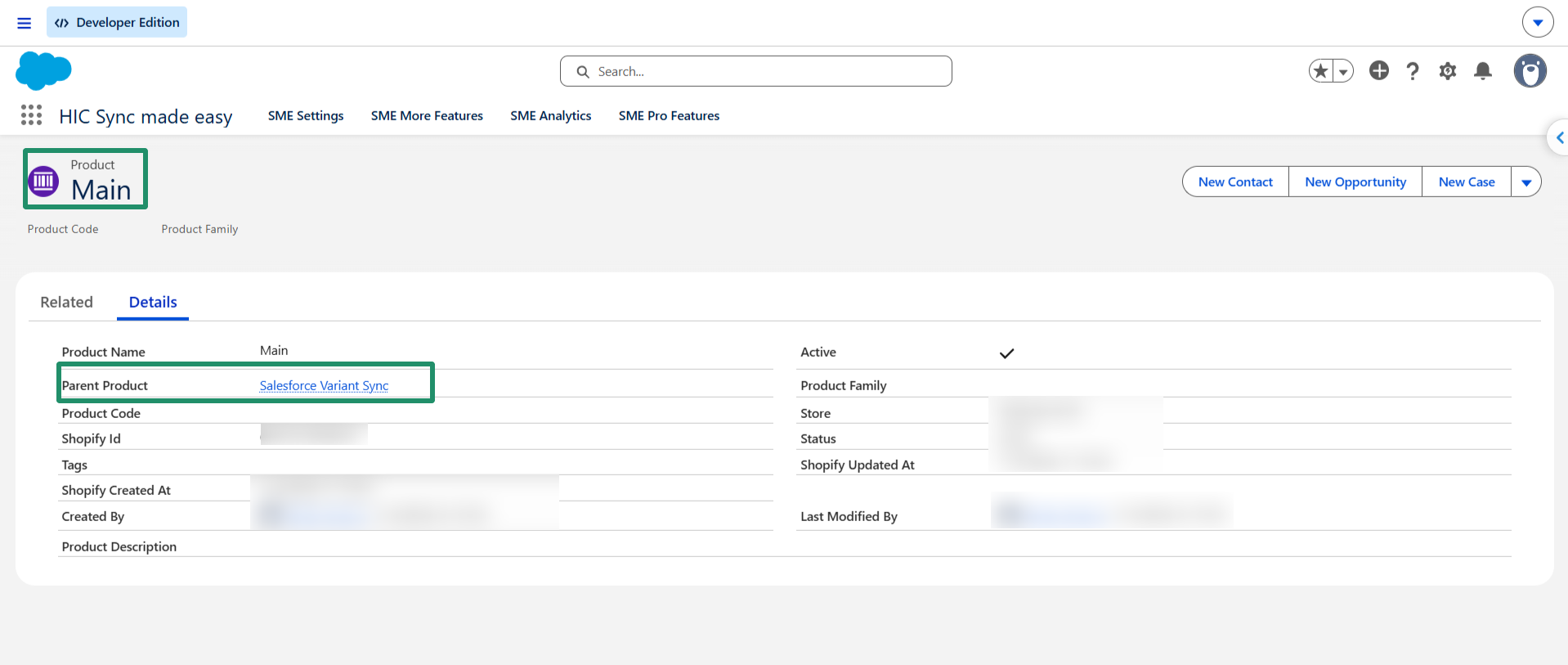
Step 9: Navigate to the "Details" section to view all the information related to the synced variant. You will also see the Parent Product name in the "Parent Product" field.
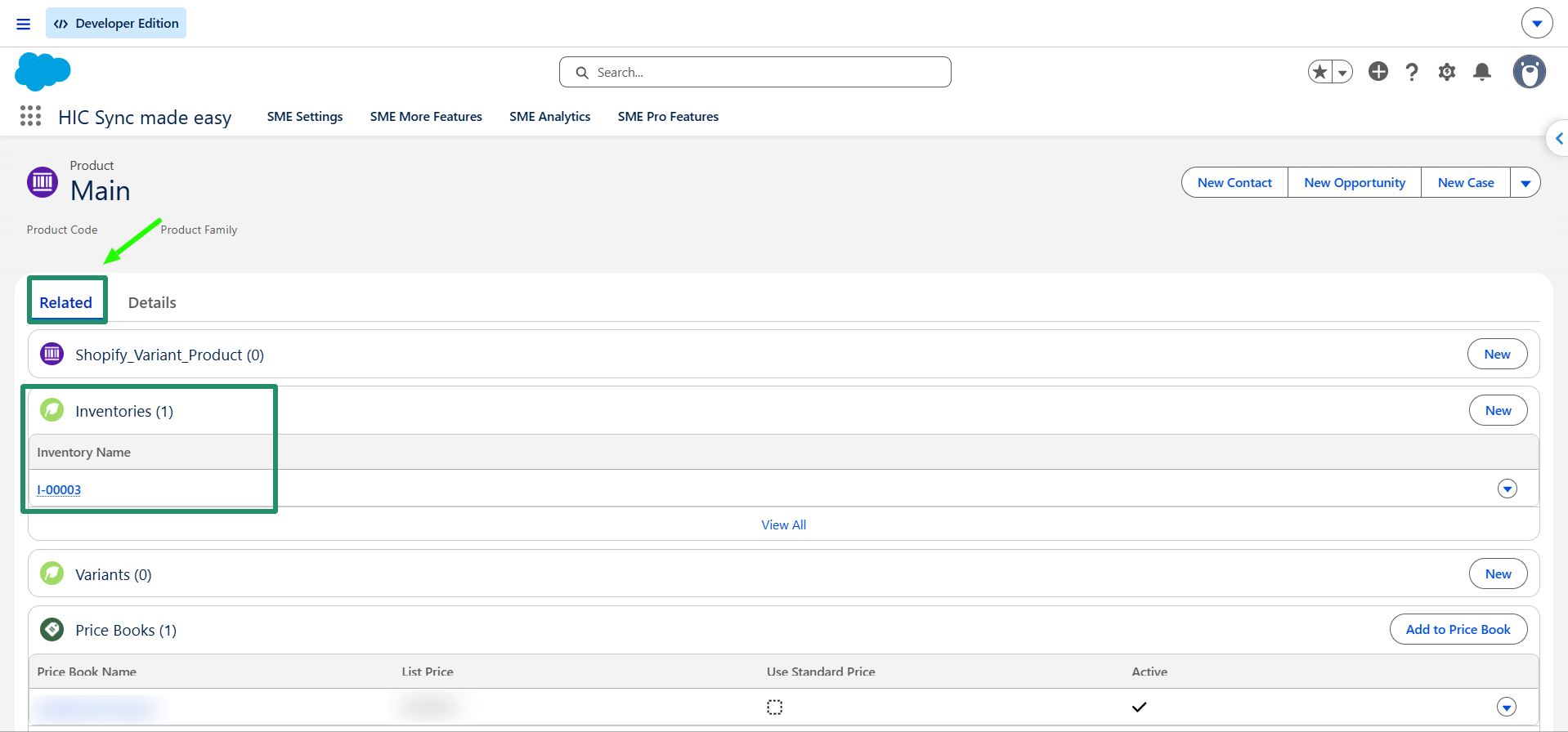
Step 10: Navigate to the "Related" section, where you will also find the associated Inventory record.
This completes the process of syncing a Shopify Variant as a Product in Salesforce.
Thanks!
Was this article helpful?
That’s Great!
Thank you for your feedback
Sorry! We couldn't be helpful
Thank you for your feedback
Feedback sent
We appreciate your effort and will try to fix the article
